Home Screen
The Crodox application Home screen provides an overview of your workspace and quick access to common workflows.
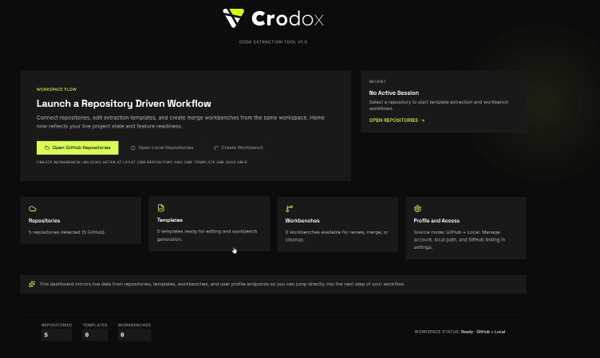
The Home screen displays your workspace status and provides quick-start options to begin your work.
The main section guides you through the typical Crodox workflow:
Steps:
- Open GitHub Repositories - Browse and select a GitHub Enterprise repository
- Open Local Repositories - Browse repositories stored locally
- Create Workbench - Start analyzing your selected repository with a template
Note: You must have at least one repository and one template available to create a workbench.
Below the workflow section, you'll see four status cards:
- Count: Number of repositories accessible in your workspace
- Source: GitHub Enterprise (and Local, if available)
- Action: Click to browse all repositories
- Count: Number of grammar templates you've created
- Status: Shows if templates are ready for use
- Action: Click to create or edit templates
- Count: Number of active workbenches
- Status: Shows available workbenches for review, merge, or cleanup
- Action: Click to view workbench details
- Source Mode: Shows your current access configuration (e.g., GitHub + Local)
- Options: Manage account, local path, and GitHub linking in settings
- Action: Click to go to Settings
The Recent section at the top right shows:
- Last Active Session - Your most recent workbench or workflow
- Quick Access - "OPEN REPOSITORIES" button to jump back into work
If no recent session exists, you'll see "No Active Session".
At the bottom of the screen, the Workspace Status indicator shows:
- Ready - Your workspace is configured and ready to use
- GitHub + Local - Available source modes (GitHub Enterprise repositories and/or local repositories)
- Click Open GitHub Repositories or Open Local Repositories to select a repository
- Create or select a template from the Templates card
- Click Create Workbench to begin analysis
- Monitor your progress in the Workbenches card
See also: Application Navigation - Sidebar overview · Getting Started - Full setup walkthrough