Example 1: Ordinary Execution
This page shows how the Thor interface can be used to schedule ordinary test executions, i.e. without adverse conditions.
The following image displays the interface of the test server (see Running), after the testCalculatorPlus test has been executed using the No algorithm, which means that no adverse conditions has been triggered during the test execution.
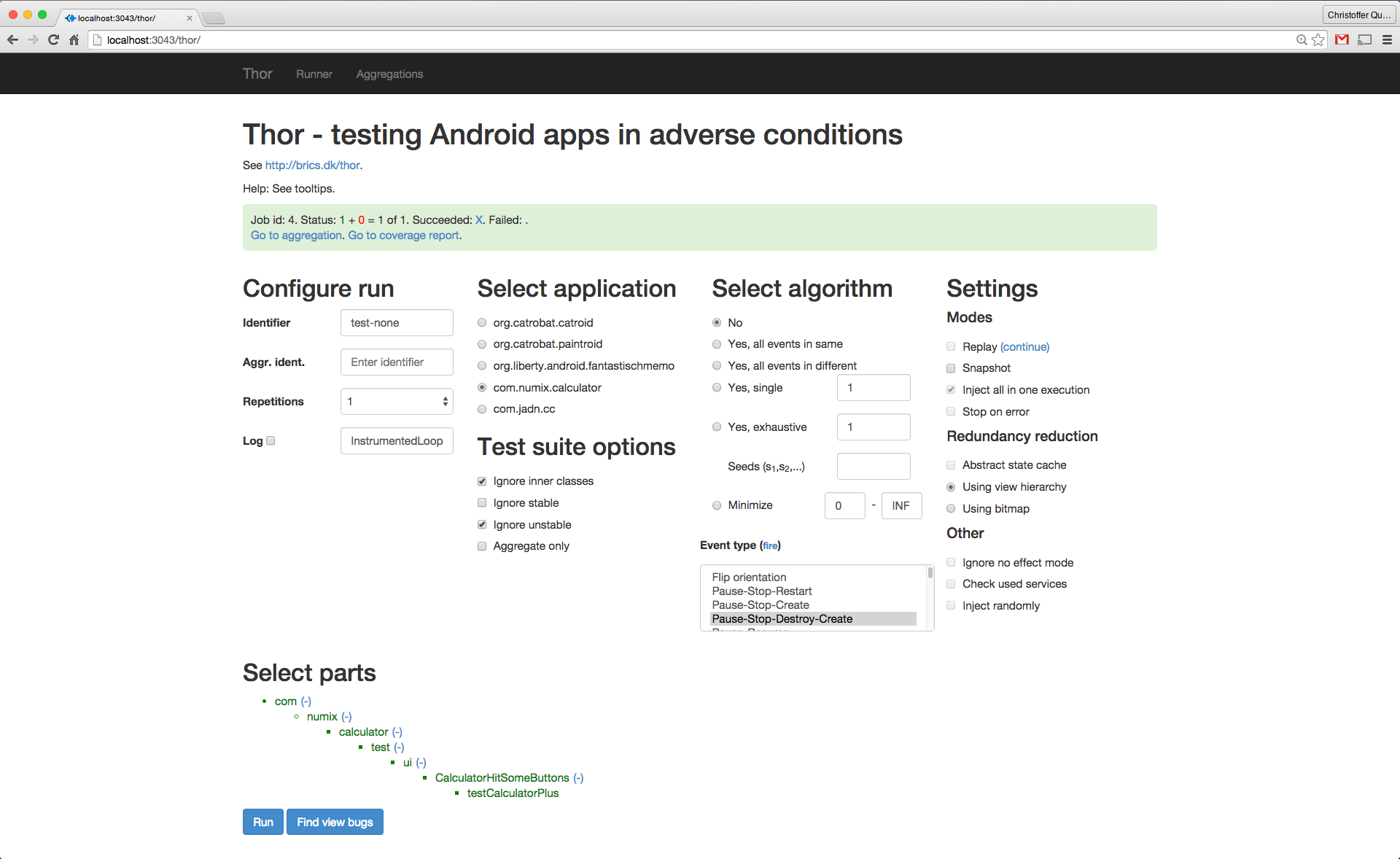
The box in the top of the page represents the scheduled job. It is grey while pending or executing, and turns green ones the job has completed.
- The
X's followingSucceededandFailedare links to the individual test results (based on Spoon), and show up whenever a test from the job finishes.
Once the job finishes (i.e. all the scheduled tests have finished) the following links show up:
-
Go to aggregation: a complete report of all tests incl. time, bug reports, etc. (again, based on Spoon) -
Go to coverage report: a complete coverage report (assuming that coverage was enabled when building the app under test)
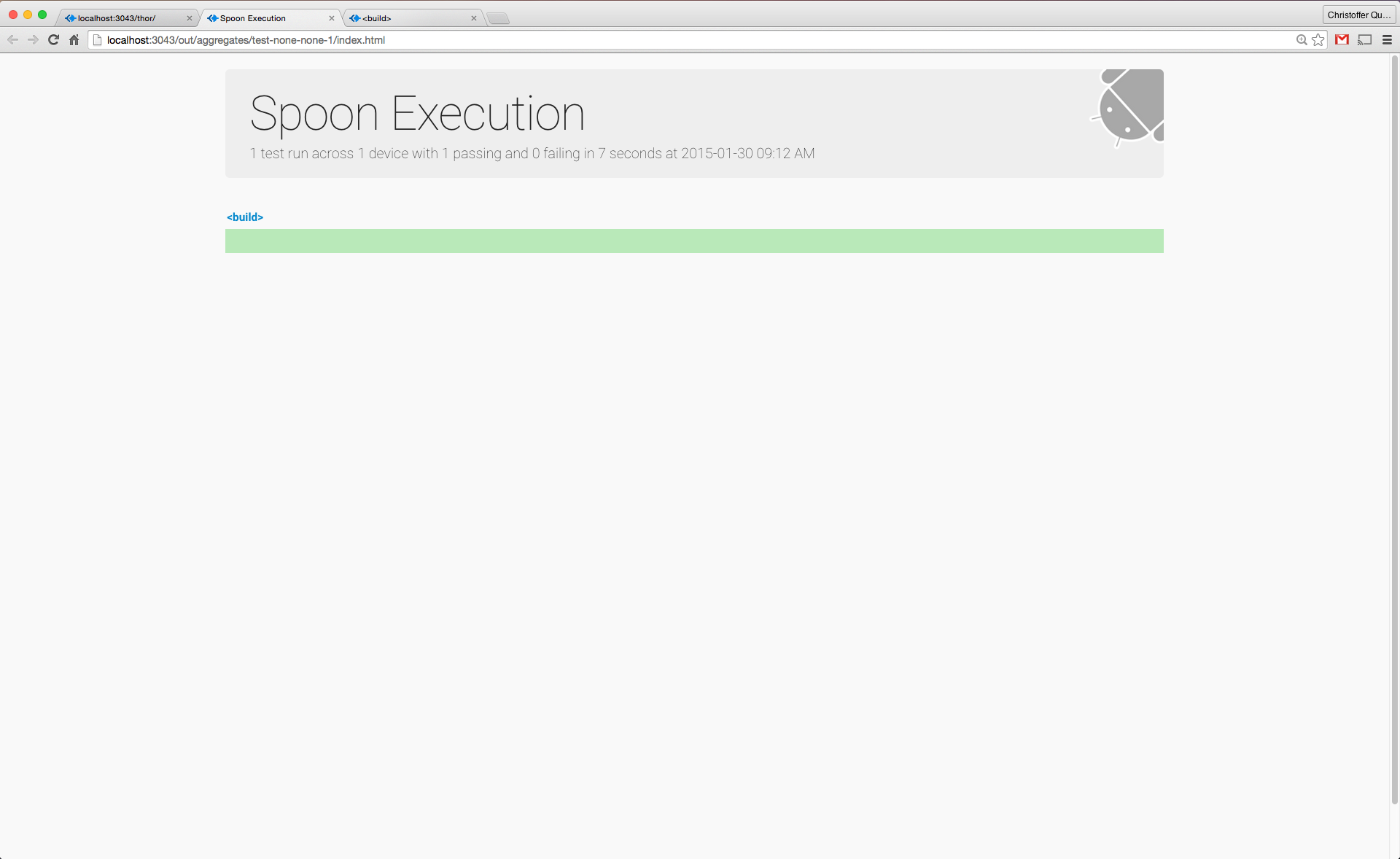
The following image shows the aggregation overview report of testCalculatorPlus, which executed in 7 seconds. In case multiple tests have been executed, their results would also be depicted on this screen. Aggregation reports are stored in ~/backlogOut/aggregates (according to BacklogRunner/config.js), but are also served by the test web server.
In case of test failures, it is possible to click on the failed tests to obtain an individual test report with details on the failure (see Example 2: Adverse Conditions).
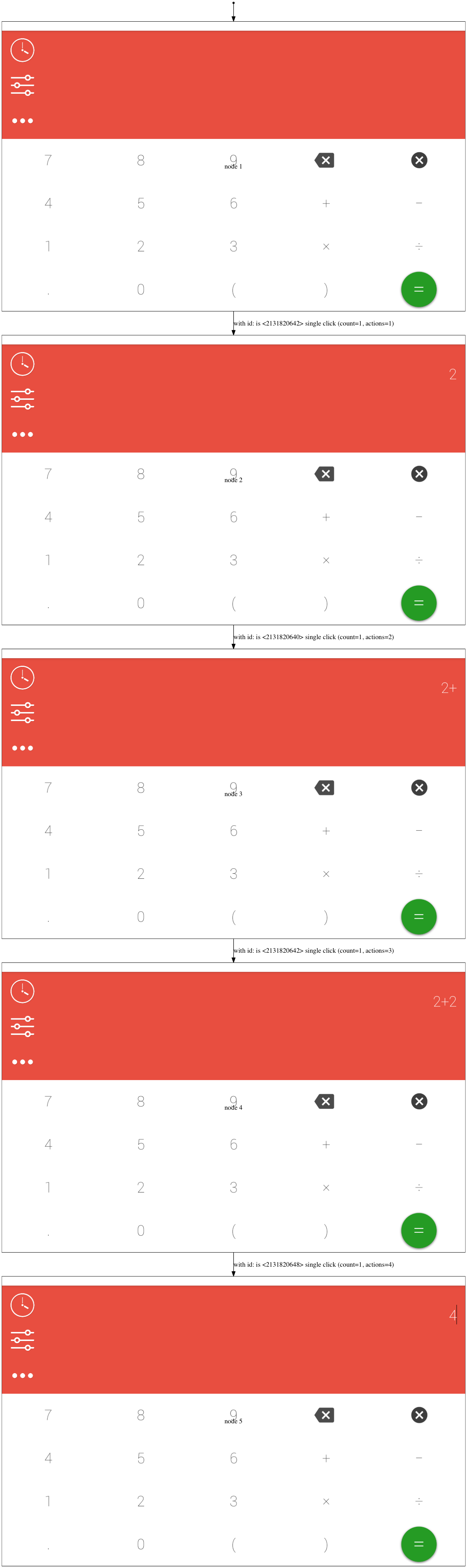
The following image is a graph that displays the screens reached during the test. More precisely, a snapshot is taken at each injection site (for injection sites, see the paper, "Systematic Execution of Android Test Suites in Adverse Conditions").
This is especially useful for debugging in adverse conditions, since it is easy to identify what the impact of an injection was (in cases where the effect of an injection is manifested on the UI).
Snapshots are enabled by checking the Snapshot checkbox in the Thor web interface, and will be saved to ~/backlogOut/graph (according to BacklogRunner/config.js).