Setting Up OctoPrint
OctoPrint is a host software that provides a web interface and API allowing users to wirelessly interact with their 3D printers. OctoPrint is compatible with the Ultimaker 2 out-of-the-box. This includes the capability to track the status of, start, or stop a print job and download or upload gcode files via a REST API.
OctoPi is a Raspbian-based distribution that is installed on an SD card and operates on a Raspberry Pi. OctoPi contains all the packages needed to run OctoPrint while connected to a 3D printer.
We used a first generation Raspberry Pi Model B outfitted with a Wi-Pi wireless adapter and a 16GB SD card fitted with OctoPi.
Download and install OctoPi onto the SD card of the Raspberry Pi.
We used OctoPi v0.10 and OctoPrint v1.2.7. Later versions of OctoPi and OctoPrint should work in nearly the same manner.
OctoPi must have internet access in order for OctoPrint to work. To add network credentials, you will need to navigate the contents of the SD card. In the root directory, open octoprint_network.txt and modify/uncomment the lines for the configuration options needed.
Below is an example of adding a WPA2 secured network with SSID networkID and password sukeersdog. Spaces are allowed.

Your computer must be on the same network as the OctoPi in order for it to be accessible. As of right now, we do not believe that there is a way to get IllinoisNet to work with OctoPrint due to the extra layer of authentication. Look to use local routers and hotspots instead.
Sample octoprint_network.txt file
Connect the USB cord from the Ultimaker 2 to the Raspberry Pi running OctoPi and power on both devices. It takes a couple minutes for OctoPi to fully power up. Make sure that the Raspberry Pi and the laptop/device you are using are on the same network.
Point your browser to http://octopi.local to begin using OctoPrint's web interface. It may take a few minutes to load on start.
To connect to the 3D printer and begin relaying commands, set the baudrate to 25000 and press Connect. The Ultimaker 2 should then restart itself and OctoPrint should refresh with a connection status.

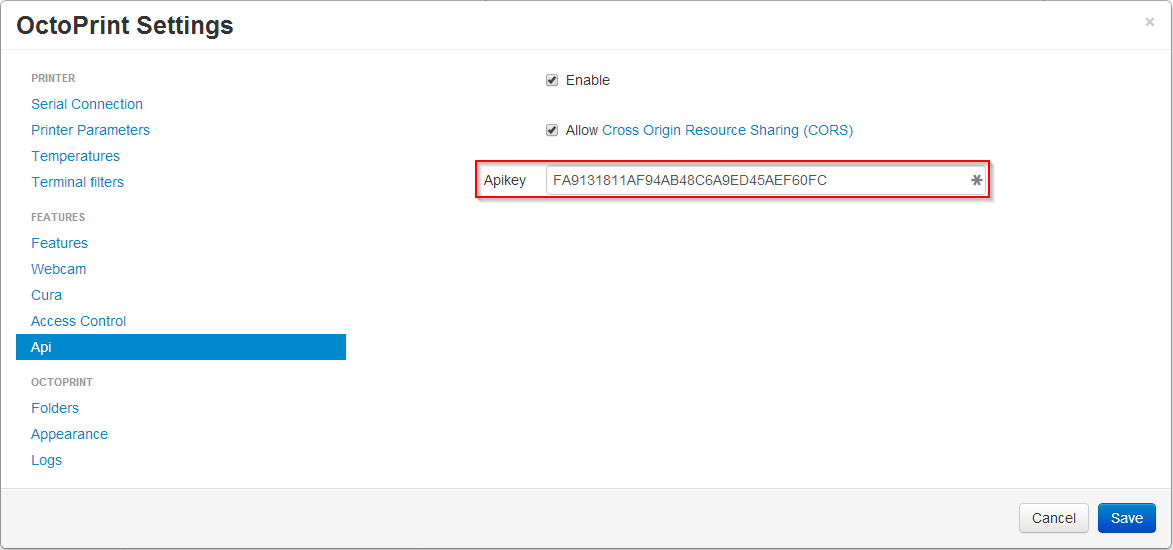
To allow for API requests, enable Cross Origin Resource Sharing in the OctoPrint settings. The API key is also found in the same menu.
- The Ultimaker 2 Extended requires a baudrate of 250000
- Default login credentials for the Raspberry Pi are username: pi and password: raspberry. This can be changed during installation.
- Default login credentials for OctoPrint are username: admin and password: password. This can also be changed after installation.
- The terminal tab of OctoPrint allows you to track operational status and commands sent