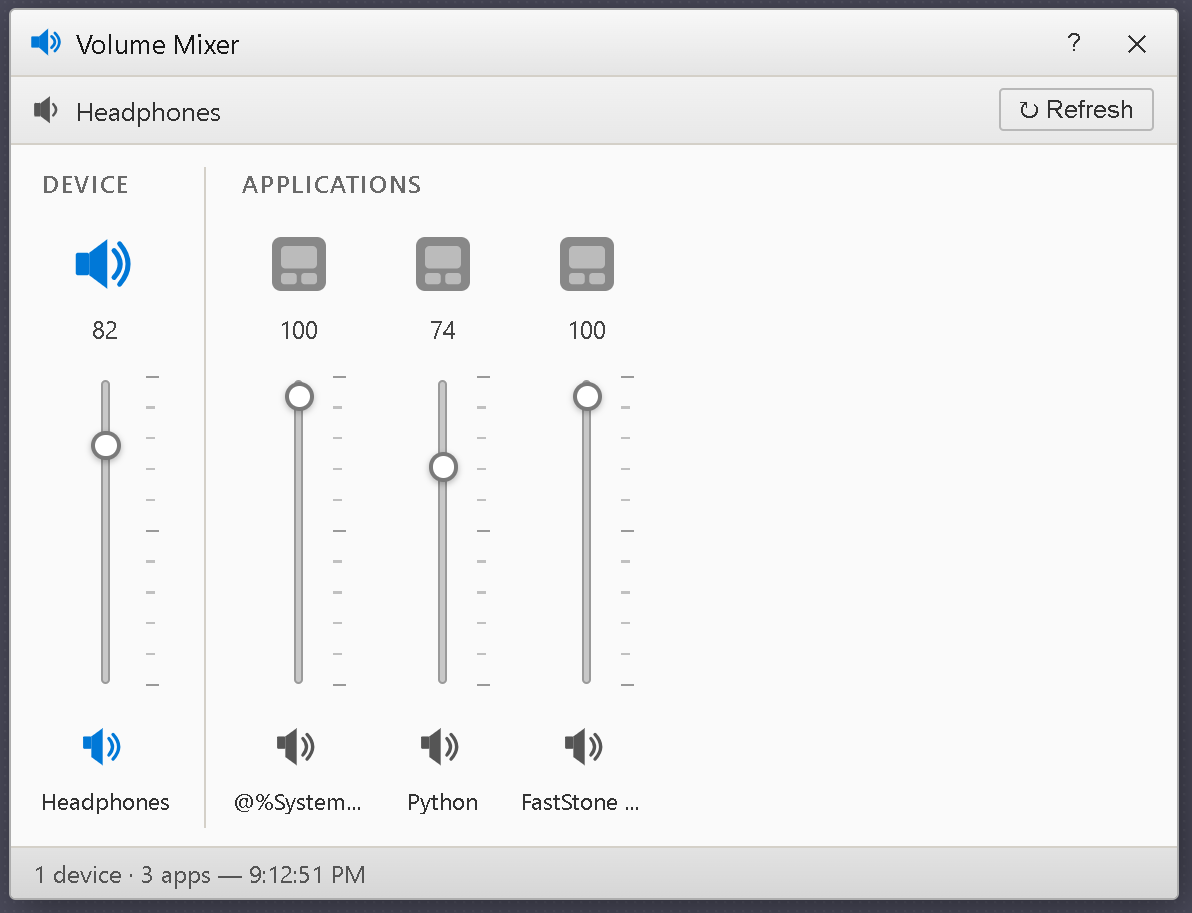
A web-based replica of sndvol.exe that controls REAL Windows audio — your actual speakers and every running app's audio session (Chrome, Spotify, Discord, VLC, etc.) — using the Windows Core Audio (WASAPI/MMDevice) API through NAudio.
Browser UI  ←──────────────→  ASP.NET Core API  ←──→  Windows MMDevice API
(your browser at localhost:5050)   (runs on your PC)        (real audio)
The backend uses NAudio (a .NET wrapper for Windows Core Audio COM APIs):
MMDeviceEnumerator→ lists real audio endpointsAudioEndpointVolume→ master device volume & muteAudioSessionManager2→ per-app audio sessionsISimpleAudioVolume→ per-app volume & muteProcess.GetProcessById→ resolves PID → app name/icon
| Requirement | Version | Link |
|---|---|---|
| .NET 8 SDK | 8.0+ | https://dotnet.microsoft.com/download |
| Windows | 10 / 11 | (required — uses Windows Core Audio) |
Check if .NET is installed:
dotnet --version
# Must print 8.x.xUnzip SndVolWeb.zip to any folder, e.g. C:\SndVolWeb\
cd C:\SndVolWebdotnet restoreYou'll see it download:
  Restored ... NAudio (2.2.1)
  Restored ... NAudio.Wasapi (2.2.1)
dotnet runOutput:
info: Now listening on: http://localhost:5050
Your browser opens automatically at http://localhost:5050
You'll see your real speakers and every app currently playing audio!
| Channel | What it is |
|---|---|
| Speakers | Your default audio device — drag to change master volume |
| System Sounds | Windows notification sounds (PID 0) |
| Chrome / Edge | Any browser tab playing audio |
| Spotify | Spotify app if it's open |
| Discord | Discord voice/sounds |
| Any other app | Anything registered with Windows audio mixer |
🔄 The UI auto-refreshes every 4 seconds to detect new/closed app sessions, just like the real sndvol.exe.
dotnet publish -c Release -r win-x64 --self-contained true -o .\publishThen just run:
.\publish\SndVolWeb.exeIt opens your browser automatically!
"No audio device found" → Make sure your PC has an audio device and it's enabled in Windows Device Manager.
"No active app audio sessions" → Open an app that plays sound (Chrome with a YouTube tab, Spotify, etc.) then click ↻ Refresh or wait 4 seconds.
"Cannot reach the audio API"
→ The dotnet run server isn't running. Start it first, then open the browser.
Firewall prompt → Click "Allow" — it only listens on localhost (127.0.0.1), not accessible from other computers.
"Access denied" errors → Run the terminal as Administrator if NAudio can't access audio sessions.
| Method | URL | Body | Description |
|---|---|---|---|
| GET | /api/volume |
— | All real channels |
| PATCH | /api/volume/{id}/volume |
{"value":75} |
Set volume 0–100 |
| PATCH | /api/volume/{id}/mute |
{"muted":true} |
Mute/unmute |
IDs look like:
- Device:
device:{windows-device-guid} - App:
session:{pid}:{appname}
In wwwroot/js/app.js, add to the ICONS object:
myapp: () => `<svg>...</svg>`,In WindowsAudioService.cs, add to _iconMap:
["myapp"] = "myapp",MIT — free to use, modify, and distribute.


