Repository navigation
One shot
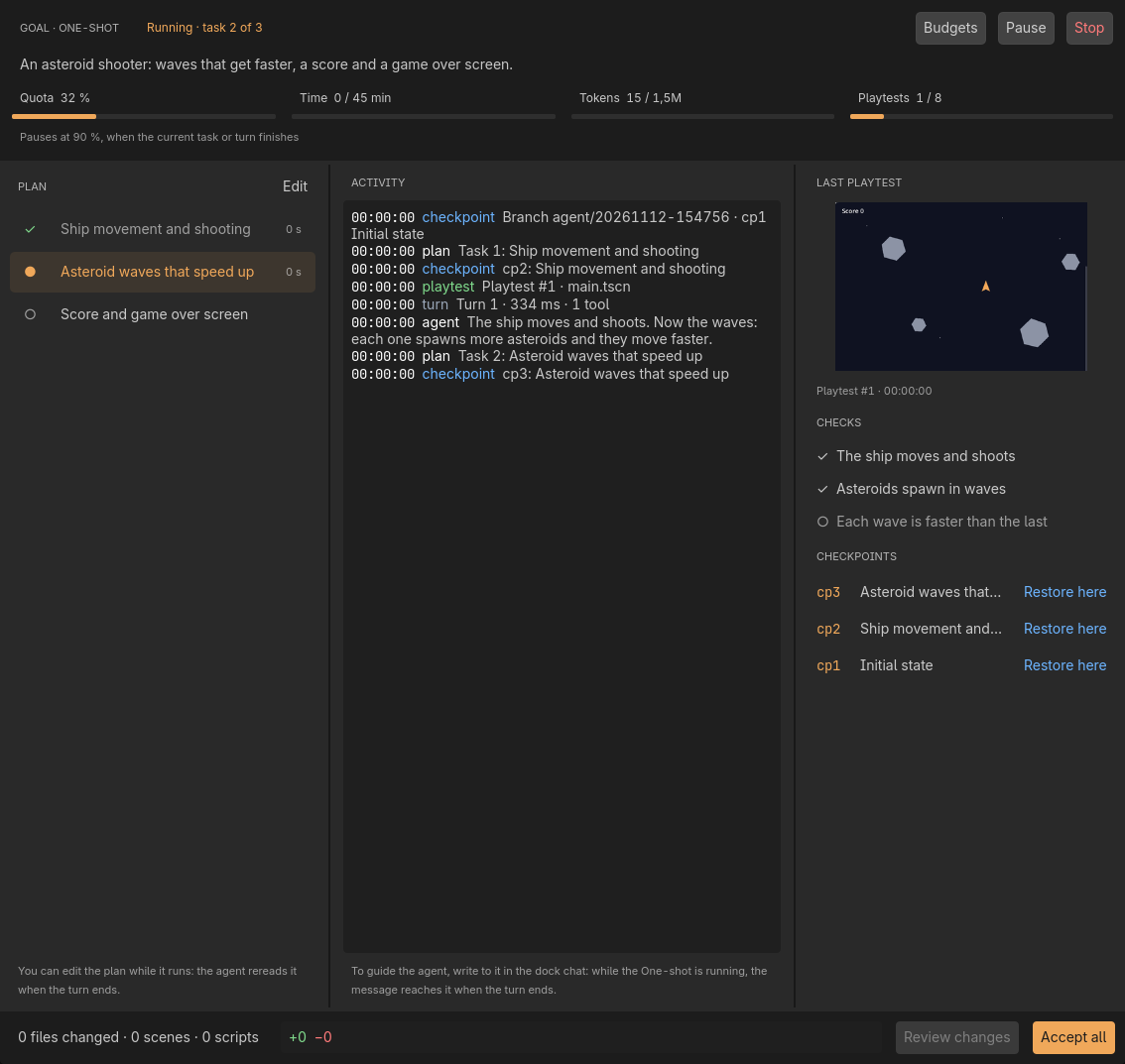
One-shot gives the agent a whole goal ("a 2-player Pong with score", "a top-down shooter with three enemy types") and lets it work on its own. The harness keeps it on track:
- a plan and a spec;
- budgets;
- git checkpoints you can go back to;
- playtests with captures;
- checks it must report.
- Pick One-shot in the dock: the One-shot screen opens.
- Write the goal. The editor grows with your screen, so long goals fit.
-
+ Reference files… adds files for the agent to follow: a design document (GDD), concept art, a level sketch… You can also drop them on the form from the FileSystem dock. The agent reads them before writing the spec, and the QA evaluator checks the game against them; where they disagree with the goal, the goal wins. Files from inside the project are read where they are; the rest are copied into the run's folder (
refs/, up to 50 MB each). -
From the board… (in a project organized with Scope Compass) starts from a task or a milestone of the board: pick one of the open ones (type to filter) and its title and description become the goal, which you can still edit. The agent reads it with its steps, decisions and referenced documents before writing the spec, moves it to doing, adds its plan as the task's steps and checks them as it goes, links the spec to it, and at the end fills in its test and notes and moves it to review. With a milestone, it does that for each of its open tasks it works on. If the task has an
agent:<name>tag or an assignee, it picks the run's agent: a name that matches your agents (the agent, its family likeclaudeorcodex, the account or its email, as inagent:codex work) selects it on the right, which you can still change; one that matches none leaves the agent as it was and says so under the chip. With Other agents for the spec and QA, the spec's agent only reads the task, and the builder keeps it up to date. The ✕ on the chip drops it.
-
+ Reference files… adds files for the agent to follow: a design document (GDD), concept art, a level sketch… You can also drop them on the form from the FileSystem dock. The agent reads them before writing the spec, and the QA evaluator checks the game against them; where they disagree with the goal, the goal wins. Files from inside the project are read where they are; the rest are copied into the run's folder (
- Review the budgets (time, tokens, playtests) and the options:
- Create a git checkpoint before each One-shot task: one commit per task on an agent branch;
- Review the spec before building: the agent writes the spec first and waits for you.
- Builder's project mode (when the project has project modes): the builder only writes that mode's files and follows its instructions; the evaluator and QA work as always. What the mode would make ask (shell commands, project tools, other MCP servers) is denied, since nobody answers cards in a run, and a line under the selector says so. Verifying the game (running scenes, playtests, captures) keeps working.
- Start. If you have uncommitted changes, the harness asks first; they go into a "WIP" commit on the agent's branch, never on yours.
Never run One-shot on a repository where you don't want new branches. To try it, tests/make_sandbox.sh <folder> creates a throwaway project.
-
Spec: the agent writes
spec.md, a high-level description of the game: mechanics, game loop, visual direction and what "done" means. With Review the spec before building, the run waits in "Spec to review": the plan column shows the spec, Edit opens it and Approve spec starts the build. To change it, you can also tell the agent in the chat what you want: it applies the change to the spec, without building anything, and waits for your approval again. - Plan: the agent turns the spec into tasks. You can edit the plan while it runs; the agent rereads it when its turn ends. Each task shows how long it took, and the current one counts live.
-
Build and verify: for each task, the agent edits, runs the game (
run_scene), looks at frames (capture_game_frame), reads errors and reports checks (pass,fail,pending). It keepsprogress.mdup to date. -
Checkpoints: each task (or each playtest, if the agent doesn't report a plan) is a
cpNcommit on theagent/<date>branch.- Restore here puts the project back exactly as it was at that checkpoint and pauses the run;
- Resume continues from there.
- QA: when the agent says the game is done, a separate evaluator checks it (see below). If it doesn't pass, its findings go back to the agent for another round.
-
End: when QA passes, the QA rounds run out, or a budget runs out, the run finishes (with a budget, the agent writes a final report first).
- Review changes lists the files; double-click shows the diff against the start;
-
Accept all makes a final commit on
agent/<date>. You do the merge; - Report shows what the harness measured (see below).
The prompts the harness sends the agent during a run (the goal, the next task, keep going with the goal, the QA evaluation and its fixes, the final report) show in the chat as dimmed lines with a label, such as One-shot · next task in the plan, not as messages you typed. Show prompt opens the text the agent got.
-
Top bar:
- goal and phase;
- budget bars: plan quota, time, tokens, playtests;
- the active quota rule;
- Budgets, Switch account, Spec and progress, Pause/Resume and Stop.
- Plan: tasks with their status and duration.
-
Activity: everything that happened, with timestamps:
- tool calls with their duration;
- turns ("Turn 3 · 4 min 12 s · 9 tools");
- checkpoints, playtests, quota and budget events;
- your guidance.
- Side: the last playtest capture, the checks and the checkpoint list.
- Bottom bar: summary of changed files, Review changes, Accept all.
The agent that builds tends to be lenient with its own work, so the harness doesn't take its checks at face value.
- When the agent says it's done, a new session opens for an evaluator. It doesn't see the builder's conversation: only the goal, the spec, the builder's notes (as claims to verify), the checks it reported and the game criteria with their scoring examples.
- The evaluator plays the game:
run_scenewith inputs, live input,game_get/game_waitto check facts, frames and errors, and it reads the code. It can't edit: editing files, scenes or project settings and the shell are denied while it evaluates. - It answers with checks, a score per criterion and concrete findings (what fails, how to reproduce it, where). Its report goes to
qa-<n>.md. - Its verdict decides the checks. The game passes when every check passes and every criterion reaches its minimum.
- A report without playing doesn't count. If the evaluator gives checks or scores but called none of the tools that play the game in its turn (
run_scene,game_input,game_step,game_script,game_ui_act,game_watch, also from its subagents), the round is inconclusive: its checks aren't applied, the activity says so, and the run ends saying the evaluator couldn't reach a verdict. The report is still inqa-<n>.md. - If it doesn't pass, the run goes back to the builder's session with the failing checks, the criteria below the minimum and the findings as the next turn. When the builder says it's done again, a new QA round starts.
- QA rounds (Settings → One-shot, 2 by default) is how many evaluations a run gets; 0 turns the evaluator off. QA turns count toward the budgets, and a run with no budget left ends without another round.
- During an evaluation the phase reads Evaluating · QA round n, the activity shows each round's verdict and findings, and Pause works as usual (Resume evaluates again). The report has a table with the rounds.
Each run opens its own tab in the dock, One-shot · , with the agent, account and model you picked in the form. The form starts with those of the active dock tab. Model offers the one remembered for One-shot and the ones you already used with that agent (or the agent's full list, if a tab has a session open with it), and the one you pick is remembered for One-shot. With Other agents for the spec and QA, the spec and the QA rounds can use another agent, account or model: another agent for the spec only writes it, and the builder starts a new session from it; another agent or account for QA evaluates in its own process, and the builder's session is resumed afterwards. Whatever you write in that tab's chat goes to the run's agent, with the images and files you attached; the other tabs stay normal chats. The run's tab can't be closed while the run is going; once it ends, it stays as a regular session you can read or close. If the agent is in the middle of a turn, the message waits:
- the activity shows guide · queued: … and the chat says so;
- when the turn ends it's sent, and the activity shows guide · sent: ….
- Time, tokens and playtests.
- At 80 % you get a warning. At 100 % the agent is asked for its final report and the run ends.
- Budgets in the top bar changes them while the run is going: 0 means no limit, and Unlimited removes all of them. If the run was closing because of a budget and the new one is enough, it continues.
If the agent repeats itself without progress, the run asks it to try another approach. That covers:
- the same check failing the same way;
- the same tool call failing with the same arguments;
- the same edit over and over;
- the same
godot.*call (or cycle of calls) returning the same result three times in a row in a turn.
If it happens again, the run pauses and waits for you to guide it. The number of repeats is set in Settings → One-shot.
They live in .godot_agent/oneshot/<id>/ inside the project: spec.md, progress.md, qa-<n>.md and, in refs/, the copies of the reference files.
- Spec and progress opens them in tabs, with Show in folder and Open in external editor. Clicking their path in the chat opens the same viewer.
- If the run has to continue in a new session, the agent rereads them.
- The folder has a
.gdignore: it stays out of the FileSystem dock and the export. It travels in the checkpoints of the agent's branch; if you don't want it in your branch, delete it before merging.
The agent knows from the start how its work will be judged:
- playability;
- functionality;
- visuals and feel;
- code.
Each criterion has a weight and a minimum score from 0 to 10, which you can change in Settings → One-shot.
If the agent reports its plan quota (Claude Code does):
- Warning at 75 %.
-
Pause at 90 %: the run pauses when the current task or turn ends, so a task isn't cut in half. If neither happens within 10 minutes, or the quota reaches 98 %, it stops the turn anyway and pauses with a
-quotacheckpoint. The banner says when it will pause. -
Limited: when the limit hits, sending is blocked with a countdown, and a
cpN-quotacheckpoint saves the state. When the window resets, the run resumes on its own or waits for your confirmation (Settings → One-shot → Plan quota). Resume tries right away.
The thresholds apply to the fullest window that limits the model in use. A model's own weekly limit (Fable's, for example) only counts while the run uses that model.
If you have another account, you don't have to wait for the reset. Open Switch account in the top bar. It lists the accounts and agents you set up in Settings and in the dock's agent menu, with the one in use marked and the last quota seen for each (62 % used, exhausted, resets in 2 h):
-
another account of the same agent: the harness restarts the agent with that account and resumes the same session (
session/load), so the agent keeps its context. For Claude Code it first copies the session to that account's folder; - another agent (under Another agent (new session)): it asks first, because that agent can't load this conversation. The run continues in a new session with the plan summary;
- Sign in with another account · runs the agent's login from the editor. When it finishes, the run continues;
-
I already signed in with another account (in a terminal): for when you did it yourself (
claude, then/login).
Every switch forgets the old account's quota. If the agent can't load the session with the new account, the run continues in a new session with the plan summary.
Outside a One-shot, the dock shows the same Switch account button next to the quota ring when you hit the limit.
To spread a long run across several subscriptions, turn on Settings → One-shot → Plan quota → When an account runs out, continue the One-shot with the next account of the same agent. When the run reaches the pause threshold or the plan limit, it doesn't pause: it switches by itself to the next account of the same agent, in the order of the dock's agent menu, and resumes the same session. It skips accounts that are still exhausted or at the threshold. The run only pauses when none is left. The activity says which account took each stretch.
The run is saved in user:// while it goes. If the editor closes or crashes:
- on reopening, the run is back in the One-shot screen with its activity and a notice in the chat;
- if it was waiting for the quota, it keeps waiting and resumes on its own at the reset time. Resume or Switch account skip the wait;
- otherwise it's paused: Resume reopens the agent's session (or a new one with a summary of the plan);
- Stop ends it.
The dock's Retry button, during a One-shot, resumes the run in its own session.
When the run ends, Report shows what the harness measured, not what the agent claims:
- duration per task;
- times: working time, turns (average and longest), time waiting for the quota, paused or reviewing the spec;
- tokens and playtests;
- tools with uses, failures and time;
- how many times each check failed;
- permissions, errors, quota pauses, loops, account switches and changed files;
- with a builder's project mode, what it denied, as Denied by the project mode.
It's saved in user://godot_agent/oneshot/<id>.report.json to compare runs, and Copy Markdown copies it.
Without git, or in a repository with no commits, there are no checkpoints. The harness warns you before starting.