Repository navigation
User guide
Deutsch · Overview · FAQ by topic
Use Builder PDF Presenter with the WordPress Block Editor (Gutenberg): insert documents with its blocks and patterns. The Classic Editor is supported through shortcodes. When Bricks Builder is installed and active, dedicated native elements are also available.
One post with one or several documents: Enable the post type under Settings → Builder PDF Presenter. Add PDFs in its document panel, then insert the block with “Documents assigned to this contribution”. A PDF assigned in the panel is not inserted into unrelated posts automatically.
An independent block: Select “Own PDF collection” and choose or upload files. These assignments belong to this block. Reorder documents and set display titles there. Removing an entry from a collection does not delete the Media Library file.
An archive across posts: Select Query document contributions, choose its post type and the first or all assigned PDFs. Empty assignments do not consume result slots. Configure the collection ID and page size for metadata filters and pagination.
Use the left navigation to jump between content management, cards, buttons, reader, type overrides, watermark and preview. It is one form, so switching sections keeps edits. On smaller screens the navigation appears above the sections.
The fixed bottom bar shows saved/unsaved status. A dot next to Save changes also indicates unsaved edits. Saving runs without leaving the page; an error keeps your fields intact for another attempt. Leaving with unsaved changes prompts the browser warning where supported. Without JavaScript, the standard WordPress form remains available.
Settings cascade from built-in defaults to website, content type, post and document/output overrides. “Inherit” follows the preceding scope. Collection limits and central watermark policy remain administrative controls. Existing documents survive a reduction of the limit.
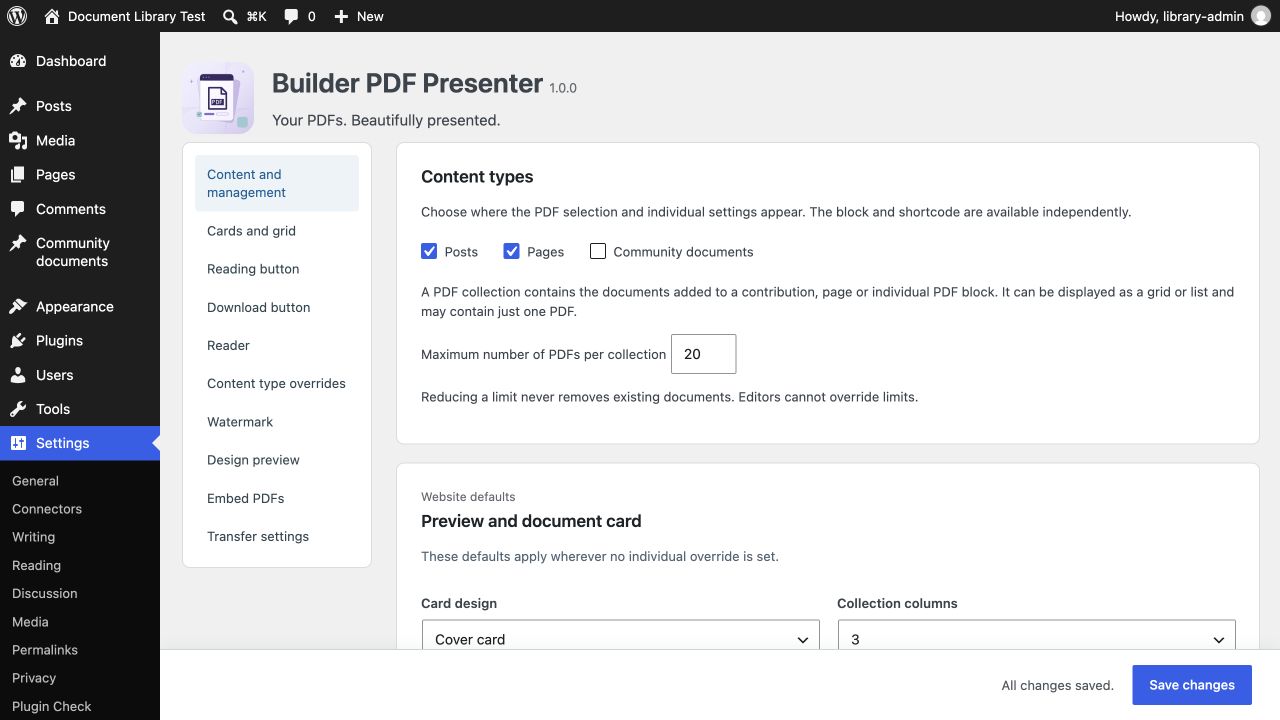
Grouped settings for content types, document cards and reader defaults.
The “PDF Presenter · Block” toolbar is editor-only; its name is not a page heading. Use Edit for document care and Preview for the cards. Test reader opens an explicit test link. Block style settings affect the output, not this toolbar. Theme support determines which native Block Editor style panels are offered.
Use cover, compact or list cards. Cover frames can preserve a consistent ratio or original proportions. Choose titles and file details that help visitors distinguish documents. Avoid extremely long labels in narrow columns.
PDF document: Use inside a native post Query Loop, or select a PDF explicitly. With no explicit file, it uses the first PDF assigned to the current/selected source post. The source hint in the builder explains this. An element is not a copy of the file.
PDF collection: Use for all assigned documents of one source post. Let the plugin set the inner collection columns. This element does not create a query across post types.
For equal-height query cards, stretch the outer grid’s children and let the loop wrapper stretch its PDF element. The plugin’s native wrapper fills that available space; action buttons stay at the bottom. No fixed pixel height is required. Custom parent alignments can still change the result.
Dynamic tags: {bpp_count}, {bpp_id}, {bpp_title}, {bpp_url}, {bpp_reader_url}, {bpp_cover}. Except count, these use the first valid assigned document. For a condition such as {bpp_count} > 0, place the condition on the PDF element inside the post loop. Native Bricks styling/classes and Component property connections remain available. Switching off Bricks pauses only its integration; the core retains assignments.
Settings → Builder PDF Presenter → Embed PDFs provides copyable insertion examples. Use a Shortcode block or the Classic Editor. The dedicated shortcode reference explains all parameters and use cases.
[builder_pdf_presenter]
[builder_pdf_presenter post_id="123"]
[builder_pdf_presenter pdf_id="456" mode="tab" show_title="0"]
IDs are WordPress post/attachment IDs from your own site. By default the shortcode uses the current post. Reading mode values: modal, tab (local reader in a new tab), file (original PDF). Visibility options use 1/0; labels can be overridden with read_label and download_label.
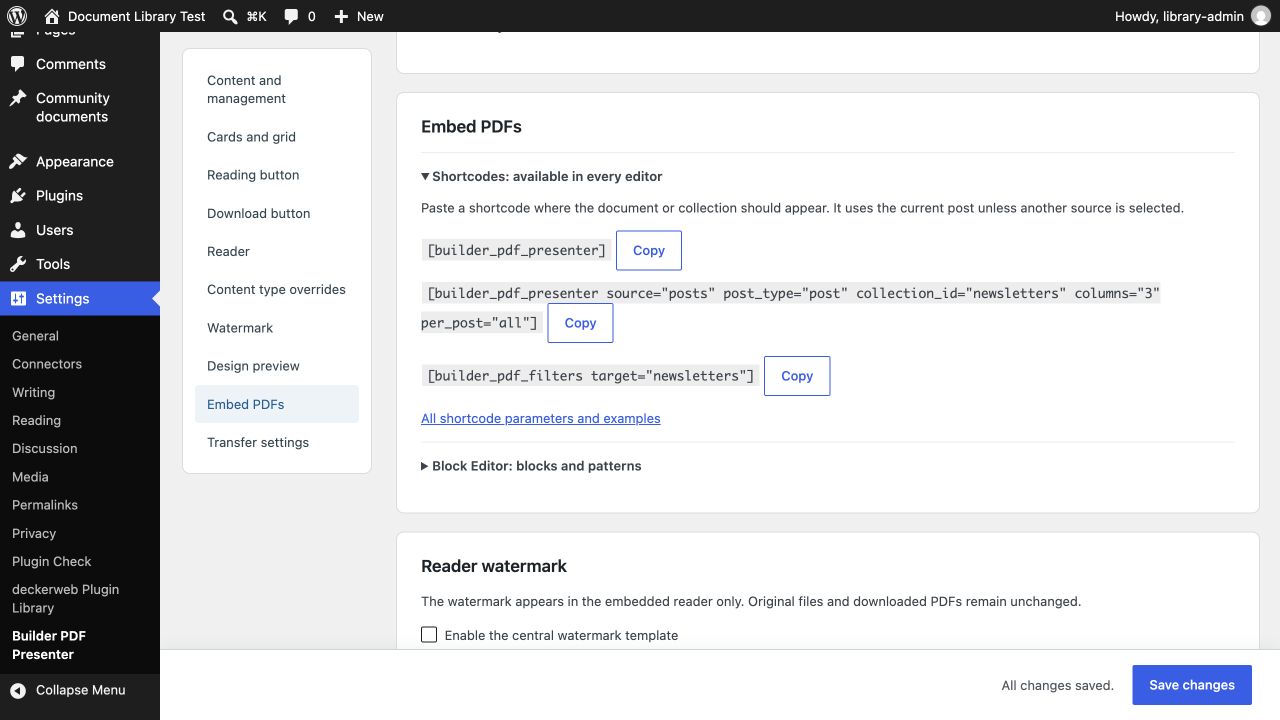
The embedding help provides copyable shortcodes and guidance for Block Editor blocks and patterns.
Administrators choose navigation, zoom, current-page search, fullscreen and file links. Search applies to the current rendered page, not the entire archive. Page memory is limited to the browser session. Original PDF opening remains a fallback if the reader cannot load.
Under Watermark, enable the central template and choose text/logo, position, opacity and size. Editors can only turn that template off for individual documents if the administrator explicitly permits exceptions. It is not a PDF editing or protection feature: originals, downloads and files outside the reader are not stamped.
Tools → PDF migration appears when a supported source plugin, matching content or recovery backups are detected. Review PDF Poster/PDF Embedder sources, migrate explicitly and inspect the report. Check the new output before removing the old plugin. The migration guide covers supported formats, limitations, result reports and recovery. Keep normal website backups.
Tools → Site Health reports local reader files and server PDF-preview support. Missing conversion support does not prevent using custom covers. The Command Palette offers navigation shortcuts appropriate to your permissions. It does not execute imports.
Data is stored in the WordPress Media Library, post metadata and site-specific options. Deactivation/uninstall preserve documents and settings by default. There are no reader-analytics profiles. Optional deckerweb Library/Updater requests support catalogs/updates, not PDF hosting; see the included component documentation and controls.
Real-world examples · FAQ by topic
Collections initially follow saved order. Apply order to collection sorts once; save the post afterward. Output sorting in a block or Bricks element persistently sorts that display without changing editorial order. Visitor sorting affects the current URL only.
For archives, select Query document contributions, choose the content type, and select the first or all assigned PDFs per post. Publication date, source title and menu_order describe posts; upload date describes the Media Library PDF. menu_order is useful when your posts have meaningful values.
Give a collection a unique ID such as newsletters. Enter the same target ID in PDF filters and search. The two filter patterns provide connected layouts, including a sidebar. Apply filters searches, sorts and filters all accessible documents before pagination. This is not PDF full-text search. Sizes use existing WordPress metadata; unknown sizes remain unknown. PDFs are never analyzed during a visitor request.
Native Bricks post query loops keep native Bricks queries and filters. The additional filter element targets plugin collections, not external post loops.
Removing a document removes its assignment only; Undo removal restores it before saving. Documents added in the meantime are kept. Replace changes this assignment, not a shared Media Library file. Shared-use counts cover plugin assignments in editable source posts, not arbitrary foreign builder embeds.
Embed PDFs offers copyable examples and documentation links. Transfer settings exports saved defaults or accepts pasted JSON with explicit source-to-target content type mapping. Import replaces plugin defaults, never documents. No PDF files, assignments or media IDs are transferred. Watermarks remain disabled after import until their text and local logo are reviewed. Save pending settings first if you want them in an export.
PDF.js uses JavaScript modules. If the server delivers pdf.mjs or pdf.worker.mjs as text/plain or application/octet-stream, the browser can reject them with a strict MIME type error. This is a hosting configuration issue; other reader errors can have different causes. In the browser’s Network tools, check the actual response Content-Type for both files under wp-content/plugins/builder-pdf-presenter/vendor/pdfjs/build/. A JavaScript MIME type such as text/javascript or application/javascript is required. HTTP 200 alone does not confirm this.
In the affected virtual host, or in .htaccess when the host permits AddType (AllowOverride FileInfo), add:
AddType application/javascript .mjsKeep existing rules; place this outside WordPress’s generated markers. If .htaccess overrides are unavailable, ask the hosting provider. See Apache AddType documentation.
Have the server administrator extend the JavaScript entry in the effective MIME table, commonly mime.types, to include mjs. For example, an existing application/javascript js; entry becomes:
application/javascript js mjs;If the existing entry uses text/javascript, keep that type and append mjs. Preserve the other mappings; do not replace the full types table with this single line or duplicate the js mapping. nginx does not read .htaccess. Validate configuration with nginx -t before reloading through the server’s usual service management. See nginx types documentation.
For the affected domain, open Apache & nginx Settings → MIME types, choose the custom value option and add application/javascript .mjs, preserving existing entries. Apply changes; activation may take a few minutes. Labels and availability depend on the provider. If nginx serves these files directly, its effective MIME mapping must also be correct. See Plesk’s MIME configuration guide.
After changing configuration, refresh affected browser/proxy caches and check both module responses again, then open the reader. The plugin does not edit server configuration automatically.
If the setting cannot be changed, enable the Download button and, if appropriate, hide the Read button until the reader works. Visitors can still obtain an accessible original PDF without PDF.js. Opening the original PDF directly in a new tab is another option; browser and server determine whether it opens or downloads. Existing file access restrictions still apply. An external Google or Adobe viewer is not required for this workaround.