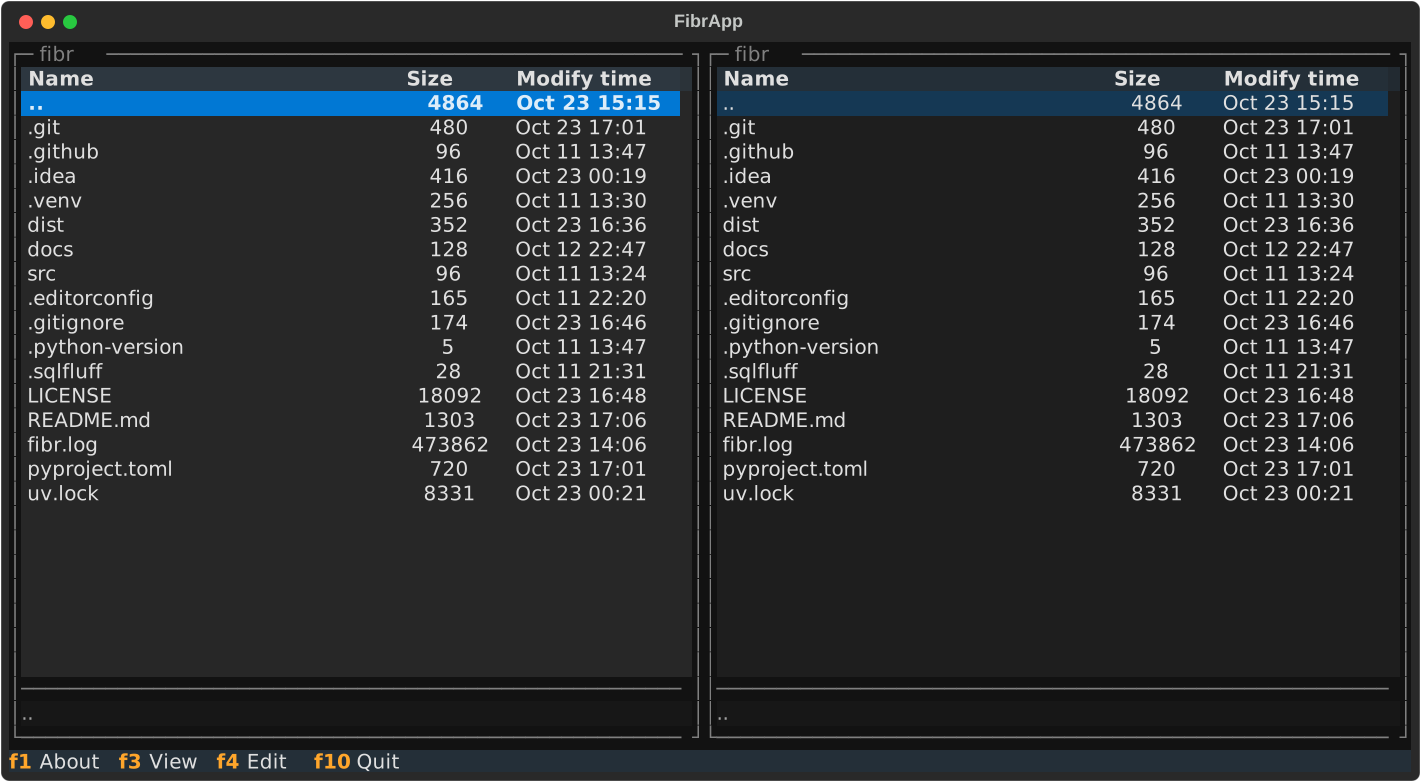
A simple file browser similar to Midnight Commander featuring:
- traditional dual-pane layout
- find-as-you-type per default
basic file operations vai UI: copy, move, mkdirNot implemented yet!- view/edit file delegated to external tools
And that's about it!
It's a very short and select feature set, so this might not be the tool for you. If you're looking for a comprehensive TUI file manager and are not into the classic Norton Commander look & feel, some popular choices to check out are lf, superfile or yazi.
fibr was created to "scratch an itch" and is not looking to become a contender in the space of TUI file managers.
The project status is currently "alpha", i.e. it is neither feature-complete nor extensively tested.
Written in Python using the excellent Textual framework.
fibr is on PyPi, you can use the package manager of your choice to set yourself up. Here is an example using uv:
uv tool install fibrIf you're familiar with Midnight Commander, the basics are identical:
- cursor up/down (⬆, ⬇) to move a line
- page up/down (⇞, ⇟) to move a page
- home/end (⇱, ⇲) to jump top/bottom
- enter (⏎) to enter a directory
- tab (⇥) to switch panels
- F3 to open the highlighted file in an external viewer (
$PAGER) - F4 to open the highlighted file in an external editor (
$EDITOR) F5 to copy file/directoryNot implemented yet!F6 to move file/directoryNot implemented yet!F7 to create directoryNot implemented yet!F8 to delete file/directoryNot implemented yet!- any alphanumeric key triggers "find-as-you-type"
- escape (⎋) to cancel
- tab/shift tab (⇥, ⇧⇥) to jump to next/previous match
- enter (⏎) to confirm (will enter directory if search matches)
- ctrl+o (⌃o) to open a subshell
- ctrl+r (^r) to reload directory from disk
- ctrl+t (⌃t) to toggle file selection
Note
By default, the content of a directory is cached on first read and not automatically refreshed, even when you switch directories. You have to manually issue a reload to see newly created/deleted/updated files.
This behavior is under review.