


Start using NetBird at netbird.io
See Documentation
Join our Slack channel
- Tài liệu: Netbird
Yêu cầu
Bước 1: Tải code mới nhất
REPO="https://github.com/netbirdio/netbird/"
# this command will fetch the latest release e.g. v0.8.7
LATEST_TAG=$(basename $(curl -fs -o/dev/null -w %{redirect_url} ${REPO}releases/latest))
echo $LATEST_TAG

# this command will clone the latest tag
git clone --depth 1 --branch $LATEST_TAG $REPO
- Đến thư mục build
cd netbird/infrastructure_files/
Bước 2: Chỉnh sửa cấu hình
- Tạo file
setup.envtrong đường dẫnnetbird/infrastructure_files/với nội dung
NETBIRD_DOMAIN="192.168.15.6"
NETBIRD_AUTH_OIDC_CONFIGURATION_ENDPOINT="https://id.lab.linksafe.vn/realms/netdev/.well-known/openid-configuration"
NETBIRD_USE_AUTH0=false
NETBIRD_AUTH_CLIENT_ID="netbird-client"
NETBIRD_AUTH_SUPPORTED_SCOPES="openid profile email offline_access api"
NETBIRD_AUTH_AUDIENCE="netbird-client"

NETBIRD_DISABLE_LETSENCRYPT=true

NETBIRD_AUTH_DEVICE_AUTH_CLIENT_ID="netbird-client"

NETBIRD_MGMT_IDP="keycloak"
NETBIRD_IDP_MGMT_CLIENT_ID="netbird-backend"
NETBIRD_IDP_MGMT_CLIENT_SECRET="CxpAdSREUwdYIRlDlwYwxCBeaV7rL86K"
NETBIRD_IDP_MGMT_EXTRA_ADMIN_ENDPOINT="https://id.lab.linksafe.vn/admin/realms/netdev"
- Với các thông số cần chỉnh sửa như sau:
- NETBIRD_DOMAIN: IP của máy đang build
- NETBIRD_AUTH_OIDC_CONFIGURATION_ENDPOINT: https://id.lab.linksafe.vn/realms/{realms}/.well-known/openid-configuration. Ví dụ realms ở đây là netdev
- NETBIRD_AUTH_CLIENT_ID, NETBIRD_AUTH_AUDIENCE, NETBIRD_AUTH_DEVICE_AUTH_CLIENT_ID: netbird-client sẽ là tên client được tạo trong Keycloak
- NETBIRD_IDP_MGMT_CLIENT_ID: netbird-backend sẽ là tên client được tạo trong Keycloak
- NETBIRD_IDP_MGMT_CLIENT_SECRET: là client secret của netbird-backend
- NETBIRD_IDP_MGMT_EXTRA_ADMIN_ENDPOINT: https://id.lab.linksafe.vn/admin/realms/{realms} tương tự sẽ thay bằng realms của Keycloak
Bước 3: Cấu hình IDP Keycloak
Tạo realms
- Truy cập
https://id.lab.linksafe.vn/và đăng nhập - Tao realms: click vào ô
Masterở góc trái chọnCreate Realmtên lànetbird
Tạo User
- Chọn realms
netbirdrồi click vào tabUsersvà điền tên lànetbirdrồiCreate
- Chọn tab
CredentialsrồiSet passwordvà điền mật khẩu rồi tắtTemporarysau đó lưu
Tạo Netbird Client
- Chon tab
Clients - Rồi
Create client - Client Type:
OpenID Connect - Client ID:
netbird-client - Việc tạo
netbird-clientsẽ được sử dụng để cấu hìnhNETBIRD_AUTH_CLIENT_IDtrongsetup.env
- Sau đó tiếp tục cấu hình như hình sau:
- Tiếp theo với Access settings
- Thay
192.168.15.128bằng ip của máy và lưu
Tạo Client Scope
- Chọn realms
netbirdrôi chọn tabClient scopesvàCreate client scope - Nhập trường Name là
api - Type:
Default - Protocol:
OpenID Connect - Click
Save
- Chuyển sang tab
Mappers - Click
Configure a new mapper - Choose the
Audiencemapping
- Sau đó điền form:
- Name:
Audience for NetBird Management API - Included Client Audience:
netbird-client - Add to access token:
On - Click
Save
Add client scope to NetBird client
- Chọn tab
Clients - Choose
netbird-clientfrom the list - Switch to
Client scopestab - Click
Add client scopebutton - Choose
api - Click
AddchoosingDefault - The value
netbird-clientwill be used as audience
Create a NetBird-Backend client
- Click
Clientstab - Click
Create clientbutton - Điền form với nội dung sau và click Next:
- Client Type:
OpenID Connect - Client ID:
netbird-backend - Client vừa tạo
netbird-backendđược dùng để cấu hìnhNETBIRD_IDP_MGMT_CLIENT_IDtrongsetup.env
- Chọn tab
Credentialstrongnetbird-backend - Copy
client secretsẽ được dùng để cấu hìnhNETBIRD_IDP_MGMT_CLIENT_SECRETtrongsetup.env
Add view-users role to netbird-backend
- Click
Clients - Chọn
netbird-backend - Chọn
Service accounts rolestab - Click
Assign rolesbutton - Chọn
Filter by clientsvà tìm kiếm choview-users
- Chọn
view-usersvàAssign
Bước 4: Run configuaration script
- Tại thư mục
netbird/infrastructure_files/chạy lệnh./configure.shbằng command
Bước 5: Run docker-compos
docker-compose up -d
Bước 6: Check docker logs (Optional)
cd artifacts
docker-compose logs signal
docker-compose logs management
docker-compose logs coturn
docker-compose logs dashboard
- Lưu các tệp cấu hình
cd netbird/infrastructure_files/artifacts/
mkdir backup
cp docker-compose.yml turnserver.conf management.json backup/
- Lưu database
docker compose stop management
docker compose cp -a management:/var/lib/netbird/ backup/
docker compose start management
Cấu hình cho truy cập dashboard từ máy khách
- NETBIRD_DOMAIN sẽ là ip chứ không dùng localhost
- Sau khi chạy lệnh
./configure.shthì cần chỉnh sửa filedocker-compose.ymlthành:
LỖi 401 unauthorized
- Do
apitrongClient Scopes - Khi sử dụng 1 client khác mà không phải
netbird-clientthì cần tạoMappermới trongapibằng cách: - Chọn tab
Client Scopes, chọnapivà chọnMapper - Chon
Add Mappers,By configuarationrồi chọnAudiencevà điền các giá trị với client tương ứng ở phần tạo client scope trong bước 3 - Lưu và thử lại
Lỗi kết nối Agent đến Server, có hiển thị lên Dashboard nhưng không Active
- Sửa cấu hình
signaltrong filemanagement.jsontừhttpsthànhhttp
Lỗi ERR_CONNECTION_RESET
-
Do thiếu Database Geo location
-
B1 Đến thư mục
cd netbird/infrastructure_files/ -
B2 Chạy script download
./download-geolite2.sh -
B3 Copy 2 file
GeoLite2-City.mmdbvàgeonames.dbvào thư mụcnetbird/infrastructure_files/artifacts -
B4 Chạy lệnh command ở thư mục
netbird/infrastructure_files/artifacts
  docker compose cp geonames.db management:/var/lib/netbird/
  docker compose cp GeoLite2-City.mmdb management:/var/lib/netbird/
  docker compose restart management
Lưu ý
- Khi chạy
./configure.shsẽ tạo ra các filedocker-compose.yml,management.jsonmới. Nên thực hiện nó trước khi sửa các file trên. - Nếu
./configure.shhoặcdocker-composelỗi connect socket thì chạy lệnh
  sudo groupadd docker
  sudo usermod -aG docker $USER
  newgrp docker
- Cấu hình netbird-client có thể dùng

| Connectivity | Management | Security | Automation | Platforms |
|---|---|---|---|---|
|
|
|||
|
|
|
||
|
|
|||
|
|
|||
|
|
|
||
|
||||
|
- Download and install NetBird at https://app.netbird.io/install
- Follow the steps to sign-up with Google, Microsoft, GitHub or your email address.
- Check NetBird admin UI.
- Add more machines.
This is the quickest way to try self-hosted NetBird. It should take around 5 minutes to get started if you already have a public domain and a VM. Follow the Advanced guide with a custom identity provider for installations with different IDPs.
Infrastructure requirements:
- A Linux VM with at least 1CPU and 2GB of memory.
- The VM should be publicly accessible on TCP ports 80 and 443 and UDP ports: 3478, 49152-65535.
- Public domain name pointing to the VM.
Software requirements:
- Docker installed on the VM with the docker-compose plugin (Docker installation guide) or docker with docker-compose in version 2 or higher.
- jq installed. In most distributions
Usually available in the official repositories and can be installed with
sudo apt install jqorsudo yum install jq - curl installed.
Usually available in the official repositories and can be installed with
sudo apt install curlorsudo yum install curl
Steps
- Download and run the installation script:
export NETBIRD_DOMAIN=netbird.example.com; curl -fsSL https://github.com/netbirdio/netbird/releases/latest/download/getting-started-with-zitadel.sh | bash- Once finished, you can manage the resources via
docker-compose
- Every machine in the network runs NetBird Agent (or Client) that manages WireGuard.
- Every agent connects to Management Service that holds network state, manages peer IPs, and distributes network updates to agents (peers).
- NetBird agent uses WebRTC ICE implemented in pion/ice library to discover connection candidates when establishing a peer-to-peer connection between machines.
- Connection candidates are discovered with the help of STUN servers.
- Agents negotiate a connection through Signal Service passing p2p encrypted messages with candidates.
- Sometimes the NAT traversal is unsuccessful due to strict NATs (e.g. mobile carrier-grade NAT) and a p2p connection isn't possible. When this occurs the system falls back to a relay server called TURN, and a secure WireGuard tunnel is established via the TURN server.
Coturn is the one that has been successfully used for STUN and TURN in NetBird setups.
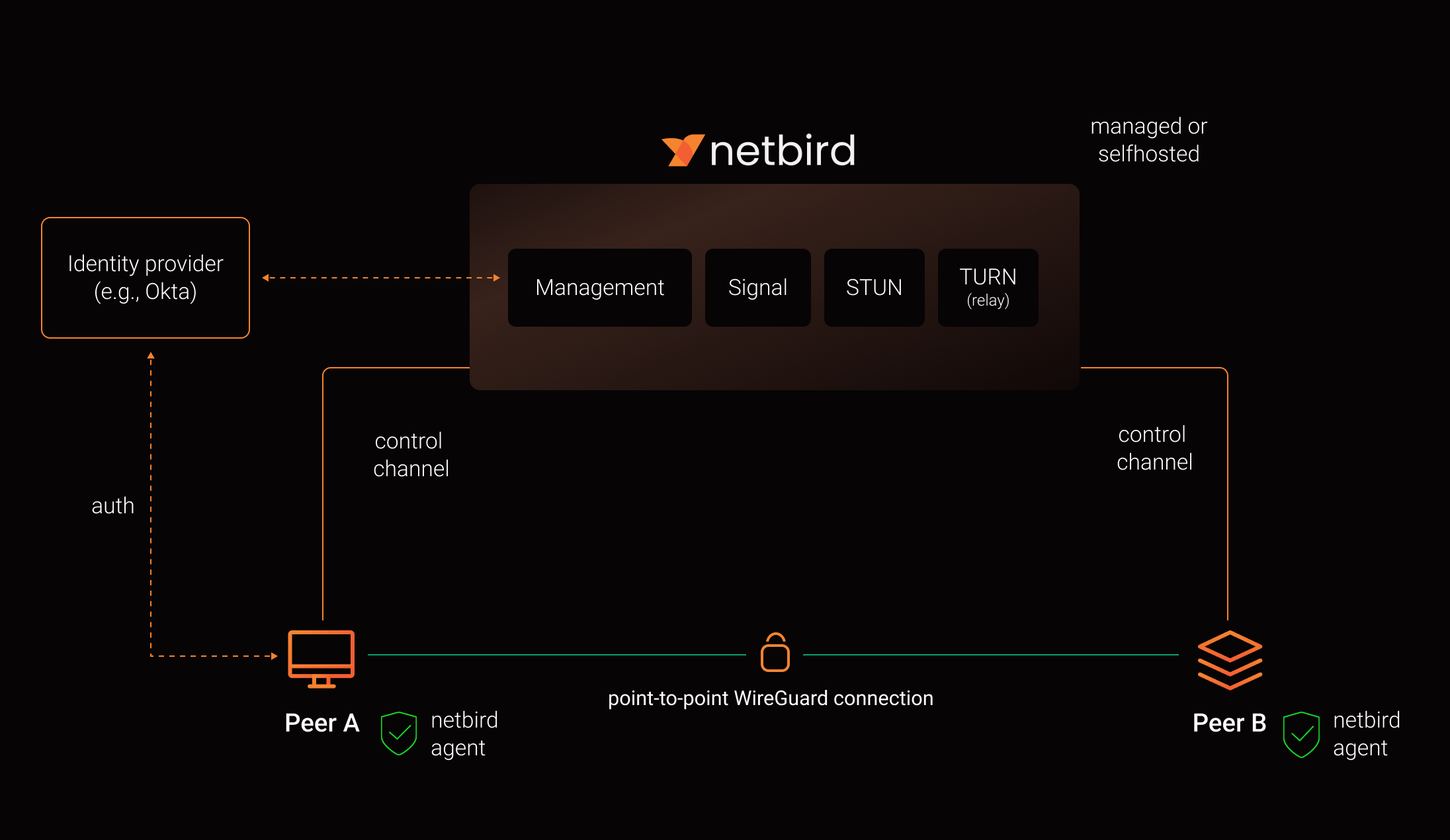
See a complete architecture overview for details.
Note: The main branch may be in an unstable or even broken state during development.
For stable versions, see releases.
In November 2022, NetBird joined the StartUpSecure program sponsored by The Federal Ministry of Education and Research of The Federal Republic of Germany. Together with CISPA Helmholtz Center for Information Security NetBird brings the security best practices and simplicity to private networking.

We use open-source technologies like WireGuard®, Pion ICE (WebRTC), Coturn, and Rosenpass. We very much appreciate the work these guys are doing and we'd greatly appreciate if you could support them in any way (e.g., by giving a star or a contribution).
WireGuard and the WireGuard logo are registered trademarks of Jason A. Donenfeld.