Repository navigation
Panel Integration
Install the Grafana Intelligence Gateway panel alongside this data source.
Both are separately installed plugins in the same Grafana installation; the instance and dashboard must share a Grafana organization. Follow Installation and Quick Start for plugin-directory placement. Do not copy this data source into the panel's folder.
The panel has two independent connections:
| Setting | Select |
|---|---|
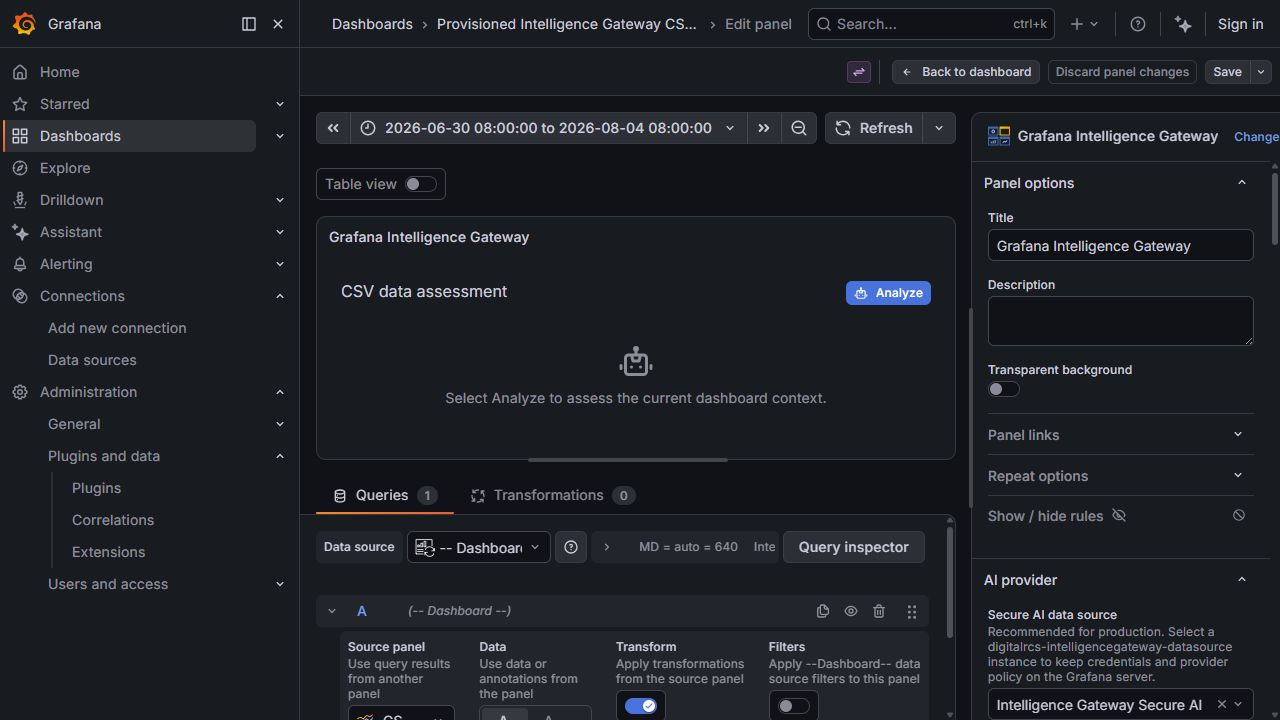
| Queries | Your metric/table data source, or Grafana's Dashboard data source and the existing panel whose results you want to analyze. |
| AI provider → Secure AI data source | A configured Intelligence Gateway Secure AI instance for model access. |
- Configure and test an Intelligence Gateway Secure AI data-source instance.
- Edit the Intelligence Gateway panel. Under Queries, connect the data to analyze and confirm it returns results for the current time range.
- Under AI provider, select the instance in Secure AI data source.
- Select Load models securely, or enter an administrator-allowed model.
- Choose supported generation controls, then select Analyze. Copilot Studio temperature and output policy are controlled by the agent.
The matching 1.1.0 companion panel supports all three modes below. All require the secure AI data source under AI provider, regardless of whether metric queries are present.
| Mode | Setup | Action |
|---|---|---|
| Data only | Connect Queries to the desired metric/table results, or use Dashboard to reuse one existing panel. Leave image inputs empty. | Select Analyze. |
| Images only | Under Image assessment, turn off Include query data with images. Query rows are intentionally omitted, but prompt and non-secret context such as the time range remain. | Select Images, capture/upload, review every preview, select Use images, then Analyze images. |
| Data and images | Connect Queries and leave Include query data with images on. Only this Intelligence panel's query results are serialized. | Capture/upload and preview images, select Use images, then Analyze images. |
For either image mode, the administrator must first enable Enable image analysis and approve the selected model under Allowed vision models. The panel reads /capabilities before enabling image sending. Choose Capture dashboard, select panels and choose Capture selected panels, or use Add images for PNG/JPEG files. Image controls can be shown or hidden with Show image controls in the panel's Image assessment settings.
Capturing a panel reads its rendered view, not its underlying data source. To include that panel's exact values, separately connect the Intelligence panel's Queries to it through Grafana's Dashboard source. Dashboard capture excludes Intelligence Gateway panels. Collapsed or unrendered panels can be absent; scrolling may load lazy panels, and normal scheduled dashboard refreshes can still occur. Capture does not deliberately refresh queries.
Images remain in browser memory until the explicit analysis action. They are not saved in panel options, dashboard JSON, or browser storage. Automatic analysis pauses while the image dialog is open or images are attached. Clear analysis cancels an active request and clears the answer, error, and pending images; recapture to assess a newer view. Review visible sensitive data before sending. See Image Analysis.
The panel sends the constructed prompt, optional validated images, and non-secret generation choices through Grafana's authenticated data-source resource API. For Chat Completions providers, the effective hard output limit is the lower of the panel cap and data-source maxOutputTokens. If the panel uses the provider-default option, the administrator ceiling and provider limit still apply. Copilot Studio does not expose those generation controls; configure its agent policy instead.
For a reasoning model, Maximum output tokens can include both hidden reasoning and the final answer. The panel's Requested answer max tokens (soft) option asks for a concise visible response; it is not a hard token counter or a reserved answer allowance. As an example, an 8,192-token panel budget and a 16,384-token data-source ceiling allow at most 8,192 output tokens. If the administrator ceiling is 4,096, changing only the panel to 8,192 still allows at most 4,096. These example budgets are not guarantees that a particular model will finish.
The panel's Response timeout (seconds) and the data source's Timeout (seconds) are separate. The earliest panel, backend, proxy, or provider deadline wins. A model that reaches its token limit needs a budget/model adjustment; merely increasing the timeout does not repair that failure. See Troubleshooting.
The current panel has no direct provider credential fields. Configure credentials only on the data-source instance. Installing the plugin or importing a dashboard does not create a provider connection automatically. Multiple panels can reuse one instance, but each panel must select its UID.