Hello
I'm trying to connect the iPhone to Visual studio 2022 VS 17.2.6 for Windows, without success.
I've followed 2 posts I've found but no one give satisfaction: (https://developercommunity.visualstudio.com/t/Cannot-load-Apple-certificates/1692185#T-ND10064093)
First try:
Prerequisites: A paid Apple Developer account, a MacOS machine with xCode and the latest VS Mac, a Xamarin iOS project.
Note: When I mention Apple Developer, I’ll mean the “Certificates, Identifiers & Profiles” page in your Apple developer account, you’ll need to do some config there.
Note: Everything described here is done on the MacOS machine.

The iOS App Development certificate:
1.1 Create a certificate request: https://help.apple.com/developer-account/#/devbfa00fef7
1.2 Create a new certificate on Apple Developer:

Open the Apple Developer page, tab Certificates and Create a new certificate (+ button)
Select “iOS App Development” & Continue
“Choose file” and browse to the certicicate request file created in 1.1, Upload it & Continue
Download the certicicate and double click the file to install it into the Keychain Access
The App Identifier:

Open the Apple Developer page, tab Identifiers and Create a new identifier (+ button)
Select “App IDs” & Continue
Select “App” & Continue
Enter a Description, an Explicit bundle ID (e.g. com.mycompany.mysuite.myapp), select the needed Capabilities & Continue
Register
The debug device:

Connect the iOS device to the MacOS, open it in finder and click the line under the device name until you can see UDID: .
Open the Apple Developer page, tab Devices and Create a new device (+ button)
Fill in a Device name and enter the UDID of the iOS device
Continue & Register
The provisioning profile:

Open the Apple Developer page, tab Profiles and Create a new profile (+ button)
Select “iOS App Development” & Continue
Select the App ID created in 2 & Continue
Select the Development certificate created in 1 & Continue
Select the iOS device created in 3 & Continue
Enter a name & Generate
Open the generated provisioning profile & Download
Locate the downloaded profile (has a .mobileprovision extension) and copy it to /Users/%YourUserName%/Library/MobileDevice/Provisioning Profiles
Provision the app

Open the solution with VS Mac
Right click the .iOS project > Options
Go to iOS Bundle Signing
Configuration: Debug
Platform: iPhone (iPad?, depends on the iOS device connected)
Scheme: Manual Provisioning
Signing Identity: Developer: Your Name (YourID) (It should match the certificate name that was installed in 1)
Provisioning Profile: The name of the one created in 4
Select the Entitlements.plist of your project (it’s capabilities should match what you set in 2)
OK
Second try:
Steps:
1. Create an RSA 2048 key:
a) “C:\Program Files\Git\usr\bin\openssl.exe” genrsa -out key.pem 2048
b) No password here

2. Create a Certificate Signing Request (.csr file)
a) “C:\Program Files\Git\usr\bin\openssl.exe” req -new -sha256 -key key.pem -out csr.csr
b) Fill the fields, the most important are the email and the name

3. Create and download the new certificate:
a) Go to https://developer.apple.com/account/resources/certificates/add
b) Select the csr file created in the previous step
c) Download the certificate, and set the name cer.cer

4. Convert the .cer to .pem
“C:\Program Files\Git\usr\bin\openssl.exe” x509 -in cer.cer -inform DER -out cer.pem -outform PEM

5. Use the cer.pem and the key.pem to generate the .p12 file:
a) “C:\Program Files\Git\usr\bin\openssl.exe” pkcs12 -export -out cer.p12 -inkey key.pem -in cer.pem
b) Set the password (will use it later)

6. Create and download the provisioning profile:
a) Go to https://developer.apple.com/account/resources/profiles/add
b) Download the provisioning profile, and set the name profile.mobileprovision
c) Extract the profile UUID (search the string UUID and select the string value), here is an example using PS:
Select-String -Path .\profile.mobileprovision -Pattern UUID -Context 0,1 | % {$_.Context.PostContext}
Lets says the output is: <string>237c9fb6-bb15-33e3-2232-3c5e1665f306</string>
Rename the provisioning file to: 237c9fb6-bb15-33e3-2232-3c5e1665f306.mobileprovision

7. Copy the renamed .mobileprovision
a) Run %localappdata%\Xamarin\iOS\Provisioning
b) Copy the 237c9fb6-bb15-33e3-2232-3c5e1665f306.mobileprovision to the Profiles directory

8. Import the cer.p12
a) Open Visual Studio
b) Go to Tools -> Options -> Xamarin -> Apple Account and add your account (ignore if already added)
c) Select your account and click view details (ignore errors and continue)
d) Click import certificates and select the cer.p12 file, enter your .p12 password (ignore errors and continue)
e) Close the Options modal
f) Open your iOS project properties window -> iOS Bundle settings
g) Select Manual Provisioning and select the Signing Identity and the Provisioning Profile based on your certificate and provisioning.
In both cases I have in the Provisioning Profile: No matching profile found
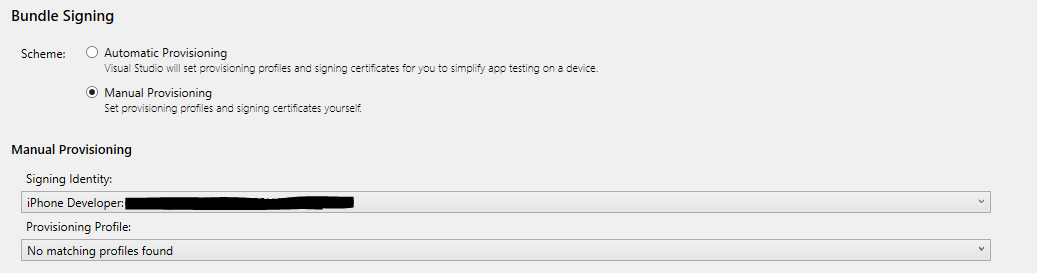
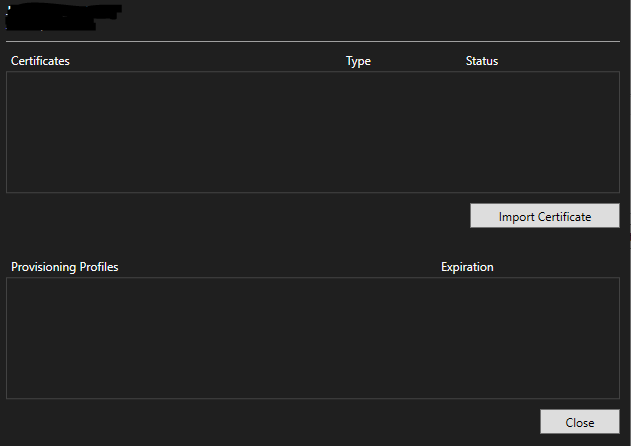
If I watch the Apple Accounts by clicking on View Detail it still empty of profiles and certificates
Thanks for your help :)

Hello
I'm trying to connect the iPhone to Visual studio 2022 VS 17.2.6 for Windows, without success.
I've followed 2 posts I've found but no one give satisfaction: (https://developercommunity.visualstudio.com/t/Cannot-load-Apple-certificates/1692185#T-ND10064093)
First try:
Second try:
Steps:
In both cases I have in the Provisioning Profile: No matching profile found

If I watch the Apple Accounts by clicking on View Detail it still empty of profiles and certificates

Thanks for your help :)