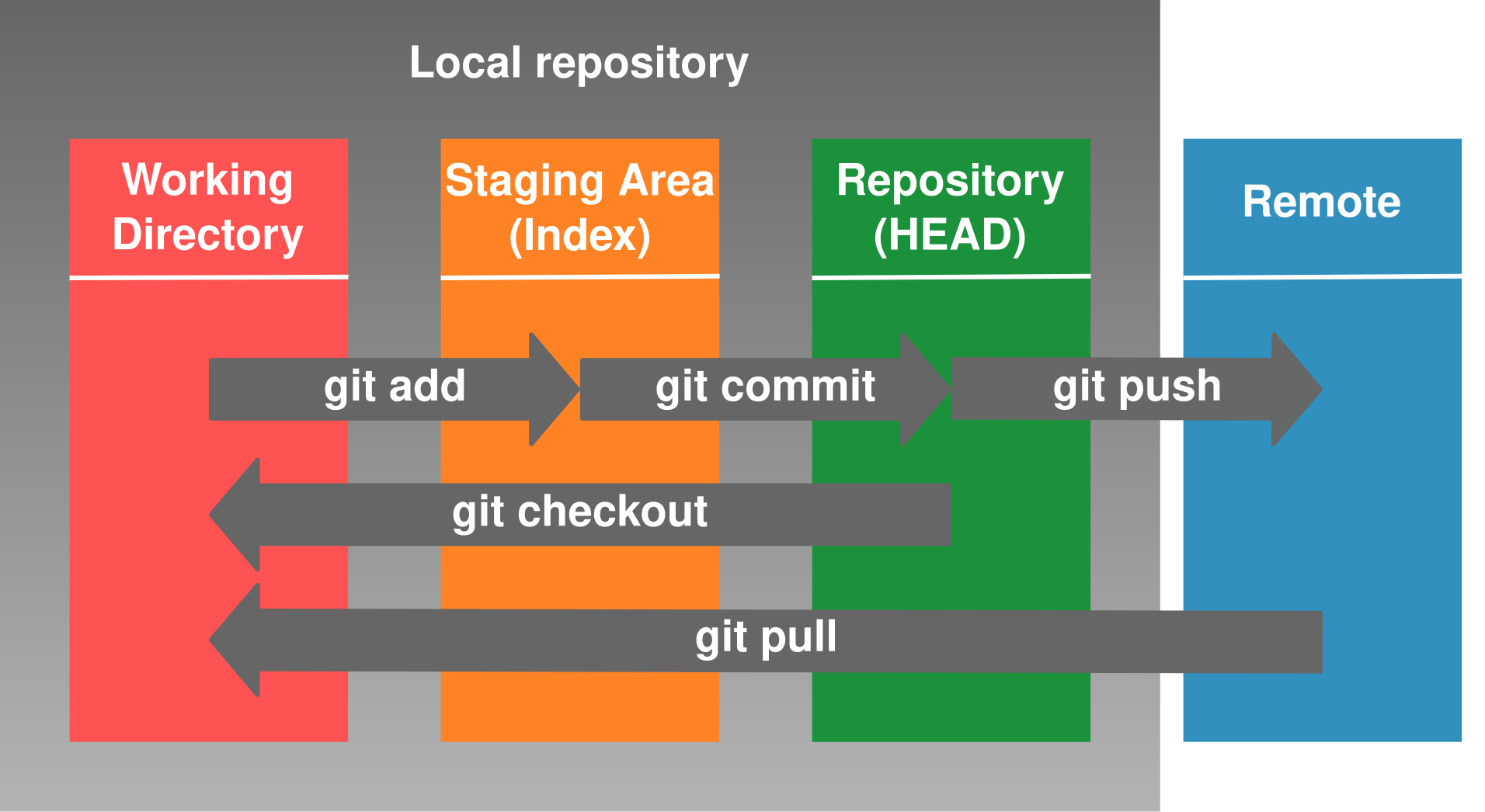
WORKING DIRECTORY (local project dir) <----(git add/checkout)----> STAGING AREA (local pc) <----(git commit/checkout)----> LOCAL REPO (on push creates origin/master - origin/master = tracking) <----(git push(fetch+merge)/pull)----> REMOTE REPOSITORY (GitHub Repo)
NOTE: when doing a project we are working with the working directory directly, not the staging and the repository
git help
git config -->> to see the project info
git config --global || git config --system -->> to change the global or system settings and values
git config --global user.email "your@email.com"
git config --global user.name "user name"
git init --> to initialize a git directory - gets everything ready to start tracking - usually in the root of the project - creates /.git + NOTE: The HEAD is not established after the init
git status
git add -a / git add . --> adds to the staging area
git commit -m "commit" -->> good the message to have short description (less than 50 chars) + \n + more detailed description after (keep each line in less than 72 chars)
git commit -am "commit" --> we can add and commit in the same time
git checkout -- --> to discard changes in the working directory
git checkout HEAD -->> to go back to a previous commit - goes to a HEAD detached state
git reset HEAD -->> clears out the staging environment (unstage)
git rm --> to delete a file - moves the deletion in the staging area - to fully delete just commit the change -> git commit
git reset --> Reset to undo many commits - BE VERY CAREFUL - In that way we can move the head to point to whatever commit we want and then start doing new commits from that point
- soft reset = git reset --soft -->> does not change the staging index or working directory --soft leaves the changes in the most recent state in the working directory and in the staging area
- mixed = git reset --mixed --> default mode - changes the staging index to match the repository, but does not change the working directory - revert the commited changes
- hard = git reset --hard --> resets both the staging and the working directory - makes the staging index and the working directory to match the repo where the HEAD is pointing
.gitignore -> usually a file in the root of the project - used to determine which files need to be ignored and not tracked in the repository
git remote -->> to see the name of the remote - it will point to origin
git remote -v -->> will show where the origin points to (the remote repo with which the origin will be synced)
cat .git/config - have the configs
git remote rm origin -->> to remove the repo (the pointer)
git clone http://... -->> clone a repository (use when we don't have local repo) - it will create a local repo (folder) with all the files - this will clone only the master branch
git branch -u origin/branch rem_branch -->> will track the local branches as well - the -u option tells git to automatically track the repository (-u = set upstream to) - most of the time git is taking care of this
- echo "read me file" >> README.md
- git init
- git add README.md
- git commit -m "first commit"
- git remote add origin https://github.com/... (the repository location)
- git push -u origin master**`
- git remote add origin https://github.com/... (the repository location)
- git push -u origin master -->> pushes the local master branch to the remote master branch
- Fork the project: GUI
- Clone it to the local machine: git clone http://...
- Create a new branch: git checkout -b new_branch -->> -b will create and move to the branch
- Do the changes you want
- Add, commit and push to the remote: git -am "commit" + git push || git push origin master
- Create a pull request (PR) - GUI - wait for it to be approved and merged to the original project or in case of conflicts, resolve them and then create new PR
- At this point you can delete the branch or continue with other changes
Tree-ish - a directory containig files and other directories A commit is considered tree-ish because it refers to a tree at the point when a commit has been applied
HEAD pointer - reference of the tip of the current branch (a pointer where the branch state is) The HEAD moves with every commit in the branch - like an audio cassette recorder
git log --> shows where the HEAD is pointing (to which SHA-1) - every commit gets SHA-1 identifier for tracking (40 chars - we need 4 of them minimum to use it) git show HEAD --> to see what is in this commit (HEAD = 4+ SHA-1 chars)
- commit's parents (HEAD^ OR HEAD
1 (1 parent) = HEAD):- example: master^ = HEAD~ = the commit before the last in the master branch
- grandparents: HEAD^^ = HEAD~2 - example: git show HEAD^^
- for great-grandparents: HEAD^^^ = HEAD
3 - example: git show HEAD3
Tree listings: -> git ls-tree tree-ish --> lists the content of a tree object == ls -a in Lunux - example: git ls-tree HEAD -> lists blobs (binary large object = files) and trees (directories)
Filter the commit log: -> git log -3 = returns just 3 commits; git log --since=2019-01-01 (after a certain date YMD); git log --until=Y-M-D (before); git log --author="Kevin"; git log --grep"Initial" (using regex); git log SHA-1..HEAD (all the commits from SHA commit to the HEAD - could be another SHA not only th HEAD); git log filename.extension (filter on a filename)
Format the commit log: -> git log -p (p is for patch) -->> we can see the changes showed what has been removed and addded -> git log --stat -->> showing statistics about the changes -> git log --format=short (oneline|short|medium(default)|full|fuller|email|raw) -> shows the log in a different ways -> git log --graph --> shows a graph of the commits - example: git log --graph --all --oneline --decorate
Useful for: trying new ideas, isolate features or sections of work One working directory - fast context switching between branches IMPORTANT: HEAD pointer always points to the last commit in the master branch (assuming 1 branch = master). When we create a branch the HEAD is still pointing to the master, but once we commit to the branch, the HEAD moves and points to the last commit in the branch. We can switch back and forth between the master and the brances and the HEAD moves with the switch ALWAYS to the last commit in the branch
-> git branch -r -->> will show the remote branches --->> -a will show all the branches - local and remote
-> git branch -> showing the current branch with * and the rest without -> git branch branch_name -> create a branch with name branch_name -> cat .git/HEAD --> to see where the head is pointing (to which branch) - it points to refs/heads/branch_name (branch_name is just a file)
-> git checkout branch_name --> switching to the branch - the HEAD pointer now points to the branch_name -> when we make a commit it will be moved to the commit in this branch
-> git checkout -b branch_name = creates the branch and switches to it at the same time
Cannot switch if changes in working directory conflict, but can switch if the changes can be applied without a conflict or the files are not being tracked (not in the repository)
We have 3 options how to handle the situation with switching branches with uncommited changes: -> git checkout the_other_branch - will give an error and abort - we can commit the changes to the current branch and switch after -> git checkout the_other_branch - will give an error and abort - if we do it 2 times and not commiting the changes, it will just remove them and switch -> git checkout the_other_branch - will give an error and abort - we can STACH the changes
Stashing - a place where we can store changes temporally and not include them immediately in the commit - like a drawer to save them for later It works in a similar way as the commits, as they are a snapshot of a change, but they don't have SHA value Used when we are checking out from a branch with not commited changes in it - gives an error Please commit your changes or stash them before switch branches We can stash untrack files as well - git stash -u option -> check the help for that The stashes are saved even if we leave the branch and return after a long time - THE STASH IS AVAILABLE FOR ALL BRANCHES
-> git stash save "name_of_the_stash" -->> it saves the changes into the stash from the working directory and you can switch to another branch -> git stash list -->> view what is in the stash -->> git stash show stash@{0} --> will return what is in the stash like a diff stat -->> for a patch version use: git stash show -p stash@{0} -> git stash pop -->> retrieves stashed changes - pops a single stash (the newest item) and moves it in the current working directory (branch) -> git stash apply -->> an alternative to pop -> it leaves the stash and also applies it to the work dir -> git stash drop stash@{n} -->> deleting the stash at position n -> to clear everything: git stash clear
-> git diff branch..other_branch - compares the 2 branches - we can compare any branch to any other branch - the output will show the branches as a (branch) & b(other_branch) -> git diff --color-words branch..other_branch - can show the changes on 1 line -> git branch --merged || git branch --no-merged - checking which branches are fully included in the current (has been merged) || which are not part of the current (not merged)
-> git branch -m old_branch name new_branch_name (git branch --move is the same) - we can only put the new name: git branch -m new_name
-> git branch -d branch_name - to delete the branch (we need to be outside of the branch to be able to delete it) -> git branch -D branch_name - in case we want to delete a branch that has commits in it, but they are not merged to another branch or the master
Reset changes the files in the staging index and/or working directory to the state they had when a specified commit was made = MAKE MY PROJECT LOOK LIKE IT DID BACK THEN = Moves the HEAD pointer to a specific commit
IMPORTANT: we can move back and forth in time using reset - just need to have the correct HEAD pointer
- 3 Types = git reset --soft|mixed|hard:
- --soft (moves the HEAD, no changes to the staging or work dir) - return to an old state, but leave the code changes staged (not commited yet) - similar to git commit -amend
EXAMPLE:
We are doing 2 changes in separate bundles -
- commit A + commit B,
- then we want to revert back and combine them in 1 single commit
- soft reset is a good option:
- git reset --soft HEAD^^ = will go back 2 commits and put all the changes (A & B) in the staging area (rolls them back), ready to be commited again =>
- the commits are there, but the HEAD is moved to a point before they exist - if we start -am again this will abandon the A & B commits and they wouldn't be reachable anymore
MOST USEFUL: to go back in time and combine more separate commits into 1
-->> --mixed (moves the HEAD, changes the staging index but not the work dir) - the default setting - git reset --mixed = git reset -->> leaves code changes in the working directory - previous commits will be discarded

	EXAMPLE: made the changes -> commit -am -> git reset --mixed HEAD^ -->> the changes are not in the staging area anymore, they are just in the work dir and the HEAD is moved to the previous point
	MOST USEFUL: to reset the changes if they are not needed - that is why it is the default option

-->> --hard (moves the HEAD, changes to the staging and work dir) - GO BACK IN TIME AND ROLL BACK IN TIME - permanently undo commits - all changes gets discarded

	EXAMLPLE: git reset --hard HEAD^ -->> will go back 1 commit - no changes in the staging area and no changes in the working directory
	MOST USEFUL: to make 1 branch to look exactly like another -->> on the current branch use: git reset --hard another_branch_name -->> the current branch will be the same as the another_branch_name
Once the branch is ready, we need to create a merge to take the branch and bring it to the master branch
- git checkout master -->> it is a good practice to checkout the receiving branch first
- git diff master..branch -->> to check the differences
- git merge branch -->> fast-forward merge of master with branch -->> git log will show that the master and the branch HEADs are pointing to the same -->> git branch --merged will show the merged branch under the current (master) -->> from this point we can delete the branch or continue work on it -->> good practice is to have a clean working directory before doing merges
https://www.atlassian.com/git/tutorials/using-branches/git-merge
Fast-forward - when merging a branch that is ahead of the master - for example we branched off and worked on the branch only, but not on the master - on merge, it will create a new HEAD pointer which will be the point of merging AKA fast-forward
Real merge (true merge/merge made by the 'recursive' strategy) - when we have commits to the master while working on the branch - in that case git will create another commit after the last commit in the master, that will join both branches together
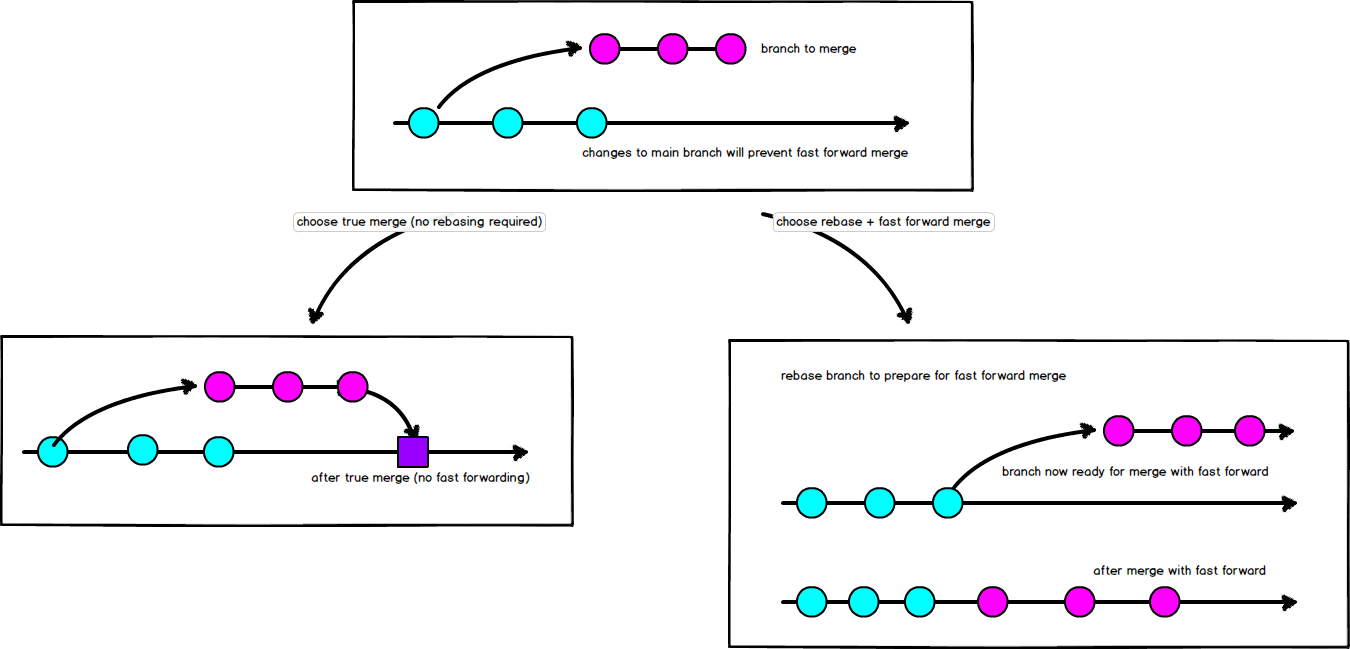
Rebase is another way to integrate changes from one branch to another. Rebase compresses all the changes into a single “patch.” Then it integrates the patch onto the target branch. Unlike merging, rebasing flattens the history because it transfers the completed work from one branch to another. In the process, unwanted history is eliminated.
git checkout feature
git rebase master
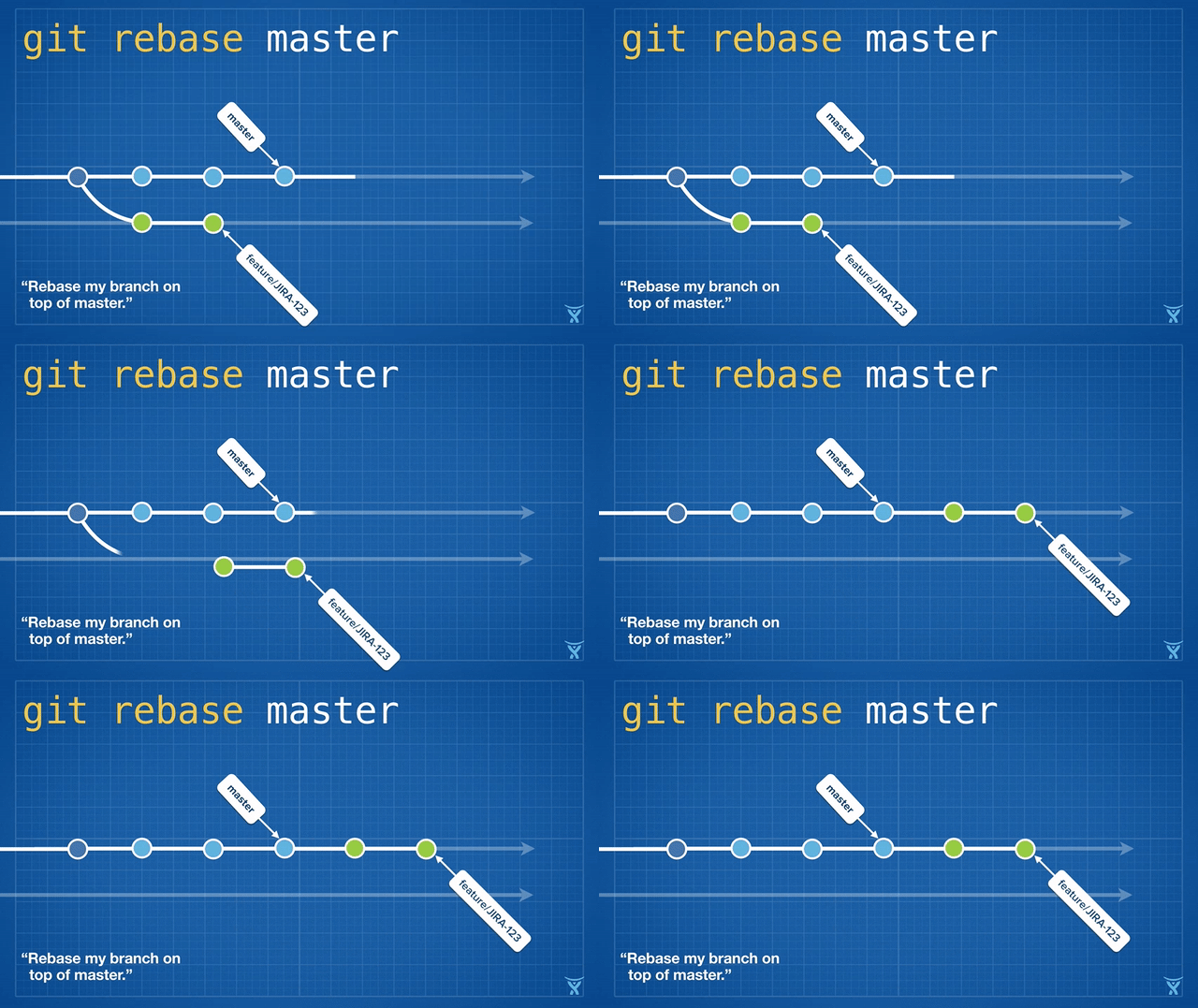
https://git-scm.com/book/en/v2/Git-Branching-Rebasing
Conflicts occur when there are 2 changes in the same line in 2 different commits - git gets 2 sets of instructions, so it does NOT know what to do - marks the conflict and waits for the user to fix it The conflicts will show up in the file in conflict with conflict markers: <<<<<<<HEAD (BEGINNING), ====== (PROBLEM), >>>>>>> (END)
- Abort the merge: git merge --abort -->> it goes back before the merge attempts - changes are still in the branch like it was and master is the same as before issuing the merge command
- Resolve manually: find the code/text in conflict and correct the problems -->> useful commands git diff --color-words master..branch (to see the difference b/n the 2 branches in color) || git show --color-words -->> find the conflicts, clear them, REMOVE THE MARKERS, git add file_with_conflicts, git commit -> will continue the merge process
- Use the mergetool --> git help mergetool - for help -->> usually the changes are made manually or with a graphical interface, because it is easier
-> Keep lines short -> Keep commits small and focused -> Beware stray edits to whitespace (spaces, tabs, line returns) -> Merge often - as much as you can -> Track changes to master - merging master into the branches - pull code from the master to the branches
The remotes work exactly the same as the local repo - has the HEAD, the commits ...
- On the first push, the local repo creates an additional origin/master branch (copy of the local master).
- After that, on every push it tries to keep it in sync with the master branch of the remote repo
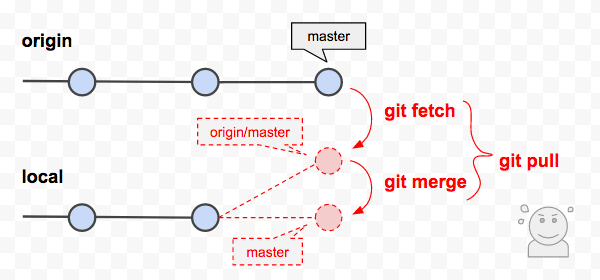
- If the remote master has changes that are not in the local, we can use fetch to sync the origin/master, but this won't be in the local master - to have it there we need to use merge

IN FACT GIT DOESN'T COPY ALL THE COMMITS TO THE origin/master - instead it just keep a reference point (a HEAD) to the last synched commit:
- if the pointer of the remote master is ahead of the local master, on fetch the origin/master syncs (copies the commit locally) and then moves the origin/master to that point.
- After that we need merge to move the HEAD pointer of the local master to the fetched commit (the place where the origin/master is pointing)
- make commits locally
- fetch the lastest code from the remote server
- merge the new work into the updated code
- merge with the remote master
-> make changes -> add -> commit -> (to see the log: git log --oneline -5 origin/master(tracking branch for the remote branch = local)) -> git push origin master = git push (because usually the tracking is done by git)
-> git fetch -->> will sync the origin/master with remote master, but the master branch stays the same - it just fetches the changes - fetch often - no harm in doing it -> git merge origin/master -->> to merge the fetched changes into the local master -> will do a fast-forward -> the pointer HEAD will be moved to the same place as in the origin/master and remote master -> git fetch + git merge = git pull
There are 2 ways to do it:
- git push origin :name_of_the_branch -->> old style, used in rare cases
- git push origin --delete name_of_the_branch
For local projects (not open source) - go to the settings of the repo and add collaborators For open source - fork the project and work with pull requests
git checkout master git fetch git merge origin/master git checkout - b feedback_form git add feedback.html git commit -m "Add customer feedback form" git fetch git push -u origin feedback_form