




Download manga chapters from websites like MangaDex and pack them into CBZ files, ready to read on your favorite ereader or reading app.
- asmotoon.com (Asmodeus Scans)
- asurascans.com (Asura Scans, former asuratoon.com)
- demonicscans.org (MangaDemon / Demonic Scans)
- atsu.moe (Atsumaru)
- aurorascans.com (redirects to qimanga.com)
- danke.moe (Danke fürs Lesen)
- bigsolo.org
- deathtollscans.net
- bluesolo.org (Blue Solo, French scantrad)
- comix.to *
- dragontea.ink *
- dynasty-scans.com (Dynasty Reader)
- fanfox.net (Manga Fox)
- elftoon.com
- en-hijala.com (Hijala Translations)
- drakecomic.org (Drake Scans) *
- flamecomics.xyz (Flame Comics, former Flame Scans)
- guya.moe (Guya, Kaguya-sama)
- hivetoons.org (HiveToons, VoidScans)
- furyosociety.com
- gdscans.com (GalaxyDegenScans)
- fmteam.fr
- genzupdates.com (Genz Toon)
- inmanga.com
- jestful.net
- kappabeast.com *
- lagoonscans.com
- kaynscan.org (Kayn Scan)
- leercapitulo.co *
- LHTranslation
- madarascans.org (former madarascans.com)
- luacomic.org (LuaScans)
- mangaball.net
- mangabats.com (former mangabat.com)
- mangadenizi.net
- mangafire.to
- mangahere.cc (MangaHere)
- mangahub.io *
- mangak.io (MangaK, former mangabuddy.com)
- mangakakalot.gg (MangaKakalot) *
- mangakatana.com
- mgeko.cc
- mangapark.page (MangaPark, mangapark.to's mirror at the time of writing)
- mangalivre.to (Manga Livre, former mangalivre.tv/mangalivre.net)
- mangalib.me (MangaLib)
- Mangadex
- mangapill.com
- mangaread.org
- manhuaplus.com
- mangasushi.org
- mangataro.org
- Mangitto (mangtto.com)
- manhuaus.com *
- mistscans.com
- manhuatop.org *
- mkissa.to *
- natomanga.com (MangaNato, former manganato.com/manganelo.com) *
- projectsuki.com
- qimanga.com
- rawkuma.net
- silentquill.net (Armageddon Scanlation)
- rokaricomics.com
- ritharscans.com
- roliascan.com
- sanascans.com (Sana Scans)
- stonescape.xyz
- setsuscans.com *
- sushiscan.net *
- taiyo.moe
- tcbonepiecechapters.com (TCB Scans, former tcbscans.com)
- templetoons.com (Temple Scan)
- team-shadowi.com
- en-thunderscans.com (Thunderscans)
- toonily.com *
- toongod.org *
- vortexscans.org
- tritinia.org (Tritinia Scans)
- violetscans.org
- utoon.us (UToon, home of reset-scans' content)
- weebcentral.com
- witchscans.com
- writerscans.com
- zonatmo.org (TuMangaOnline, former zonatmo.com)
* These sites can't be scraped with plain HTTP requests (they render with javascript or sit behind a Cloudflare challenge), so they need a Chromium-based browser installed (Google Chrome, Chromium, Brave or Edge), which manga-downloader launches automatically to render the pages. Most sit behind a Cloudflare challenge that only passes in a visible browser — this happens on its own: if a headless attempt hits a challenge, a browser window opens automatically so it can resolve (you may occasionally need to solve one click):
manga-downloader https://www.toongod.org/webtoon/solo-leveling/ 1-10You can pass
--browser-visibleto open the window from the start and skip the (pointless, for these sites) headless attempt.
It may support even more sites of which I'm not aware. If you find a site that is not supported, feel free to open a new issue or a PR with the implementation.
Download the archive for your system from the releases section and extract it. You can then run the binary from that folder:
./manga-downloaderOr on Windows:
.\manga-downloader.exeTo be able to run it from anywhere, place the binary in a folder that is in
your PATH (or add the folder where you extracted it to your PATH
environment variable). Common choices:
- Linux and macOS:
/usr/local/bin - Windows:
C:\Windows\System32
Since the binary is not signed, macOS's Gatekeeper will block it the first time
you try to run it. On recent macOS versions the old terminal workarounds (like
spctl --master-disable) no longer work, so you have to allow it manually:
- Run
./manga-downloaderonce. macOS will show a warning saying the binary could not be verified and block it. - Open System Settings → Privacy & Security, scroll down to the Security section, and you'll see a message about manga-downloader being blocked. Click Open Anyway (or Allow Anyway).
- Run
./manga-downloaderagain and confirm in the dialog that pops up.
You only need to do this once; subsequent runs will work normally.
If you place the .exe file inside C:\Windows\System32 you'll be able to
call the program from anywhere:
C:\Users\elboletaire\Desktop>manga-downloader https://mangadex.org/title/e7eabe96-aa17-476f-b431-2497d5e9d060/black-clover 1-346The above command downloads Black Clover chapters 1 to 346 to the Desktop folder (since that's the current directory).
You can also run manga-downloader directly via Docker, without installing anything:
docker run --rm -it -v $PWD:/downloads elboletaire/manga-downloader --helpNote the -v $PWD:/downloads param: it's required in order to get the
downloaded files in your current folder.
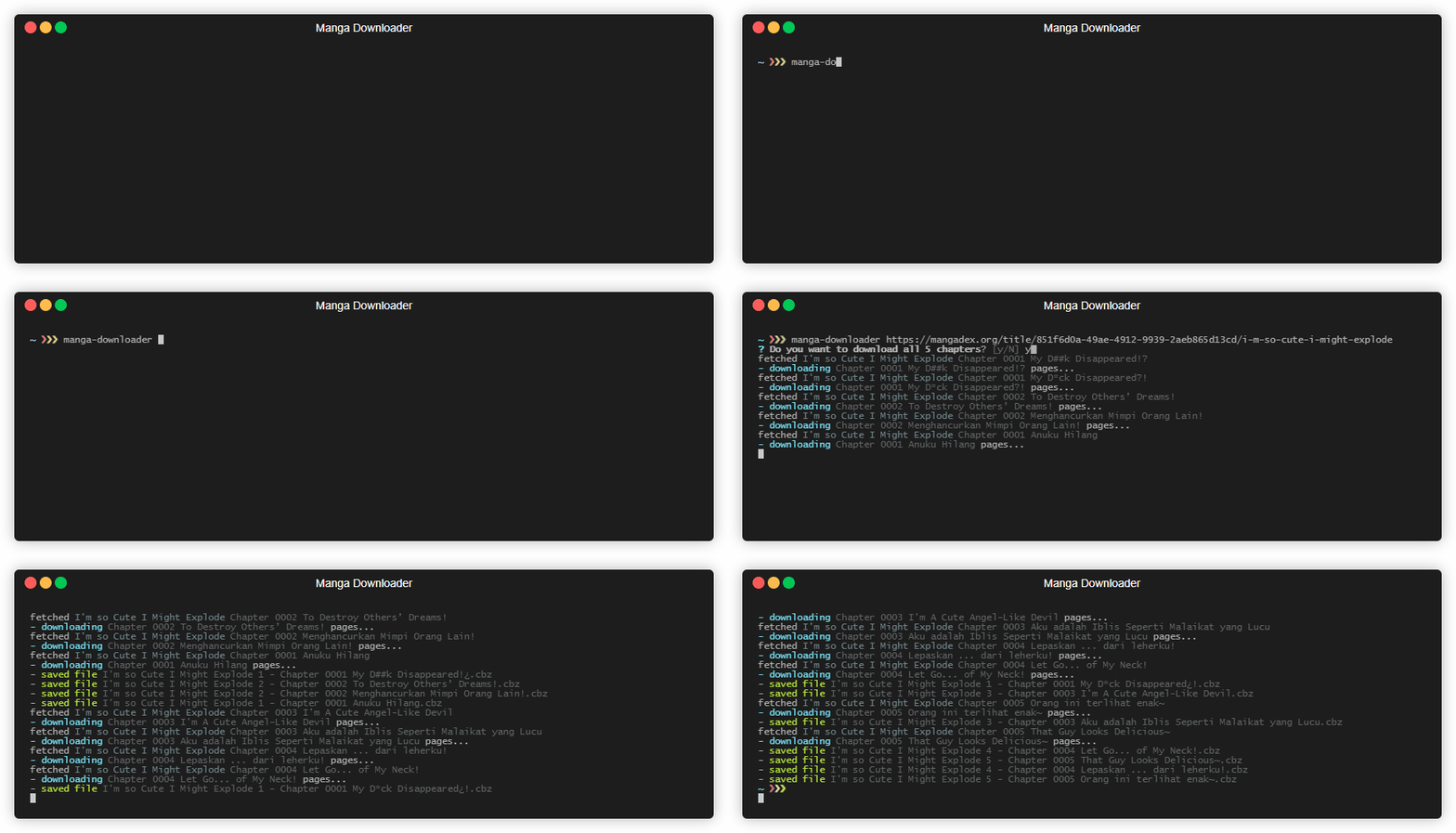
Only one argument is required: the URL of the manga's index page (the page listing all its chapters, not an individual chapter).
manga-downloader [URL]When you only specify the URL, it will ask you whether you want to download all chapters.
Note: you must answer y to download them; it defaults to "no".
You can also specify which chapters to download as a second argument, using
single numbers and/or ranges separated by commas (e.g. 1,3,5-10):
manga-downloader https://inmanga.com/ver/manga/One-Piece/dfc7ecb5-e9b3-4aa5-a61b-a498993cd935 1-50
# downloads One Piece chapters 1 to 50 into the current folder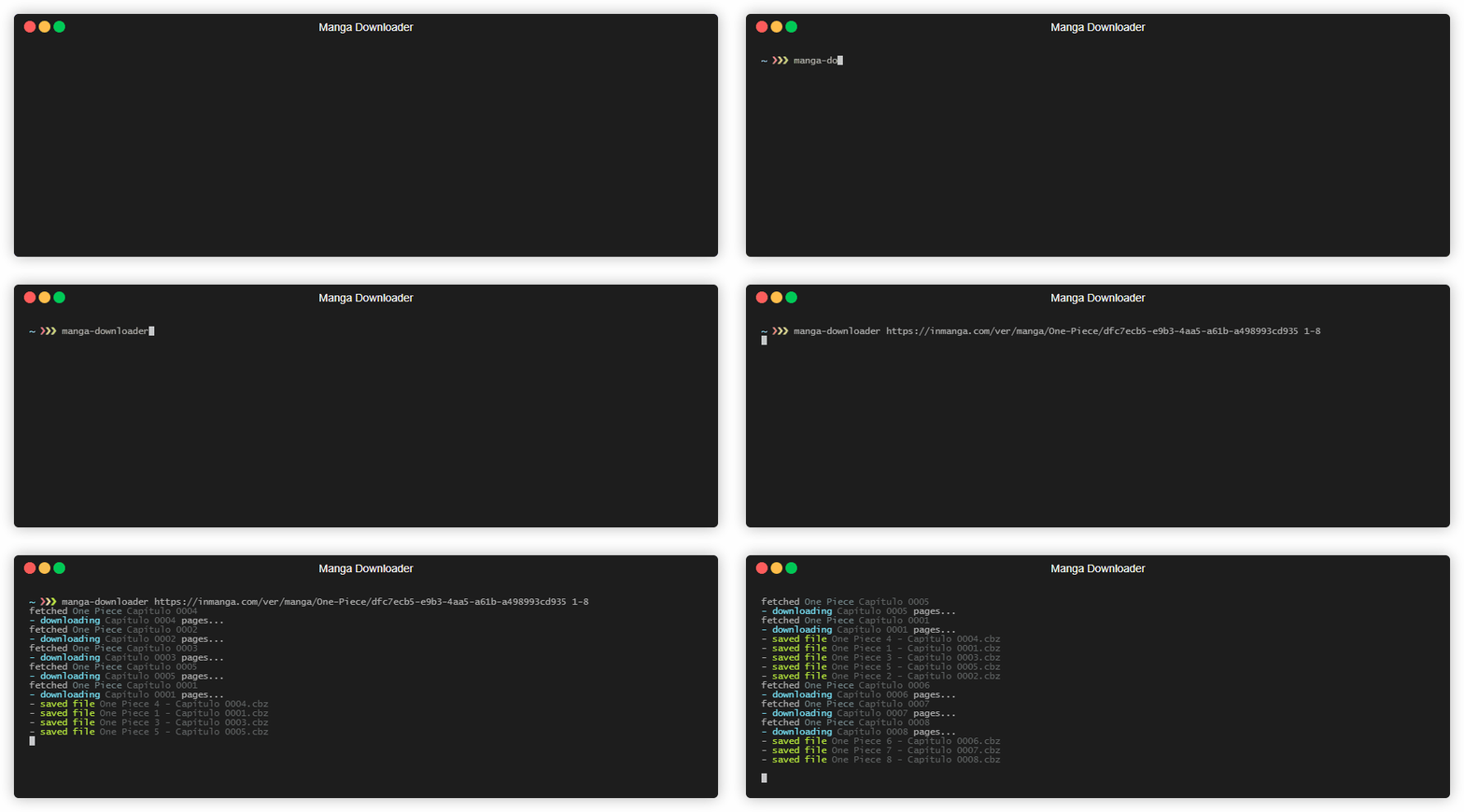
Arguments are not positional, so you can pass them in any order:
manga-downloader 1-50 https://inmanga.com/ver/manga/One-Piece/dfc7ecb5-e9b3-4aa5-a61b-a498993cd935
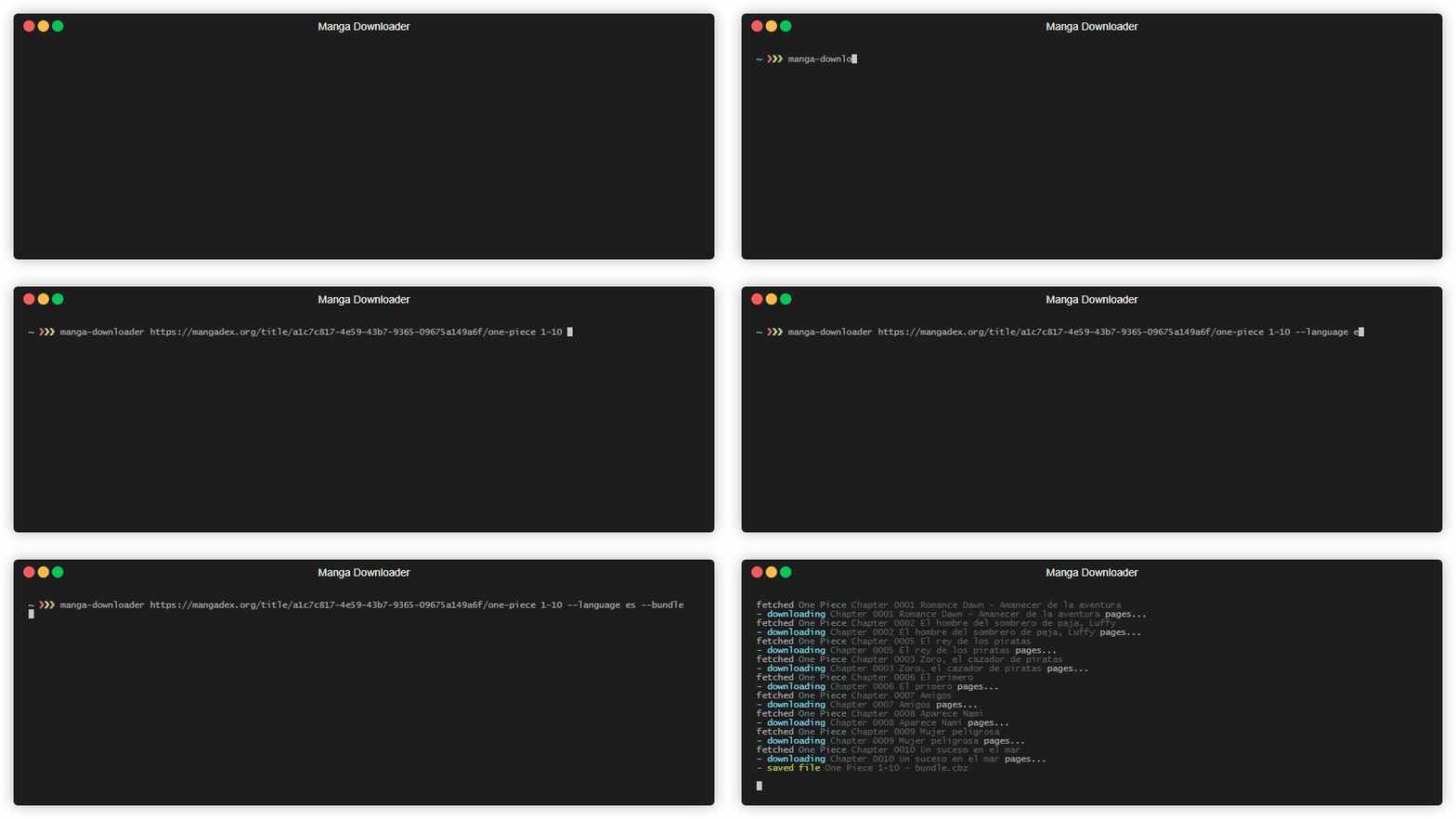
# exactly the same as the previous exampleSome sites, like MangaDex, can return the same chapter multiple times, once per
translated language. By default every match is downloaded to its own file, but
you can restrict the download to a single language with --language:
manga-downloader --language es https://mangadex.org/title/a1c7c817-4e59-43b7-9365-09675a149a6f/one-piece 1-10
# downloads One Piece chapters 1 to 10 in SpanishUse --bundle to bundle all the downloaded chapters into a single CBZ file:
manga-downloader https://inmanga.com/ver/manga/One-Piece/dfc7ecb5-e9b3-4aa5-a61b-a498993cd935 1-8 --bundle
# downloads One Piece chapters 1 to 8 into a single file
Inside the bundle, each chapter gets its own folder (e.g. Chapter 0001/,
Chapter 0002/) so chapter boundaries and page numbering are preserved.
By default chapters are packed into CBZ files. Pass --format raw to write
the images into a plain folder instead (named the same as the CBZ file would
have been, minus the extension):
manga-downloader https://inmanga.com/ver/manga/One-Piece/dfc7ecb5-e9b3-4aa5-a61b-a498993cd935 1-8 --format raw
# downloads One Piece chapters 1 to 8, each into its own folder of imagesResulting file names can be customized with --filename-template, which takes
a Go text/template string. The available
variables are {{.Series}}, {{.Number}}, {{.Title}} and {{.Version}}
(a counter appended when a file name would be duplicated). The default is:
{{.Series}} {{.Number}} - {{.Title}}{{if gt .Version 1}} v{{.Version}}{{end}}
| Flag | Short | Description | Default |
|---|---|---|---|
--bundle |
-b |
Bundle all specified chapters into a single file | off |
--language |
-l |
Only download the specified language | all languages |
--output-dir |
-o |
Output directory for the downloaded files | current folder |
--filename-template |
-t |
Template for the resulting file names | see above |
--format |
-f |
Output format: cbz or raw (a folder with the images) |
cbz |
--concurrency |
-c |
Concurrent chapter downloads (max 5) | 5 |
--concurrency-pages |
-C |
Concurrent page downloads per chapter (max 10) | 10 |
--browser-visible |
Open the browser from the start (opens automatically on a challenge anyway) | off | |
--retry |
-r |
Retries for failed page downloads (max 3, 0 disables retrying) | 1 |
Run the help command to see them all from your terminal:
manga-downloader help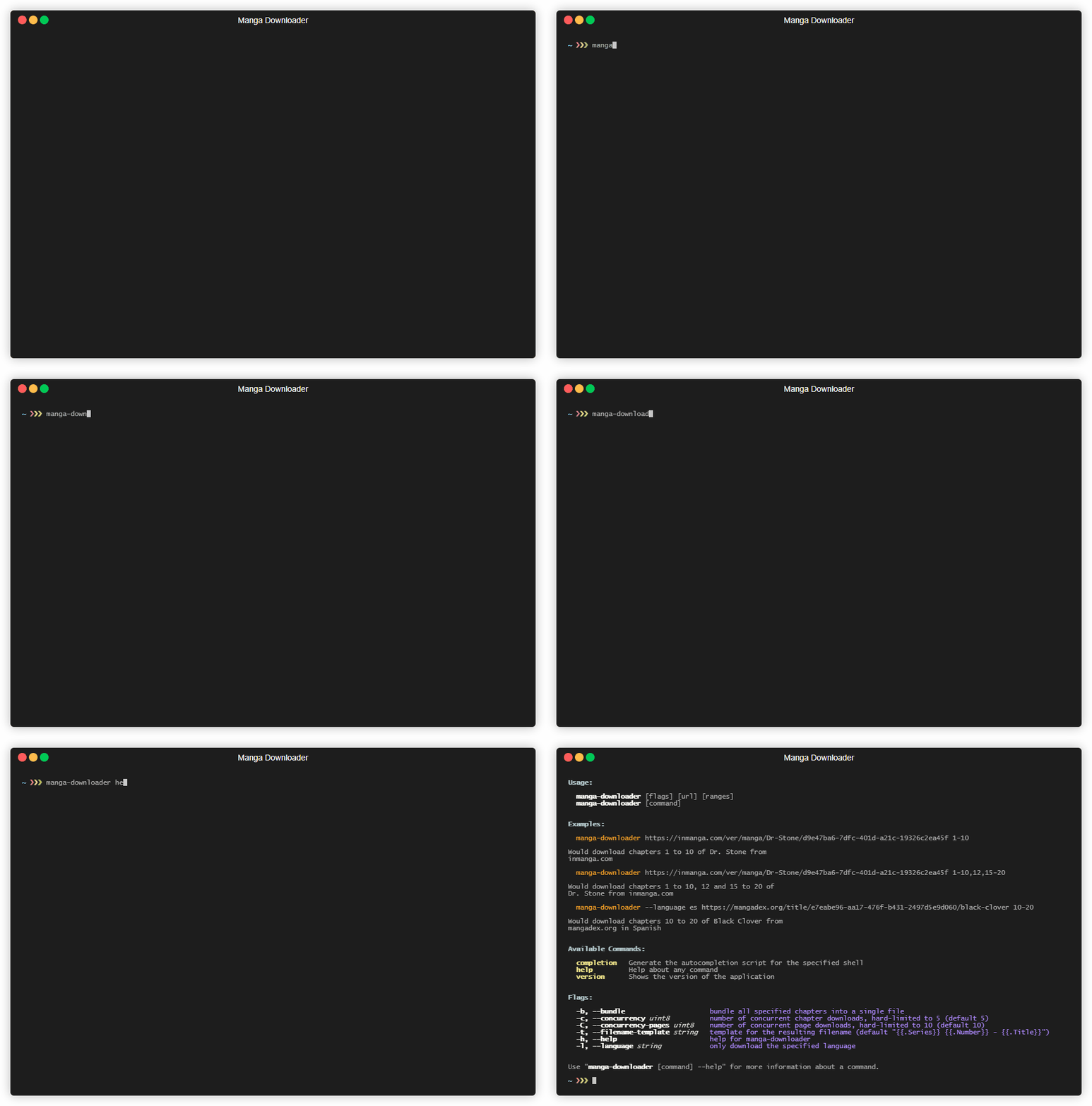
All the code contained in this repo is licensed under the GNU Affero General Public License v3.0
Manga Downloader GO cli
Copyright (C) 2023-2026 Òscar Casajuana Alonso

This program is free software: you can redistribute it and/or modify
it under the terms of the GNU Affero General Public License as published by
the Free Software Foundation, either version 3 of the License, or
(at your option) any later version.

This program is distributed in the hope that it will be useful,
but WITHOUT ANY WARRANTY; without even the implied warranty of
MERCHANTABILITY or FITNESS FOR A PARTICULAR PURPOSE.  See the
GNU Affero General Public License for more details.

You should have received a copy of the GNU Affero General Public License
along with this program.  If not, see <https://www.gnu.org/licenses/>.