ReactNative component for https://github.com/esttorhe/auth0LoginComponent
auth0ReactNativeLoginComponent gets exposed as a custom component; this means it can be rendered using only <AuthLogin /> tags.
The component also exposes 2 events, 1 for when the login calls succeeds and 1 for when it fails. The events can be listened as follows:
   render() {
      var succssSubscription = React.NativeAppEventEmitter.addListener(
        'Auth0LoginSuccess',
        (accessToken) => {
          console.log('ACCESS TOKEN')
          console.log('access_token: ' + accessToken.accessToken)
          console.log('id_token: ' + accessToken.idToken)
          console.log('token_type: ' + accessToken.tokeType)
        }
      );

      var failureSubscription = React.NativeAppEventEmitter.addListener(
        'Auth0LoginFailed',
        (error) => {
          console.log('ACCESS FAILED')
          console.log('error: ' + error.error)
        }
      );

      return <AuthLogin style={styles.container}/>;
}Follow the same instructions to configure the LinkedIn SDK from their documentation here.
Here's an extract of the important parts:
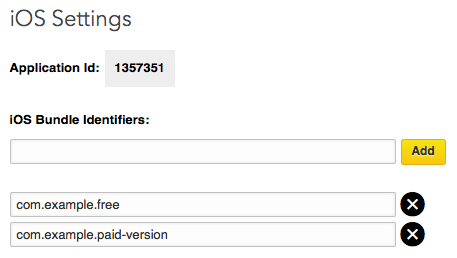
Associate your iOS application with your LinkedIn application by configuring your Bundle ID value(s) within your LinkedIn application. Multiple Bundle ID values allow a collection of applications (e.g. trial vs. free versions, a suite of related apps, etc.) to leverage the same LinkedIn application privileges and access tokens.
Before you can make the necessary changes to your
Info.plistfile, you need to know what your LinkedIn application’sApplication IDis.As seen above, it can be found on the “Mobile” settings page, listed directly underneath the “iOS Settings” header, within the application management tool.
Locate the
Supporting Files -> Info.plistfile in your Xcode project and add the following values.Note the two locations within the file where you need to substitute your LinkedIn
Application IDvalue:
info.plist<key>LIAppId</key> <string>{Your LinkedIn app ID}</string> <key>CFBundleURLTypes</key> <array> <dict> <key>CFBundleURLSchemes</key> <array> <string>li{Your LinkedIn app ID}</string> </array> </dict> </array>Once complete, your application properties should look like this:

Follow the instructions from the auth0 API docs.
Important parts are here:
Add the following entries to your app's
Info.plist:
Key Value Auth0ClientId <Your Auth0 ClientId>Auth0Domain <Your Auth0 Domain>Also you'll need to register a new URL Type with the following scheme
<Your url scheme>. You can do this in your App's Target menu, in the Info section.