Feature Player and Editor
Music Tagger goes beyond metadata management — it's a complete in-app music experience.
Preview any track in your library without leaving the app. The player appears as a persistent bottom bar.
Capabilities:
- Play / pause / seek with waveform visualisation.
- Volume and playback speed control.
- Keyboard shortcuts (
Spaceto play/pause,←/→to seek 10s).
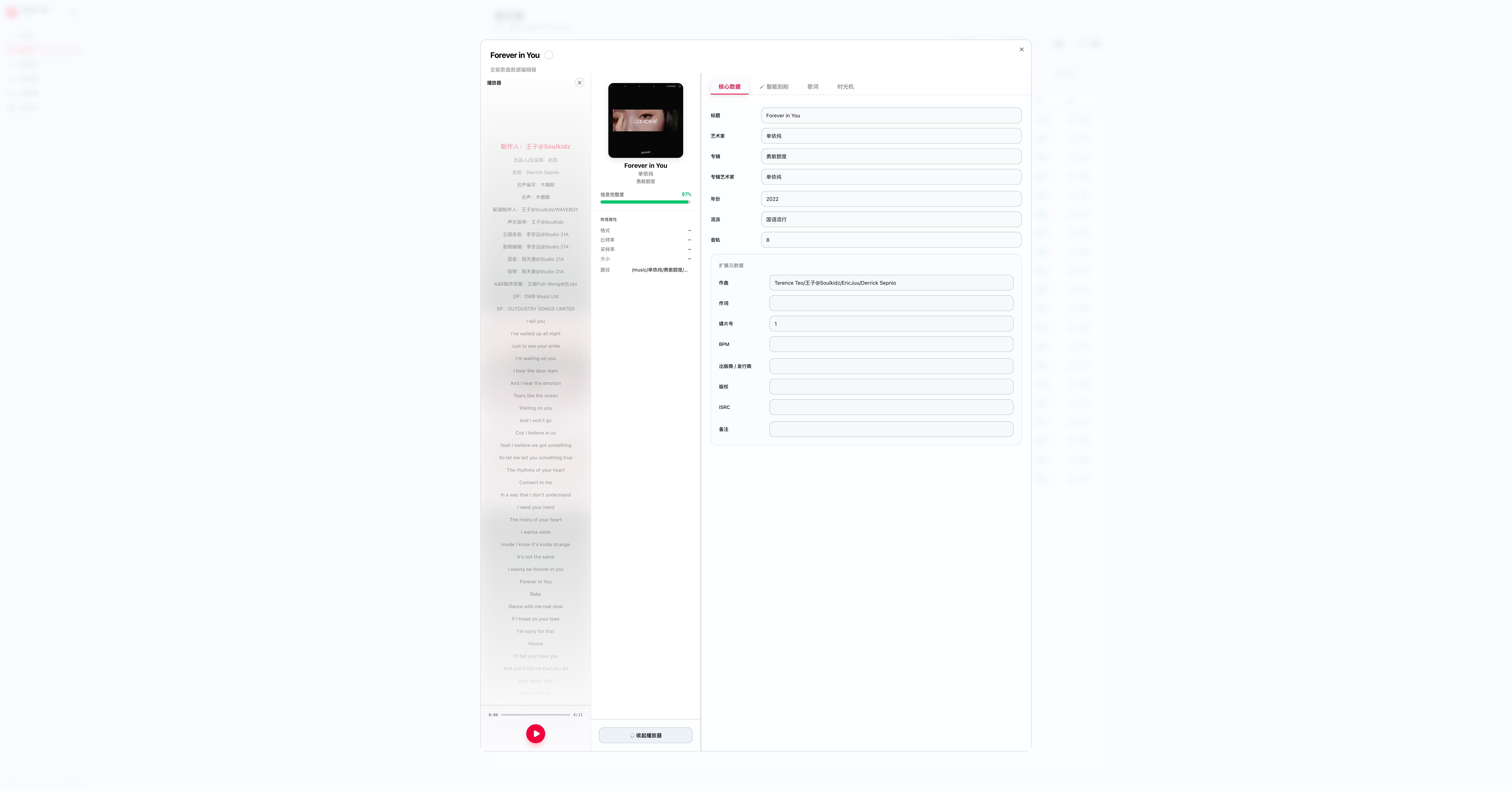
Click any field on a track detail page to edit it inline. The editor is organised into four tabs:
The primary metadata fields for the track: Title, Artist, Album, Album Artist, Genre, Year, Track Number, Disc Number, BPM, Composer, Comment, Language, and Cover Art.
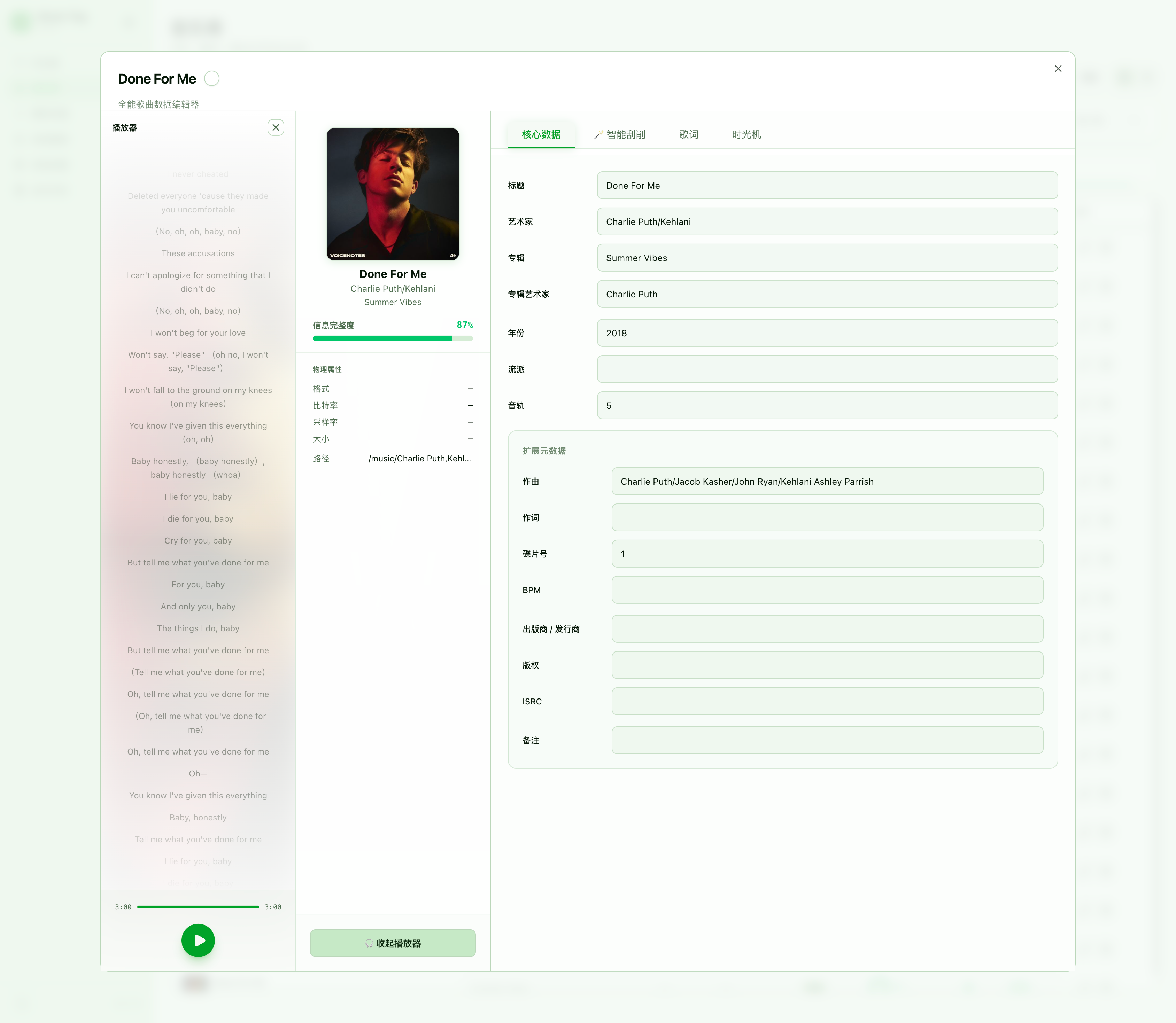
Trigger on-demand metadata lookup for the current track. Choose from available scraper sources, preview the fetched result, and apply fields selectively.
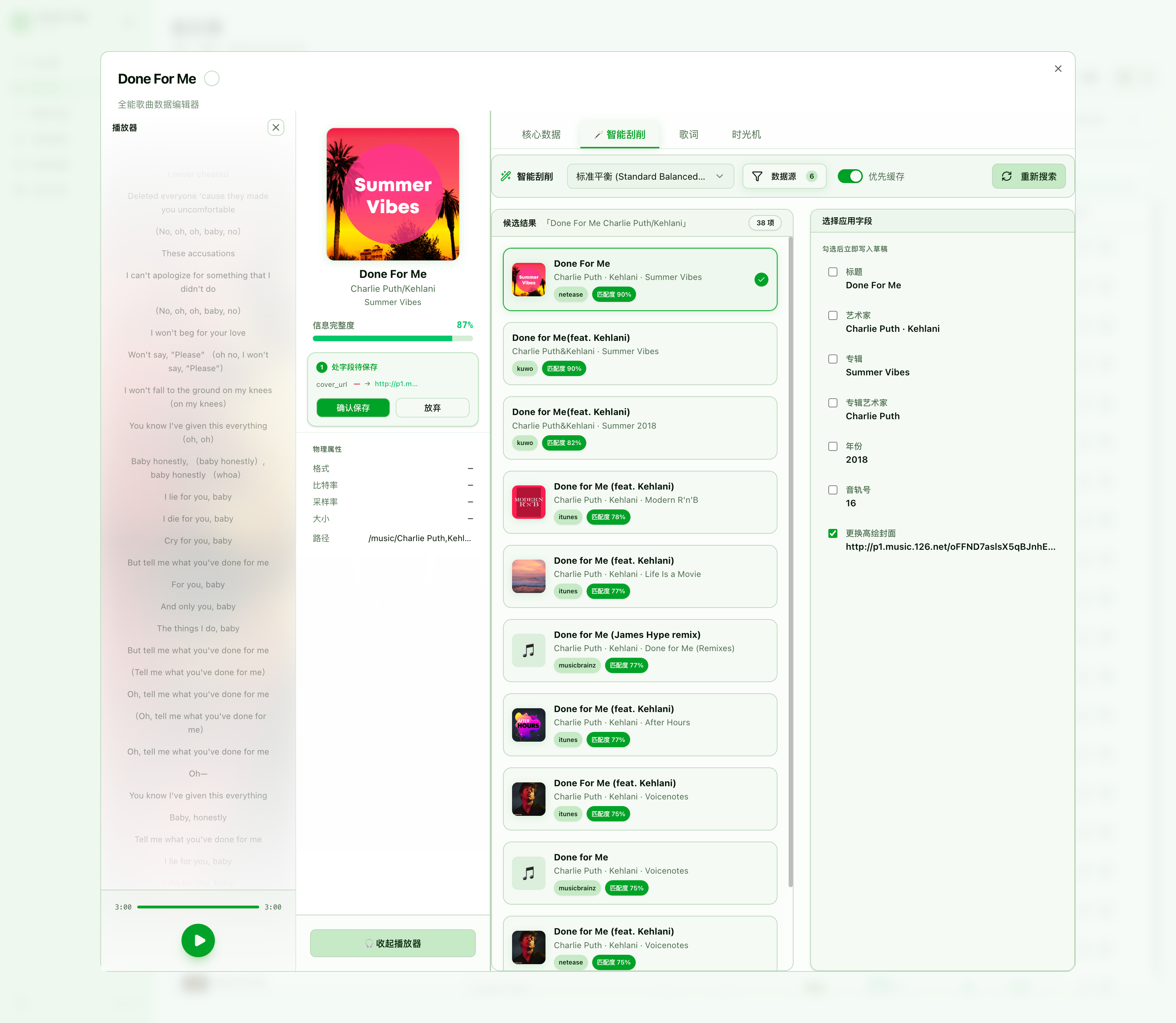
Attach LRC lyrics (synced or plain-text) to any track:
- Open the track detail panel → Lyrics tab.
- Paste LRC content or click Fetch to auto-retrieve from online sources.
- Save — lyrics are written to the audio file's tag if supported, or stored in the database.
Every metadata write is versioned. Browse the full change history with timestamps and field-level diffs, and roll back to any previous version with one click.
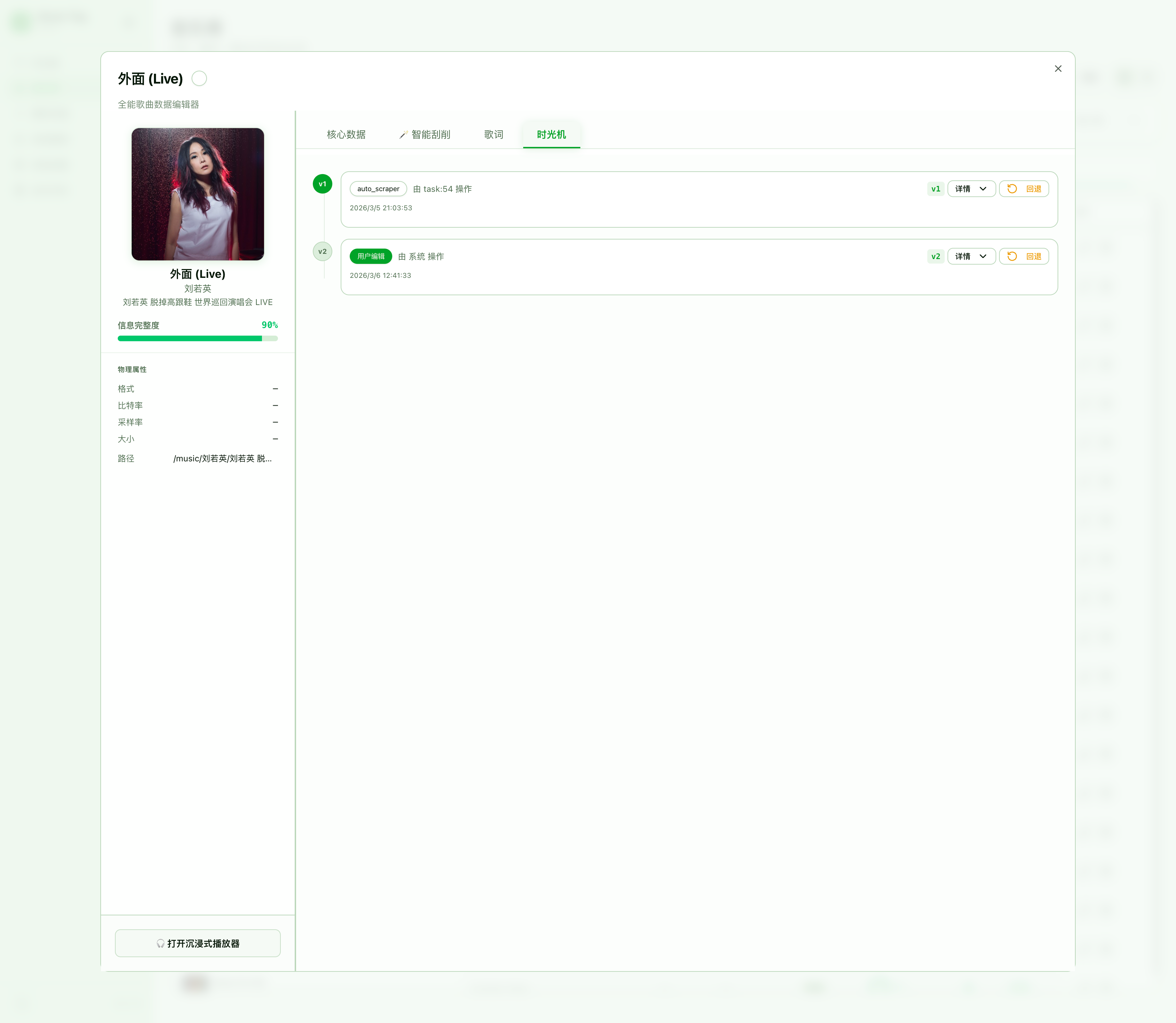
All edits are validated before saving. Mandatory fields are highlighted if left blank.
Attach LRC lyrics (synced or plain-text) to any track:
- Open the track detail panel.
- Click Lyrics tab.
- Paste LRC content or click Fetch to auto-retrieve from online sources.
- Save — lyrics are written to the audio file's tag if supported, or stored in the database.
📸 [Lyrics binding screenshot — coming soon]
Associate a music video URL with any track for quick launch:
- Open track detail → MV tab.
- Paste a YouTube, Bilibili, or direct video URL.
- Click Open MV to launch in your default browser.
📸 [MV linking screenshot — coming soon]
Every metadata write is versioned. On any track detail page:
- Click the History icon (clock).
- Browse the change history with timestamps and field diffs.
- Click Revert to this version to restore instantly.
📸 [Revert history screenshot — coming soon]