
 ← Choose your language
Joy-con Advance is an Xbox gamepad emulator with advanced features for Joy-cons, Pro Controller, DualShock 4 and DualSense Edge, based on DSAdvance by r57zone
- Customizable buttons: assign gamepad buttons to emulate Xbox, keyboard, and mouse keys
- Gyro-based modes: mouse/stick emulation for looking/aiming; wheel emulation for driving, Aircraft
- Hotkeys for switching modes and profiles in real time
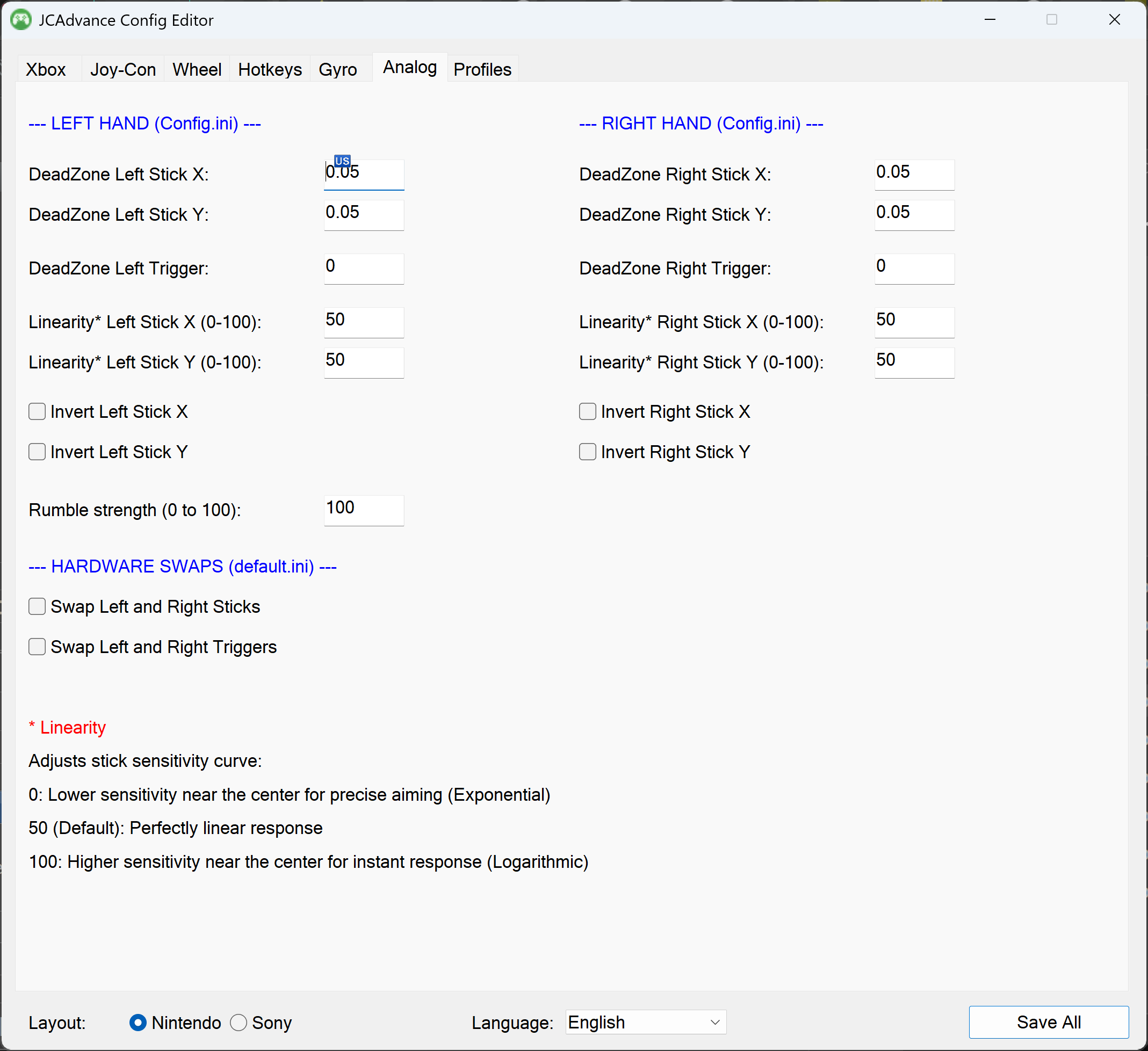
- Customizable sensitivity, deadzones, and left/right stick switching
- Rumble support for Sony/Nintendo gamepads
- Dual Joy-Cons combined into a single virtual Xbox controller
- Magic Wheel feature: use the gyro movements in different directions as additional buttons/actions
- Support for Sony DualSense adaptive triggers (pistol, rifle, sniper rifle, bow, car pedal);
- Various emulation modes for games with adaptive triggers;
- Support for two gamepads
- (Experimental) External pedal: connect your wheel/pedals and emulate triggers or sticks
- Minimal memory and CPU usage (0.20% - 0.50%)
- First of all: in the concept of using Gyro Motion
- New user-friendly GUIs
- Bug fixes and some new features
DSAdvance was designed primarily for Sony's two-handed controllers. With Joy-con support.
JCAdvance not only focuses on making the Joy-Con easy to use, but also allows for flexible customization of the gyroscope settings for various devices (Gyro Space option). I assume that Gyro Motion with two-handed gamepads and Joy-Cons is based on different concepts:
- For two-handed: is used for fine-tuning and adjusting classic stick aiming
- Joy-cons: free-hand full Gyro motion control — the right stick for looking/aiming in FPS TPS is a relic of the past
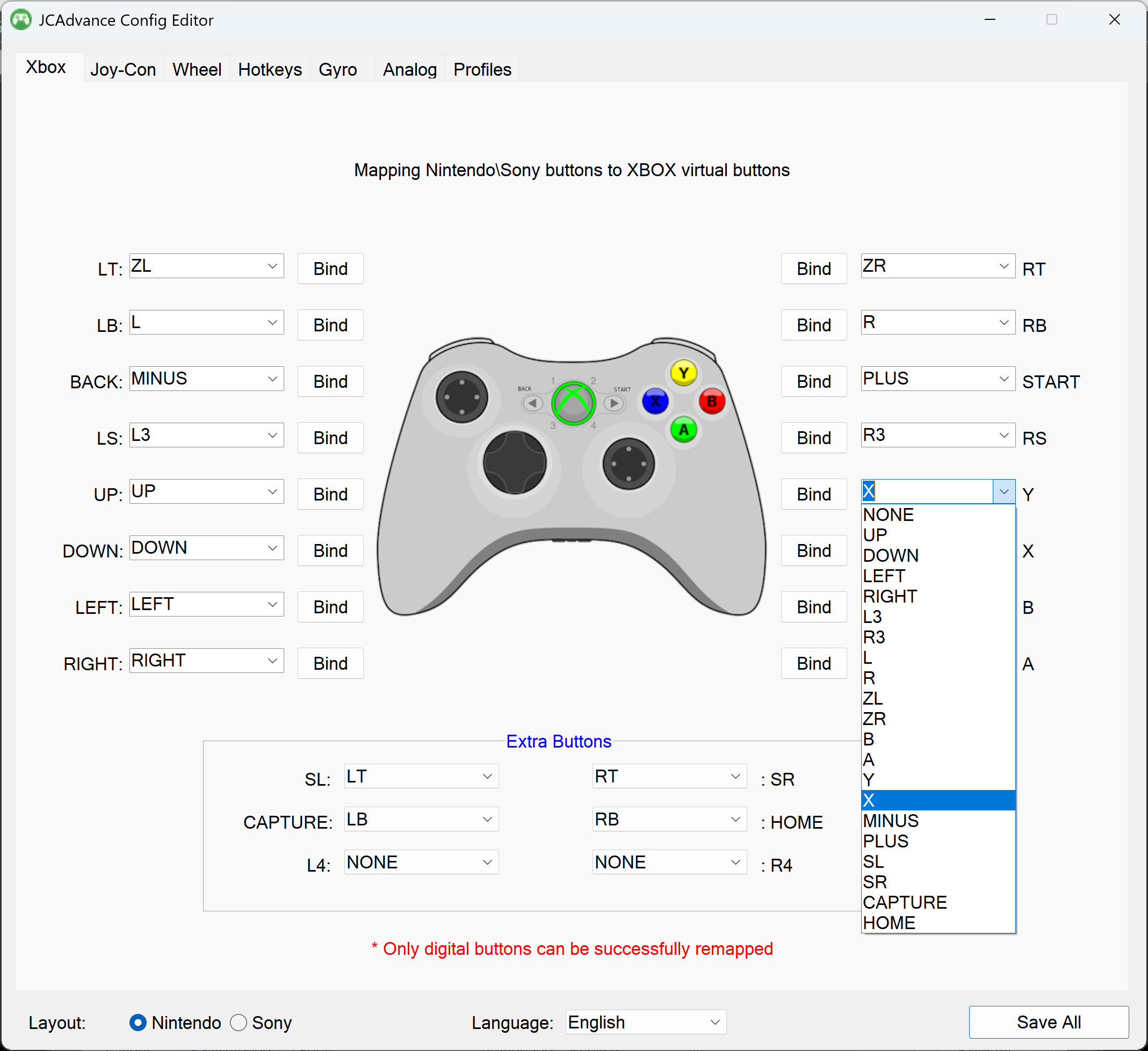
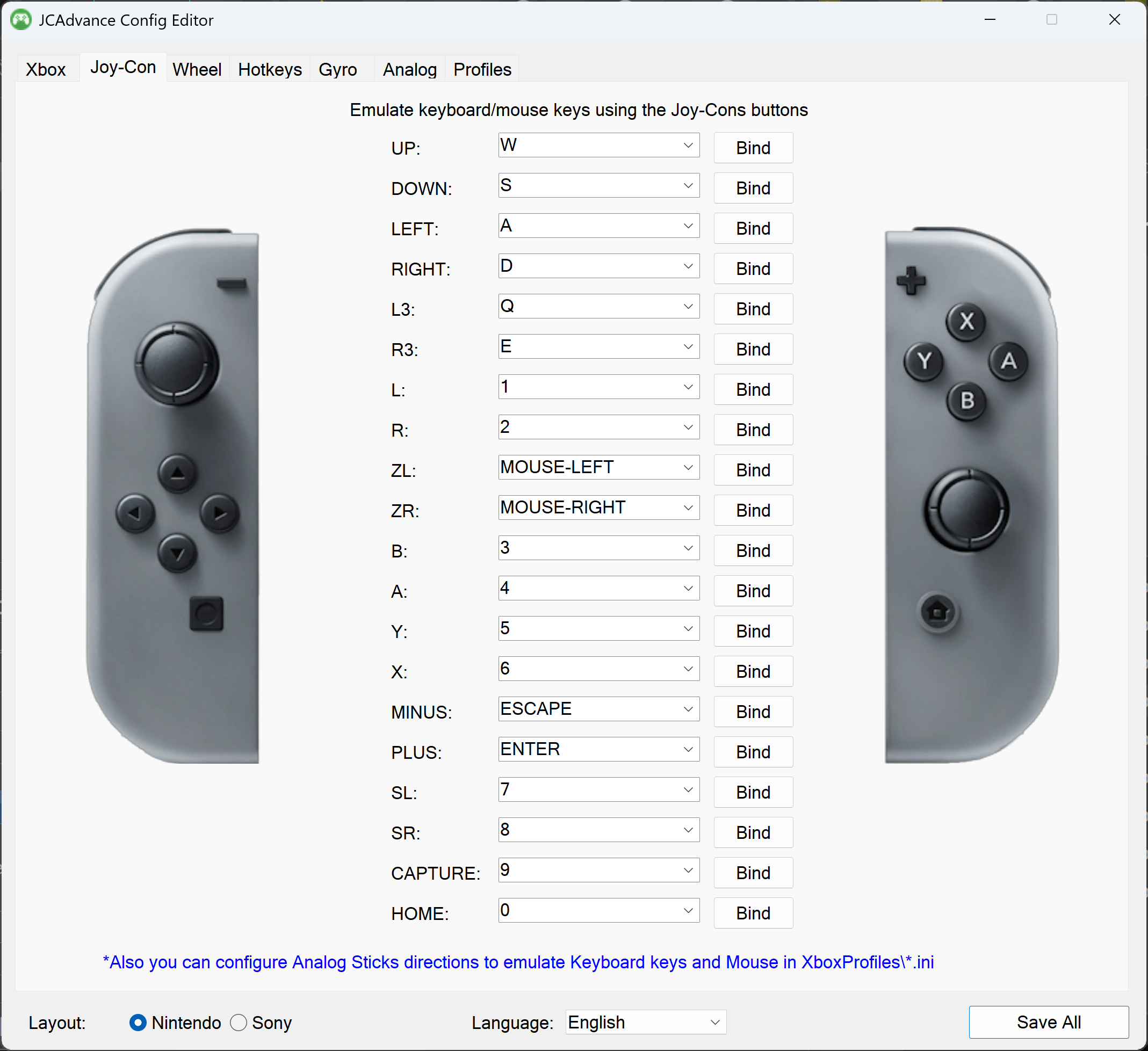
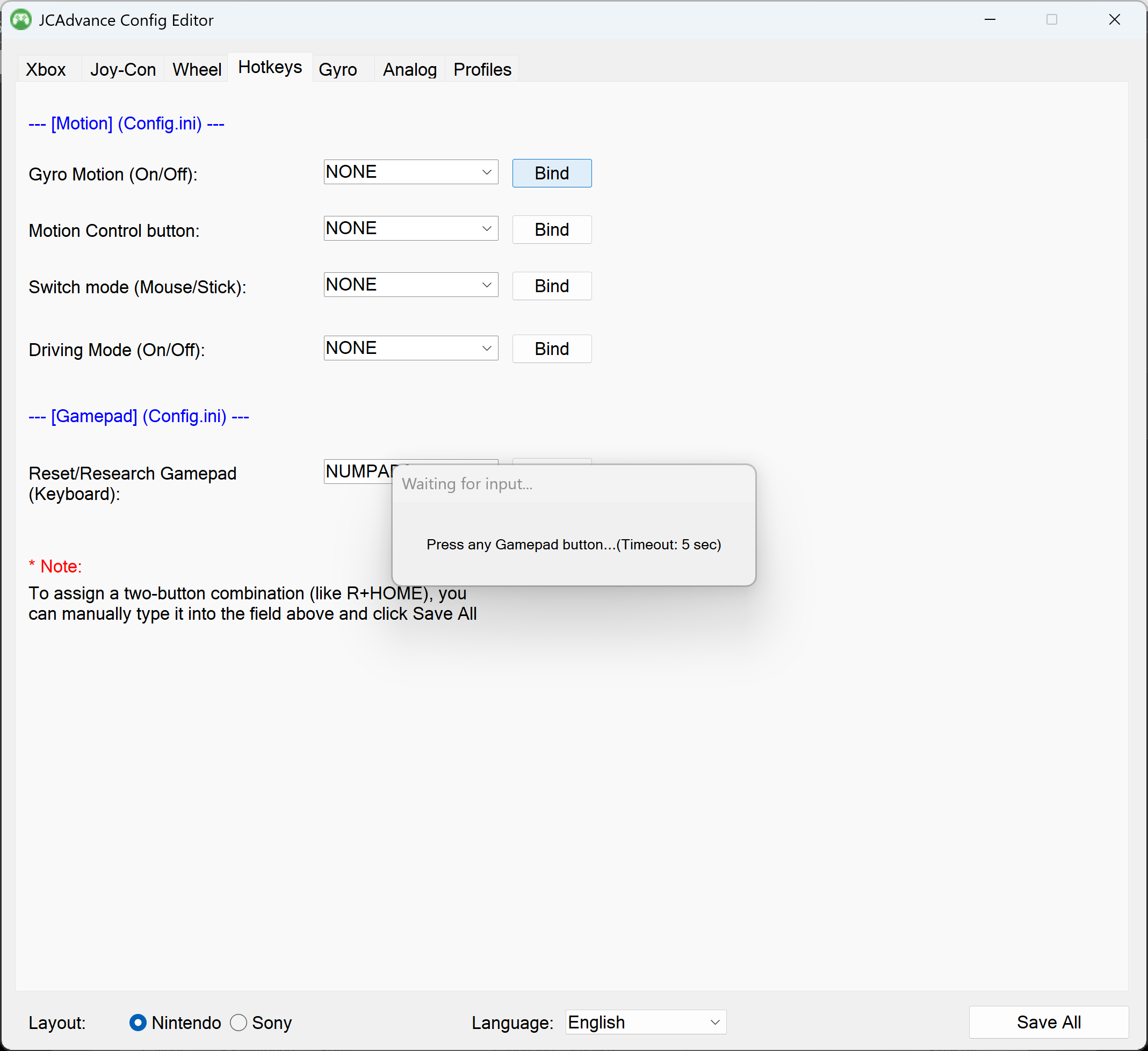
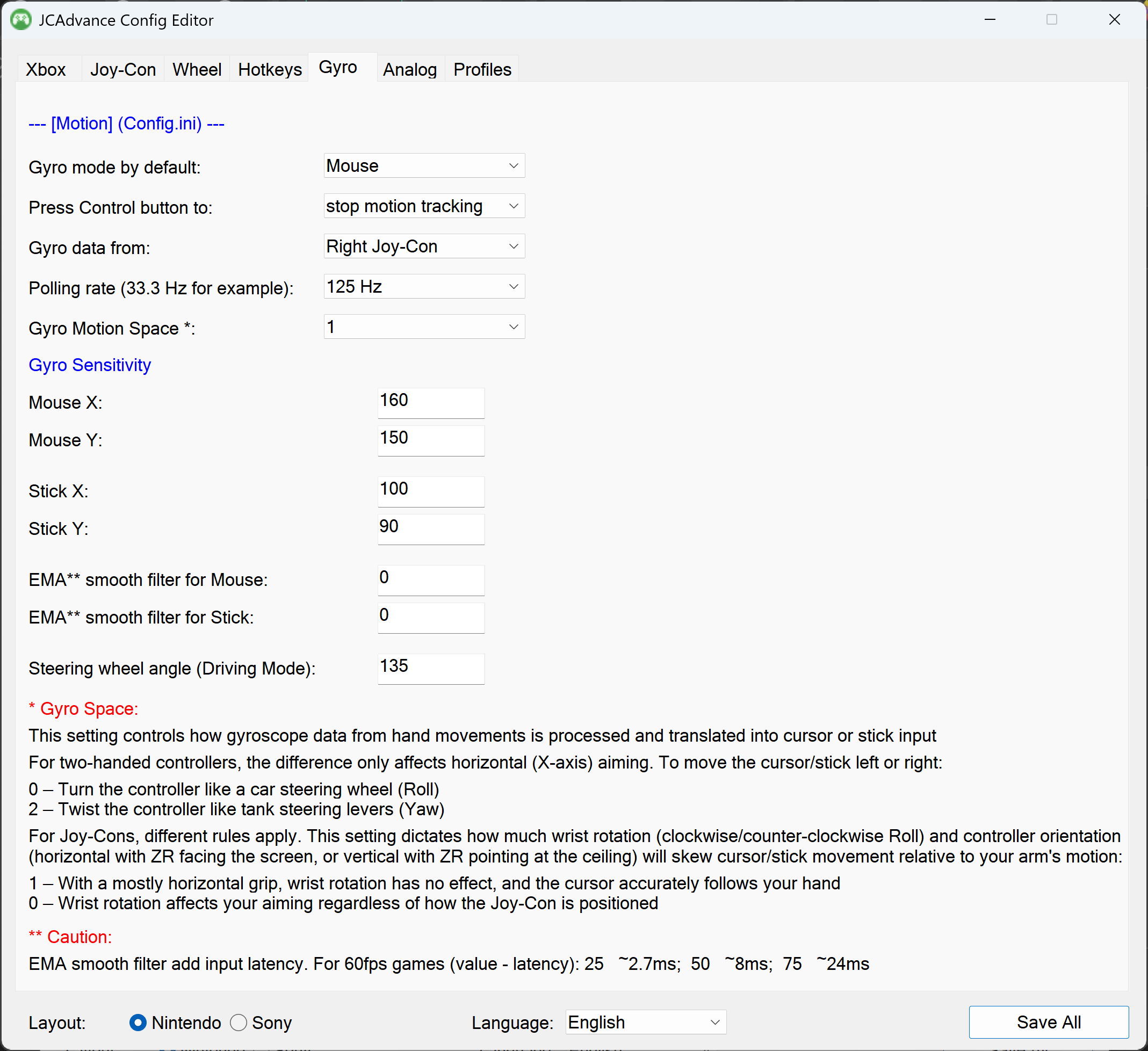
- Config.exe: all primary settings, Gyro options, button mapping, and hotkeys can now be configured via a GUI
 |
 |
 |
 |
 |
 |
- You can map any digital Nintendo/Sony gamepad button to emulate any Xbox, keyboard or mouse in one profile
- Added the ability to auto-assign using the "Bind" button or manually via a drop-down list of available buttons
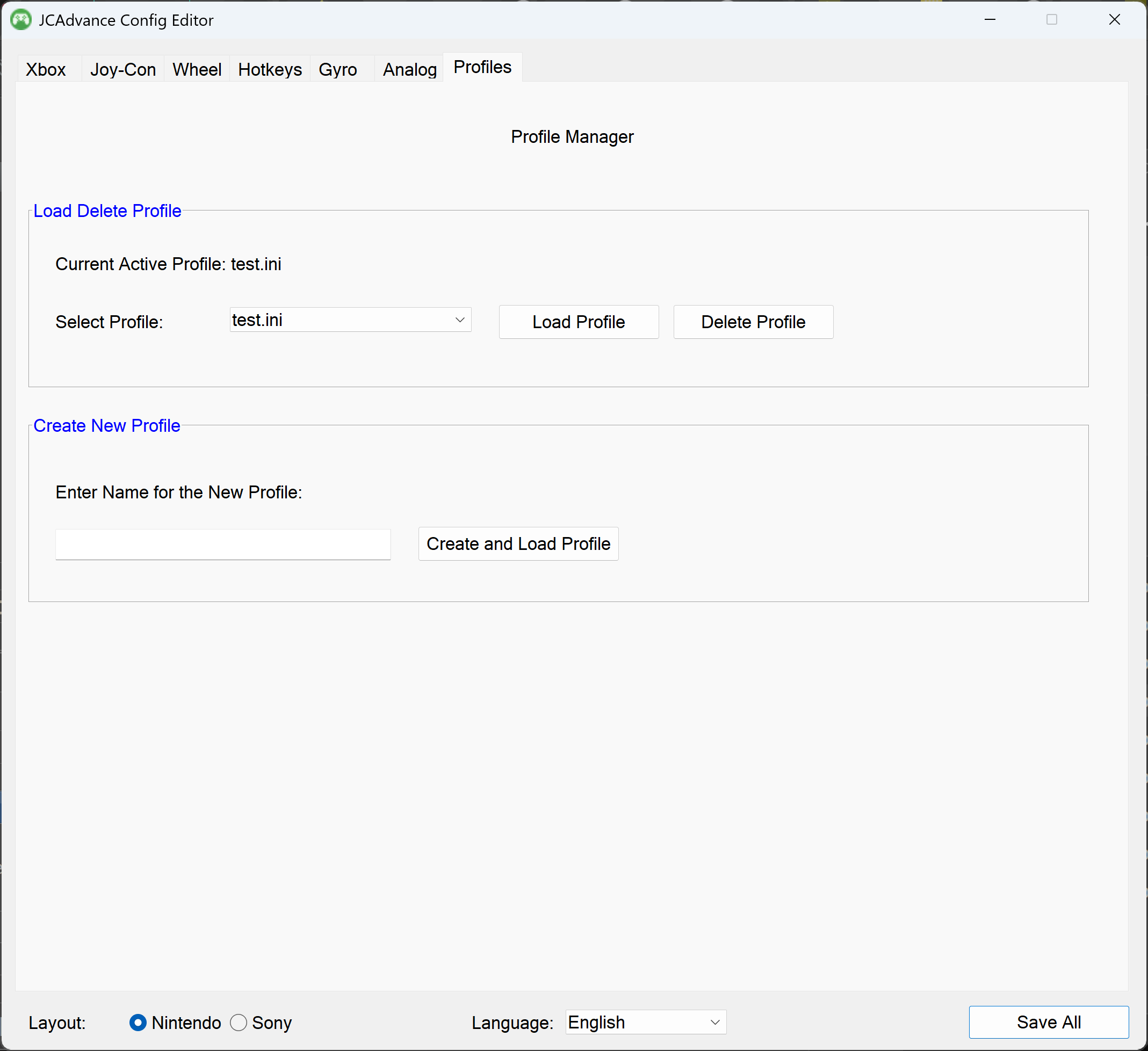
- Added Profile Manager. Create and manage profiles in a single tab of the configurator
- Fully configurable hotkeys to activate Gyro modes with support for two-button combinations (like R+HOME)
- Added Gyro Space option - an important setting for Gyro Mouse/Stick modes (see more in Technical changes)
- Added Polling rate option (higher value means smoother motion)
- Added option to read Gyro data from the left Joy-con (by default, only the right one is used)
- Added EMA filter (temporal motion antialiasing, add some latency)
- Added a non-linear stick sensitivity option
- (Experimental) External pedal now works with almost all known dinput wheels/pedals (not just Arduino)
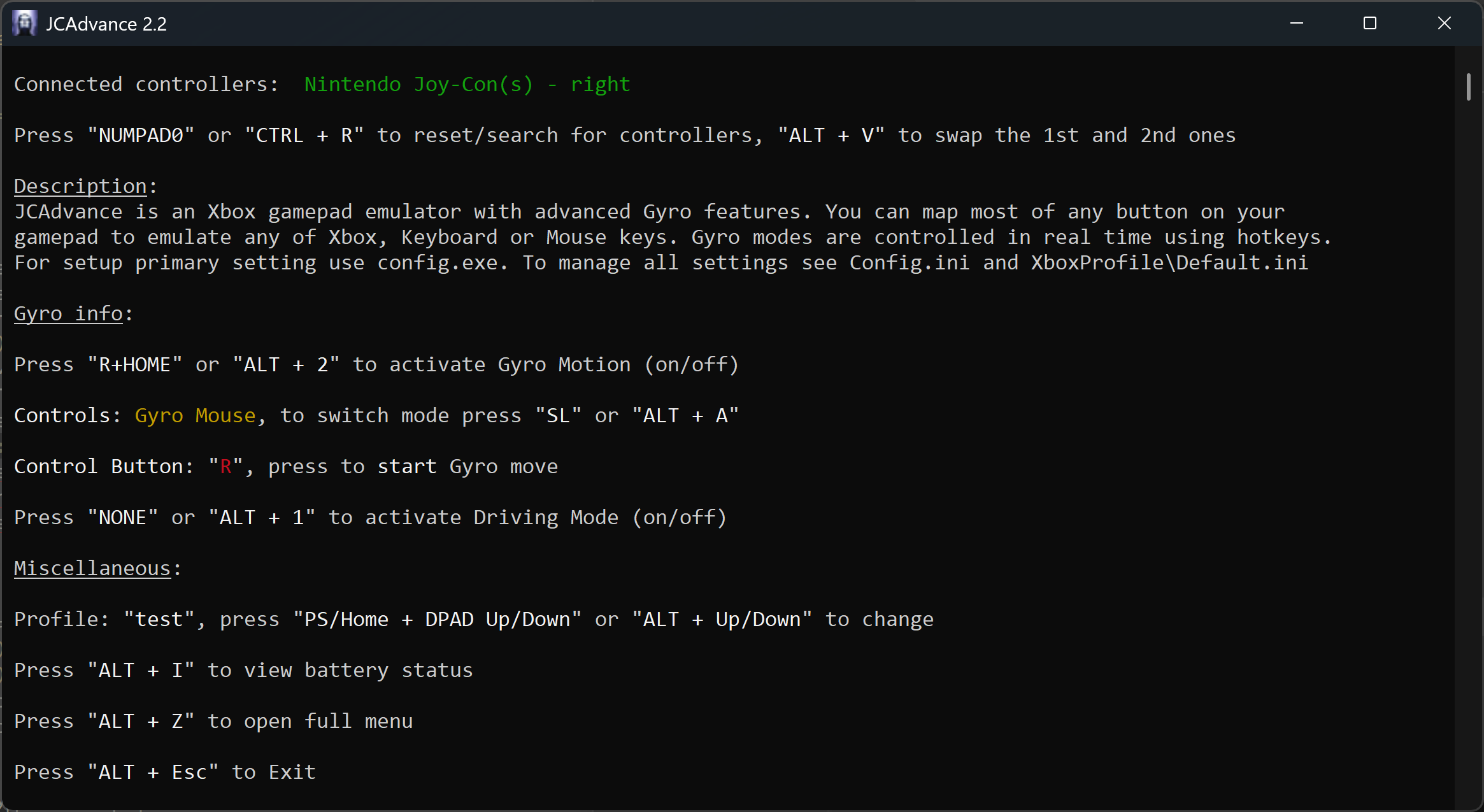
- A new, user-friendly main menu with info about the current settings and hotkeys (Alt+Z for the full menu)
 |
ViGEm Bus Driver - Virtual Gamepad Emulation Framework by nefarius
Microsoft Visual C++ Redistributable 2017 x86 x64 or newer
- Download the latest version from the Releases page
- Unzip the archive to any folder
- Run
JCAdvance.exe, connect your gamepad and enjoy!
To ensure compatibility with some games, you will need to hide your physical gamepad. Otherwise, the game might detect both your physical controller and the virtual Xbox controller at the same time (causing double-input issues).
To prevent this, we recommend using the HidHide utility by nefarius.
See the simple installation and setup instructions.
(Click to open)
- Interface and profiles
A new 3-layer menu has been introduced. Layer 0 is for before connecting devices, Layer 1 is for after connecting, and Layer 2 is the classic menu. Layer 2 is too cluttered, but has been retained for compatibility, as well as for information on Sony Touchpad hotkeys and the old profile management system.
Profiles: In the original code, there was a strict separation between profiles for Xbox (reading .ini files from the XboxProfile folder) and Keyboard/Mouse (KMProfile). It was impossible to emulate both XBOX and KM buttons in a single profile. In the current implementation, the main XboxProfile folder emulates any buttons, and profiles are managed via Config.exe. However, you can still switch between profiles using hotkeys both within the XboxProfile folder and between folders; KMProfiles is retained for compatibility.
- Default program polling rate is now 125 Hz (sleepTimeout=8 in config.ini; 1 sec = 1000ms / 8). CPU usage even at 250 Hz is only 0.30% to 0.60% :) The app uses a surprisingly small amount of PC resources.
Due to certain limitations within some functions in the code and bugs in JoyShockLibrary, the developer of DSAdvance was forced to use SleepTimeout=15, which corresponds to 66.6 Hz — a clearly insufficient rate for smooth movement, especially for Gyro Mouse.
What limitations? The Wheel function did not work properly when SleepTimeout < 15 and has been rewritten, adding WheelXboxHoldTimer.
For the full changelog of JoyShockLibrary, see the fork page: https://github.com/fttlov/JoyShockLibrary
-
Fixed a Gyro Joystick mode issue where the stick would be randomly pulled toward the center when moving the gyroscope up or down (Y-axis), caused by bugs in JoyShockLibrary.
-
Added EMA motion smoothing filter. Note: this introduces input latency. For 60fps games (value - latency): 25 ~2.7ms; 50 ~8ms; 75 ~24ms.
-
Rumble code fixes for Joy-Cons. Added PacketCounter2, flood protection, etc.
-
Improved connection and disconnection times, especially for the second Joy-Con.
-
Fixed a crash that occurred when two Joy-Cons were disconnected at the same time.
-
Fixed an issue where connecting Joy-Con (1), disconnecting it, and then connecting Joy-Con (2) resulted in no input response.
-
Fixed Battery Info (Alt+I) for the second Joy-Con.
-
Gyro Motion Space:
This option controls how the gyroscope interprets hand movements into mouse/stick movements depending on the tilt of your wrist (clockwise or counter-clockwise) and how you hold the gamepad (face buttons pointing toward you or horizontally). In DSAdvance, "0" is a hard-coded value. Now we have all 3 modes from the JoyShockLibrary creator: 0, 1, 2.
In short: for two-handed gamepads, the recommended values are 0 or 2. For Joy-Con: 1 or 0.
It is hard to explain, but I will try.
For two-handed gamepads: let’s take the example of the standard grip, where the L and R buttons are positioned at an angle of roughly 45 degrees from us. To move the mouse cursor up and down, rotate the gamepad around its axis, with L2 and R2 moving from the ceiling toward the screen and back. This applies to all modes (0, 2). The difference begins with left-right movements. To move the cursor to the left:
0 — "steering wheel" movement to the left
2 — tilt the right side of the gamepad (R2) away from you while bringing the left side (L2) closer. If you hold the gamepad horizontally (which is uncomfortable), the "steering wheel" movement returns.
For Joy-Cons, the situation is different. Since you hold a single Joy-Con in a free hand, you control the cursor either by twisting your wrist (faster but less precise) or by moving your entire forearm (slower but more precise). Two main factors negatively impact how accurately the cursor tracks your hand's actual movement vector: a) wrist rotation (clockwise/counter-clockwise, Z-axis Roll, where the SL and SR buttons point to the floor or ceiling), and b) controller orientation (horizontal, with R and ZR pointing at the screen, or vertical, with them pointing to the ceiling).
0 — Wrist rotation always affects aiming regardless of the controller's orientation. This means that to move the cursor perfectly horizontally to the left, you must move your wrist or entire arm to the left without twisting your hand at all.
1 — Wrist rotation does not matter (within 180 degrees, i.e. the range of rotation of the SL and SR buttons from floor to ceiling), but your grip does. With a relatively horizontal grip (R and ZR pointing at the screen), the cursor will strictly follow your hand's movement vector. The downside of this mode is that with a vertical grip (R and ZR pointing at the ceiling), twisting your wrist will start controlling the cursor X-axis
Reading this description might make it seem like playing this way is impossible because every mode has its downsides. But that is not the case — your brain and muscle memory adapt quickly, and all modes are highly playable (except for Joy-Con on mode 2). Test them out, find what works best for you, and you're good to go!
-
Added Split mode for Joy-cons and XY swap stick axes for horizontal grip. Added joy-con buttons SL SR HOME CAPTURE to secondary gamepad. If SplitJoycons = 1 in config.ini, Left Joy-con = Xbox 1 gamepad, Right = Xbox 2 gamepad. Aren't enough buttons/axis to play properly, maybe someday adding the missing stick in this mode using the gyro or something like that.
-
Experimental fixes for the ExternalPedals function. I expect the most issues to occur here.
The original code was made for an Arduino pedal project (I do not know what it is) and DirectInput (DInput) devices, but I could not get other steering wheels/pedals to work. The code has been rewritten to support all DInput wheels/pedals.
Set DInput=1 in config, plug in your USB DInput wheel/pedals, connect your Nintendo/Sony gamepad, and... Xbox triggers are now controlled by your pedals. If not, try changing the settings in the config section [ExternalPedals]:
a) Pedal1Axis: in Windows, the default pedal mapping is Y or Z and Z-rotation. Try other axes
b) change DeviceName: The 'Auto' value acts as a 'smart filter' to block gamepads — which, of course, isn't actually that smart. However, you can try entering the name of your wheel/pedals manually. Open the command prompt (cmd), run 'joy.cpl', press Enter, and copy/type the exact name of your steering wheel/pedals instead of 'Auto'.
I tested this feature using an old "Logitech Wingman" wheel and it f@cking works!
- Debugging & Testing Limitations:
I currently lack access to any Sony controllers, making proper debugging for these devices impossible at the moment. While the DSAdvance Sony-related code remains unchanged, unexpected issues may still occur
Joy-Con testing was conducted on MobaPad M6s controllers, which utilize simplified rumble motors. Consequently, it is difficult to determine how well HD Rumble is implemented or if it functions correctly at all
The experimental externalpedals feature was tested using an old Logitech steering wheel. Although the initial tests were successful, this sample size is obviously too small to guarantee broad compatibility
- Congfig.exe is written in AHK, high DPI settings in Windows may cause display issues. If the text does not fit in the window or overlaps, temporarily lower the DPI setting or change your screen resolution
- Your antivirus might flag Config.exe because of library calls. The source code is open, but if you're paranoid, don't use it, .ini files are wainting for you
- If you’re experiencing poor connectivity or vibration issues (like infinite rumble) when two Joy-Cons are connected at the same time, try a different Bluetooth adapter. Known reliable adapters include the ASUS USB-BT400 and cheaper alternatives based on the same BCM20702 chip, as well as some Bluetooth 4.0 adapters from Ugreen. There are several threads on Reddit discussing this issue
And will not be expanded until the transition to SDL, which is a long way off
- DSAdvance - that was the starting point for me. r57zone has done a really great job and I thank him for that.
- JoyShockLibrary for a cool gamepad library that makes it easy to get controller rotation. Also uses some code from this library and JibbSmart snippet for aiming.
- ViGEm for the ability to emulate various gamepads and HidHide for hiding them.
- HIDAPI library with fixes for the library to work with a USB devices. The project uses this fork.
- DS4Windows[1][2] for the battery level.
- JoyCon-Driver for Joy-Cons rumble.
- Valkirie for adaptive triggers over Bluetooth.
(Click to open)
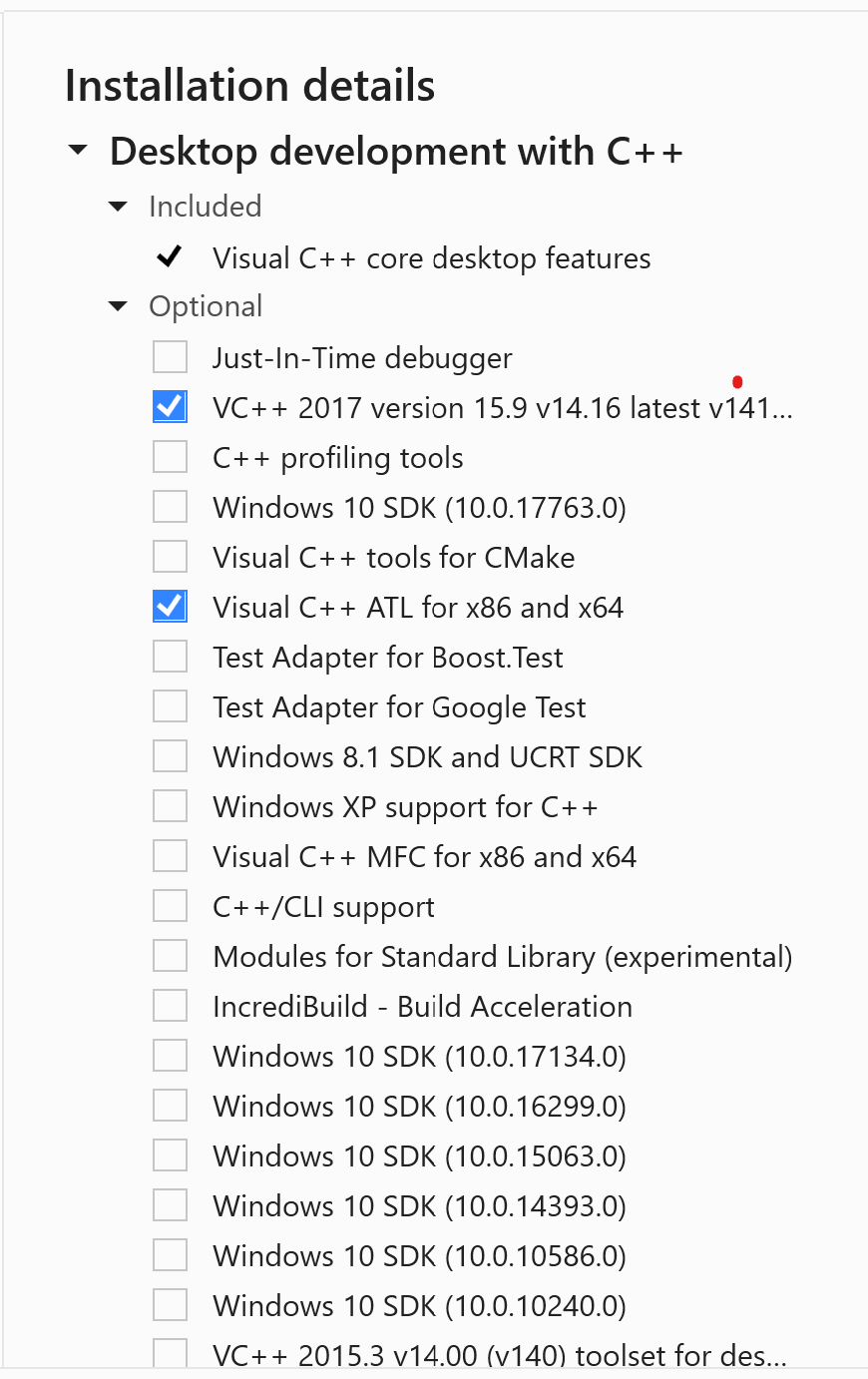
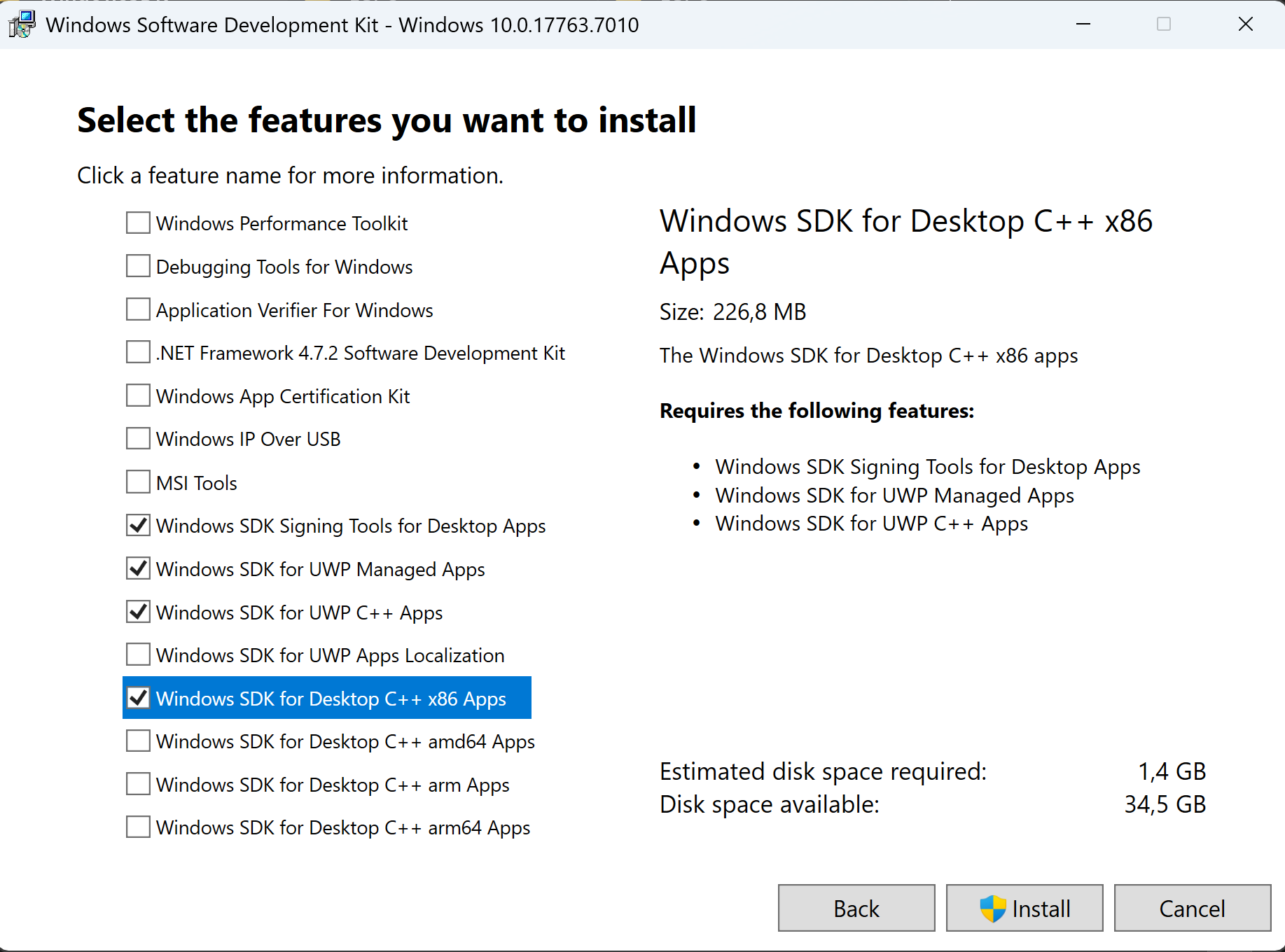
- If you're new to programming, just like me, follow the instructions below carefully:
- Download the source code and unzip
- Download Visual Studio 17 and install with these components
- Download Windows SDK 10.0.1776.x and install with these components
If you have newer SDK don't forget to retarget the project - Choose the
Releasebuild type , eitherx86orx64, and compile the project - To compile the Config tool, use Ahk2exe with the base file: v2 U32 or U64. The script reads JoyShockLibrary.dll and icons from the
\Iconfolder. JCadvance, Joyshocklibrary.dll and Config.exe must be the same architecture
Added configuration and support files for editing the code in modern VS Code with clangd.
You can easily translate the JCAdvance configurator and console interface into any language without recompiling the program. See \Language folder in Release
Enjoying your favorite game with J.C. Advance? Buy me a 🍺🍺🍺
👉 Lava.top (Apple Pay / PayPal / Visa / Mastercard) (No registration, enter email for receipt & history only)
Click to expand Crypto addresses & QR Codes
Please ensure you send your transaction through the correct network listed inside each option!
🟢 USDT (BSC / BEP-20) — Recommended (Low Fee)
- Network: BNB Smart Chain (BEP-20)
- Address:
0x7bd7bb2a21d3489a6bce6de29d9e504eb6bb1429
%200x7bd7bb2a21d3489a6bce6de29d9e504eb6bb1429.png)
🟢 USDT (Tron / TRC-20) — Classic
- Network: Tron (TRC-20)
- Address:
TXAdZL5Y4FqhUdZP5TeShMyXPk9hBWh27o
%20TXAdZL5Y4FqhUdZP5TeShMyXPk9hBWh27o.png)
🔵 TON (Toncoin) — Recommended (Instant & Low Fee)
- Network: TON Chain
- Address:
UQC0uPYhCF5R3OZKC_HKsNi84oLtVvXBneI8fKVwhF2Ykcro(👉 Open in Wallet) - Important: No Memo / Tag required! (Direct personal deposit address).
%20UQC0uPYhCF5R3OZKC_HKsNi84oLtVvXBneI8fKVwhF2Ykcro.png)
🪙 LTC (Litecoin) — Low Fee
- Network: Litecoin (LTC)
- Address:
Lb3GnY7u8aKYsFQi7nY4gi5QeWb9Y8QDeR
%20Lb3GnY7u8aKYsFQi7nY4gi5QeWb9Y8QDeR.png)
🔶 BTC (Bitcoin) — Classic
- Network: Bitcoin
- Address:
1MVqQdFdf8WCGyyZP6nqCE314nZj7mDGYR
%201MVqQdFdf8WCGyyZP6nqCE314nZj7mDGYR.png)
🔷 ETH (Ethereum) — ERC-20
- Network: Ethereum (ERC-20)
- Address:
0x7bd7bb2a21d3489a6bce6de29d9e504eb6bb1429
%200x7bd7bb2a21d3489a6bce6de29d9e504eb6bb1429.png)
🇷🇺 Для пользователей из РФ/РБ: Donate via CloudTips / МИР СБП
fttlkov@gmail.com