
Fast, keyboard-driven search popup for VS Code
Inspired by Neovim Telescope and JetBrains Search Everywhere


Open with Ctrl+Alt+F — Type — Navigate — Done.
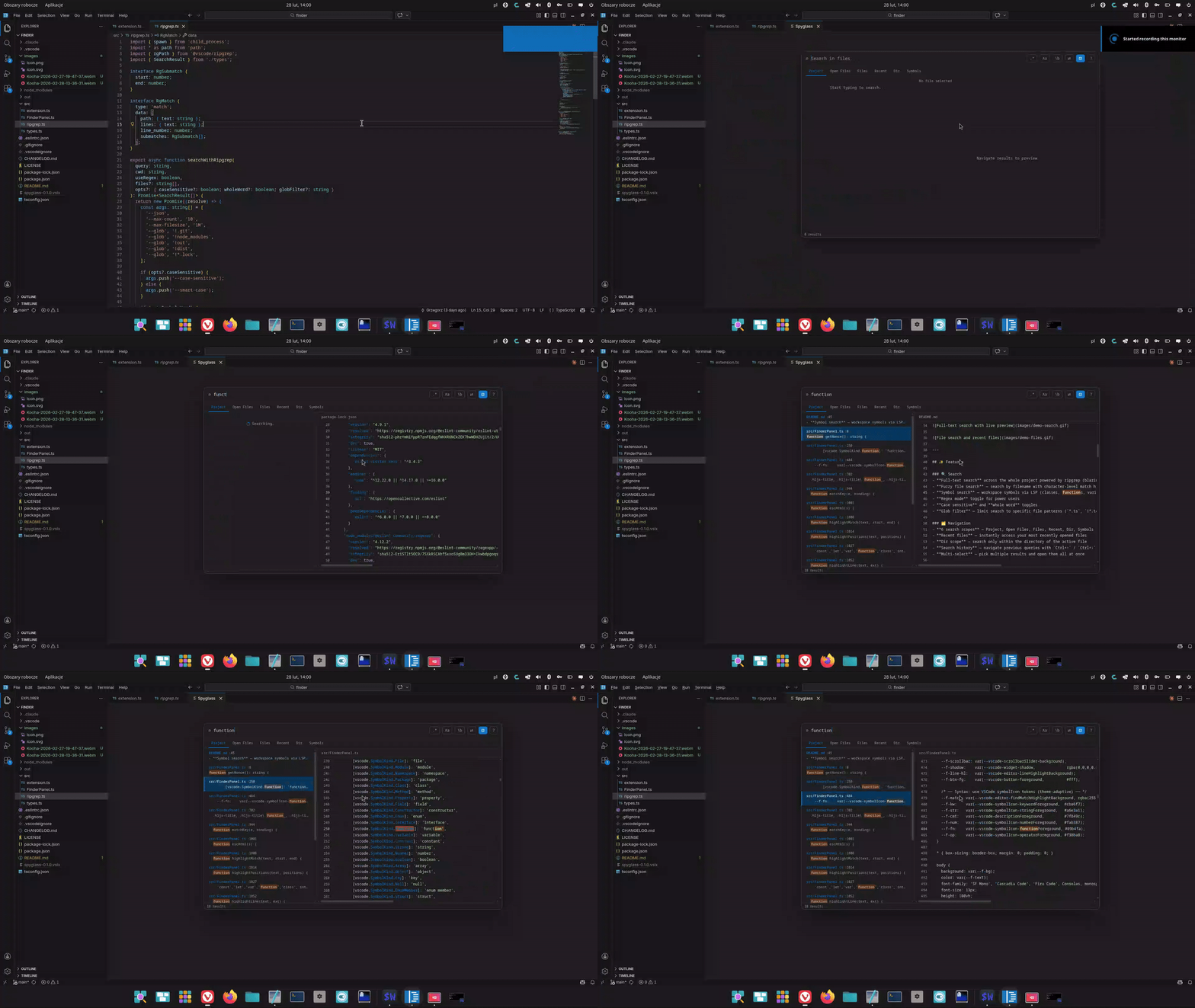
Full-text search with live preview
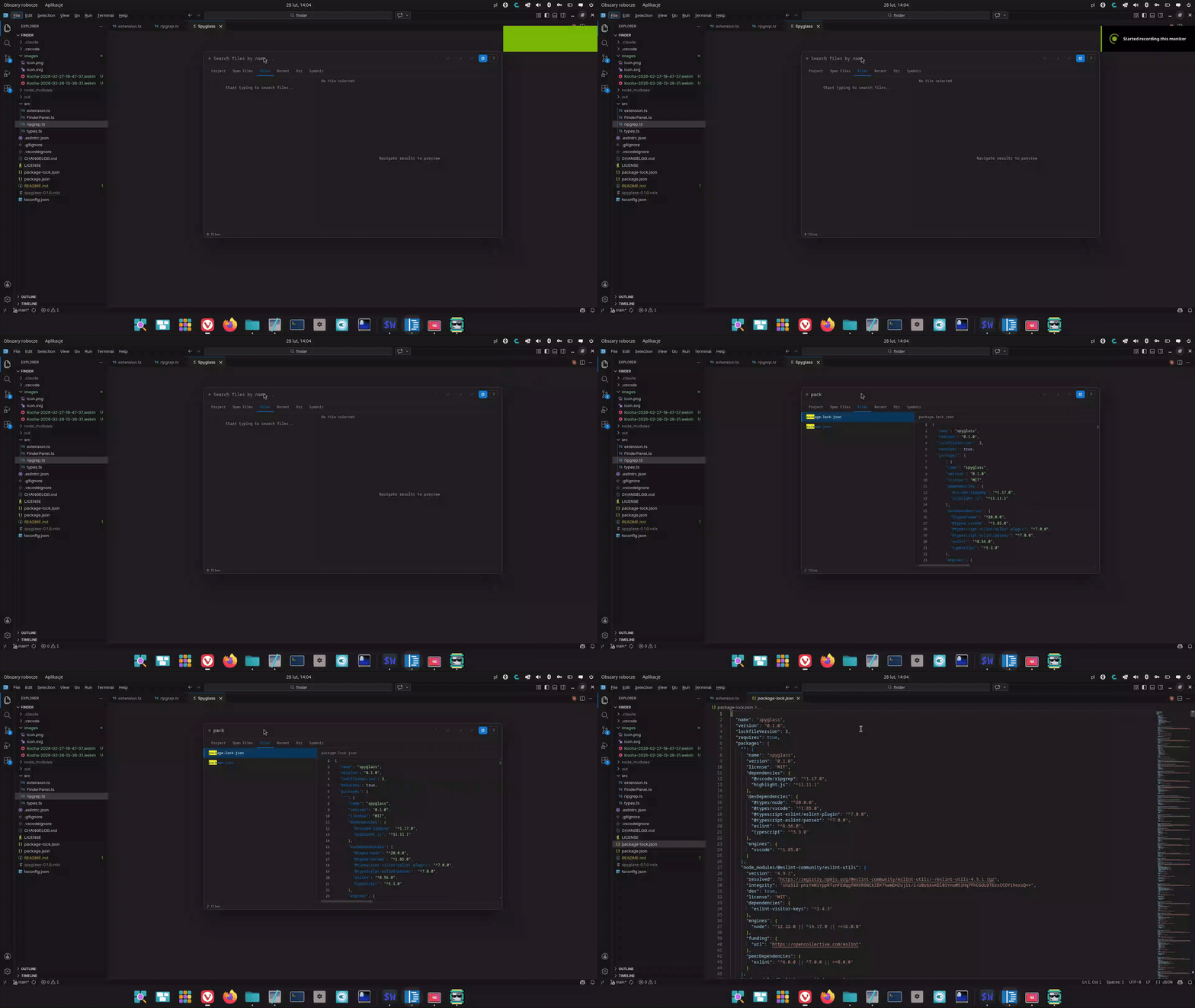
File search and recent files
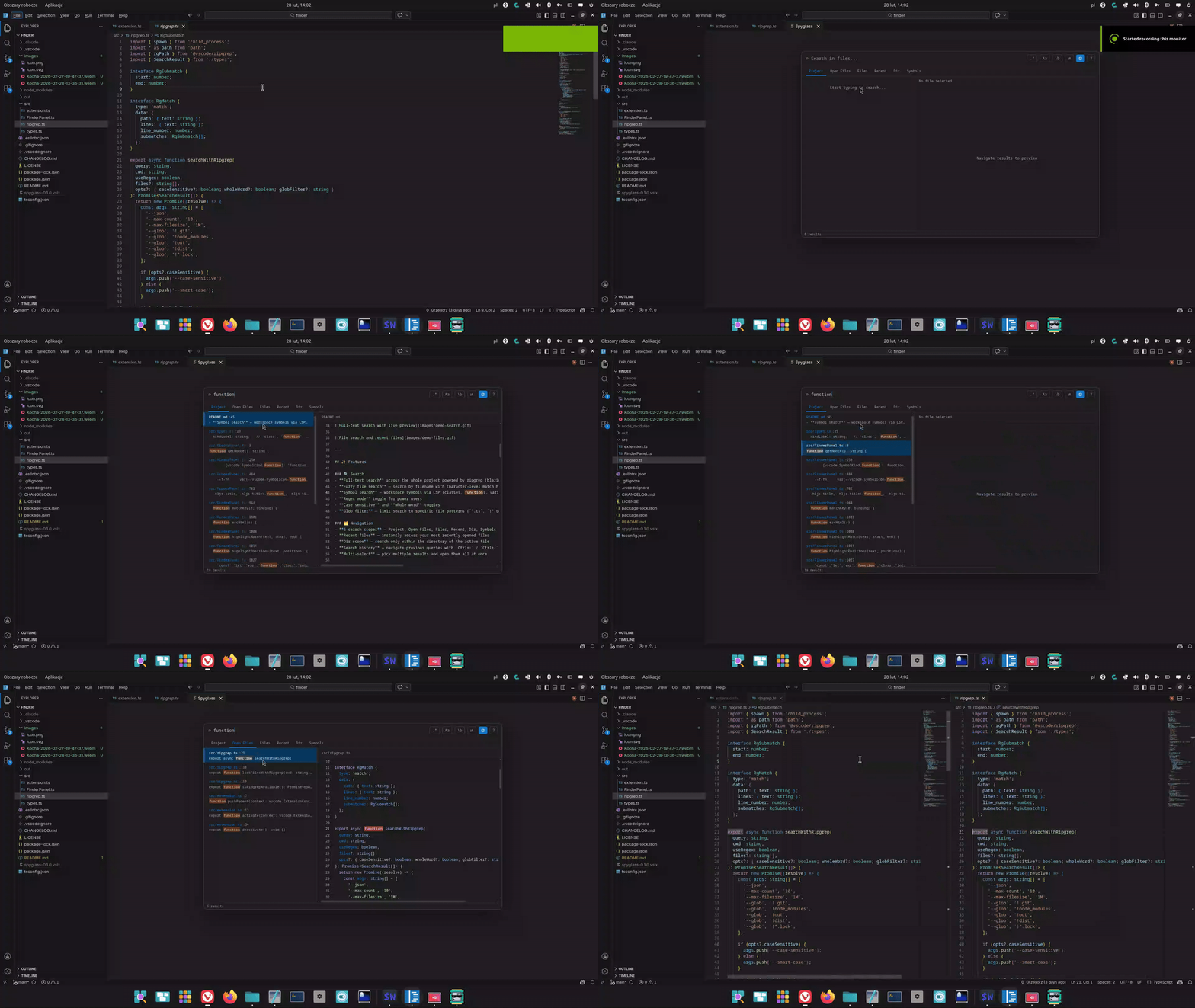
Split editor
- Full-text search across the whole project powered by ripgrep (blazing fast)
- Fuzzy file search — search by filename with character-level match highlighting
- Symbol search — workspace symbols via LSP (classes, functions, variables…)
- Regex mode toggle for power users
- Case sensitive and whole word toggles
- Glob filter — limit search to specific file patterns (
*.ts,!*.test.ts)
- 6 search scopes — Project, Open Files, Files, Recent, Dir, Symbols
- Recent files — instantly access your most recently opened files
- Dir scope — search only within the directory of the active file
- Search history — navigate previous queries with
Ctrl+↑/Ctrl+↓ - Multi-select — pick multiple results and open them all at once
- Live preview — file content as you navigate, with syntax highlighting
- Git change indicators — modified lines highlighted in the gutter
- Theme adaptive — works with any VS Code theme (dark, light, high contrast)
- Find & Replace — replace across all matched files instantly (with undo)
- Copy path — copy the absolute path of the selected result
- Reveal in Explorer — click the preview header to locate the file
- Open in split — open any result beside the current editor
- Pre-fill from selection — select text, open Spyglass → query is pre-filled
- Zero dependencies — ripgrep is bundled, nothing to install
| Action | Shortcut |
|---|---|
| Open Spyglass | Ctrl+Alt+F |
VSCode Vim users — bind
<Space>fas your leader shortcut. See Vim setup below.
| Action | Shortcut |
|---|---|
| Navigate results | ↑ / ↓ |
| Open selected file | Enter |
| Open in split editor | Ctrl+Enter |
| Switch scope | Tab |
| Close | Escape |
| Toggle regex | Shift+Alt+R |
| Toggle case sensitive | Alt+C |
| Toggle whole word | Alt+W |
| Toggle preview panel | Shift+Alt+P |
| Toggle replace mode | Alt+R |
| History — previous query | Ctrl+↑ |
| History — next query | Ctrl+↓ |
| Copy path | Alt+Y |
| Multi-select toggle | Ctrl+Space / Ctrl+Click |
| Select all results | Ctrl+A |
| Open all selected | Shift+Enter |
| Reveal in Explorer | click the preview header |
| Scope | Description |
|---|---|
| Project | Full-text search across all files in the workspace |
| Open Files | Full-text search only within currently open editor tabs |
| Files | Fuzzy search by filename across the whole project |
| Recent | Recently opened files, ordered by most recent |
| Dir | Full-text search within the directory of the active file |
| Symbols | Workspace symbol search via LSP (requires a language extension) |
Switch between scopes with Tab while Spyglass is open.
- Open Spyglass and type your search query
- Press
Alt+R(or click⇄) to enable replace mode - Type the replacement text in the second field
- Optionally tune case-sensitive / whole-word / glob filter
- Click Replace all — all matches replaced instantly via VS Code's edit API (supports undo)
The right-side preview shows the file around the matched line with syntax highlighting. Lines modified since the last git commit are marked with a blue indicator in the gutter.
- Toggle with
Shift+Alt+Por the⊡button - Click the preview header to Reveal in Explorer
| Setting | Default | Description |
|---|---|---|
spyglass.defaultScope |
project |
Scope on open: project openFiles files recent here symbols |
spyglass.maxResults |
200 |
Maximum number of results to display |
spyglass.keybindings.navigateDown |
ArrowDown |
Navigate down in results |
spyglass.keybindings.navigateUp |
ArrowUp |
Navigate up in results |
spyglass.keybindings.open |
Enter |
Open selected result |
spyglass.keybindings.close |
Escape |
Close Spyglass |
spyglass.keybindings.toggleRegex |
shift+alt+r |
Toggle regex mode |
spyglass.keybindings.togglePreview |
shift+alt+p |
Toggle preview panel |
Open Keyboard Shortcuts (Ctrl+K Ctrl+S), search for Spyglass: Open Search and assign your preferred key.
Or edit keybindings.json directly (Ctrl+Shift+P → Open Keyboard Shortcuts (JSON)):
[
  {
    "key": "ctrl+alt+f",
    "command": "spyglass.open",
    "when": "!inputFocus || editorTextFocus"
  }
]Add to your settings.json:
{
  "spyglass.keybindings.navigateDown": "j",
  "spyglass.keybindings.navigateUp": "k",
  "spyglass.keybindings.toggleRegex": "ctrl+r",
  "spyglass.keybindings.togglePreview": "ctrl+p"
}If you use the VSCode Vim extension, bind <Space>f just like Telescope in Neovim.
Add to your settings.json:
{
  "vim.normalModeKeyBindingsNonRecursive": [
    {
      "before": ["<Space>", "f"],
      "commands": ["spyglass.open"]
    }
  ]
}
To disable the default Ctrl+Alt+F binding:
[
  {
    "key": "ctrl+alt+f",
    "command": "-spyglass.open"
  }
]- VS Code
^1.85.0 - No additional dependencies — ripgrep is bundled automatically
- Git (optional) — required for change indicators in the preview panel
- A language server extension (optional) — required for the Symbols scope
PRs and issues welcome at github.com/garroter/spyglass.
MIT