03 Color Palette
What you'll learn: How DRAW thinks about color, the FG/BG/swap dance, the Color Picker and live Color Mixer, the 56 bundled palettes, and the palette-ops mode that lets you remap entire compositions in seconds.
🎯 Goal: Select, swap, and manage colors.
The palette strip across the bottom of the screen is the fastest way to choose colors. Left-click a swatch to set the foreground (FG) color; right-click a swatch to set the background (BG) color. The active FG and BG swatches are echoed in the status bar.
| Action | Key / mouse |
|---|---|
| Swap FG and BG | X |
| Reset to white FG / black BG | Ctrl+D |
| Set BG to transparent | Shift+Delete |
| Scroll the palette strip | Mouse wheel over strip |
| Fast-scroll 32 colors at a time |
Shift + Mouse wheel |
| Temporary FG eyedropper (any tool) |
Alt+Left-click on canvas |
| Temporary BG eyedropper (any tool) |
Alt+Right-click on canvas |
Paint opacity — the keys 1 through 9 set strokes to 10–90% opacity, and 0 returns to fully opaque 100%. DRAW uses per-stroke compositing, which means a 50% stroke that overlaps itself does not get more opaque the way Photoshop's brush would; the stroke is rendered once at the end as a single 50% pass. This makes for predictable, pixel-art-friendly results.
Use the opacity slider in the organizer of the toolbox to set whatever opacity level you wish from 1% to 100%.
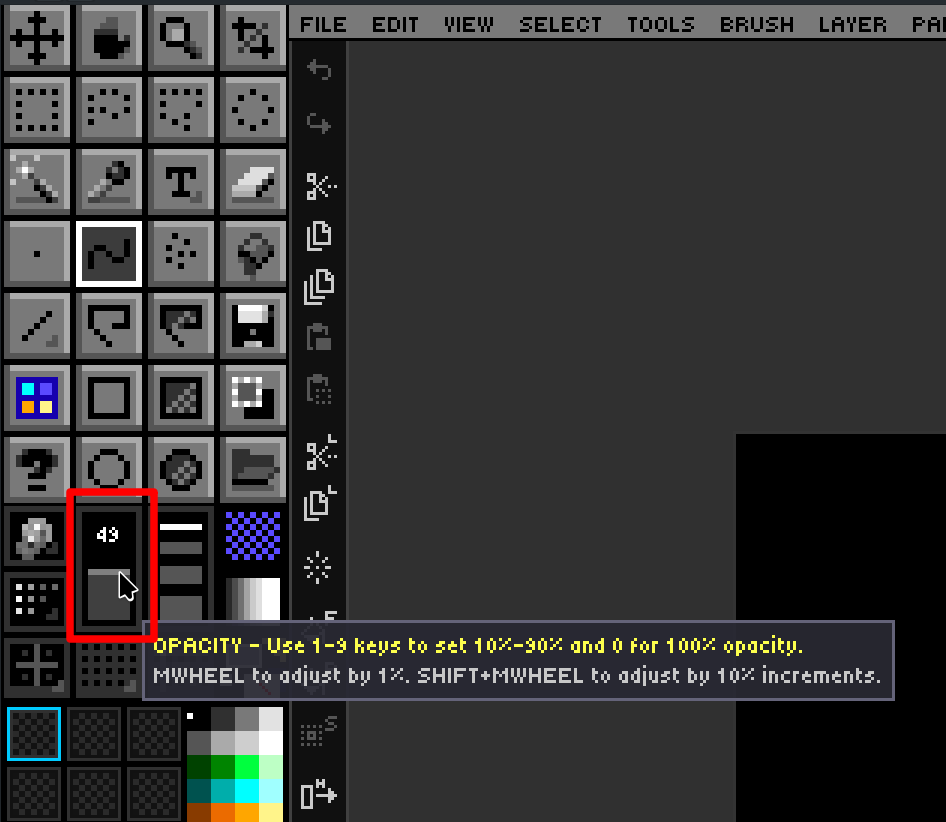
| Action | Key / mouse |
|---|---|
| Set Opacity from 10% to 100% |
1-9 for 10% to 90%, or 0 for 100% opacity |
| Mouse Wheel Up | Increase opacity by 1% |
| Mouse Wheel Down | Decrease opacity by 1% |
Shift + Mousewheel |
Increase or decrease opacity by 10% |
Opacity slider will be outlined in a bright color if you set opacity to
<=the percentage according toDRAW.cfgsetting:OPACITY_WARN_THRESHOLD
🎯 Goal: Use the full RGB color picker and the live Color Mixer.
Click either the FG or BG swatch in the status bar to open the Color Picker. It supports true 24-bit RGB selection plus a hex input field. The Picker tool (I) on the canvas pairs an eyedropper with a loupe overlay that magnifies the area under the cursor and prints the RGB and hex values for the pixel you'd sample.
The Color Mixer panel is a floating, persistent alternative to the modal picker. Open it from View → Color Mixer (or via the Command Palette). It exposes:
- RGB sliders — adjust Red, Green, Blue independently.
- HSV sliders — adjust Hue, Saturation, Value.
- A hex input field — paste any hex value directly.
- FG and BG swatches — click to apply the mixed color.
Because the mixer is non-modal, you can keep it open while drawing and tweak colors live. Its visibility is persisted in DRAW.cfg.
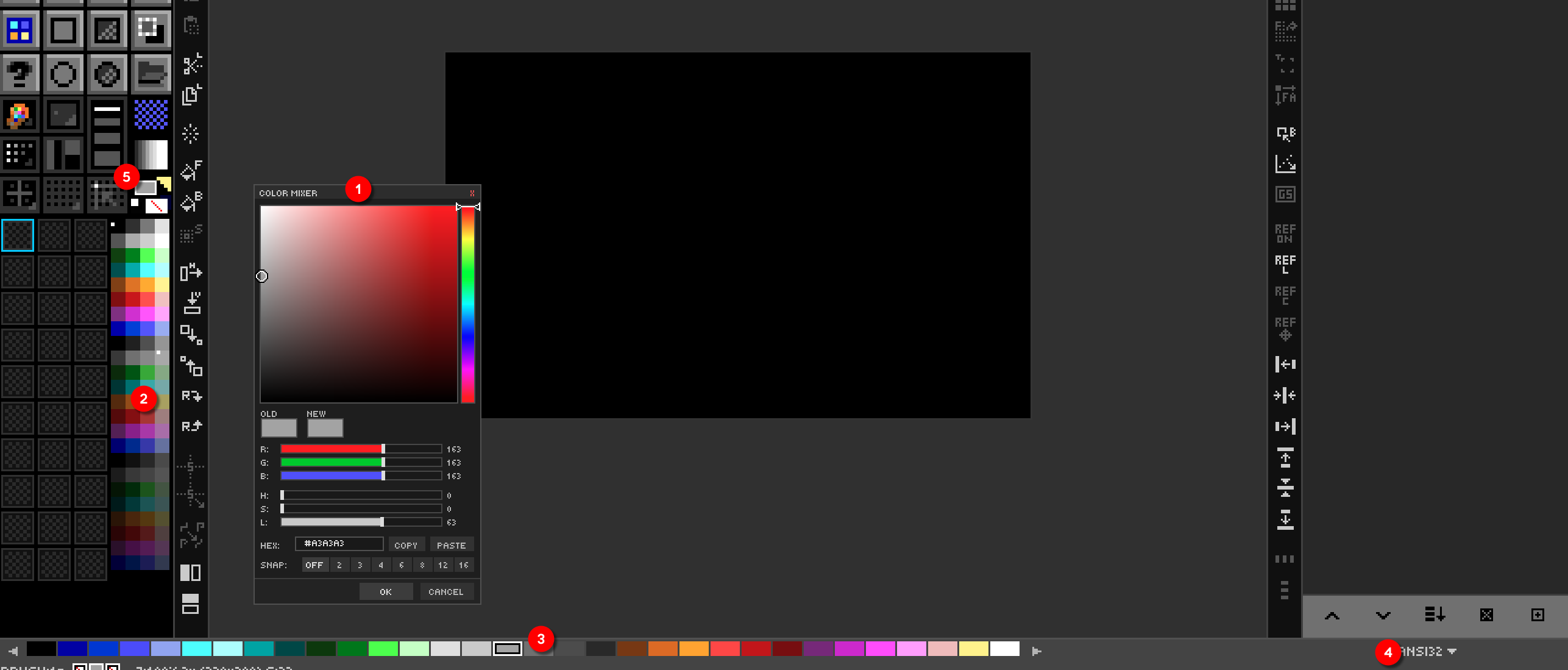
DRAW's various color widgets and doo-dads
- Color Mixer —
View → Color Mixer- Mini Palette — Always visible as part of Tool Box
- Color Strip — Can be hidden, shows (4) Palette
- Palette Picker — Choose a palette for editing
- Active Foreground (FG) and Background (BG) colors
🎯 Goal: Switch, browse, and manage palettes.
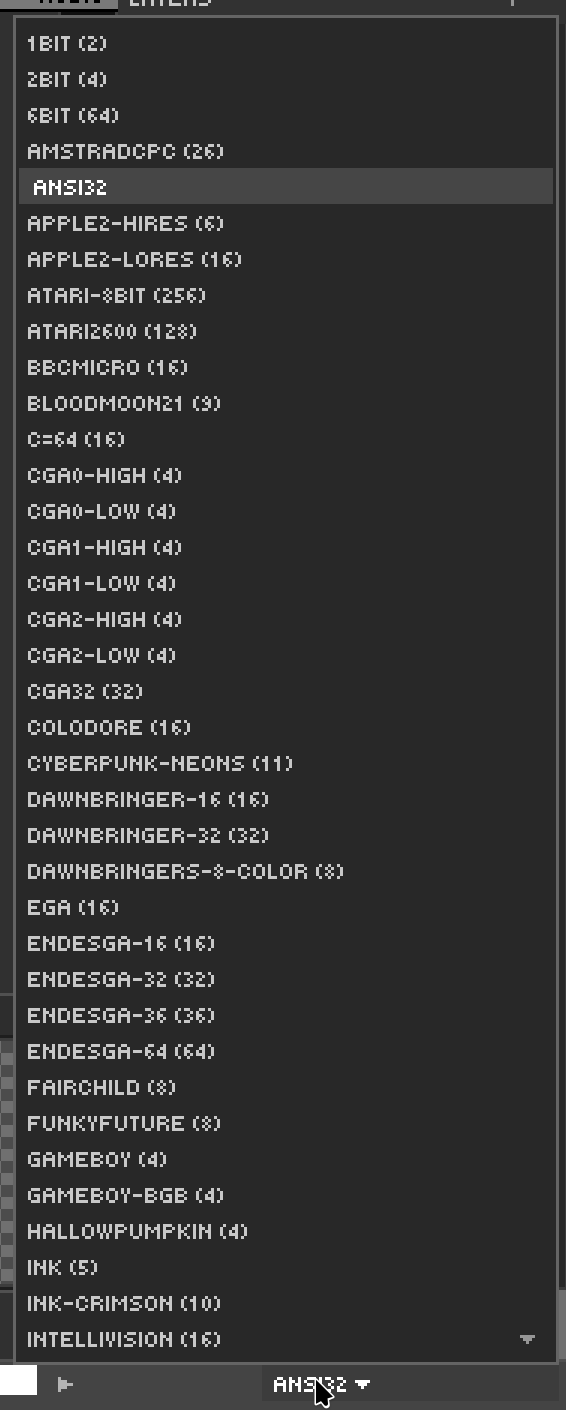
DRAW ships with 56 palettes in GIMP's .gpl format. They live under ASSETS/PALETTES/ and include classics — NES, PICO-8, Commodore 64, Game Boy, Endesga 32/64, DawnBringer 16/32, AAP-64, Sweetie 16, Resurrect 64, CGA, EGA, VGA, Amiga, MSX — plus 40 more.
Click the palette name above the strip to open the dropdown. Pressing a letter while the dropdown is open jumps to the next palette starting with that letter — handy when you know the name but not the position.
Palette workflows DRAW supports natively:
- Download from Lospec — DRAW can fetch palettes from Lospec's online database directly.
- Create palette from existing image — distill the unique colors of any open image into a new palette.
-
Import / Export
.gpl— interchange with GIMP, Aseprite, Krita. - Remap existing artwork — recolor a finished piece into a different palette while preserving structure.
🎯 Goal: Modify palette colors and remap on canvas.
Palette Ops mode is one of DRAW's signature features. Toggle it from the Organizer panel. Once active, the palette strip becomes editable and the canvas is remapped live as you change the palette.
| Gesture on a palette swatch | Effect |
|---|---|
| Double-click | Open color picker; new color is substituted on the canvas wherever the old one appeared. |
| Right-click | Place a marker / indicator on the swatch (visual bookmarking). |
| Middle-click | Delete the color and remap matching pixels to the nearest remaining color. |
Shift+Middle-click |
Insert a transparent (alpha 0) entry at this index. |
| Drag onto another swatch | Rearrange palette order. |
| Left-click | Magic-wand select all matching pixels on the active layer. |
When you first enter Palette Ops, DRAW automatically creates a [DOCUMENT] palette that snapshots the current state. This means experimentation is safe — you can hop back to the original palette at any time without losing your remapping.
🎨 Try it — colorway exploration
- Open a finished sprite.
- Toggle Palette Ops.
- Double-click each palette swatch in turn and shift the hue.
- Compare colorways. When one feels right, exit Palette Ops to bake it in.
➡️ Next: [Chapter 4 — Layer System Deep Dive](04 - Layers)