11 Canvas View
What you'll learn: How to navigate any canvas — zoom, pan, the floating Preview Window, pattern-tile preview, reference images, fill / clear shortcuts, and canvas resize / crop.
🎯 Goal: Navigate canvases of any size efficiently.
| Action | Shortcut |
|---|---|
| Zoom in/out continuously |
Ctrl+Mouse wheel |
| Zoom in / out 1 step |
Ctrl+= / Ctrl+-
|
| Reset to 100% | Ctrl+0 |
| Zoom tool |
Z ( ) ) |
| Zoom to dragged region |
Z then drag |
| Zoom out (Zoom tool) |
Alt+Click |
Zoom snaps to canonical levels: 25%, 50%, 75%, 100%, 200%, 300%, 400%, 600%, 800%.
You can pan with any tool active, no need to switch:
- Middle-mouse-drag.
-
Spacebar+drag. - Double-middle-click — instantly resets pan and zoom to fit the canvas.
Scrollbars appear automatically for canvases larger than the viewport. The canvas border (#) outlines the edge of the canvas at any zoom.
🎯 Goal: Use preview and tiling for workflow efficiency.
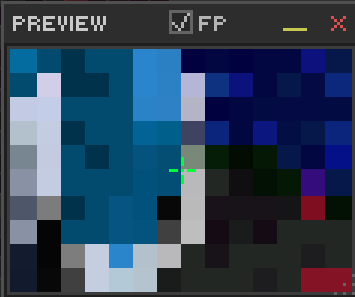
F4 toggles the Preview Window, a floating, resizable, repositionable secondary view. It runs in one of three modes:
- Follow — a magnifier that tracks the cursor.
- Floating Image — a static reference display (e.g., the source you're tracing).
- Bin Quick Look — hover any drawer slot to see its content full-size in the preview.
Independent zoom and pan inside the preview, plus Alt+Click to color-pick without switching tools. The preview also remembers up to 10 recent images for quick swaps.
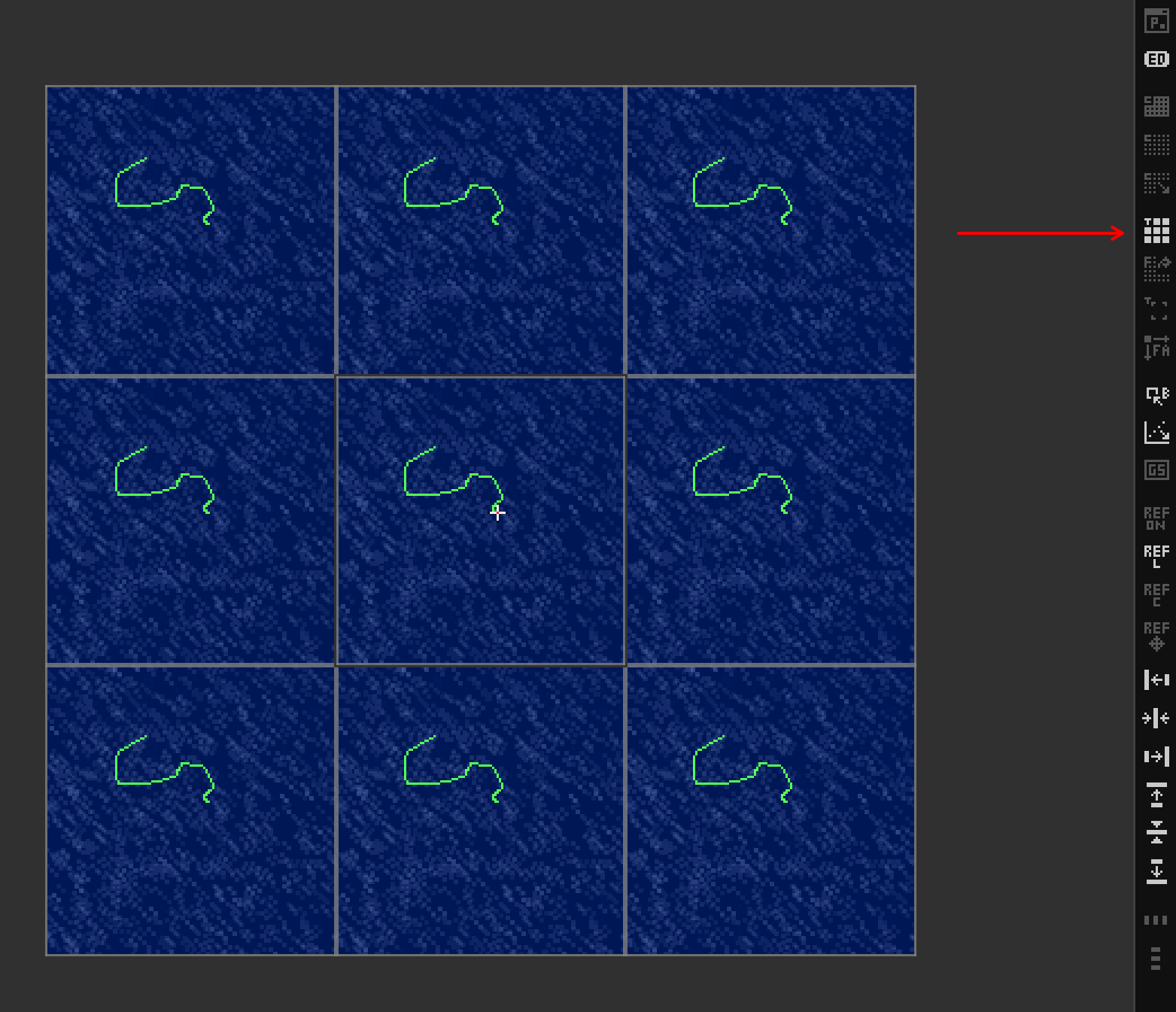
View → Pattern Tile Mode (or the tile-mode button in the Advanced Bar) toggles a 3×3 tiled preview (up to 512×512 source). Seams in seamless textures jump out instantly because they appear nine times.
-
Grayscale Preview —
Ctrl+Alt+Shift+G. Inspect value structure without color distraction. -
Reference Image —
Ctrl+R. See [Chapter 15](15 - Reference Import).
-
Delete— clear (Edit → Clear). Removes the active selection's pixels (or the whole layer if no selection). No prompt. -
Backspace— fill with FG color. Instant, no prompt. -
Shift+Backspace— fill with BG color. Instant.
-
Crop tool (
 ) — interactive with handles; commit with Enter.
 - Image → Canvas Resize… — dialog with anchor selection and pixel/percent toggle.
➡️ Next: [Chapter 12 — UI Customization & Settings](12 - Settings)