13 Audio
What you'll learn: DRAW's per-theme sound effect bank and tracker-music player, plus how to swap, mute, and customize the audio experience — including MIDI playback and SF2 SoundFont configuration.
🎯 Goal: Configure the creative audio experience.
DRAW emits short SFX for distinct UI actions — menus, tools, selection, fill, clipboard ops, layer ops, text entry, sliders, drag-and-drop, and more. The sounds live in the active theme's SOUNDS/ folder as WAV or OGG files. Replace any file with one of the same name to retheme that action without touching code.
You can:
- Globally enable / disable SFX.
- Adjust master SFX volume.
- Mute (independent of disabling).
DRAW plays tracker modules and MIDI files natively:
| Format | Description |
|---|---|
.mod |
Amiga ProTracker / FastTracker. |
.xm |
FastTracker II Extended Module. |
.it |
Impulse Tracker. |
.s3m |
Scream Tracker 3. |
.rad |
Reality Adlib Tracker. |
.mid / .midi
|
Standard MIDI Format (SMF). |
.rmi |
RIFF MIDI (Windows MIDI container). |
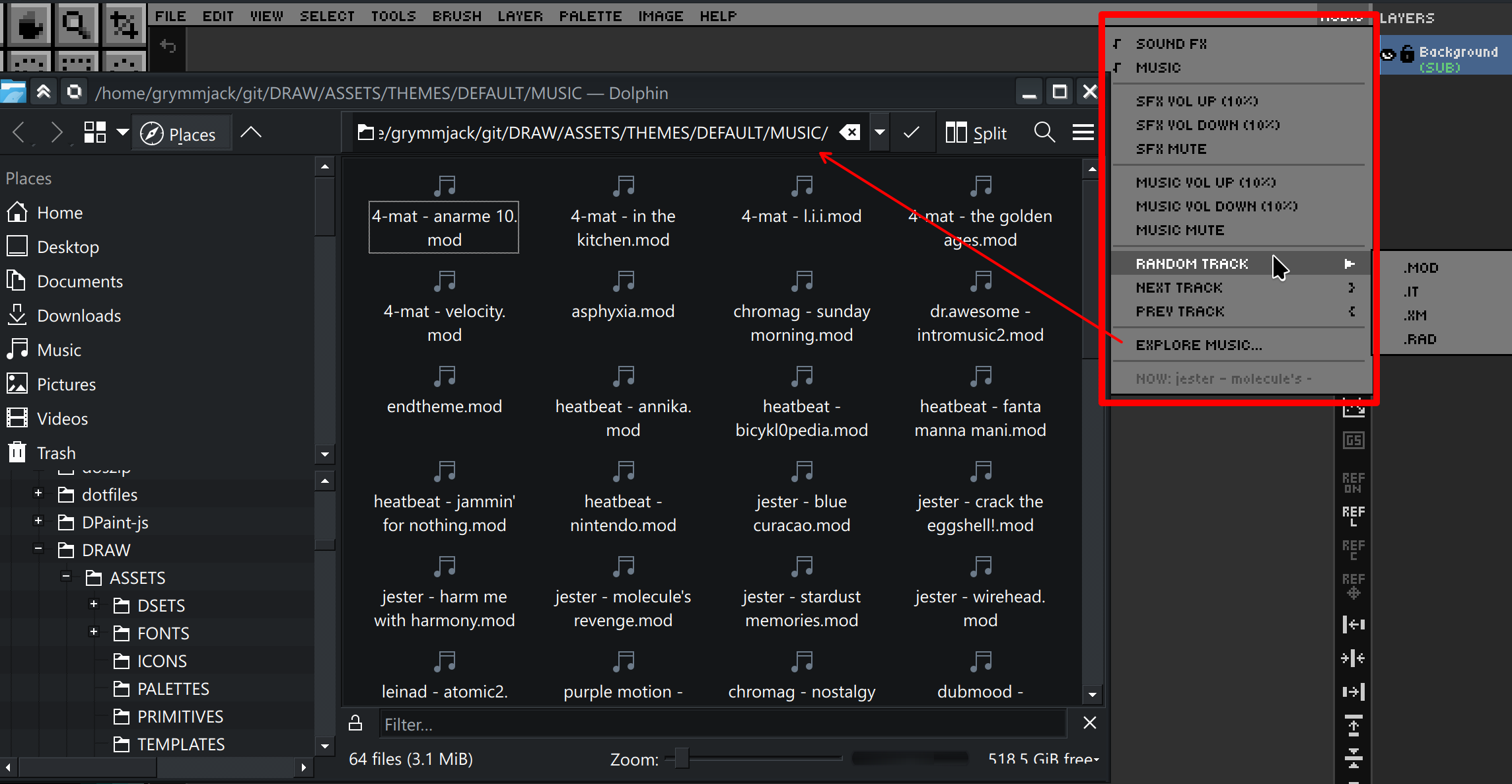
The Audio menu (rightmost in the menu bar) hosts:
- Auto-shuffle — when the current track ends, DRAW picks a random next track from the active music folder.
-
Next track —
} -
Previous track —
{ -
Random track — picks at any time. Use the Random Track submenu to restrict by format:
.MOD,.IT,.XM,.RAD,.MID, or.RMI. - Volume up / down — ±10% increments, independent of SFX volume.
-
NOW PLAYING — read-only display of the current track name and format (e.g.
NOW: jester - stardust [MOD]). Name is truncated to 32 characters. - Explore Music Folder — opens the music directory in your OS file manager.
All audio settings persist in DRAW.cfg.
🎯 Goal: Get the best possible MIDI sound quality.
DRAW uses QB64-PE's built-in OPL3 FM emulator for MIDI/RMI playback out of the box — no extra files required. For richer, more realistic MIDI audio you can supply your own SoundFont2 (.sf2) file.
- Open Settings (Edit → Settings or
Ctrl+,). - Navigate to the Audio tab.
- Scroll to the MIDI Soundfont section.
- Click the
...browse button to locate a.sf2file on your system. - Click Apply or OK — the font is loaded before every MIDI/RMI track.
- To revert to built-in OPL3 FM synthesis, click the Clear button next to the path field.
Tip: Free general-MIDI soundfonts such as GeneralUser GS or SGM-V2.01 work well and are widely available online.
-
_MIDISOUNDBANKis called with the SF2 path immediately before_SNDOPENfor each MIDI/RMI track. - If the SF2 path is empty or the file no longer exists, DRAW automatically falls back to the built-in OPL3 emulator.
- The
MIDI_SF2_FILEkey inDRAW.cfgstores the path so it persists across sessions. - Drop
.mid,.midi, or.rmifiles intoASSETS/THEMES/DEFAULT/MUSIC/and they will be included in random-track auto-shuffle alongside tracker modules.
➡️ Next: Chapter 14 — Pixel Art Analyzer