14 Analyzer
What you'll learn: How DRAW's built-in Pixel Art Analyzer detects the five most common pixel-art mistakes and how to fix each one.
🎯 Goal: Improve pixel art quality with automated analysis.
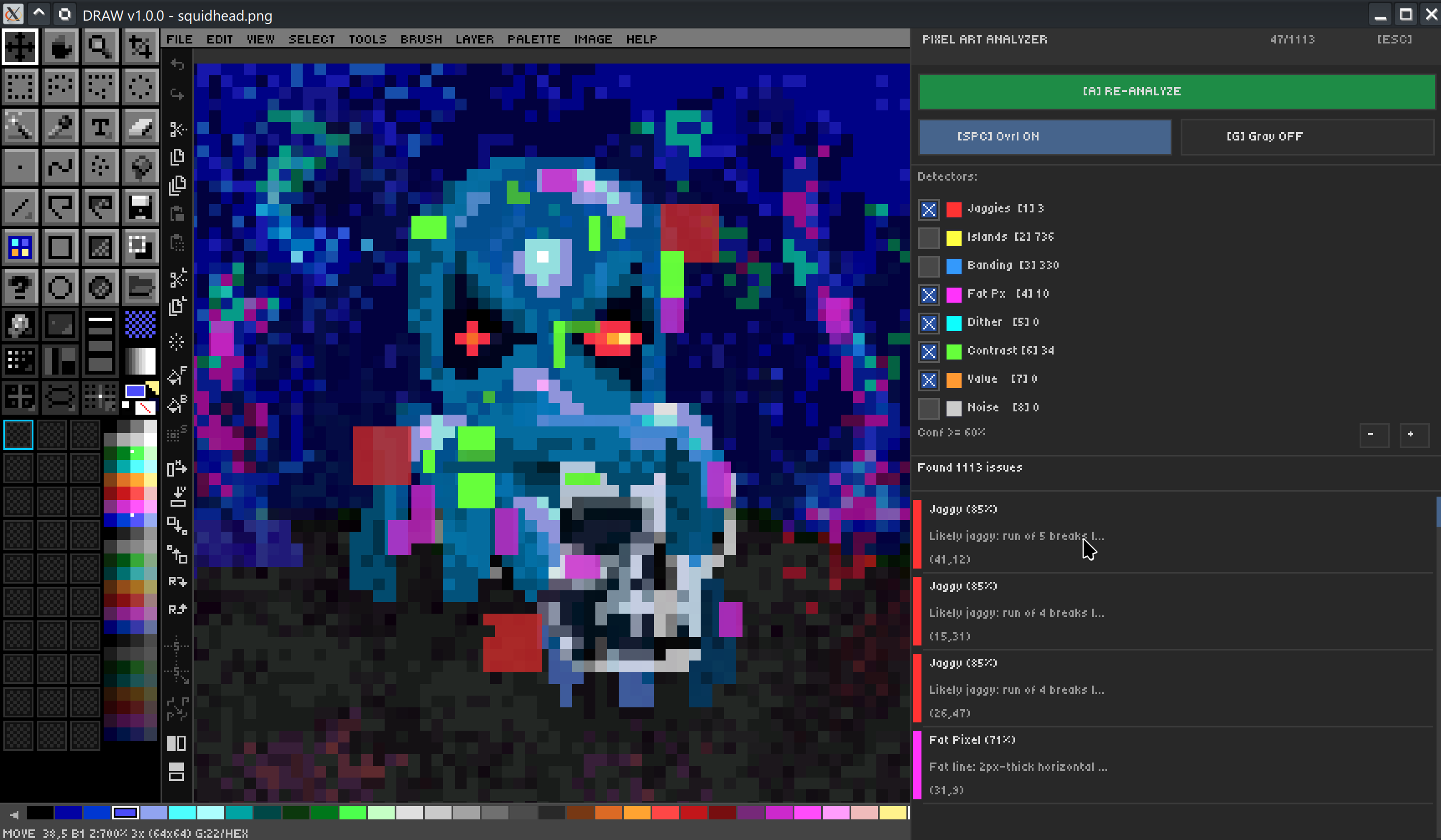
The Pixel Art Analyzer scans the active layer (or selection) for five well-known pixel-art problems and visualizes each one in an overlay so you can fix them efficiently.
| Category | What it finds | Why it's a problem |
|---|---|---|
| Orphan pixels | Single isolated pixels surrounded by transparency or different-colored pixels. | Visual noise and unintentional speckling. |
| Jagged lines | Stairstepped lines with uneven step lengths. | Reads as rough or amateurish; clean stairsteps should be regular. |
| Banding | Repeating horizontal/vertical color stripes that should be a smooth gradient. | Looks like a quantization artefact, not intentional shading. |
| Pillow shading | Concentric layered shading that follows the silhouette outline. | Produces a "puffed up" 3D effect that ignores light direction. |
| Doubles | Two adjacent identical-color pixels along an outline that should be 1px. | Throws off the line weight and stair-step rhythm. |
The analyzer uses a precompute engine for fast incremental analysis. After the first scan it caches the per-pixel classifications so re-analysis after a fix is near-instant. Results are presented in an interactive dialog with totals per category and a clickable list that pans/zooms to each occurrence.
🎨 Try it — before/after cleanup
- Open a sprite that you know is rough.
- Run
Image → Pixel Art Analyzer.- Step through orphan pixels first; remove or merge each one.
- Re-analyze. Move to jagged lines next, then doubles, banding, and pillow shading last.
- Save before-and-after copies for your portfolio.
➡️ Next: [Chapter 15 — Reference Image & Import](15 - Reference Import)