Repository navigation
Item Details
The detail screen shows everything about a single item in your collection - metadata, your rating, status, notes, and activity dates.
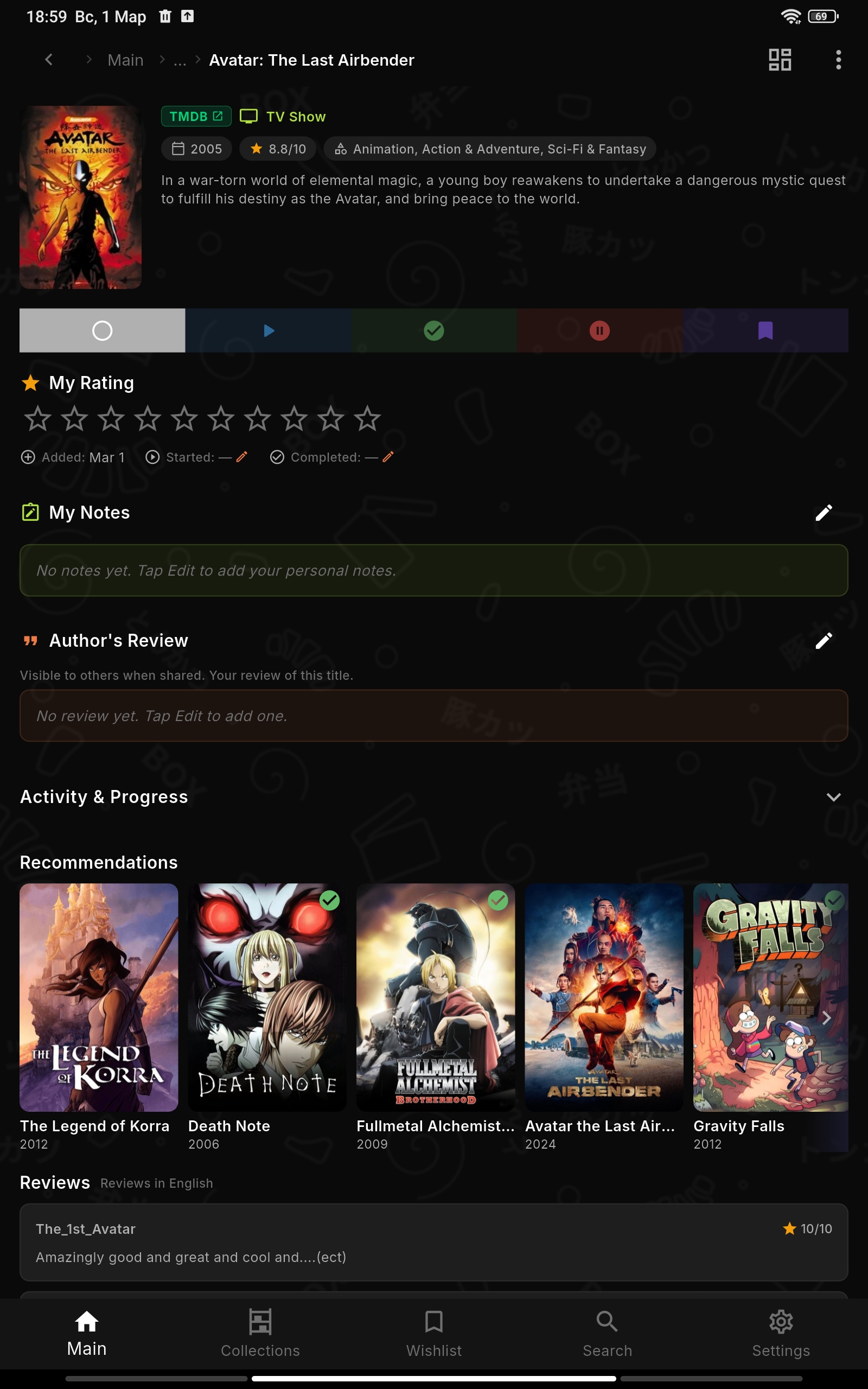
The screen has several sections from top to bottom:
At the top - the cover image, title, and key information:
- Rating - API score (from IGDB/TMDB) and your personal rating (1-10)
- Year - release year
- Genres - from the database (anime and manga show tags here instead)
- Description - summary/overview
- For games: platforms
- For TV shows: seasons and episodes count
- For movies: runtime
- For manga: chapters and volumes
- For visual novels: length, developers, platforms
- For books: page count, author, publisher
- For albums: artist, label, release year, track count
- For podcasts: author and episode count
Genres, the anime and manga tags, manga authors, an album label and a custom item's platform are chips you can tap. A tap closes the card and searches your library for that value. How the details search reads a query →
In the header row, next to the source badge and media type, a small timer icon shows total time you've spent on the item (e.g. ⏱ 2h 30m). If no time is logged, it shows ⏱ -.
Tap the timer to open a dialog where you enter hours and minutes. The value replaces the current total. You can enter any number in the minutes field (e.g. 90 minutes = 1h 30m).
Time Spent is included in .xcollx exports when "Include user data" is enabled.
Tags are shared across the whole app, and an item can carry as many of them as you like. On the detail card the tags sit in their own row below the description. Tap it to open the picker: check the tags you want, or type a new name and create it on the spot. Everything you create lands in the same shared set, so the tags you use in one collection are ready to reuse in every other one.
The picker has a search field at the top that filters a long tag list down to what you type. When your text doesn't match an existing tag, a Create row appears so you can add that tag right there without leaving the picker.
You can also arrange the tag chips on a card in your own order. Drag a chip to move it, and the card keeps that order for this item. Tags you haven't arranged by hand stay in the global order set in the tag manager.
See Collections for the global tag manager and tag filtering.
A bell icon sits in the top bar. For a TV show or anime it follows the show, so new episodes appear on the Releases calendar. For anything else it opens a dialog to add your own date with an optional weekly or monthly repeat. See Releases & Calendar for the full picture.
The heart in the top bar marks the item as a favorite. The same heart shows in the corner of the poster card, in the right-click / long-press menu, and as a column in the table view - toggle it wherever is closer.
The flag belongs to the item in this particular collection: the same game in two collections can be a favorite in one and not the other. Favorites get their own filter and sort mode - see Collections.
Tap a segment in the status switcher to change it. The seven statuses are:
- Not Started - haven't touched it yet
- In Progress - playing / watching / reading right now
- Completed - finished
- Replaying - going through a finished title again (Rewatching for movies, TV and anime, Rereading for manga and books)
- Dropped - gave up
- Planned - want to get to it later
- Ignored - kept in the library and left alone
When you set "In Progress" the Started date is filled in with today (if it wasn't set already). Setting "Completed" fills in the Completed date.
Ignored keeps both dates as they are. It sorts to the end of the list, and an import or a tracker sync leaves an ignored title where you put it.
Switching to Replaying never touches those dates - the item stays finished, you're just marking that you're going through it another time.
Next to the time-spent timer in the header there's a rewatch counter. It follows the same idea MyAnimeList and AniList use:
- empty - not tracked
- 0 - completed once
- N - the number of extra times you've been through it
Every time an item moves into Completed the counter bumps up on its own (the first time it lands on 0). You can also tap it and set the number by hand.
Tap the rating section to rate from 1 to 10. Your rating is shown alongside the API rating for easy comparison.
Two comment fields:
- Author comment - your notes visible when sharing the collection (e.g. "Must play!", "Best RPG of 2024")
- Personal comment - private notes only for you (e.g. "Stuck on chapter 5", "Need to rewatch")
Both comment fields auto-save after a 1-second pause - no need to press a save button.
Tap-to-edit anywhere in the block - no longer need to find the ✏️ icon: a single click anywhere on the notes or review block puts the field into editing mode. Markdown links inside rendered text still work (tapping a link opens it instead of starting an edit). For read-only collections, tapping the author review is a no-op.
A note can point to another card in your library. Start typing [[ in the notes field and a search box pops up over every collection - pick a card and the link is inserted for you. In view mode the link shows as a small chip with the cover, source, release year and (for games) the platform; tap it to jump straight to that card. If the same title lives in more than one collection, a short sheet asks which one to open.
You can also grab a link from the item menu (⋮ on the detail screen, or the right-click / long-press menu on a card) with Copy card link, then paste it into any note.
Links are matched by the title itself, not by an internal row number, so they keep working after you export a collection and import it into another database.
Started and Completed sit in the progress tile row on the card, next to time spent and the rewatch count. Tap either to pick a date by hand:
- Started - when you started playing / watching / reading
- Completed - when you finished
An already-set date can also be erased: the picker has a No date action, for media you consumed long ago whose dates nobody remembers. Clearing a date never touches the status - a film stays completed with an unknown watch date. The usual automation is intact in both directions: setting a date still syncs the status, and a status change still fills the dates.
For a film you watched in one sitting the picker has Started and finished this day: it writes the picked day into both fields at once and moves the title to Completed if it is not there yet.
The dates the app fills in for you live behind the small info button (ℹ) in the header, to keep the card uncluttered:
- Added - when the item first landed in the collection
- Last Activity - the last time you changed anything about it
- Completion time - shown when both Started and Completed are set (e.g. "Completed in 2 weeks")
For games on supported platforms (52 systems including NES, SNES, Mega Drive, PlayStation, Saturn, Dreamcast, Game Boy family, DS/3DS, Wii/Wii U, arcade, etc.), a horizontal media gallery appears with images from ScreenScraper.
Available media types depend on what's in the ScreenScraper database for that game:
- Box (2D front and back, 3D)
- Wheel - selector artwork
- Marquee - arcade-style banner
- Title screen and in-game screenshots
- Fan art and mix renders
Tap any thumbnail to open a fullscreen viewer with swipe / arrow-key navigation, pinch-to-zoom, and an Escape-to-close shortcut.
Results are saved on disk for 30 days, so opening the same game again doesn't hit the network. Requires a free ScreenScraper account - see API Keys Setup#screenscraper--for-extended-game-media-optional.
For games imported from RetroAchievements, a dedicated tracker section appears showing your achievement progress:
- Progress bars - normal and hardcore completion with earned/total counts
- Award badge - Mastered, Beaten, Hardcore Mastered, or Hardcore Beaten (if earned)
- Points - earned vs total achievement points
- Recent Unlocks - your last 3 unlocked achievements with badge icons, descriptions, and dates
- Up Next - next 3 locked achievements (sorted by display order), with "MISSABLE" warnings where applicable
- View All - expand to see the full achievement list
Achievement details load the first time you open a game card and are saved locally for faster reopening. Use the Refresh button to pull the latest data from RetroAchievements.
On wide screens (600px+), the tracker section and comments are shown side by side for better use of space.
See RetroAchievements Import for how to set up the import.
For TV shows and anime series, an episode tracker appears:

- See all seasons and episodes
- Mark individual episodes as watched - tap the row to toggle it
- Mark entire seasons as watched
- Progress bar shows how much you've seen
A collapsed season row shows the season poster with the air year, an all-watched badge once you finish it, and its own progress bar next to the watched count. A button on the row marks the season's next unwatched episode in one tap, loading the season from its source first if needed.
An episode row shows the episode still - dimmed with a check badge once watched - the title, air date, runtime and a two-line synopsis that expands on tap. Episodes with no still of their own borrow the season poster. Season posters and episode stills are stored on disk, so a tracker you have opened once works offline.
Special episodes (season 0) are listed too. They sit at the end, after the regular seasons, and they don't count toward the watched-progress percentage, so the bar tracks the main run only.
Marking an episode moves the item to In progress, and marking every episode completes it. The card badge shows watched of total ("12/22"), both inside the collection and on the All Items screen.
| Item | Tracker |
|---|---|
| TV shows (TMDB, TVmaze, TheTVDB) | Full season and episode list |
| Animated series (TMDB) | Full season and episode list |
| Anime from Kitsu | Full season and episode list |
| Anime from AniList | Watched-episode counter only |
Kitsu anime open the same season accordion as TV shows. Seasons come from Kitsu's own episode data, so a long title keeps its real structure (Bleach: 16 seasons, 366 episodes) instead of one flat list, and episode numbering stays absolute the way anime is usually counted.
An album carries the track list of the edition you added, a podcast carries its episode feed, and both are ticked off the same way.
- The circle on the left of a row toggles the listened mark. Tap the row itself to unfold a title that got cut off.
- A multi-disc album groups its tracks under Disc 1, Disc 2 and so on.
- A podcast feed collapses into spans, one per year (per month when everything falls inside one year), newest open. The toggle on a span header marks the whole span listened, and clears it when every episode in it is already marked.
- A progress bar counts what you marked against the loaded list.
- The first mark moves the item to In progress, and marking everything completes it, the same way episodes work for a show.
- Every row has the same heart and note controls as an episode row, so tracks and podcast episodes turn up on the likes page.
- Opening a podcast refreshes its feed and picks up episodes published since your last visit, keeping the marks you already made.
You can like a single episode or season and attach a short note to it, separately from the watched checkmarks.
For TV shows and animation the controls sit right in the episode tracker: a heart and a note button on every episode row and season header. Notes save automatically as you type. Above the season list a summary bar counts your likes and notes and filters the list - All, Liked, With notes.
Rewatching a show? Filter to Liked and jump straight to the episodes you starred the first time.
For media without a built-in episode list (anime, manga, books, custom items) the same feature lives in a Notes & likes section on the detail screen. Press Add mark, pick what you're marking - episode, season, chapter, volume, page, part, or type your own word - enter the number, and the mark appears in the list with its own heart and note.
Marks travel with .xcoll / .xcollx exports when "Include user data" is enabled.
A custom item tracks progress in the units of the type it is displayed as: episodes for a series, chapters for manga, pages for a book, parts for everything else. Series and manga also get a second, coarser counter - seasons or volumes.
Set the totals when creating or editing the item, then tick off progress from the Progress section on the detail screen. Reaching the total marks the item completed, the same way watched episodes do for a show.
For books, the detail screen tracks how far you've read by page. Enter the page you're on under Reading Progress and a bar fills against the total page count, with a Mark as completed shortcut. Setting progress nudges the status along, the same way watched episodes do for a show.
Books from Fantlab add two extras:
- Choose edition - a Fantlab work often has many editions, each with its own cover, year, page count, ISBN, language, and publisher. Pick one and those details, including that cover, are saved onto the book.
- Similar books - a row of related titles at the bottom of the page. Tap one to open it or add it to a collection. Only Fantlab books have this, since it's the one book source with a similar-titles feed.
Manga from MangaBaka, MangaDex, AniList and Kitsu carry a horizontal row of similar titles at the bottom of the detail card. Tap a card to open its details sheet and add it to a collection from there.
An anime's detail page shows the same kind of row. AniList's community recommendations are the engine behind it - Kitsu has no such endpoint - but the results are shown as Kitsu titles, so anything you add from the row arrives with its seasons and the full episode tracker. A Kitsu seed is bridged to its AniList id first, so the row works whichever of the two the anime came from.
The row is hidden while it loads, on failure, and when nothing comes back. No API key is needed for either carousel.
If enabled in Settings, a recommendations section appears at the bottom with similar titles from TMDB. Tap any recommendation to view details or add it to your collection.
💡 Toggle recommendations on/off in Settings → Recommendations.
You can give an item a custom display name without touching the original title from the database. Open the overflow menu (⋮) on the detail screen and pick Rename. A dialog opens with the current name pre-filled and the original title shown below as a reference.
Useful when you want "Final Fantasy VII Remake Intergrade" to show up as "FF7R" in one collection while another collection keeps the full title.
- Per-collection - the same game can carry a different rename in a different collection, or no rename at all.
- Cache stays canonical - IGDB / TMDB / AniList / RetroAchievements resyncs keep using the original API title, so future API refreshes don't overwrite your custom name.
- Reset to original - press the Reset to original button in the dialog to drop the custom name and fall back to the API title.
- Custom items - the Rename action is hidden; custom items already have a full Edit dialog where you change the title directly.
- Canvas / Board - the card title on the collection board and the per-item canvas inherit the rename automatically.
- Mood grids - show the original title from the database, since cells point to a title directly and not to a particular collection entry.
-
Export / Import - the rename is included in
.xcollxonly when "Include user data" is enabled.
Open the ⋮ menu on the item screen and pick Refresh from source. The app reloads the description, ratings, and cover from where the item was originally added.
Useful when:
- the cover went broken
- the source updated description or ratings
- you restored from a backup and want fresh data
Notes:
- Custom items don't have an external source, so the option is hidden for them.
- If the keys for an external source aren't set up, the refresh fails. Add them in Settings → API Keys first.
- The refresh updates only this one item. It doesn't pull in related titles or change your collection.
From the detail screen you can move an item to a different collection or remove it from the current one.