Repository navigation
Tier Lists
Rank items from your collections into customizable tiers - S, A, B, C or any labels you choose. Export as a PNG image to share.
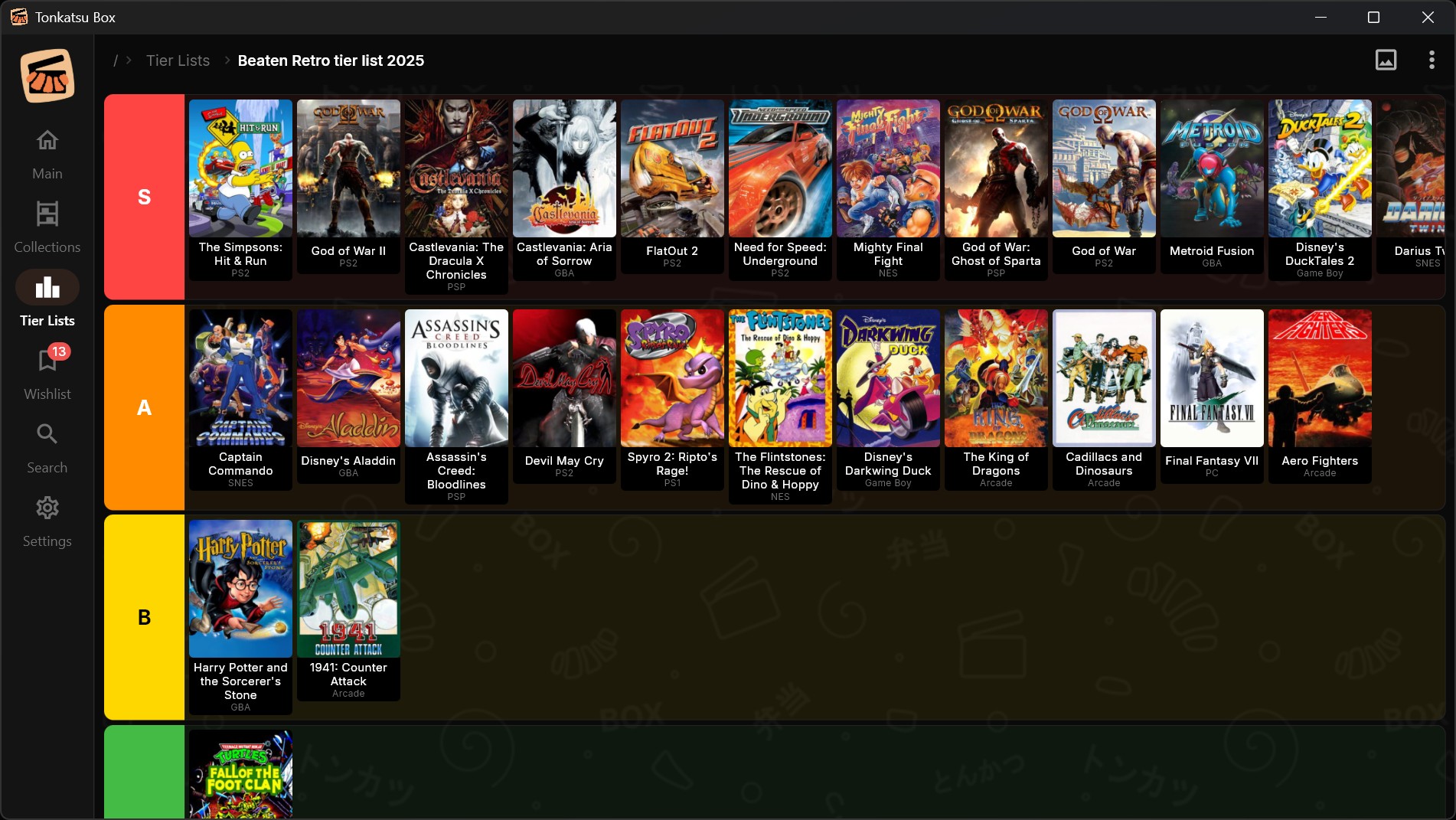
Tier lists let you visually rank items by dragging them into tiers. Each tier has a label, a color, and a list of items.
- Go to the Tier Lists tab (leaderboard icon in the navigation bar)
- Tap + New Tier List
- Enter a name (e.g. "Best RPGs", "2024 Movies Ranked")
- Choose the scope:
- All items - rank any item from any collection
- From collection - rank items from a specific collection
- Tap Create
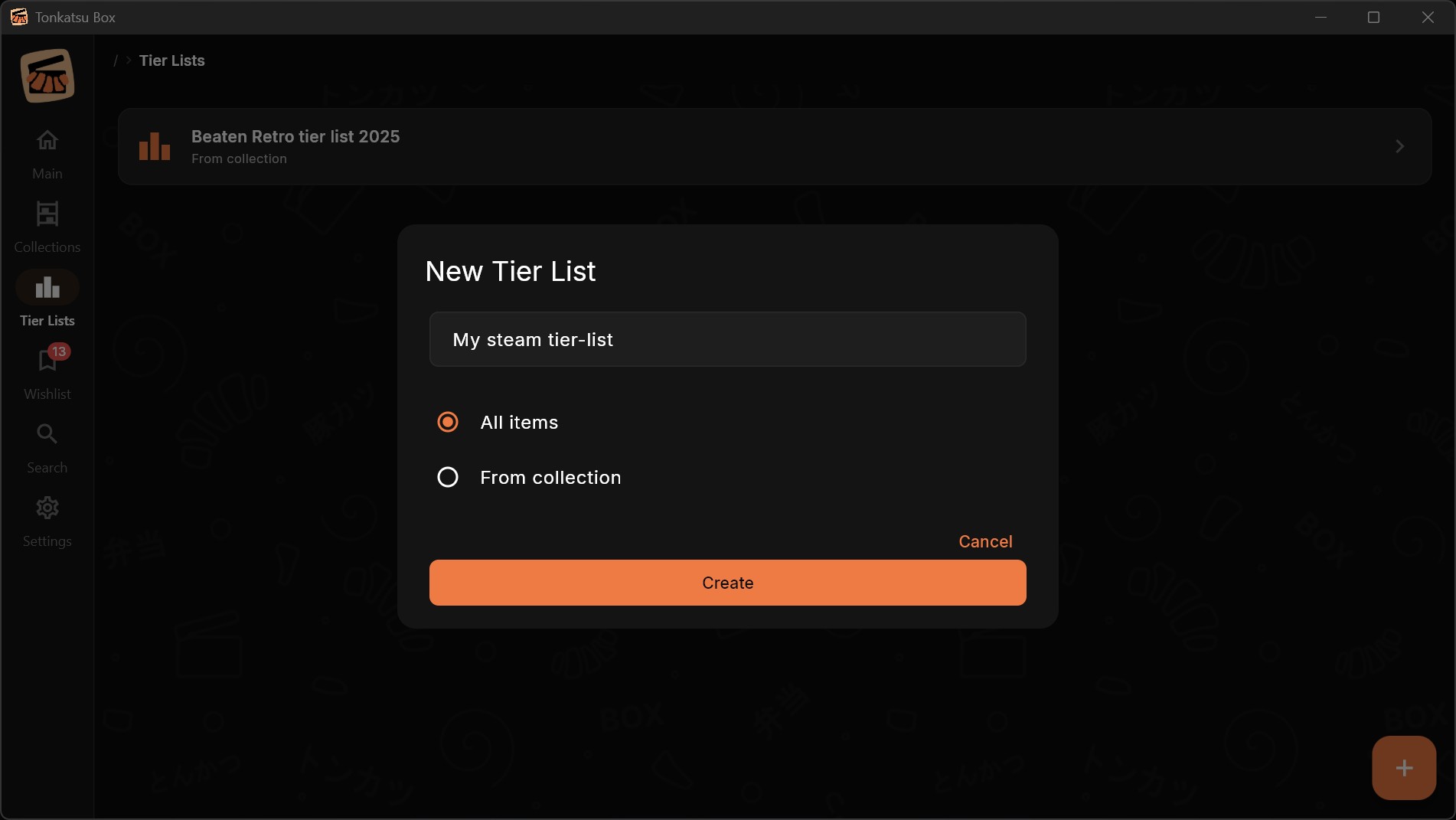
You can also create a tier list directly from a collection: open the collection → menu (⋮) → Create Tier List.
Each tier list starts with default tiers: S, A, B, C. All items begin in the Unranked pool at the bottom.
- Drag an item from Unranked into a tier to rank it
- Drag between tiers to move items up or down
- Drag back to Unranked to unrank
Cards land where you drop them. Hover over a card and a gap with a bright bar opens at that exact spot - release to insert the card right there. Drop on the empty part of a row to append to the end. The order inside a tier is yours and stays put between sessions.
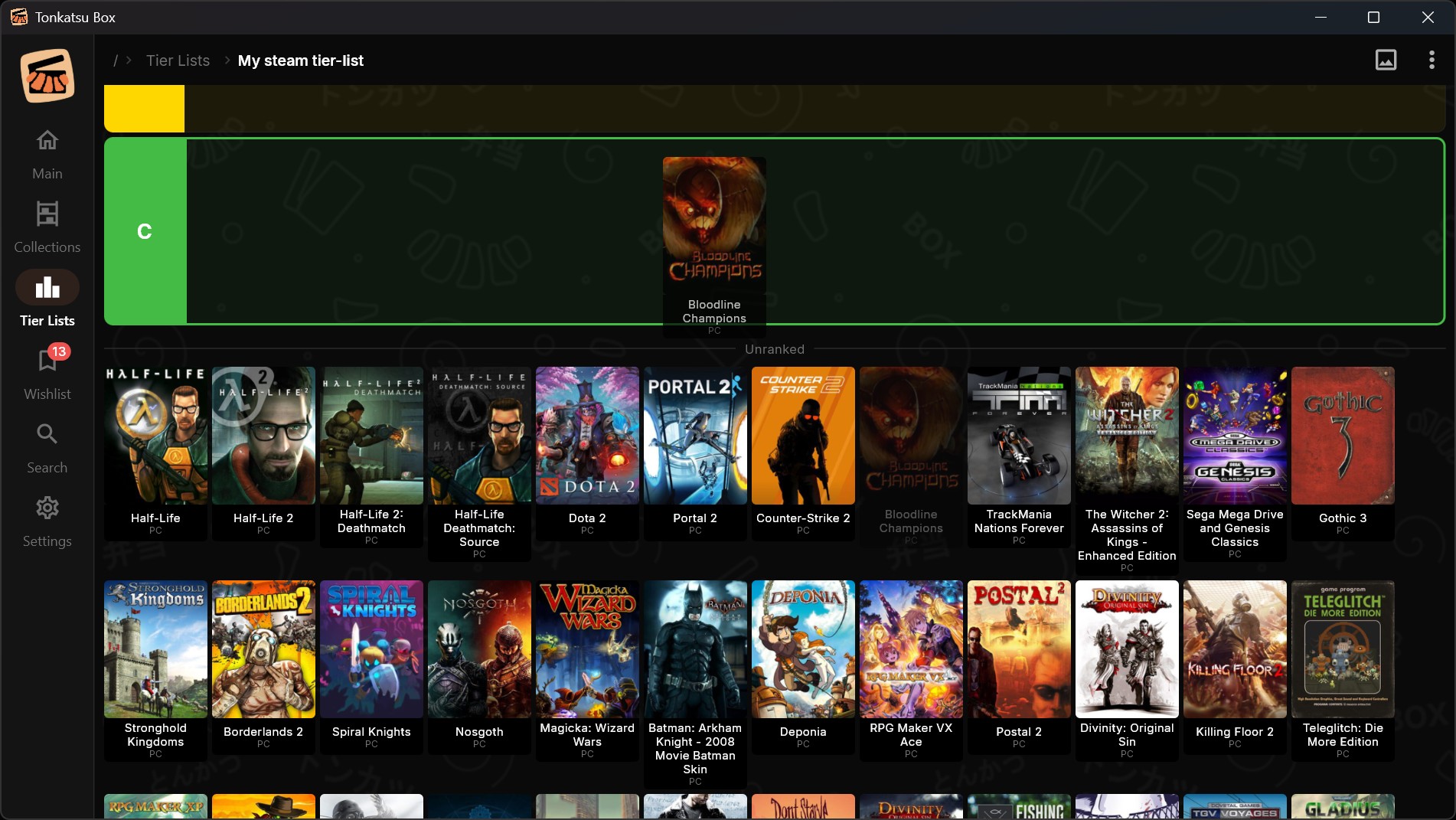
Tap the + button in the top bar to add a new tier. On desktop you can also press Ctrl+Enter.
Tap a tier label to access options:
- Rename - change the tier label (e.g. "S" → "Masterpiece")
- Change color - pick from 22 preset colors, or set your own with the HSL sliders
- Move up / Move down - shift the whole tier, contents and all
- Delete tier - remove the tier (items return to Unranked)
On desktop a tier can also be reordered by dragging its colored label onto another row.
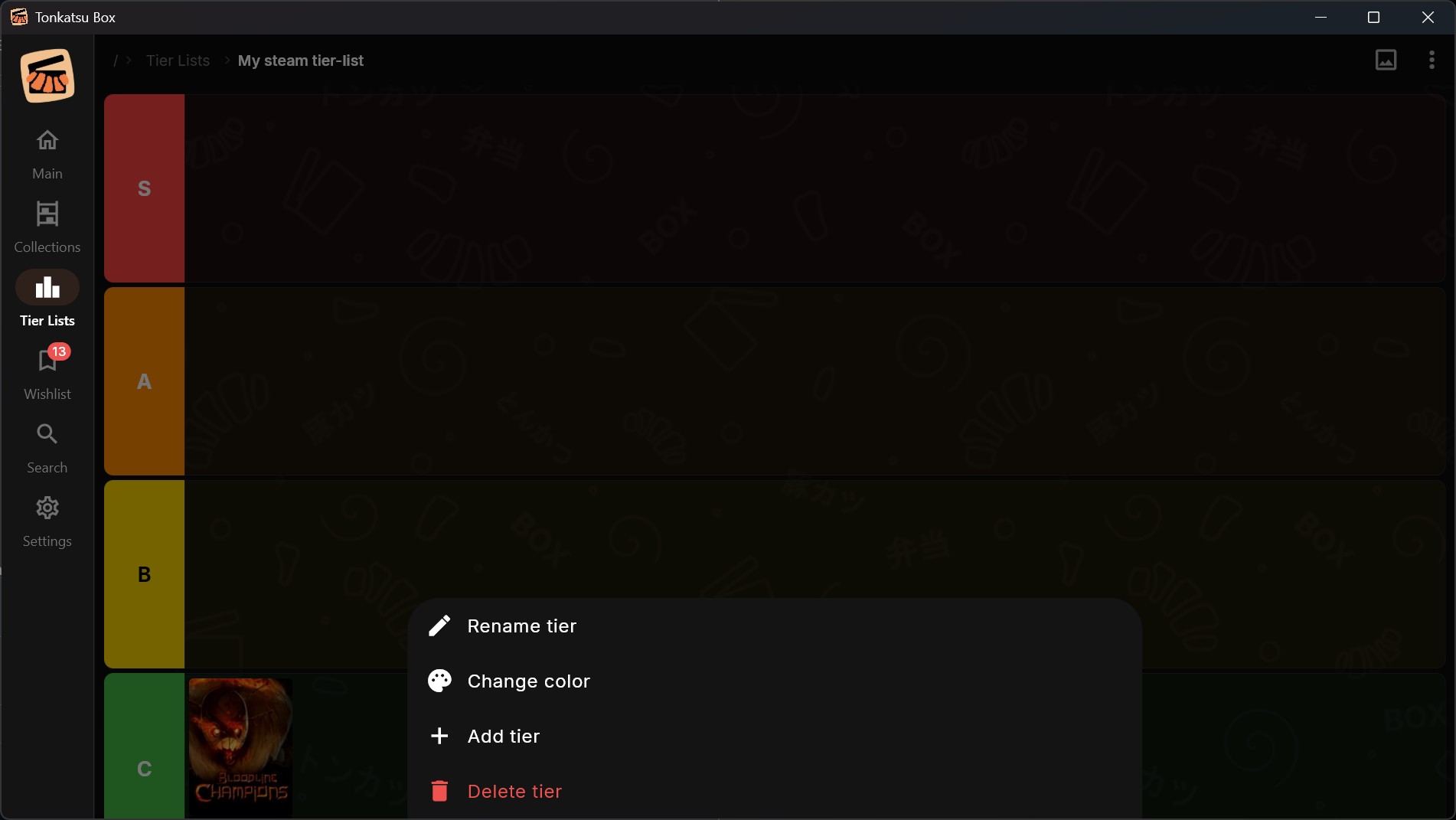
On desktop, start typing to filter the Unranked pool by item name. Useful when you have many items to rank.
Tap the Export button (image icon) to save the tier list as a PNG file. The exported image includes:
- All tiers with their colors and labels
- Item covers with names below each cover
- Platform labels for games

- Rename: long press (mobile) or right-click (desktop) a tier list card → Rename
- Delete: long press (mobile) or right-click (desktop) a tier list card → Delete
- Clear all: open the tier list → menu (⋮) → Clear all - moves all items back to Unranked
- Tier lists are linked to collections - if you remove an item from a collection, it's also removed from any tier list that references it
- You can have multiple tier lists per collection
- The Unranked pool shows only items not yet placed in a tier