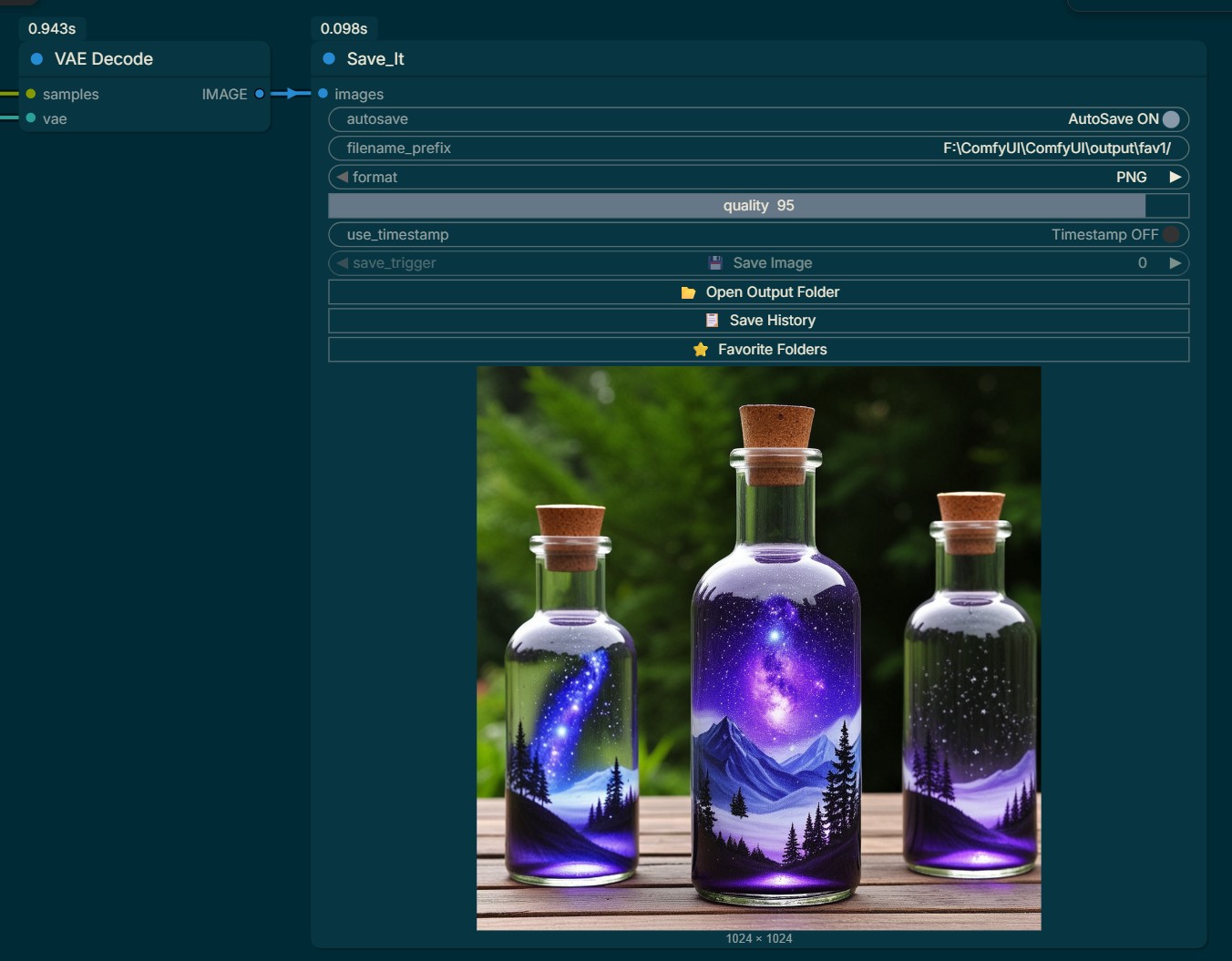
Save_It is a ComfyUI custom node that gives you full control over when and how your generated images are saved. Unlike the default save node, Save_It displays your image first and lets you decide what to do with it — save it manually, save it automatically, choose the format, organize it into folders, and more.
Install directly from ComfyUI Manager by searching for Save_It.
Alternatively,
- Go to your ComfyUI
custom_nodesfolder - CMD
- Git Clone https://github.com/ialhabbal/Save_It.git
- Restart ComfyUI or:
- Go to your ComfyUI
custom_nodesfolder - Create a folder named
Save_It - Copy all files into it
- Restart ComfyUI
images: Connect this to the output of any node that produces an image, such as a VAE Decode node. This is the image that will be previewed and saved.
AutoSave (ON/OFF toggle): When set to OFF (the default), the node will display the generated image but will not save it until you click the Save Image button. When set to ON, the node will automatically save every image immediately after it is generated, without you needing to click anything. When AutoSave is ON, the Save Image button is dimmed and cannot be clicked.
filename_prefix: This is a text field where you type the name and location for your saved image. It works in the following ways:
- Type just a name like MyImage and the image will be saved as MyImage_00001.png in your main ComfyUI output folder.
- Type a folder and name like Portraits/MyImage and the image will be saved as MyImage_00001.png inside a Portraits subfolder in your output folder. The - subfolder will be created automatically if it does not exist.
- Type a folder path ending with a forward slash and underscore like Portraits/_ and the image will be saved with just a number like 00001.png inside the Portraits subfolder.
- You can also use full absolute paths like F:\MyImages\Portraits/ to save images to any folder on your computer.
format: A dropdown menu to choose the file format for saved images. The available options are PNG, JPEG, and WebP. PNG is the default and is recommended for the highest quality with no compression loss. JPEG and WebP produce smaller file sizes but with some quality loss controlled by the Quality slider.
quality: A slider that goes from 1 to 100. This only applies when the format is set to JPEG or WebP. Higher values produce better looking images with larger file sizes. Lower values produce smaller files with more visible compression. This setting has no effect when saving as PNG.
Timestamp (ON/OFF toggle): When set to OFF (the default), saved images are numbered sequentially like 00001.png, 00002.png, and so on. The counter is remembered even after you restart ComfyUI, so your numbering never resets. When set to ON, the date and time are added to the filename instead, for example MyImage_2026-03-23_14-30-00.png. This is useful when you want to know exactly when each image was generated.
Save Image: Click this button to save the currently displayed image to the location specified in the filename_prefix field. The image will not be saved until you click this button. This button is only available when AutoSave is OFF.
Open Output Folder: Click this button to open the folder where your images are being saved in your file explorer (Windows Explorer on Windows, Finder on Mac). It reads the current filename_prefix to determine which folder to open. If the folder does not exist yet, it will be created automatically before opening.
Save History: Click this button to open a panel showing the last 50 images you saved using Save_It. Each entry shows the filename, the full path it was saved to, and the date and time it was saved. There is also a Clear button inside the panel to erase the history if you want to start fresh.
Favorite Folders: Click this button to open a panel where you can manage a list of your favorite save locations. This is useful if you regularly save images to different folders and want to switch between them quickly. To add a folder, type its path into the input field and click Add — the trailing slash will be added automatically. To use a favorite folder, simply click on it in the list and it will instantly be applied to the filename_prefix field. To remove a favorite, click the X button next to it.
- The sequential counter (00001, 00002, etc.) is stored in a hidden file called .save_it_counter inside your save folder. Do not delete this file if you want your numbering to continue from where it left off.
- If you are saving as JPEG or WebP and want the best possible quality, set the quality slider to 95 or higher.
- AutoSave is great for long unattended runs where you want every generation saved automatically. Manual save is better when you are reviewing results and only want to keep the best ones.
- Favorite Folders are saved permanently and will still be there the next time you start ComfyUI.
- The Save History is stored in your browser and will persist between sessions, but will be cleared if you clear your browser data.


