Repository navigation
Quick Start Selenium
This guide runs the Idelium demo browser coverage through Selenium. The former
Selenium IDE .side import is no longer supported. Author or import browser
tests with native Idelium JSON actions or Idelium DSL v1 instead; Idelium CLI
executes both through its Selenium/WebDriver adapter.
Start the local stack and sign in:
cd idelium-docker
./quickstart-demo.sh
URL: https://localhost
Email: admin@idelium.org
Password: admin
Install Idelium CLI on the execution workstation:
python3 -m venv .venv
source .venv/bin/activate
python -m pip install --upgrade pip
python -m pip install idelium
Install a supported local browser or configure a reachable Selenium Grid. The
CLI supports chrome, firefox, edge, and safari; Chrome is the default.
Idelium provides two importable Selenium examples:
- Native Idelium action JSON provides the broadest current component coverage and wizard editing.
- Idelium DSL JSON provides reviewable DSL source, live syntax validation, linting, and an explicit language-version contract.
Both create granular reusable steps so the result page shows the browser flow step by step. See Quick Start Idelium JSON Import for a detailed comparison and import instructions.
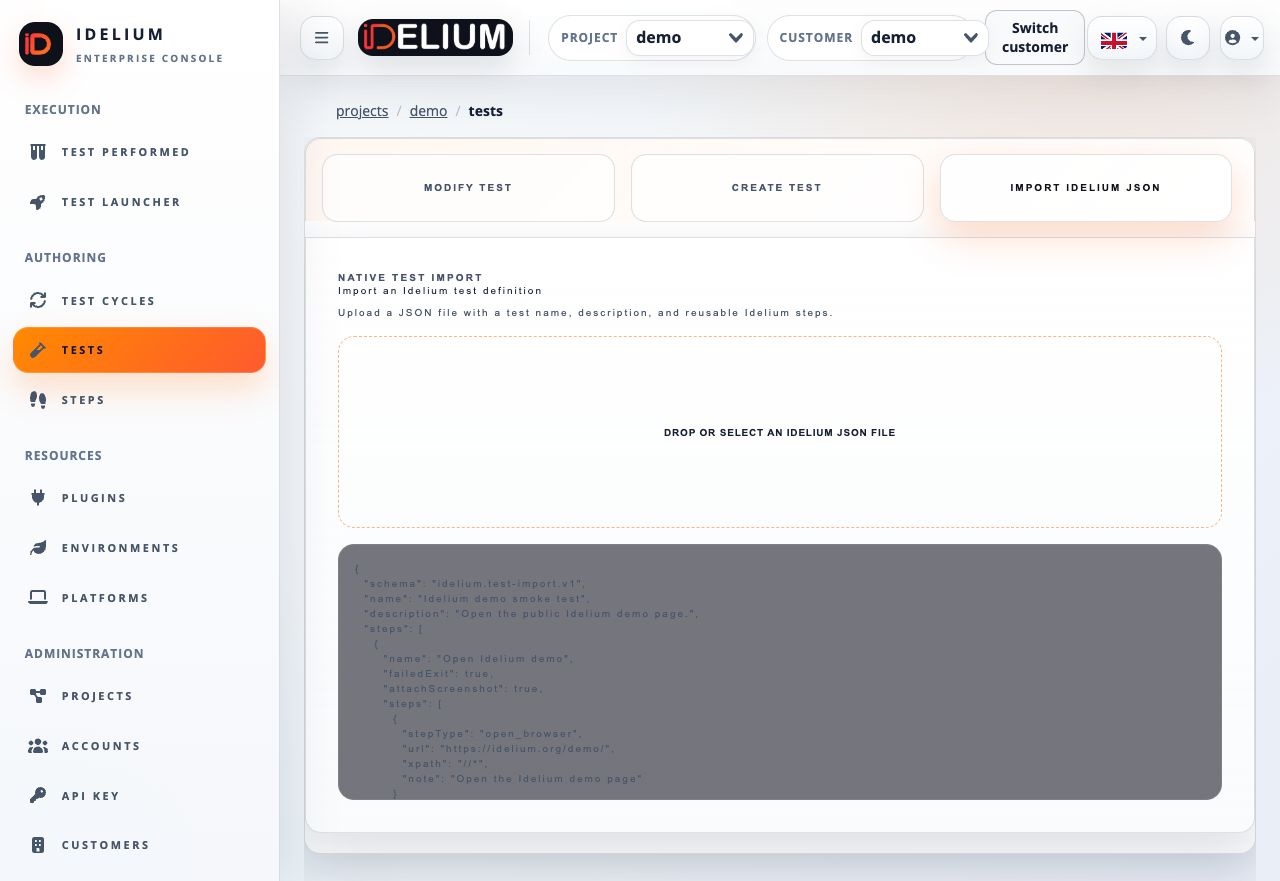
- Open Projects, choose the target project, and open Tests.
- Select Import Idelium JSON.
- Upload either
idelium-demo-test-import.jsonoridelium-demo-dsl-test-import.json. - Review the reusable steps and select Import Test.
- Confirm the test in Tests and the imported units in Steps.
When using the DSL example, open an imported step and select DSL. The editor validates the language version and statements as you type. The API performs the authoritative validation again when the step is saved.
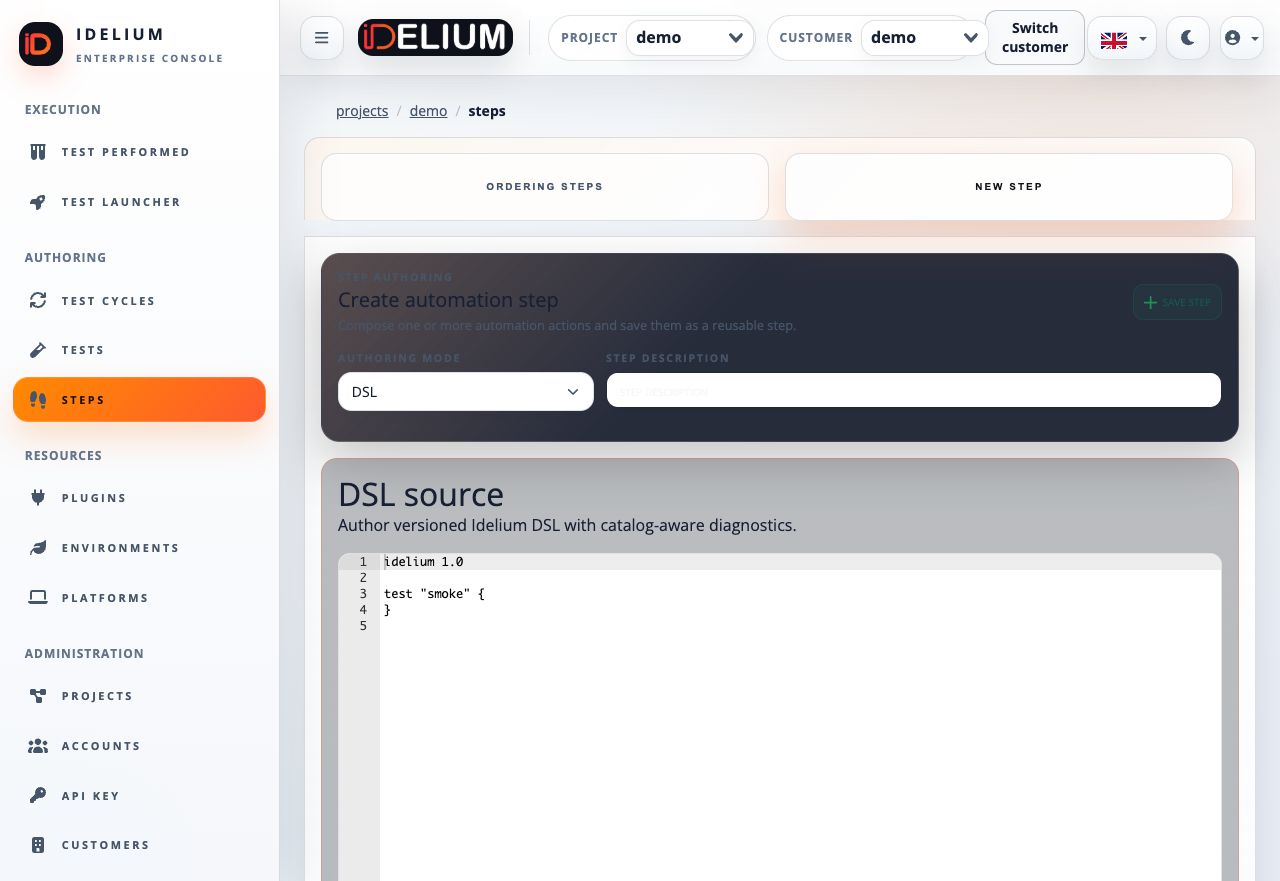
The DSL v1 specification and EBNF grammar define the supported browser commands and compatibility contract.
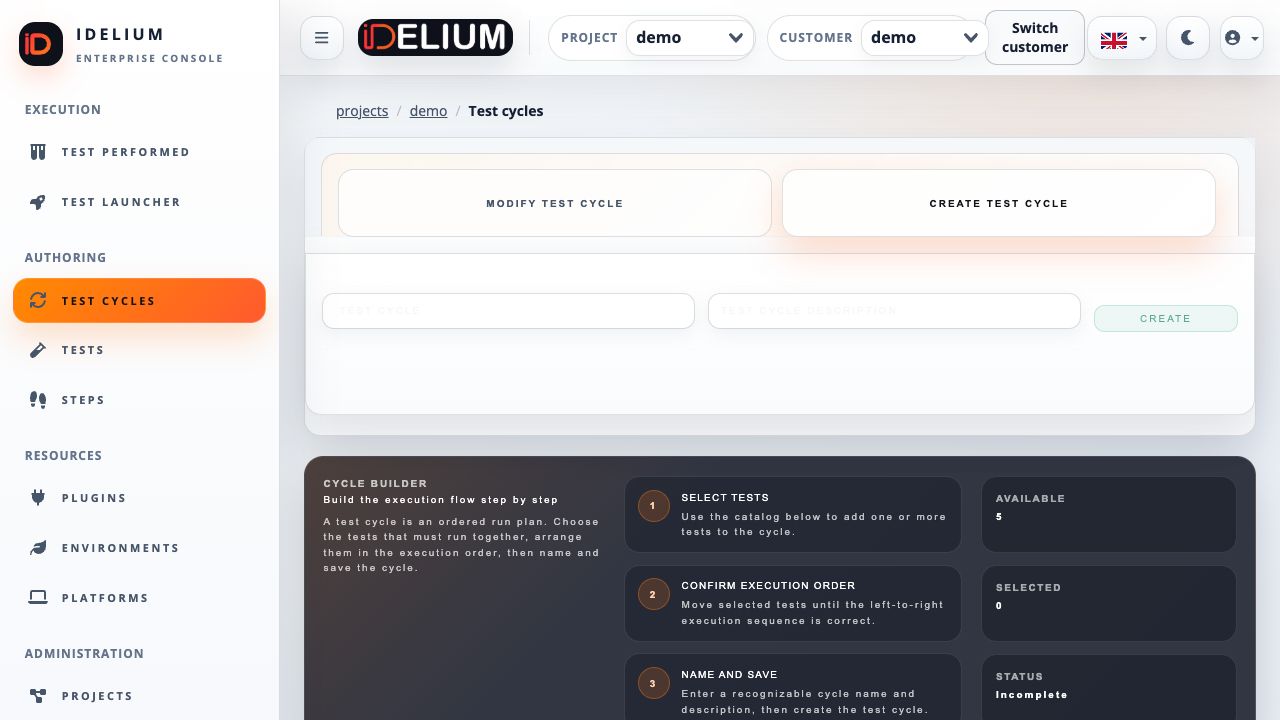
- Open Test Cycles and select Create Test Cycle.
- Enter a cycle name and description.
- Drag the imported test from Available items to Selected sequence.
- Arrange the required order and create the cycle.
- Note the test cycle identifier from the Idelium URL or cycle list.
Download the project credential from API Key and store it in the protected CLI key file:
install -m 600 /dev/null ~/.ideliumCopy the key into ~/.idelium using a secure editor. Never paste credentials
into commands, screenshots, issues, or shared logs.
Chrome is selected when --browser is omitted:
idelium \
  --idProject=<project-id> \
  --idCycle=<cycle-id> \
  --environment=demo \
  --ideliumwsBaseurl=https://localhost
Select Firefox explicitly:
idelium \
  --idProject=<project-id> \
  --idCycle=<cycle-id> \
  --environment=demo \
  --browser=firefox \
  --ideliumwsBaseurl=https://localhost
For the local self-signed certificate, prefer trusting the generated certificate.
Use --insecure only for an isolated development stack:
idelium \
  --idProject=<project-id> \
  --idCycle=<cycle-id> \
  --environment=demo \
  --browser=chrome \
  --ideliumwsBaseurl=https://localhost \
--insecurePass the Grid endpoint and optional W3C capabilities:
idelium \
  --idProject=<project-id> \
  --idCycle=<cycle-id> \
  --environment=demo \
  --browser=firefox \
  --seleniumGridUrl=http://grid.example.invalid:4444 \
  --seleniumGridCapabilities='{"browserVersion":"latest","platformName":"linux"}' \
  --ideliumwsBaseurl=https://localhost
Do not embed Grid credentials in the URL. Use the approved secret or workload identity mechanism for the target environment.
Open Test Performed, select Test Results, then choose the performed cycle and test. Show Step Results opens a dedicated URL containing the complete step-by-step result, including:
- status and duration for every reusable step;
- classified diagnostics and skipped-step reasons;
- environment, browser, browser version, device, and operating system metadata captured by the CLI;
- screenshots and downloadable report descriptors when available;
- structured Postman request results for mixed native-action tests.
A failed required step terminates the remaining test flow, records later steps as skipped, and closes the run with a failed status instead of leaving it pending.
| Symptom | Resolution |
|---|---|
browser is not a valid option |
Use --browser=chrome, firefox, edge, or safari. |
| Browser executable is missing | Install the selected browser on the CLI host or use Selenium Grid. |
| Grid session cannot start | Verify the Grid URL, browser availability, capabilities, network route, and TLS trust. |
| Local API certificate fails | Trust the demo CA, provide --caBundle, or use --insecure only for local development. |
| DSL validation fails | Use the editor diagnostic code and line/column, then confirm the source against the DSL v1 specification. |