Modifying Headers for Local Testing
Currently, on the csc398dev.utm.utoronto where our app is running, if a user visits a certain page (ex Register Page), they are redirected to UofT web login, where they login using utorid and password. Then they are redirected back to our site.
When they are redirected back to our site, a custom HTTP header is added to the request that contains the utorid of the user who just logged in.
We can access this header using req.headers.utorid.
To mimic the UofT Web login process locally, we need to be able to replicate the custom HTTP header locally. In other words, we need to be able to receive custom HTTP header's in our requests so that we can mimic the process of a user being redirected to the Web Login page and then the UofT web login page sending our site the utorid via a custom HTTP header.
To do that, we will use a chrome extension called ModHeader that allows us to modify headers. Then we will modify our requests headers to send us the custom HTTP header we expect from uoft web login.
-
Install the ModHeader extension
-
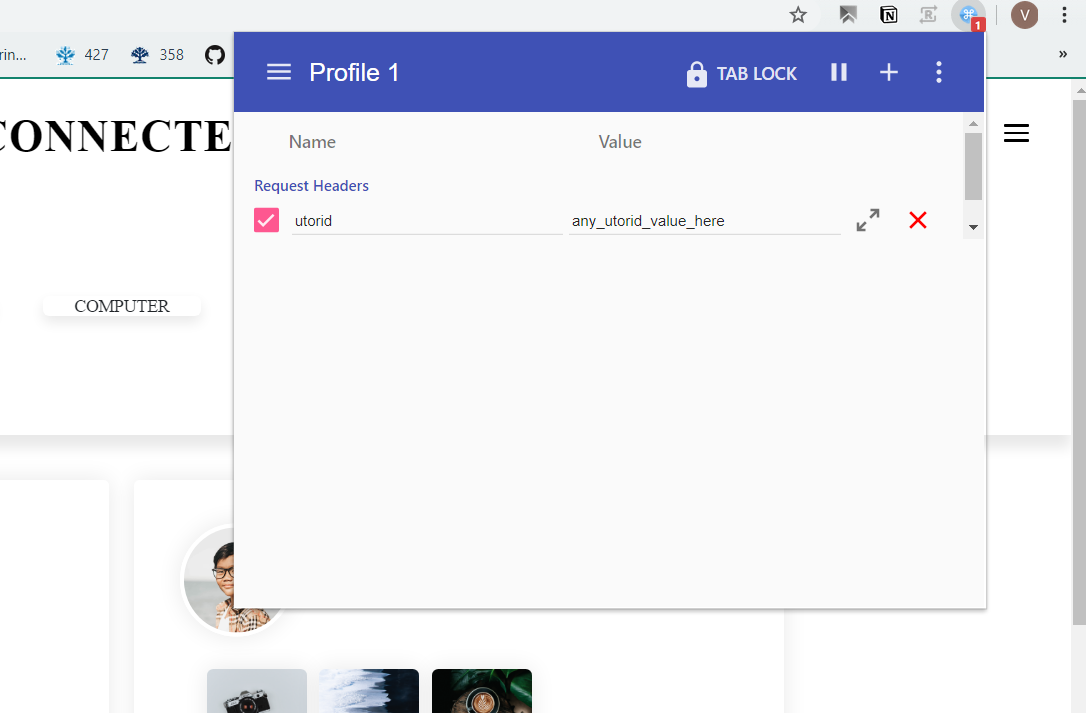
Visit the Connected Site locally (ie localhost:8081) and click the ModHeader button in chrome. This will create a pop up where you can specify which headers you want to add to each request that is made
-
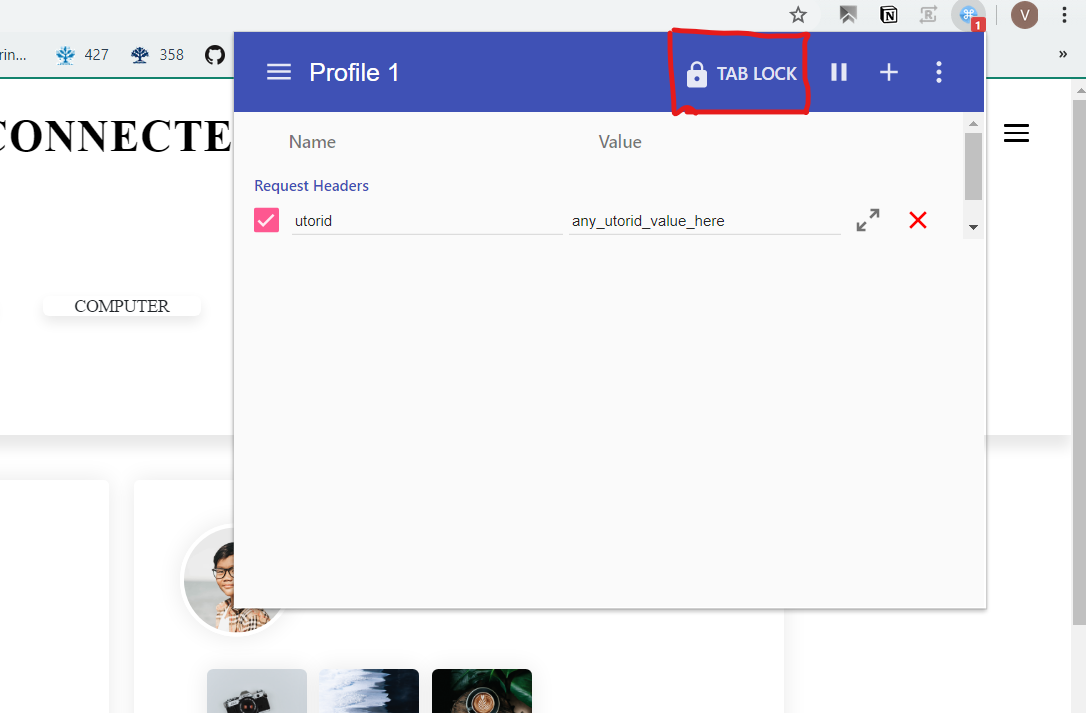
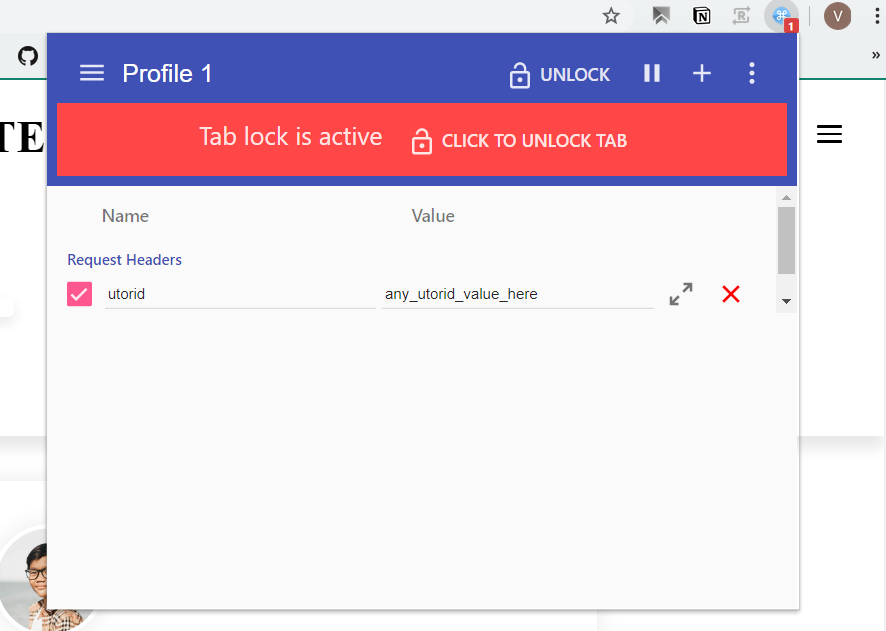
Click Tab lock in the extension pop up. This ensures that you will only add the utorid header to requests made to the connected site and not any other sites ( ie if you are looking at stackoverflow, it won't add the utorid header. It only adds the headers to requests made to the localhost:8081 site). NOTE: If you close the tab and then reopen localhost in an another tab, you may need to re-enable tab lock.
-
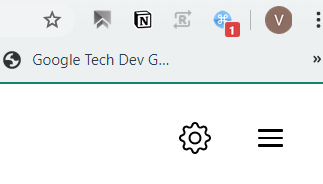
You know ModHeader is actively adding the header to requests if you see a red 1 in the cornor.
-
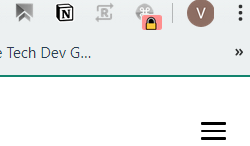
If ModHeader is not add the header to request you will see a lock on the icon.
Whenever a user is logged in, the utorid is added to the request via Weblogin and we set a cookie on the user computer to track that the user has logged in. By using ModHeader to send the utorid header we can mimic this process and ensure a cookie is created.
If you want to test the user flow a logged in user, make sure ModHeader is running.
If you want to test the user flow for a user who is not logged in, turn off ModHeader. However, if you just had ModHeader running, then you may have already set a cookie for the logged in user and thus connected might appear as a logged in user. The easiest thing to do is to open an incognito window and test with that as it will have no saved cookies.