






This tool has been designed to Interact and Manage different Photo Services such as Google Photos, Synology Photos, Immich Photos, NextCloud Photos, Google Takeout & Apple iCloud Takeout, and allow users to do an Automatic Migration from one Photo Cloud service to other or from one account to a new account of the same Photo Cloud service.
The Tool supports multiple accounts for the same service, so you can migrate your assets between different accounts of the same service.


The main use case is the Automatic Migration Feature to migrate all your photos and videos from one Photo cloud service to other, or between different accounts of the same service.
Important
Since April 1, 2025, Google Photos can no longer be used by third-party apps as a full-library SOURCE for Automatic Migration because Google removed the legacy read scopes from the Library API. Use Google Takeout as --source instead. Google Photos remains usable as an upload target with the supported scopes.
Tip
Automatic Migration now also auto-detects raw Apple iCloud Takeout folders used as --source, preprocesses them first, and then migrates the resulting library to the target. If the local source contains ZIP files, they are unpacked first and the extracted folder is then classified as Google Takeout, iCloud Takeout, or a normal local folder. That automatic iCloud preprocessing enables Memories by default, and when a local source contains a Memories folder those collections are treated the same way as Albums.
Tip
For Local Photos Folder migrations and uploads, you can exclude generated thumbnails or other unwanted content using glob patterns with --exclude-folders and --exclude-files.
Example:
--exclude-folders @eaDir .@__thumb @Recycle --exclude-files SYNOFILE_THUMB* SYNOPHOTO_THUMB* SYNOPHOTO_FILM* Thumbs.db .DS_Store
Note
For more info you can check the feature documentation in below link:
Other important feature included in the tool is the Google Takeout Fixing.
This feature has been designed to automatically analyze your Google Photos Takeout, extract all the information from the sidecar JSON files (or guess some missing information using heuristics algorithms) and embeds all the extracted info into each asset file using EXIF tags.
In this way your Media Library will be ready to be migrated to any other Cloud Photo services without losing any important info such as, Albums info, Original date, GPS location, Camera info, etc...
But this feature also helps you to organize and clean your Media Library removing duplicates, creating Year/Month folder structure, creating symbolic links for Albums assets, Auto renaming Albums to clean their names and include a prefix with the date of its assets, Process Motion/Live Pictures, etc...
The whole process is done in an automatic way and is divided in different steps (some of them are optionals).
Note
For more info you can check the feature documentation in below link:
Other important feature included in the tool is the iCloud Takeout Fixing.
This feature has been designed to process Apple iCloud Photos privacy exports, recover the original capture dates from Photo Details.csv, assign those dates to the exported assets, and rebuild Albums from Apple CSV manifests.
In this way your Media Library will be ready to be migrated to any other Cloud Photo services without losing important information such as Original date and Albums relationships.
But this feature also helps you to reconstruct the exported library structure in a more usable way, including optional Memories rebuilding when those manifests are present in the export.
The whole process is done in an automatic way and is independent from the cloud-service management modules.
Note
For more info you can check the feature documentation in below link:
Apart from the Automatic Migration, Google Takeout Fixing, and iCloud Takeout Fixing features, you can also use the tool to manage Google Photos, photo cloud services, and managed local photo libraries.
- Google Photos supports direct upload/download operations through the official API.
- Synology Photos, Immich Photos, and NextCloud Photos provide cloud management and migration operations.
- Local Photos Folder provides the same library-management modules against a managed on-disk library, using
No_Albumsfor physical media andAlbumsfor album membership links.
Currently, the features supported by each service are:
| Feature | Google Photos | Synology Photos | Immich Photos | Nextcloud Photos | Local Photos Folder |
|---|---|---|---|---|---|
| Upload Album(s) (from folder) | doc | doc | doc | doc | doc |
| Download Album(s) (into folder) | doc | doc | doc | doc | doc |
| Upload ALL (from folder) | doc | doc | doc | doc | doc |
| Download ALL (into folder) | doc | doc | doc | doc | doc |
| Remove ALL Assets | Not supported by API | doc | doc | doc | doc |
| Remove ALL Albums | Not supported by API | doc | doc | doc | doc |
| Remove Albums by Name Pattern | Not supported by API | doc | doc | doc | doc |
| Rename Albums by Name Pattern | Not supported by API | doc | doc | doc | doc |
| Consolidate Albums Names | doc | doc | doc | doc | doc |
| Remove Empty Albums | Not supported by API | doc | doc | doc | doc |
| Remove Duplicates Albums | Not supported by API | doc | doc | doc | doc |
| Remove Duplicates Assets | API deletion unavailable | doc | doc | doc | doc |
| Merge Duplicates Albums | Not supported by API | doc | doc | doc | doc |
Note
For more info you can check the feature documentation in below links:
Important
-
NextCloud Photos is available since v4.0.0 using WebDAV-based integration.
-
Google Photos is available since v4.0.0 with partial support due current official API limitations. Since April 1, 2025, Google Photos full-library reads are no longer available through the public Library API, so use Google Takeout for migrations/downloads of a full library and Google Photos mainly as upload target.
Finally, the Tool also contains Other Useful Standalone Features such as:
- Metadata fixing of any Photo Library in your local drive (not necessarily needs to be a Google Takeout folder)
- Library Organization features:
- Manage Duplicates assets
- Organize any local folder by capture date into
year,year/month,year-month, orflatten - Splitting of assets with and without associated albums
- Folder structure (customizable) for
Albums, cloudNo_Albums, and TakeoutALL_PHOTOSmaster libraries
- Symbolic Links Support for Albums folders
- Fix Symbolic Links Broken
- Homogenize Albums folder's name based on content
Note
For more info you can check the feature documentation in below link:
PhotoMigrator now includes a Web Interface that executes the same CLI arguments under the hood.
Main characteristics:
- Multi-tab UI separated by module:
- Automatic Migration
- Google Takeout
- iCloud Takeout
- Google Photos
- Synology Photos
- Immich Photos
- NextCloud Photos
- Local Photos Folder
- Other Features
- General/optional arguments available for all tabs.
- Automatic Migration and Local Photos Folder workflows support exclusion filters for unwanted folders/files such as
@eaDir,.@__thumb,@Recycle,SYNOFILE_THUMB*,SYNOPHOTO_THUMB*,SYNOVIDEO_THUMB*,SYNOPHOTO_FILM*,Thumbs.db,ehthumbs.db,.DS_Store, or._*. - Real command preview + execution output in the browser.
- Backend powered by
FastAPI+uvicornon port6078.
Note
You can access to the new Web Interface (demo) on this link:
PhotoMigrator Web Interface (demo)
Username: demo
Password: demo
The complete Docker guide for the Web Interface now lives in:
That guide includes:
- Linux, Windows, and macOS instructions
- direct download commands for
docker-compose.ymland.env - a ready-to-use
.envthat works without mandatory edits for local use - a clear split between mandatory, recommended, and optional customization
Quick start:
cd docker-web
docker compose pull
docker compose up -d
Then open:
http://localhost:6078
PhotoMigrator includes two local interactive interfaces in addition to the Web Interface:
- Desktop GUI: a native windowed interface built with
tkinter. - Terminal TUI: an interactive terminal interface built with
Textual.
Both interfaces expose the same high-level structure:
Feature SelectorFeatures ConfigGeneral ArgumentsApp Settings- command preview, status panel, and execution log
Default launcher behavior:
- Running
PhotoMigratorwithout arguments tries to open the Desktop GUI first. - If the GUI cannot be started because
tkinteror a graphical display is not available, PhotoMigrator falls back to the Terminal TUI. - If neither interactive interface can be started, PhotoMigrator falls back to the CLI and shows the arguments descriptions (same output as
--help).
Explicit launchers:
PhotoMigrator --guiopens the Desktop GUI explicitly.PhotoMigrator --tuiopens the Terminal TUI explicitly.PhotoMigrator --configuration-file /path/to/Config.inican be combined with either launcher, or used on its own, to open the default interactive UI with a different configuration file preloaded.
Config file behavior in GUI/TUI:
- If no explicit configuration path is provided, both interfaces use
./Config.inifrom the current execution folder, matching the classic CLI behavior. - You can also change the file later inside
General Arguments > Configuration File.
Typical use:
- Use the Desktop GUI on Windows, macOS, or Linux systems with graphical desktop access.
- Use the Terminal TUI on SSH sessions, server terminals, or environments where a graphical window is not available but the terminal supports interactive rendering.


This Tool is based on commands given through the Command Line Interface (CLI), so it is important to know the syntax of that interface.
PhotoMigrator now also includes an interactive CLI TUI that mirrors the Web Interface structure much more closely:
- Feature Selector with the same top-level modules as the Web Interface
General Arguments,Features Config, andApp Settingsviews- Dynamic forms for
Automatic Migration,Google Takeout,iCloud Takeout, cloud-service actions, and standalone features - Multi-account
Features Configselectors forGoogle Photos,Synology Photos,Immich Photos, andNextCloud Photos - Live command preview and in-terminal execution log panel
Quick launch:
python ./src/PhotoMigrator.pyThis now opens the desktop GUI by default.
Force the CLI TUI explicitly:
python ./src/PhotoMigrator.py --tuiOpen the desktop GUI explicitly:
python ./src/PhotoMigrator.py --guiOpen either interactive UI with an explicit configuration file:
python ./src/PhotoMigrator.py --gui --configuration-file ./Config.ini
python ./src/PhotoMigrator.py --tui --configuration-file ~/PhotoMigrator/custom.ini
Launcher fallback order when no arguments are provided:
- Desktop GUI
- CLI TUI
- Command-line help (
--help)
You can check the whole list of features and arguments with the right syntax here: Command Line Interface (CLI)
Check all arguments descriptions and usage examples in the Arguments Description or in the shorter version.
- Configuration File
- Command Line Interface (CLI)
- Arguments Description
- Automatic Migration Feature
- Google Takeout Management
- iCloud Takeout Management
- Google Photos Management
- Synology Photos Management
- Immich Photos Management
- NextCloud Photos Management
- Other Features
- GPTH Tool Pipeline Description
- Docker Deployment Documentation
There are four different methods to execute this Tool:
- Execute from Compiled Binaries
- Execute from Source Repository
- Deploy Web Interface (from docker)
- Deploy CLI Interface (from docker)
Below tables show the pros and cons of each method together with a comparative rating of each one of them for you to decide which one fits best with your needed:
| Execution Method | Difficulty | Pros | Cons |
|---|---|---|---|
| Binaries | 🟢 | ✅ Only basic knowledge on command line commands needed | ❌ Platform and architecture dependent ❌ Need basic knowledge of running command line instructions ❌ Some anti-virus may detect the tool as suspicious in Windows systems |
| Docker | ⭐ | ✅ Platform and architecture independent ✅ Easy configuration via docker.conf ✅ Automatically pulls latest image if RELEASE_TAG=latest |
❌ Need intermediate knowledge of running command line instructions ❌ Need to install Docker (if not already installed) ❌ All paths given as arguments must be relative to the execution folder |
| Source | 🔴 | ✅ Platform and architecture independent | ❌ Need advance knowledge of running command line instructions ❌ Need to install Git and Python 3.8+ (if not already installed). ❌ Need to pull the source repository again to update to a new release |
| Web Interface | 🟢⭐ | ✅ Platform and architecture independent ✅ Easy configuration via .env file ✅ Automatically pulls latest image if IMAGE_TAG=latest |
❌ In Windows/MacOS you need to install Docker Desktop |
🟢 Easiest way ⭐ Recommended 🔴 More difficult
| Feature | Binaries (easiest way) |
Docker (balanced) |
Source (more difficult) |
Web Interface (recommended) |
|---|---|---|---|---|
| Platform and architecture independence | ⭐☆☆☆☆ | ⭐⭐⭐⭐⭐ | ⭐⭐⭐⭐⭐ | ⭐⭐⭐⭐⭐ |
| Ease of updating to new release | ⭐⭐⭐☆☆ | ⭐⭐⭐⭐⭐ | ⭐☆☆☆☆ | ⭐⭐⭐⭐⭐ |
| Allow paths arguments point outside execution folder | ⭐⭐⭐⭐⭐ | ⭐☆☆☆☆ | ⭐⭐⭐⭐⭐ | ⭐⭐⭐⭐☆ |
| No Requires Technical knowledge (Command line syntax) | ⭐⭐⭐⭐⭐ | ⭐⭐⭐☆☆ | ⭐☆☆☆☆ | ⭐⭐⭐⭐☆ |
| No Requires additional tools/software | ⭐⭐⭐⭐⭐ | ⭐⭐⭐☆☆ | ⭐☆☆☆☆ | ⭐⭐⭐⭐☆ |
| No Risk of Antivirus alert (especially on Windows) | ⭐⭐☆☆☆ | ⭐⭐⭐⭐⭐ | ⭐⭐⭐⭐⭐ | ⭐⭐⭐⭐⭐ |
| Average Rating | ⭐⭐⭐⭐☆ | ⭐⭐⭐⭐☆ | ⭐⭐⭐☆☆ | ⭐⭐⭐⭐☆ |
| Average Score | 3.5 | 3.7 | 3.0 | 4.5 |
Download the tool either for Linux, MacOS or Windows (for both x64 and arm64 architectures) or Docker version (platform & architecture independent) as you prefer, directly from following links:
Or check the Changelog to choose any specific release.
Note
The Tool is Multi-Platform and Multi-Architecture, and has been designed to be run directly from Windows systems, MacOs or within a Linux Server or NAS such as Synology NAS (Compatible with DSM 7.0 or higher), so feel free to download the version according to your system.
You can also execute the Tool from a Docker container or from sources files for a better compatibility. In below sections you can find the execution instructions to run the Tool from the different methods.
Compiled binary names are currently platform-specific:
- Windows:
PhotoMigrator.exe - macOS:
PhotoMigrator_vx.y.z_macos_<arch>.command - Linux / Synology SSH:
PhotoMigrator_vx.y.z_linux_<arch>.bin
Important
On macOS, downloaded unsigned binaries may be blocked by Gatekeeper on first launch. If that happens, run:
chmod +x ./PhotoMigrator_vx.y.z_macos_<arch>.command && xattr -dr com.apple.quarantine ./PhotoMigrator_vx.y.z_macos_<arch>.command
and then execute that same .command file again from Terminal or Finder. Replace x.y.z and <arch> with the exact version and architecture you downloaded.
In order to connect to the different Photo Cloud Services, you must configure the connection settings using the Configuration file Config.ini provided with the Tool.
When running the Web Interface in Docker/Compose/Kubernetes, you can also override the same cloud-service keys through environment variables. Supported config keys can be provided directly as KEY=value or through Docker-secret style KEY_FILE=/path/to/secret. Runtime precedence is: environment variable > Config.ini > template default. This is useful for IMMICH_URL, IMMICH_API_KEY_ADMIN, SYNOLOGY_*, NEXTCLOUD_*, GOOGLE_PHOTOS_*, etc.
You can see how to configure the Configuration File in this help section: Configuration File
The Historical Change Log can be checked in the following link: Changelog
The Planned Roadmap for futures releases can be checked in the following link: Planned Roadmap
By participating in this project, you agree to abide by our Code of Conduct.
Caution
⚠️ The project is under very active development.⚠️ Expect bugs and breaking changes.
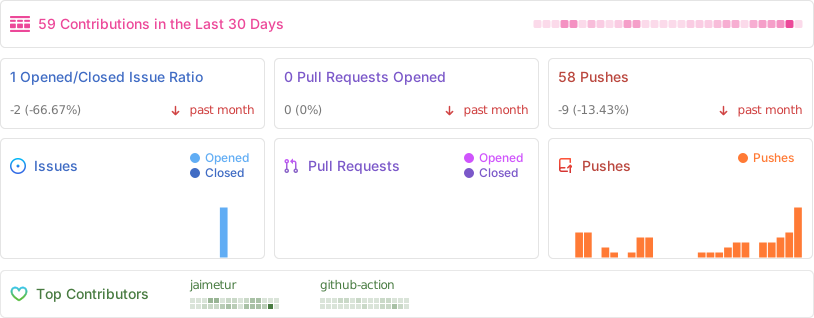
If you want to Contribute to this project please, first read the file CONTRIBUTING.md
- Synology Photos Create albums full of precious moments, share your perfectly framed photos, and store them securely on your Synology NAS.
- Immich Photos High performance self-hosted photo and video management solution.
- NextCloud Photos Your memories under your control.
- Google Photos Takeout Helper (GPTH) Script that organizes the Google Takeout archive into one big chronological folder.
- Exiftool Metadata information reader/writer.
I hope this can be useful for any of you. Enjoy it!
(c) 2024-2026 by Jaime Tur (@jaimetur).
Part of this Tool is based on GPTH Tool by TheLastGimbus/Wacheee and v4.x.x by Xentraxx
If you consider that this Tool has helped you, you can also consider donating me with a ☕
I spent a lot of time developing this Tool for free, so donations will contribute to motivate me to continue working on this project 💖



