
- StorageClass "efs", and PersistentVolumeClaim - I choose Amazon Elastic File Storage (AWS EFS) as a storage class so I can spawn many pods that reads from and writes to the same storage. This way, I can also upload my own resources in EFS and have it accessible across all the pods, like what I did with this static website: http://a96b63955144811ea9e34064175c18bb-2094150385.ap-southeast-1.elb.amazonaws.com/static-kubernetes-wordpress-assets/static_page.html
- Secret resource - to provide the Wordpress application the root password it will use to connect to the database.
- ReplicaSet - to ensure that there are only 3 pods running the Wordpress application. I defined the secret, volume, ports and image here.
- Load Balancer Service - to allow external clients to connect to the Wordpress application.
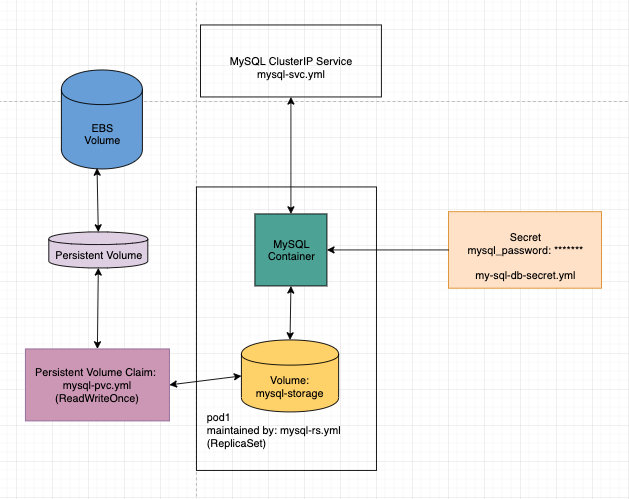
- StorageClass "gp2", and PersistentVolumeClaim - to ensure that the MySQL Database will have data that is persistent. The PersistentVolume points to an AWS EBS volume.
- Secret resource - to provide the MySQL application the root password it will use to create the root user
- ReplicaSet - to ensure that there is only 1 pod running the MySQL Database. I defined the secret, volume, ports and image here.
- ClusterIP Service - to allow only internal clients (i.e other pods in the cluster) to connect to the MySQL Database.
- 2.1. Setup your own EC2 instance. Ideally, it should have the Amazon Linux 2 AMI (so aws-cli comes pre-installed.)
- 2.2. SSH into the instance
- 2.3. Follow the cheatsheet below to create your very own EKS cluster.
# ensure aws-cli is installed
aws --version

# install aws-iam-authenticator
curl -o aws-iam-authenticator https://amazon-eks.s3-us-west-2.amazonaws.com/1.14.6/2019-08-22/bin/linux/amd64/aws-iam-authenticator
chmod +x ./aws-iam-authenticator
mkdir -p $HOME/bin && cp ./aws-iam-authenticator $HOME/bin/aws-iam-authenticator && export PATH=$HOME/bin:$PATH
echo 'export PATH=$HOME/bin:$PATH' >> ~/.bashrc
aws-iam-authenticator help

# put in aws AKID and Secret
aws configure

# install eksctl
curl --silent --location "https://github.com/weaveworks/eksctl/releases/download/latest_release/eksctl_$(uname -s)_amd64.tar.gz" | tar xz -C /tmp
sudo mv /tmp/eksctl /usr/local/bin
eksctl version

# install kubectl
curl -o kubectl https://amazon-eks.s3-us-west-2.amazonaws.com/1.14.6/2019-08-22/bin/linux/amd64/kubectl
chmod +x ./kubectl
mkdir -p $HOME/bin && cp ./kubectl $HOME/bin/kubectl && export PATH=$HOME/bin:$PATH
echo 'export PATH=$HOME/bin:$PATH' >> ~/.bashrc
kubectl version --short --client

# create a cluster
# - and then wait for it
eksctl create cluster \
--name prod-wordpress \
--version 1.14 \
--region ap-southeast-1 \
--nodegroup-name standard-workers \
--node-type t3.medium \
--nodes 2 \
--nodes-min 1 \
--nodes-max 4 \
--managed- 3.1 Follow this AWS doc page [https://docs.aws.amazon.com/eks/latest/userguide/efs-csi.html] to create your EFS File system. Here are a few reminders that can help you from doing mistakes:
- make sure the EFS File System is in the same VPC as the EKS Cluster!!
- make sure you get the SG write.
- 3.2 We need to know if your EFS File System works.
- Create an EC2 instance on the same VPC as your EKS cluster
- Follow this AWS guide [https://docs.aws.amazon.com/efs/latest/ug/wt1-test.html] to mount your EFS File system on that EC2 instance
- Do
sudo git clone https://github.com/jamby1100/static-kubernetes-wordpress-assets.gitto add static assets - Follow Section IV
- Then, visit
<<ELB URL>>/static-kubernetes-wordpress-assets/static_page.htmlto see the static website- for me, that's
http://a96b63955144811ea9e34064175c18bb-2094150385.ap-southeast-1.elb.amazonaws.com/static-kubernetes-wordpress-assets/static_page.html
- for me, that's
git clone https://github.com/jamby1100/kubernetes-wordpress-sql.git
cd kubernetes-wordpress-sql
4.1.1 Take your password and have it base64 encoded here: https://www.base64encode.org/
4.1.2 Create a yml file for the secret mysql/my-sql-db-secret.yml. This file is under .gitignore so you won't see my secret.
apiVersion: v1
kind: Secret
metadata:
   name: mysql-credentials
type: Opaque
data:
  mysql_password: << REPLACE ME >>
4.1.3 Create your secret
kubectl create -f mysql/my-sql-db-secret.yml

kubectl get secrets mysql-credentials
kubectl describe secrets mysql-credentialsI decided to have 2 kinds of storage setups for my Kubernetes clustrer:
- MySQL: ReadWriteOnce EBS volume.
- Wordpress: ReadWriteMany EFS volume.
4.2.1 Create the Storage Class
# clear up the default gp2 sc
kubectl delete sc gp2
kubectl create -f utilities/aws_storage_class.yml
kubectl create -f utilities/efs-sc.yml

kubectl get sc
4.2.2 Create the EFS Volume MAKE SURE TO EDIT THE FILE efs-pv.yml to change it to your file system id (mine is fs-90d99ed1) for EFS
kubectl create -f wordpress/efs-pv.yml

kubectl get pv
4.2.3 Create the PersistentVolumeClaims
kubectl create -f mysql/mysql-pvc.yml
kubectl create -f wordpress/efs-pvc.yml

kubectl get pvckubectl create -f mysql/mysql-rs.yml
kubectl create -f wordpress/wordpress-rs.yml
kubectl get pods
kubectl get rs- MySQL - this allows the MySQL Database to be accessible by internal clients (i.e other pods in the same cluster)
- Wordpress - this allows the WordPress application to be accessible by external clients (i.e YOU)
kubectl create -f mysql/mysql-svc.yml
kubectl create -f wordpress/wordpress-svc.yml

kubectl get servicesDon't forget to delete everything after!
kubectl delete rs mysql
kubectl delete rs wordpress

kubectl delete svc wordpress-loadbalancer
kubectl delete svc wordpress-mysql

kubectl delete pvc mysql-pvc
kubectl delete pvc efs-pvc

kubectl delete pv efs-pv
kubectl delete secrets mysql-credentialsI would like to acknowledge the people behind the books and the articles that helped me deliver this application:
# PRIMARY REFERENCE: Kubernetes in Action by Marko Luksa (p.1-224)
https://www.manning.com/books/kubernetes-in-action

# Installing EKS
https://docs.aws.amazon.com/eks/latest/userguide/getting-started-eksctl.html
https://docs.aws.amazon.com/eks/latest/userguide/getting-started-console.html
https://docs.aws.amazon.com/eks/latest/userguide/create-cluster.html

# Creating EFS File Systems for EKS
https://docs.aws.amazon.com/eks/latest/userguide/efs-csi.html

# Mounting efs to an ec2 instance so I can add files
https://docs.aws.amazon.com/efs/latest/ug/wt1-test.html

# Doing static websites
https://www.w3schools.com/html/html_images.asp

# EKS Storage Class
https://docs.aws.amazon.com/eks/latest/userguide/storage-classes.html

# Volumes in Kubernetes
https://kubernetes.io/docs/concepts/storage/persistent-volumes/#claims-as-volumes

# Basic Wordpress on Kubernetes
https://kubernetes.io/docs/tutorials/stateful-application/mysql-wordpress-persistent-volume/