
###Description When a user is first starting to program, they often want to get some sort of graphical element on the screen. The problem is that graphics, Java Swing in particular, are unnecessary complex for simple tasks like just getting a circle to appear on the screen. As an effort to solve this issue SimpleGraphics was created. SimpleGraphics is a library for Java that incorporates right into the beginner's code. They can use any of the Java functions they know and love, and in addition, they can can easily draw shapes, add text, and add images without needing to know what a JFrame is or even an object. The precise usage is described below.
###Functionality Java Swing isn't inherrently bad (though it is by no means perfect). It just offers an incredible amount of functionality that is unncessary to most beginners that adds to the complexity for a programmer that doesn't even know what an object is. The detailed functions are available in the Javadoc, but an overview is below.
- Drawing Circles
- Draws a circle at the given coordinates of a certain radius
- Can be customized with background color and border thickness
- Drawing Ovals
- Draws an oval at the given coordinates with a given radius in both the x and y directions
- Can be customized with background color and border thickness
- Drawing Squares
- Draws a square at the given coordinates with a certain side length
- Can be customized with background color and border thickness
- Drawing Rectangles
- Draws a rectangle at the given coordinates with a certain side length
- Can be customized with background color and border thickness
- Drawing Triangles
- Draws a triangle with given vertices
- Each vertex (x and y) are different variables, not in an array so if the user doesn't know arrays they can still draw triangles.
- Can be customized with background color and border thickness
- Drawing Other Polygons
- Draws any polygon with the given vertices
- X coordinates are placed in one array, Y Coordinates in another
- Can be customized with background color and border thickness
- Adding Images
- Adds an image at the given x and y coordinate
- The image can either be from the internet (the client passes in a URL) or stored in the project folder in Eclipse (not the src).
- Adding Text
- Text can be added at a given location
- Text can be customized by changing the color, font size, and font.
- A detailed list of Java Fonts is available here
#####Colors To make the program simpler colors are all given as Strings, not as an actual color object so the programmer doesn't need to import anything, but this library. The possible colors are below (case insensitive)
- Blue
- Pink
- Red
- Magenta
- Grey (or Gray)
- Black
- White
- Green
- Yellow
- Orange
- Purple
- Sky (a lighter blue)
###Usage All calls are made from a client class. To draw something only one line of code is necessary. For example to draw a circle at 20, 30 with a radius of 10 one would type in the following.
SimpleGraphics.drawCircle(20,30,10);That's it. Nothing else is necessary. However, that circle can also be customized with a thickness or background color. For example, the code below draws the same circle with the background color of blue.
SimpleGraphics.fillCircle(20,30,10, "blue");Another example would be to add an image. All the user would need to do to add this image is enter the following code.
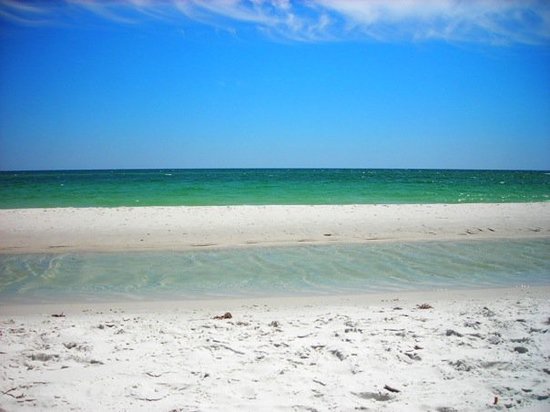
SimpleGraphics.addImageFromInternet(50, 50, "http://media-cdn.tripadvisor.com/media/photo-s/01/6e/d0/93/orange-beach.jpg");A complete list of methods and their parameters is available in the JavaDoc.
###Technology The entire program is written in Java version 6, but it should be compatible with any later versions. All of the graphics are written in Swing/AWT
###Note: The JavaDoc can be found in the JavaDoc folder under Javadoc.html