Download and Install
Builds are published on the Releases page of the repository. Two Windows packages are provided for each version:
| Package | File | Use when |
|---|---|---|
| Installer | FOrcaSlicer_Windows_Installer_V2.3.2-fos.8.5.3.exe |
Normal use. Registers file associations and creates a desktop shortcut. |
| Portable | FOrcaSlicer_Windows_Portable_V2.3.2-fos.8.5.3.zip |
Running from a USB drive, or keeping FOrcaSlicer isolated from an existing install. |
Download link: https://github.com/jiyang1018/FOrcaSlicer/releases
Windows only at present. There is no macOS or Linux build.
- Printer: Snapmaker U1. FOrcaSlicer is not tested on any other machine.
- OS: Windows 10 or 11, 64-bit.
- FOrcaSlicer installs alongside Snapmaker Orca without conflict - it uses its own settings directory at
%APPDATA%\FOrcaSlicer\.
When you run the installer, Windows will show a SmartScreen warning. Click More info, then Run anyway.
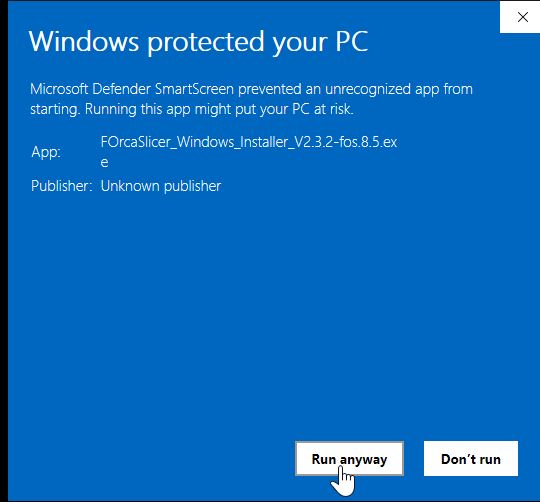
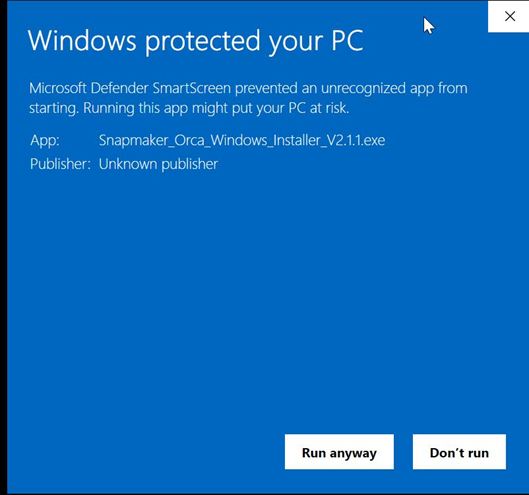
This is not specific to FOrcaSlicer. Snapmaker Orca's own installer produces the same warning:
After the user agreement, the installer asks where to install.
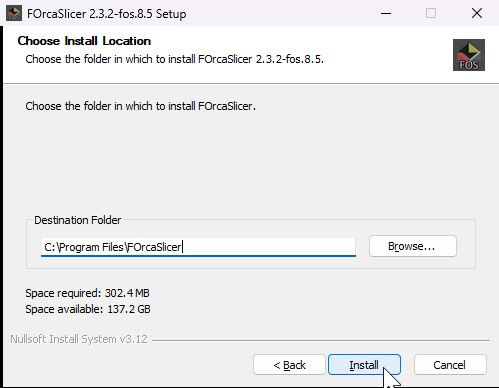
You are free to change this - but keep it separate from your Snapmaker Orca install directory. The two are separate applications and should not share a folder.
With FOrcaSlicer installed, continue to First Launch for the one-time first-run prompts and for setting up mixed nozzles.
Use Add or remove programs, or run the uninstaller in the install directory. Settings in %APPDATA%\FOrcaSlicer\ are left in place; delete that folder to remove all presets and preferences.