iOS Ride-Sharing App written in Swift 4 Using Map Kit and Core Data
Built with
- Ios 11.4
- Xcode 9.4
-
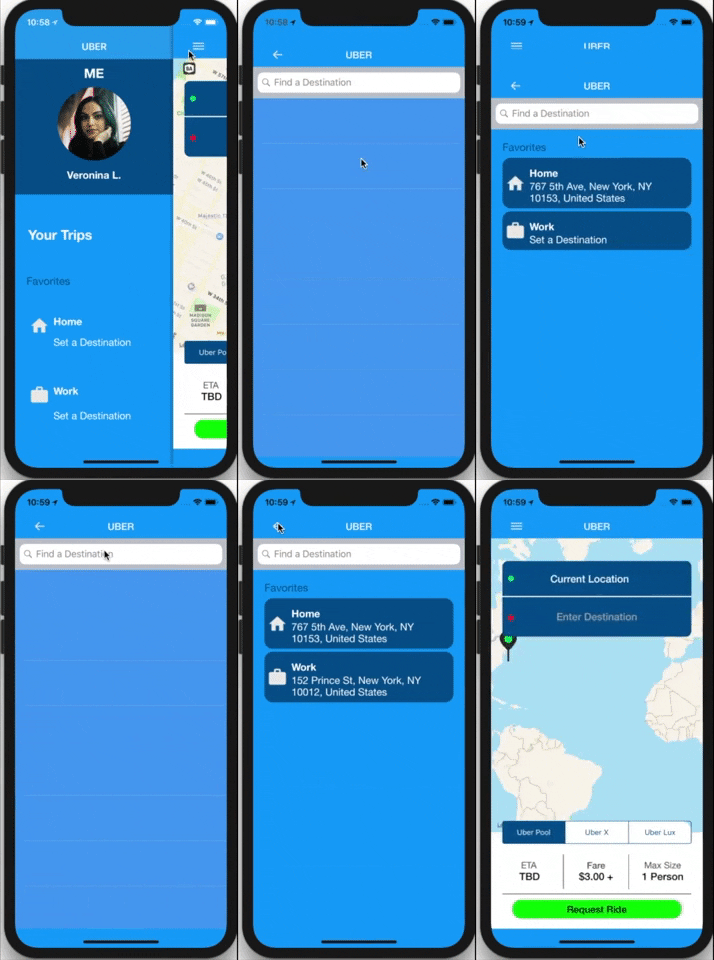
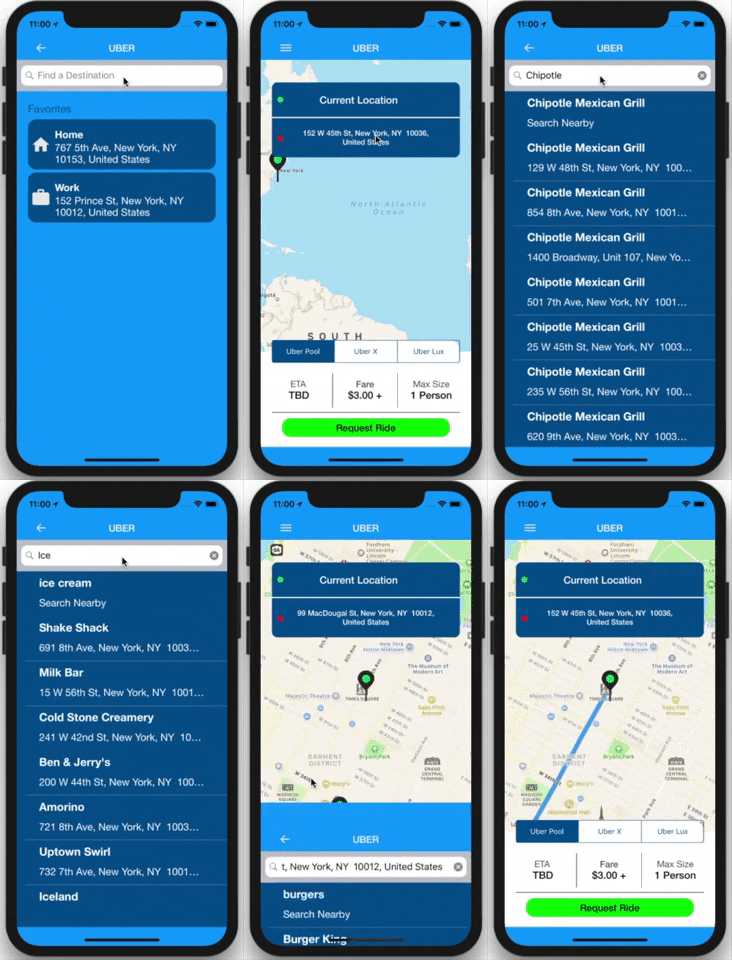
Pick a Destination with a
UISearchBar -
Find locations near your area by using
MKLocalSearchCompletervar searchCompleter = MKLocalSearchCompleter() var searchResults = [MKLocalSearchCompletion]() ... func completerDidUpdateResults(_ completer: MKLocalSearchCompleter) { searchResults = completer.results searchTableView.reloadData() }
-
Save and fetch user data using
Core Data -
Fully customizable Side Menu by jonkykong
-
Set personal favorite locations
-
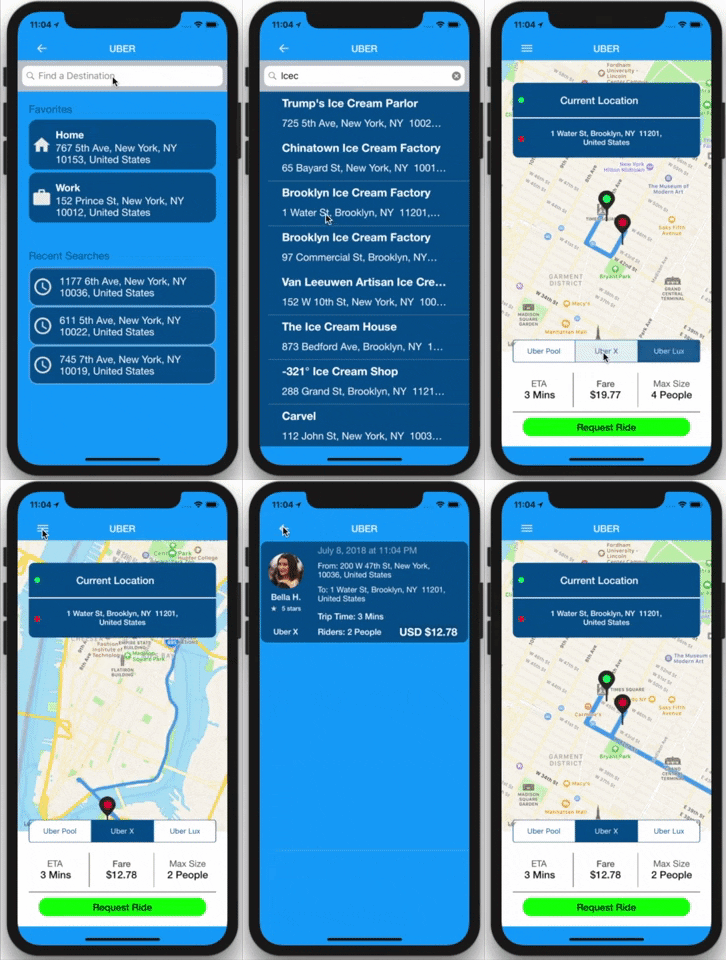
See recently searched locations for reusable access
-
Track current location using
CLLocationManager() -
See route of picked destination from current location using
MKOverlaylet directionRequest = MKDirectionsRequest() directionRequest.source = sourceMapItem //current location directionRequest.destination = destinationMapItem //destination ... let directions = MKDirections(request: directionRequest) directions.calculate { () } ... self.mapKitView.add(route.polyline, level: MKOverlayLevel.aboveRoads)
-
Convert Street names into map Coordinates and vice versa
let geoCoder = CLGeocoder()
geoCoder.geocodeAddressString(location) //convert street names into coordinates
geoCoder.reverseGeocodeLocation(location) //convert coordinates into street names
-
Pick different type of uber using
UISegmentedControl() -
Simulate a ride with trip details and driver information
-
Formated date to show when a ride took place
let date = Date()
let formatter = DateFormatter()
//Saturday, July 8, 2018, 3:18 PM
-
See recent trip details in a
TableView Cell
import CoreData
import MapKit
import SideMenu // project library used to implement a customized side menu
Pod Files
pod 'SideMenu' Side Menu Library by jonkykong
You'll have to configure your Xcode project in order to track user Location with Map Kit.
Your Xcode project should contain an Info.plist file.
-
In Info.plist, open Information Property List.
-
Hover your cursor over the up-down arrows, or click on any item in the list,
to display the + and – symbols, then click the + symbol to create a new item. -
Scroll down to select Privacy – Location When In Use Usage Description, then set its Value to something like:
To show you cool things nearby
Standard MIT License