Installation
These steps are written for Kobo device owners, who have KOReader installed to .adds/koreader, but should work on any device if you replace that location in the steps below with your KOReader installation folder.
- Before plugging your device in: Show the top menu for KOReader. Tap the wrench icon, "More tools", "Plugin management", and disable (uncheck) "Cover browser". Tap "Restart Now."
- Plug in your device.
- Download latest zip from the releases page.
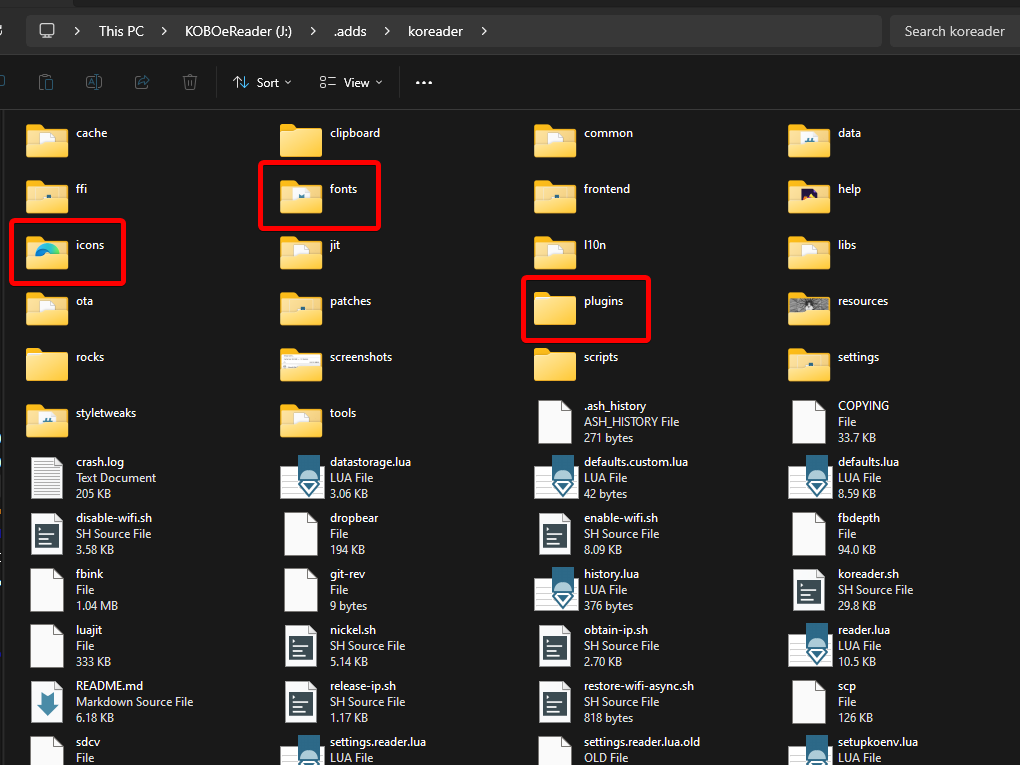
- Open the zip file and copy the folder
projecttitle.kopluginto the.adds/koreader/pluginsfolder on your device.
- Inside the
.adds/koreader/plugins/projecttitle.kopluginfolder, locate and copy thefontsfolder to.adds/koreader(adding the new fonts to the existing fonts folder) - Inside the
projecttitle.kopluginfolder, locate and copy theiconsfolder to.adds/koreader(adding the new icons to the existing icons folder) - Eject your device. Show the top menu for KOReader. Tap the wrench icon, "More tools", "Plugin management", and enable (check) "Project Title". Tap "Restart Now."
- You should see the new interface. You may wish to configure the new gestures now, or enable the autoscan setting. You may also wish to tap the icon in the upper-right of the new header, and tap "Extract and cache book information" as the cache from Cover Browser is separate from this plugin.
Two new gestures are available under "File browser" marked with the plugin name. The functions will increase or decrease by 1, the items per page in the list modes. In cover grid mode, the changes only happen when you are using the same number for columns and rows. ie: 3x3 will change to 2x2 or 4x4, but an uneven 4x2 will never change in either direction.
- Increase Items Per Page: This fits more items on the screen which results in smaller covers. Suggestion: Map under
Pinch - Decrease Items Per Page: This fits fewer items on the screen which results in larger covers. Suggestion: Map under
Spread
New settings are available by going to the top menu in KOReader, tapping the filing cabinet, "Settings", and then the sub-menu for this plugin.
- The top items adjusting items per page should be self-explanatory. The options below adjust the text that appears alongside Author and Title when in the list views.
- Under "Book covers and info cache" you will find actions that will prune or empty the cache, as well as the current size of the cache. The "scan home folder for new books automatically" option will (if any only if you have manually picked a home folder in KOreader) automatically scan for new books added to your device whenever KOReader restarts or is disconnected from a USB sharing session. You can stop the autoscan at any point by tapping the screen, so you're never stuck waiting for it to finish.
Inside the "resources" subfolder, there is a file named "2-font-override.lua". If you want to have the main UI font match the sans-serif font used in by plugin: Create a "patches" folder inside your "koreader" folder, copy or move that .lua file into it, and restart KOReader.
If after ejecting, you do not see the new UI:
- Please make sure you disabled "Cover browser" in the first step. This plugin will disable itself automatically if Cover Browser is ever enabled.
- Check to make sure the fonts and icons are in the right location. This plugin will disable itself automatically if these necessary files aren't found in the expected location.
To remove the plugin, disable it in KOReader (with reboot), then delete the projecttitle.koplugin folder from your device. You may also delete the PT_bookinfo_cache.sqlite file from the KOreader settings folder and the additional fonts and icons. Thanks for giving it a try.