Using Settings Hooks
WordPress provides a structure for plugins to save, retrieve and modify options used to configure themselves. WordPress also provides means to easily bundle these options together and display interfaces for modifying them. WP-Librarian has its own classes built on top to handle common tasks. But first, as it confused me originally, an overview of how settings work in WordPress.
###Settings, fields and options (oh my!)
If you're wondering why settings and options keep be referred to differently depending on context, it's because depending on context one of them will be relevant. Settings (and its associated terms) refer to the viewing, and changing of settings by WordPress users via pages on the Admin Dashboard. Options refer to the fetching, deleting and updating of options by plugins. Settings provide the means for users to interact with options.
The Settings API wasn't always around, so part of the terminology difference is probably because they wanted it to be called something fancy and different when they added it.
Settings and options have their own selection of functions which are well documented on the WordPress Codex, so I'll just skim over how everything works.
####Settings
Settings belong to settings sections, groups of related settings which you can easily display on an admin page. Settings sections handle the form submission and using your appropriate callback to sanitize the setting before updating the option. Settings sections are registered via add_settings_section(). You can add your section to an existing settings page by specifying that page's name as the $page parameter passed to add_settings_section().
####Settings Fields
Fields belong to settings, they are single input fields that each setting should have at least one of. It is advised that you bundle related configuration options into arrays of options, as getting an option = a database query. Fields hold callbacks to render the user input fields.
####Options
Options are where settings are saved. You can retrieve an option using get_option(). All of your plugin's state should be stored via options.
###Using WP-Librarian hooks
To handle settings registration via WP-Librarian, you first need to add your settings to WP-Librarian's list of settings using the wp_lib_plugin_settings hook:
add_filter('wp_lib_plugin_settings', 'add_my_settings');

function add_my_settings(Array $settings) {
	return array_merge($settings, array(
		'my_first_setting'	=> array('field-one-default', 20),
		'my_second_setting'	=> array(2, 'derp')
	));
}
WP-Librarian will now create these two options if they don't exist (after clicking update on the WP-Librarian settings page).
Now, assuming you're adding a new tab to WP-Librarian's settings page, you'll need to do exactly that:
add_filter('wp_lib_settings_tabs', 'add_my_settings_tab', 10, 1);

function add_my_settings_tab($settings_tabs) {
	$settings_tabs['my_tab'] = array('my_settings_section', 'My Tab');

	return $settings_tabs;
}
If you now visit WP-Librarian's settings page you'll see a new tab has appeared:
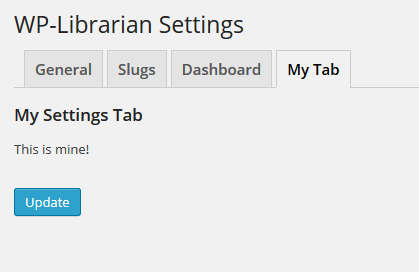
Notice the lack of content. That's because WP-Librarian is instructing WordPress to render the settings section my_settings_section, which currently doesn't exist. As such, lets do that!
As we're using WP-Librarian's class WP_LIB_SETTINGS_SECTION we'll be registering the section, its settings and those settings' fields all at once.
add_action('wp_lib_register_settings', 'my_settings_section');

function my_settings_section() {
	WP_LIB_SETTINGS_SECTION::registerSection(array(
		'name'		=> 'my_settings_section',
		'title'		=> 'My Settings Section',
		'page'		=> 'my_settings_section-options',
		'settings'	=> array(
			array(
				'name'			=> 'my_first_setting',
				'sanitize'		=>
					function($raw) {
						// Use appropriate methods to sanitize your input
						return array(
							sanitize_title($raw[0]),
							min(max((int) abs(trim($raw[1])), 1), 100)
						);
					},
				'fields'		=> array(
					array(
						'name'			=> 'Setting 1 Field 1',
						'field_type'	=> 'textInput',
						'args'			=> array(
							'classes'	=> array('extra-class', 'another-class'),
							'alt'		=> 'An explanation of the settings field'
						)
					),
					array(
						'name'			=> 'Setting 1 Field 2',
						'field_type'	=> 'textInput',
						'args'			=> array(
							'alt'		=> 'An explanation of the settings field'
						)
					)
				)
			),
			array(
				'name'			=> 'my_second_setting',
				'sanitize'		=>
					function($raw) {
						return array(
							wp_lib_sanitize_option_checkbox($raw[0]),
							sanitize_title($raw[1])
						);
					},
				'classes'		=> array('second-settings-class'),
				'fields'		=> array(
					array(
						'name'			=> 'Setting 2 Field 1',
						'field_type'	=> 'checkboxInput',
						'args'			=> array(
							'alt'		=> 'An explanation of the settings field'
						)
					),
					array(
						'name'			=> 'Setting 2 Field 2',
						'field_type'	=> 'textInput',
						'args'			=> array(
							'alt'		=> 'An explanation of the settings field'
						)
					)
				)
			)
		)
	));
}
The code above creates a settings section called my_settings_section that will be displayed on any page that calls my_settings_section-options. The section has two settings, both of which have two fields, which will result in four fields being rendered in the section. By using the build in field types of WP_LIB_SETTINGS_SECTION you don't have to worry about writing your own HTML inputs. Some other points to note:
Class Inheritance: Classes defined at a settings level are added to all of its fields. So the two input fields of the second setting will both have the class second-settings-class.
Titles/Names: The section title will appear at the beginning of the section, the field names will appear to the left of their inputs.
Together, the above code generates this tab with its settings section:

If you got a 114 error (Option does not exist) that's because, as you might expect, these options don't exist yet. When this error occurs WP-Librarian checks the validity of all of its settings, which includes the ones you added earlier. As such you should only have to refresh the page and the fields will now display with the default values.
Note that you could have multiple settings sections displaying on one tab.