




IMPORTANT : Le projet Peek a été déclaré déprécié, veuillez lire l'annonce.
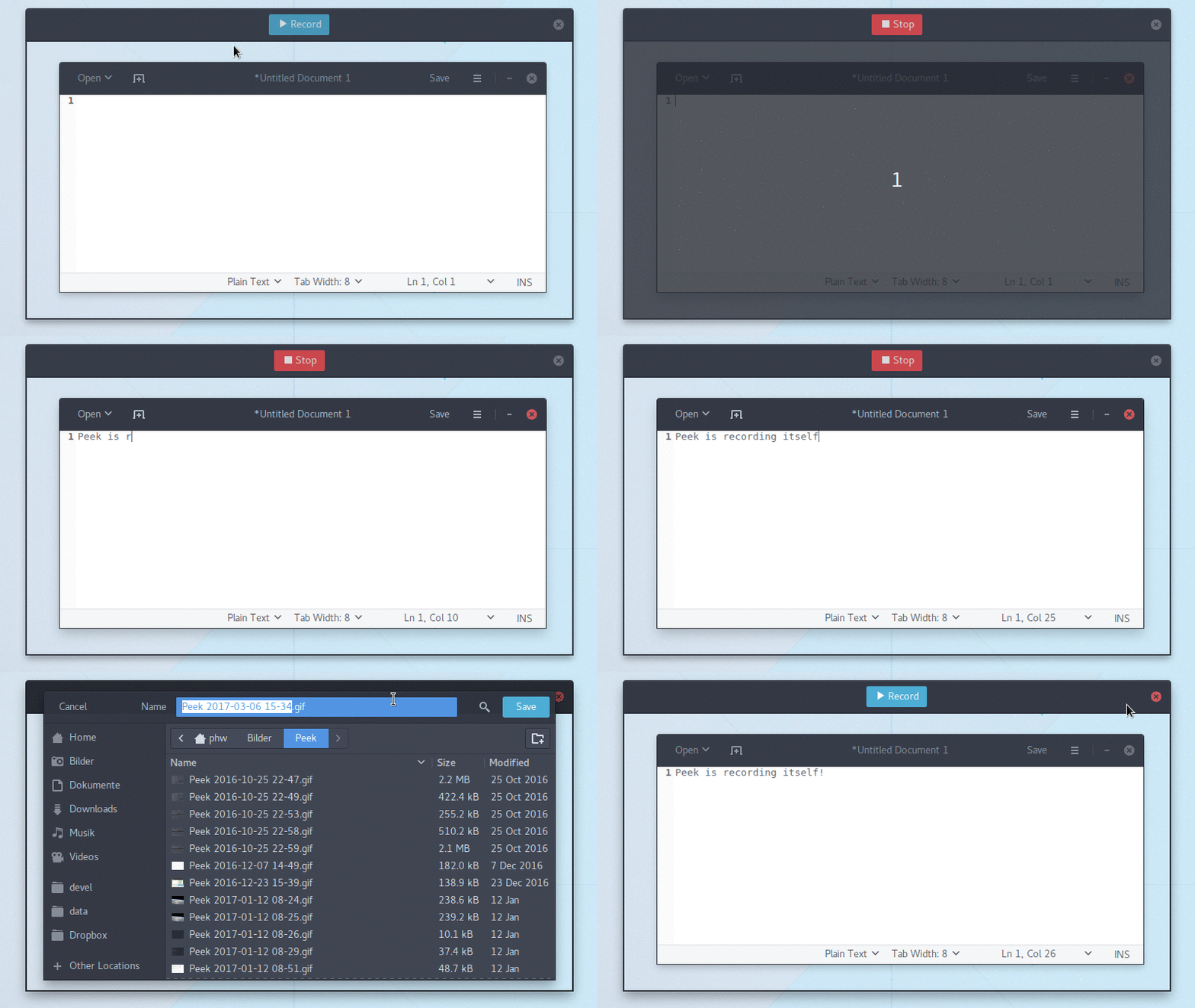
Enregistreur d'écran simple avec une interface facile à utiliser
- A propos
- Prescriptions
- Installation
- Foire aux questions
- Comment puis-je capturer des clics de souris et/ou des frappes ?
- Comment puis-je améliorer la qualité des fichiers GIF enregistrés
- Pourquoi les fichiers GIF sont-ils si gros ?
- Si le GIF est si mauvais, pourquoi l'utiliser?
- Qu'en est-il du WebM ou du MP4 ? Ceux-ci sont bien soutenus sur le Web.
- Quelle est la cause des erreurs "Ne pas démarrer GNOME Shell" ?
- Pourquoi ne puis-je pas interagir avec les éléments d'interface utilisateur à l'intérieur de la zone d'enregistrement ?
- Mes GIF enregistrés scintillent, qu'est-ce qui ne va pas ?
- Sur i3, la zone d'enregistrement est tout noir, comment puis-je enregistrer quoi que ce soit ?
- Pourquoi aucun soutien de Wayland natif n'est supporté ?
- Contribuer
- License
Peek facilite la création de courts screencasts d'une zone d'écran. Il a été construit pour le cas d'utilisation spécifique des zones d'écran d'enregistrement, par exemple pour une présentation aisée de l'UI les fonctionnalités de vos propres applications ou pour afficher un bug dans les rapports de bogue. Avec Peek, vous Placez simplement la fenêtre Peek au-dessus de la zone que vous voulez enregistrer et appuyer "Enregistrer". Peek est optimisé pour générer des GIF animés, mais vous pouvez aussi enregistrez directement sur WebM ou MP4 si vous préférez.
Peek n'est pas une application de screencast à usage général avec des fonctionnalités étendues, mais plutôt se concentrer sur la tâche unique de créer de petits screencasts silencieux de une zone de l'écran pour créer des animations GIF ou WebM ou MP4 silencieux vidéos.
Peek fonctionne sur X11 ou à l'intérieur d'une session GNOME Shell Wayland en utilisant XWayland. Un appui à plus d'ordinateurs de bureau Wayland pourrait être ajouté à l'avenir (voir FAQ ci-dessous).
- GTK+ >= 3.20
- GLib >= 2.38
- libkeybinder3
- FFmpeg >= 3
- GStreamer 'Good' plugins (pour l'enregistrement sur GNOME Shell)
- GStreamer 'Ugly' plugins (pour enregistrement MP4 sur GNOME Shell)
- gifski (facultatif mais recommandé pour une meilleure qualité des GIF)
- Vala compiler >= 0.22
- Meson >= 0.47.0
- Gettext (>= pour l'entrée localisée de .desktop)
- txt2man (facultatif pour la construction d'une page de manuel)
Peek est disponible dans les référentiels de paquets officiels pour les distributions suivantes:
Peek peut être installé sur toutes les distributions supportant Flatpak de Flathub. Pour installer, soit télécharger com.uploadedlobster.peek.flatpakref et l'ouvrir avec le logiciel GNOME ou l'installer via la ligne de commande (Première fois Flatpak Les utilisateurs doivent suivre les Instructions de configuration Flatpak / Flathub d'abord):
flatpak install flathub com.uploadedlobster.peek
Pour une fonctionnalité complète, vous devez également installer xdg-desktop-portal-gtk. Il est disponible pour la plupart des distributions actuelles. Une fois installé, vous pouvez lancer un aperçu de Peek via son icône d'application dans votre environnement de bureau ou à partir de la ligne de commande:
flatpak run com.uploadedlobster.peek
Pour mettre à jour vers la dernière version exécutez:
flatpak update --user com.uploadedlobster.peek
Pour tester la dernière version de développement que vous pouvez installer: peek-master.flatpakref
Peek n'a plus de paquets SNAP officiellement pris en charge, voir l'annonce. Veuillez envisager d'utiliser les versions FlatPak ou AppImage ou utiliser l'Ubuntu PPA Si vous utilisez Ubuntu.
Peek AppImage (https://github.com/phw/peek/releases). Pour l'exécuter, téléchargez le fichier
.appimage et rendez-le exécutable, puis exécutez-le. Vous pouvez nommer le fichier comme vous le souhaitez, par exemple. vous pouvez le nommer juste peek et placez-le $HOME/bin
pour un accès facile. Voir le appimage wiki
pour plus d'informations sur la façon d'utiliser les appimages et les intégrer à votre système.
Vous pouvez installer les dernières versions de Peek depuis: Ubuntu PPA.
sudo add-apt-repository ppa:peek-developers/stable
sudo apt update
sudo apt install peek
Si vous souhaitez utiliser la dernière version de développement, il existe également un
PPA with daily builds
disponible. Utilisez le référentiel ppa:peek-developers/daily dans les commandes ci-dessus.
L'ajout de référentiels PPA nécessite le package software-properties-common
sudo apt install software-properties-common
sudo add-apt-repository ppa:peek-developers/stable
sudo apt update
sudo apt install peek
Si vous souhaitez utiliser la dernière version de développement, il existe également un
PPA avec construction quotidienne des versions
disponible. Utilisez le référentiel ppa:peek-developers/daily dans les commandes ci-dessus.
There are official Debian packages for Debian 11 ("Bullseye") and Debian 10 ("Buster") via
main repository and packages for Debian 9 ("Stretch") via
stretch-backports
repository. Please refer to Debian Backports Website
for detailed usage of stretch-backports repository.
After enabling stretch-backports for Debian 9 (Debian 10 or Debian 11 or Sid don't need
any tweaks at all), installation can be done by simply typing:
sudo apt install peek
Note: Fedora by default does not provide the required ffmpeg package in its
repositories. For this reason it is recommended for Fedora users to install Peek
with Flatpak, see above. If you prefer to install Peek from the repositories
you should install ffmpeg separately as described below.
Peek is available in the default repositories (Fedora 29 and later):
sudo dnf install peek
To install the required ffmpeg package you can use the RPM Fusion free
repository, see the
setup instructions for RPM Fusion.
Once the repository is enabled install FFmpeg with:
sudo dnf install ffmpeg
For MP4 recording on GNOME Shell you also need the gstreamer1-plugins-ugly
package also available from RPM Fusion free:
sudo dnf install gstreamer1-plugins-ugly
Solus users can simply install with:
sudo eopkg it peek
Arch Linux users can simply install with:
sudo pacman -S peek
For GNOME Shell recording there are some optional packages you can choose from:
gst-plugins-good: Recording under Gnome Shell
gst-plugins-ugly: MP4 output under Gnome Shell
gifski: High quality GIF animations with thousands of colors
If you have a package manager for AUR (or fetch from AUR manually) the git version is available here
See the Repology package list for a list of Peek packages for various distributions.
You can build and install Peek using Meson with Ninja:
git clone https://github.com/phw/peek.git
cd peek
meson --prefix=/usr/local builddir
cd builddir
ninja

# Run directly from source
./src/peek

# Install system-wide
sudo ninja install
Note: ninja might be called ninja-build on some distributions.
Peek does not support this natively. But you could install an external tool
like key-mon which is usually included
in most distributions, so you can easily install with your package manager.
Then start key-mon with key-mon --visible_click. The --visible_click option
is for drawing small circles around mouse clicks.
To get the best possible quality you should install the gifski GIF encoder. If available Peek will automatically use gifski and will provide a quality slider in the preferences dialog. The default value will give a balanced result between quality and file size. Set the quality to maximum if you want to get the highest possible quality even with thousands of colors. The file size will increase significantly, though (see below).
The GIF format is highly inefficient and not well suited for doing large animations with a lot of changes and colors. Peek tries its best to reduce the file size by using FFmpeg or gifski to generate optimized GIF files. For best results:
- Use a lower frame rate. 10fps is the default and works well, but in many cases you can even get good results with lower framerates.
- If you have gifski installed you can adjust the GIF quality in the preferences. A lower quality gives a smaller file size at the expense of visual quality (see above).
- Avoid too much change. If there is heavy animation the frames will differ a lot.
- Record small areas or use the downsample option to scale the image. The GIF file format is not well suited for high resolution or full-screen recording.
- Avoid too many colors, since GIF is limited to a 256 color palette per frame. This one is not so much about file size but more about visual quality.
- If the above suggestions are not suitable for your use case, consider using WebM or MP4 format (see below).
While GIF is a very old format, it has seen some rise in usage again in recent years. One reason is its easy usage in the Web. GIF files are supported nearly everywhere, which means you can add animations easily to everywhere where you can upload images. With real video files you are still more limited. Typical use cases for Peek are recording small user interactions for showing UI features of an app you developed, for making short tutorials or for reporting bugs.
Peek allows you to record in both WebM and MP4 format, just choose your preferred output format in the preferences. Both are well supported by modern browsers, even though they are still not as universally supported by tools and online services as GIFs.
This usually indicates an error while starting the built-in GNOME shell
recorder. Unfortunately Peek does not receive any error details, to find out
more about this issues look at the GNOME Shell log output in journalctl.
A common cause for this is that the GNOME Shell recorder is already running, either because it was started via the GNOME Shell keyboard shortcut or by another application.
If this error is shown when trying to record MP4 a common cause is that you are missing the GStreamer ugly plugins, which provide MP4 encoding. Please refer to the documentation of your distribution on how to install these. Do note that you have to logout and login for Peek to recognize the new installed libraries if you are running the Wayland display server.
See also issue #287 for related discussion.
You absolutely should be able to click the UI elements inside the area you are recording. If you use i3 you should stack Peek with the window you intend to record or make sure all windows are floating and uncheck "Always on top" from the Peek settings. If you want to be able to control the area when recording in i3 you can move Peek to the Scratchpad it will keep recording the area once you hide the window. If this does not work for you on any other window manager please open an issue on GitHub.
Some users have experienced recorded windows flicker or other strange visual artifacts only visible in the recorded GIF. This is most likely a video driver issue. If you are using Intel video drivers switching between the SNA and UXA acceleration methods can help. For NVIDIA drivers changing the "Allow Flipping" setting in the NVIDIA control panel was reported to help.
i3 does not support the X shape extension. In order to get a transparent recording area, you have to run a compositor such as Compton.
Wayland has two restrictions that make it hard for Peek to support Wayland natively:
-
The Wayland protocol does not define a standard way for applications to obtain a screenshot. That is intentional, as taking an arbitrary screenshot essentially means any application can read the contents of the whole display, and Wayland strives to offer improved security by isolating applications. It is up to the compositors to provide screenshot capability, and most do. GNOME Shell also provides a public interface for applications to use which Peek does support.
-
The Wayland protocol does not provide absolute screen coordinates to the applications. There is not even a coordinate system for windows at all. Again this is intentional, as they are not needed in many cases and you do not need to follow restrictions imposed by the traditional assumption that the screen is a rectangular area (e.g. you can have circular screens or layout windows in 3D space).
Unfortunately, the whole concept of the Peek UI is that the window position itself is used to obtain the recording coordinates. That means, for now, there cannot be any fully native Wayland support without special support for this use case by the compositor.
However, it is possible to use Peek in a GNOME Shell Wayland session using XWayland by launching Peek with the X11 backend:
GDK_BACKEND=x11 peek
Support for compositors other than GNOME Shell can be added if a suitable screencasting interface is provided.
If you want to help make Peek better the easiest thing you can do is to report issues and feature requests. Or you can help in development and translation.
You are welcome to contribute code and provide pull requests for Peek. The easiest way to start is looking at the open issues tagged with good first issue. Those are open issues which are not too difficult to solve and can be started without too much knowledge about the code.
Another good starting point are issues tagged with help wanted. Those issues are probably harder to solve, but for some reason I cannot work on it for now and would love to see somebody jump in.
In any case, just leave a note on the issue itself that you are working on it, to avoid multiple people working on the same issue.
You can help translate Peek into your language. Peek is using Weblate for translation management.
Go to the Peek localization project to start translating. If the language you want to translate into is not already available, you can add it here.
If you want to be credited for your translation, please add your name to the translator-credits for your language. The translator credits are shown in Peek's About dialog.
Peek Copyright © 2015-2018 by Philipp Wolfer ph.wolfer@gmail.com
Peek is free software: you can redistribute it and/or modify it under the terms of the GNU General Public License as published by the Free Software Foundation, either version 3 of the License, or (at your option) any later version.
Peek is distributed in the hope that it will be useful, but WITHOUT ANY WARRANTY; without even the implied warranty of MERCHANTABILITY or FITNESS FOR A PARTICULAR PURPOSE. See the GNU General Public License for more details.
You should have received a copy of the GNU General Public License along with Peek. If not, see https://www.gnu.org/licenses/.