Repository navigation
Releases
ORIGAMI 3.0.0

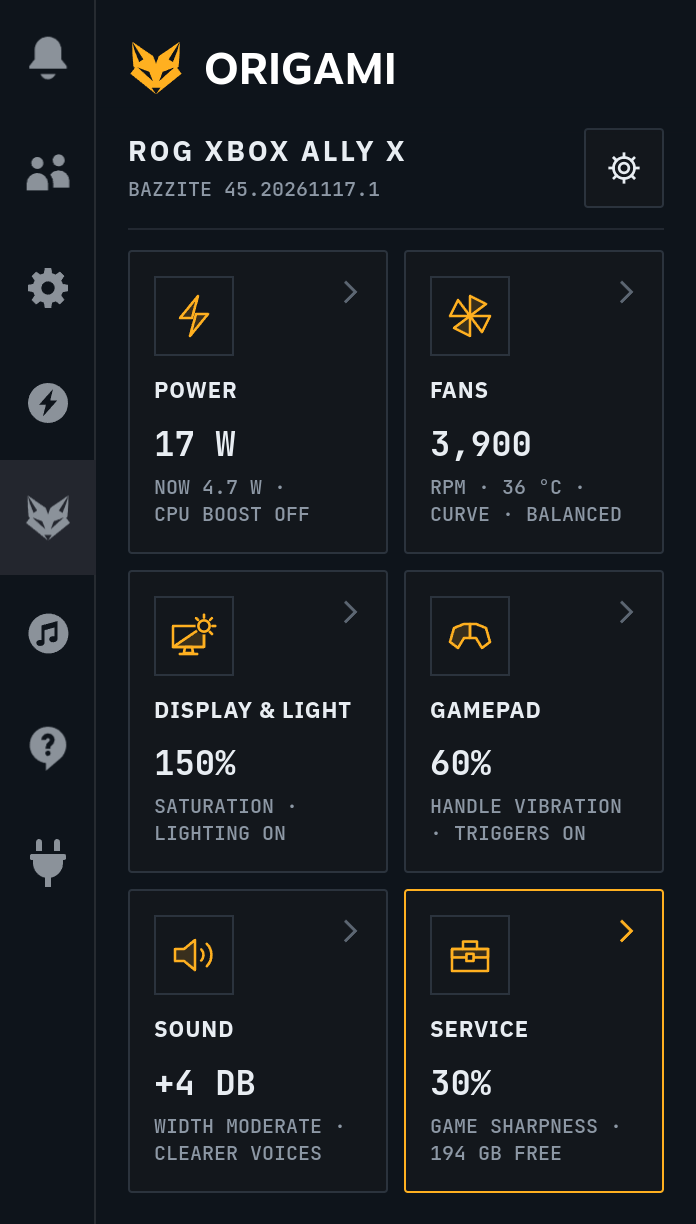
ORIGAMI has a sixth tile, Service: sharper games with one switch, and a cleanup of what Steam leaves on the disk. The fans can now hold a temperature you choose, the Power screen shows how long the battery lasts, and the interface speaks four more languages.
What's new
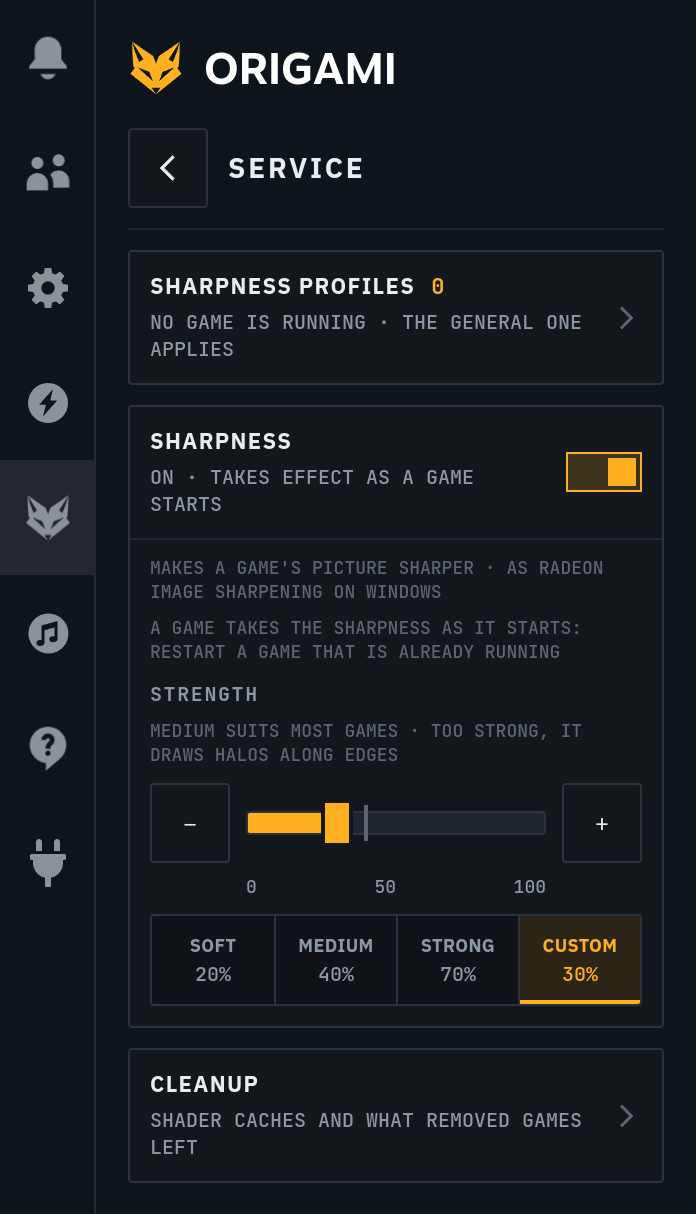
Service: sharpness
- Sharpness. One switch on the new Service screen makes the picture in games sharper. It is the same sharpening that Radeon Image Sharpening does on Windows: it brings back the fine detail that anti-aliasing and rendering below the screen's resolution blur.
- Strength. Soft, Medium, Strong or your own, from 0 to 100%. Medium suits most games; too strong, and edges get halos. In a test game, fine detail measured about one and a half times as strong at 40%, and almost twice as strong at 80%.
- Nothing to set up. There is nothing to install and nothing to add to a game's launch options. Switch it on, start a game, and the game is sharpened.
- Takes effect as a game starts. A game that is already running keeps what it started with, and the screen says so: "Comes on when the game starts next", "New strength when the game starts next".
- Per-game sharpness. Start a game and switch on Per-game sharpness at the top of the Service screen. The game gets its own strength, or no sharpening at all, every time it runs. Sharpness profiles lists the games that have one.
- The Service tile on the main screen shows the strength and the free space on the disk.
Service: cleanup
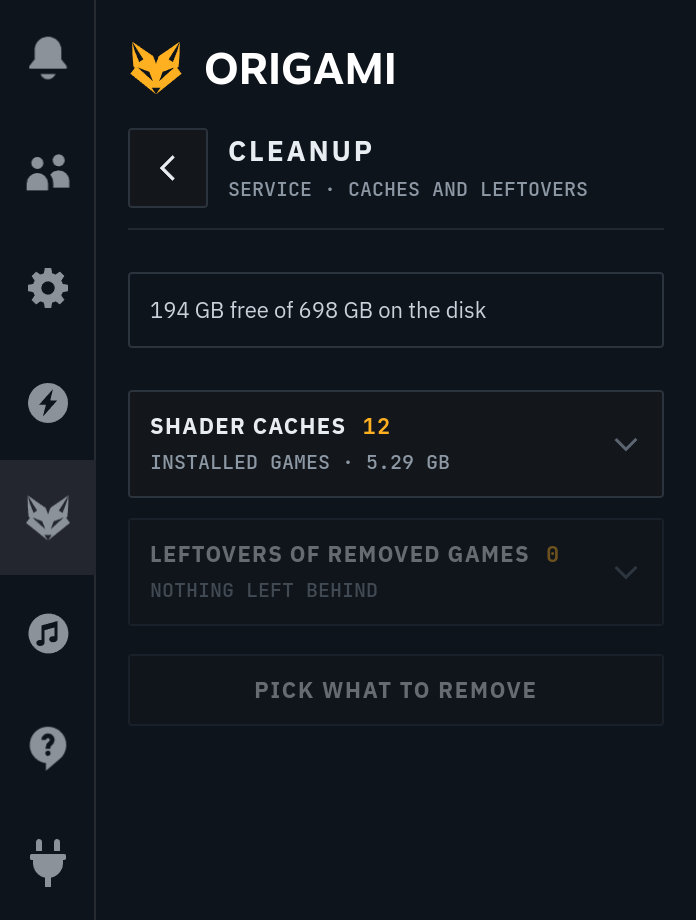
- Cleanup. A new screen, opened from the Service screen. It shows how much of the disk is free and two lists you can unfold: Shader caches and Leftovers of removed games, each with its size. Nothing is picked until you pick it.
- Shader caches. For every game, Steam keeps shaders compiled in advance, the graphics driver's caches and transcoded videos. A game does not need them to run: without them it builds everything again. Removing a game's cache helps in three cases:
- Disk space. The cache grows by itself and never shrinks; a big game can take several gigabytes.
- A game you have not played for a long time but want to keep. Its cache is dead weight, and after a system or Proton update part of it is out of date anyway.
- A game that misbehaves after an update of the driver, of Proton or of the game itself: stutter it did not have, broken graphics, a crash at start, an endless "Processing Vulkan shaders". Clearing the cache is the usual first step, and until now it meant finding the folder by the game's number.
- What it costs. The next time the game starts, Steam downloads or builds the shaders again, which takes from seconds to a few minutes, and the first minutes may stutter. Saves and settings are not touched. If the disk has room and the game runs well, leave its cache alone.
- Leftovers of removed games. A game you uninstalled can leave its shader cache, its prefix and sometimes its folder behind. ORIGAMI lists them by the game's name, and for a prefix it says whether the saves are in Steam Cloud too. Where they are not, the line is red. Pick what is safe marks the leftovers that cost nothing: caches, and prefixes whose saves the cloud keeps.
- Careful by design. Nothing is listed or removed while a game runs. A game that Steam is downloading or processing shaders for cannot be picked. Games on a memory card that is not in the slot are not taken for removed. Before removing, ORIGAMI asks once more and says how many of the picked items hold saves that exist nowhere else. Afterwards it shows how much space came back.
Fans: hold a temperature
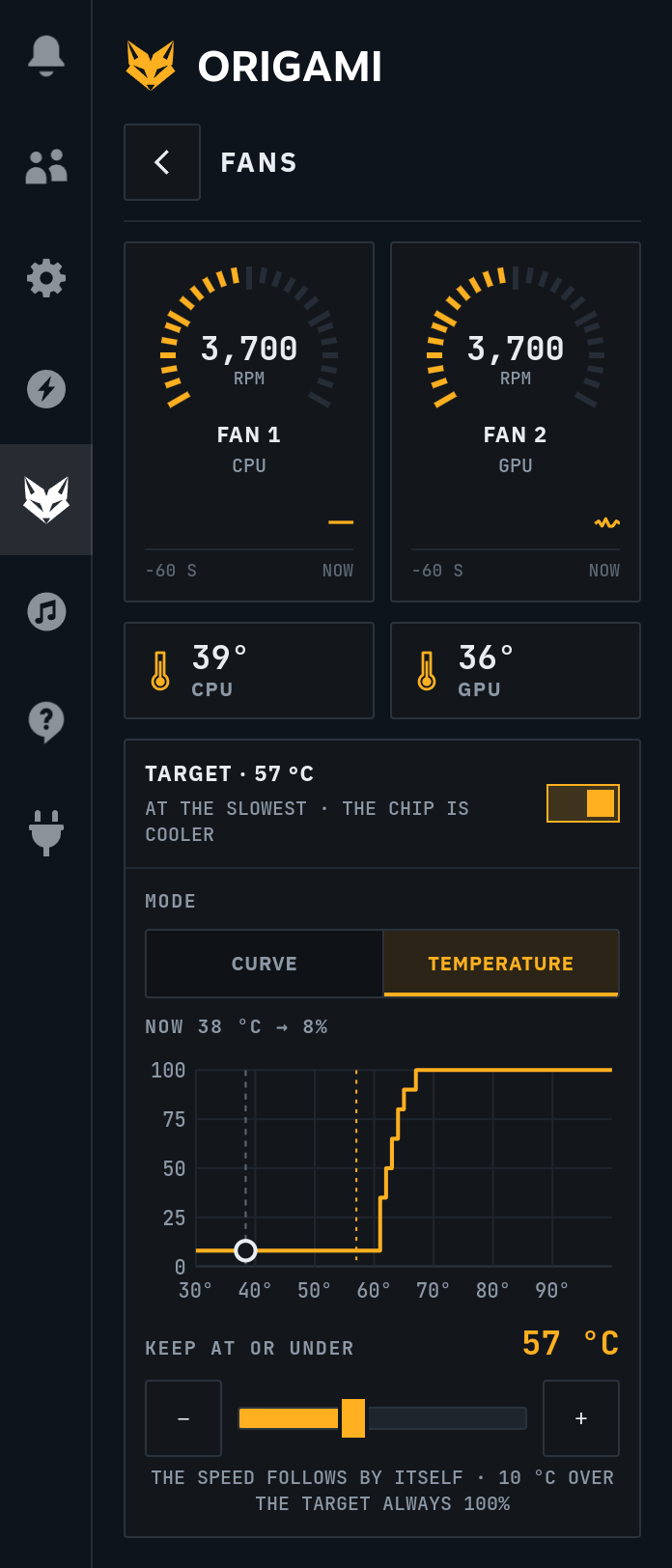
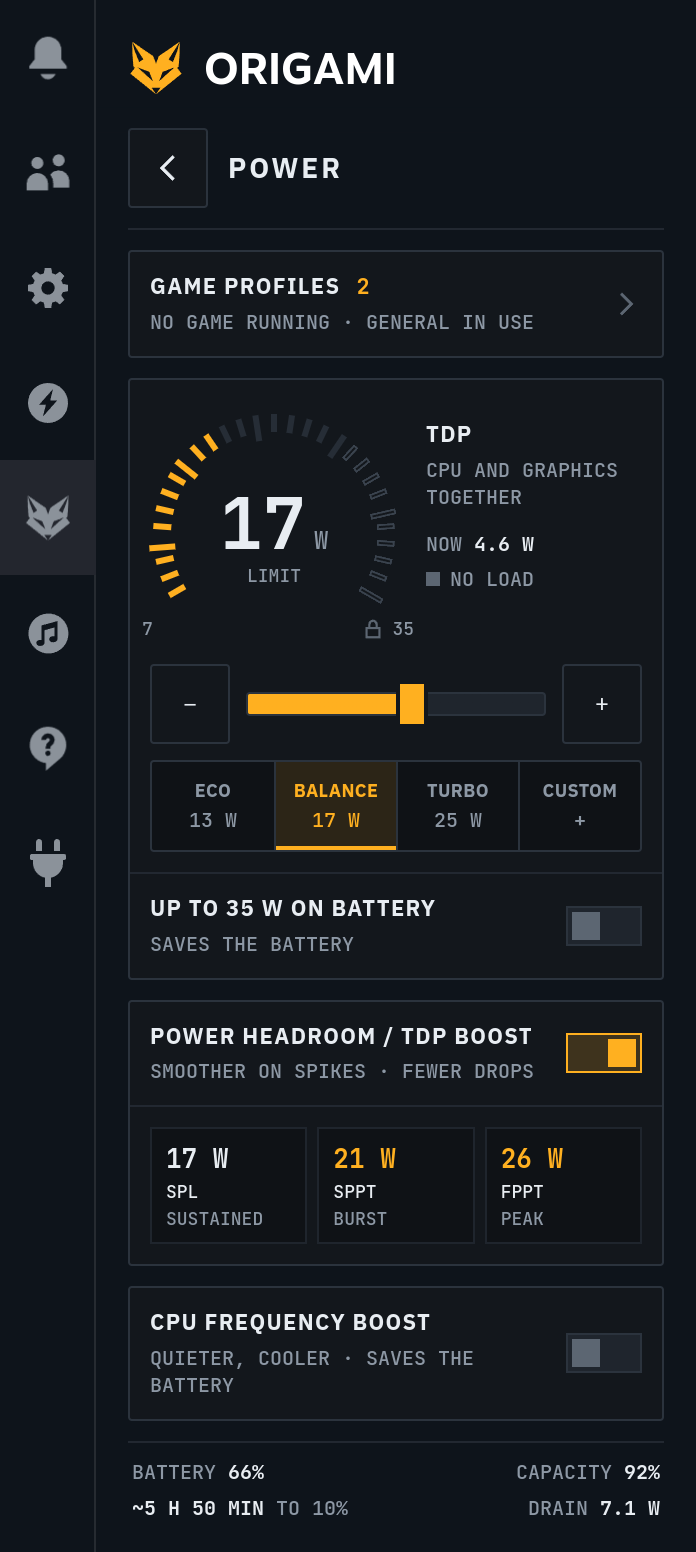
- Temperature mode. The Fans screen has a Mode strip: Curve, as before, or Temperature. Choose a temperature from 45 to 75 °C, and ORIGAMI finds the fan speed at which the chip rests there. The fans run as slowly as your target allows, instead of following a curve drawn for the worst case.
- Safe without ORIGAMI. Above the target, the firmware gets steps of its own, up to full speed 10 °C over it. They answer a sudden load at once and keep working even if the plugin stops.
- The screen says what the fans do: quiet while the chip is no warmer, at the slowest while it is cooler, at full speed while it is warmer. When the fans are at full speed and the chip is still over the target, it reminds you that a lower TDP cools it, by about 1 °C a watt.
- Where it is available: the ROG Xbox Ally X, the ROG Xbox Ally X20 and the ROG Ally. The firmware of the ROG Ally runs the fans at about half speed by itself from 60 °C; ORIGAMI knows this, holds the chip below that point while it can, and says so on the screen.
- The curve is drawn as the fans follow it. The firmware does not draw a line between the points of a curve: the fans run at the speed of the last point the temperature has passed. The chart now shows these steps, and "Now" under it shows the step the fans are really on.
Power: the battery's time
- How long the battery lasts. On battery, the Power screen has a second line: the time left to 10%, and what the whole console draws, not only the processor. Below 10% it counts to zero.
- Measured, not guessed. The time comes from the energy the battery really lost over the last five minutes, not from the power of a single moment. ORIGAMI also remembers what each game draws at each TDP, so the next time the forecast is right from the first minute.
Languages
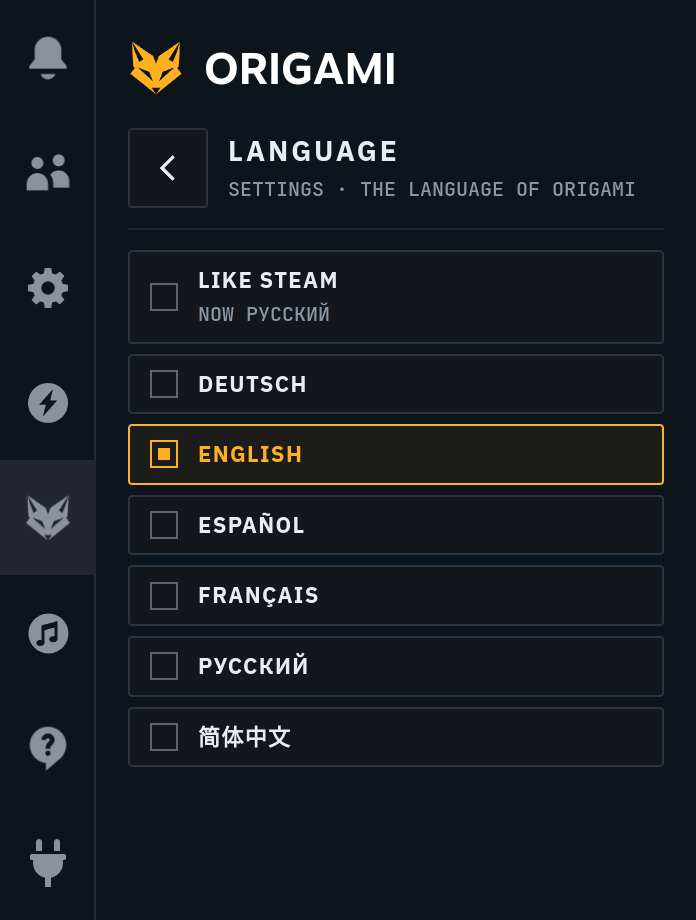
- Four more languages: German, Spanish, French and Simplified Chinese, beside English and Russian. The names of Steam's own things are Steam's, as its client has them in each language.
- A Language screen in Settings: Like Steam, which is how ORIGAMI starts, or one of the six languages under its own name.
Fixes
- The TDP could stop being held after Steam's session started. If the session started right after the charger was plugged in, Steam wrote its own limit several times within seconds, and ORIGAMI answered only the first. It now answers every one of them.
- The end of a screen was cut off. Text under a screen's last switch or button, such as the battery lines of the Power screen, could stay below the edge of the panel. The panel now scrolls to its very end.
- The fan gauges now go up to 8000 rpm, which the fans reach at full speed.
Good to know
- The sharpness works in games that draw through Vulkan. That is nearly every game: DirectX games under Proton, and native Vulkan ones. It does not reach games that draw with OpenGL.
- It sharpens the game's own picture, including the game's interface. Steam's menus and overlays are not touched.
- It works together with frame generation that another plugin adds to a game; this was tried in a game.
- If a game's launch options, or another plugin's launcher in them, set the sharpening themselves, ORIGAMI leaves that game alone and says on the Service screen who controls it.
- Three files in your home folder, and only while a game runs. With the sharpness on, ORIGAMI writes two files into
~/.local/share/vulkan/implicit_layer.d/and~/.config/vkBasalt/vkBasalt.confas a game starts, and removes them as it ends. If you have avkBasalt.confof your own, it is put back. - What the cleanup removes is gone for good. Restore everything brings back settings, not files.
- The freed space can be less than the sizes add up to. On a btrfs disk, files can share blocks with other files; the line "Freed" shows what the disk really gained.
ORIGAMI.zipis bigger now, about 4.5 MB: the layer that does the sharpening is included, for 64-bit and 32-bit games, so the sharpness does not depend on what the system has.- Decky Loader 3.3.0 or newer is still required.
Updating
- From 2.0.0: open ORIGAMI's Settings, find the Updates card and choose Check, then Update. Decky asks for confirmation and installs the release; your settings are kept.
- From an older version, or if you prefer: on Decky's Developer page, use Install Plugin from URL with
github.com/lexdrev/origami/releases/latest/download/ORIGAMI.zip, or downloadORIGAMI.zipbelow and choose Install Plugin from ZIP File. - Don't update while a game is running: ORIGAMI stops for a moment while Decky swaps the versions, and the system briefly falls back to its own settings.
- New to ORIGAMI? See Install in the README.
Tested on
- ROG Xbox Ally X (board RC73XA) with Bazzite 45.20261117.1, kernel 7.3.4-ogc8.1, InputPlumber 0.84.0 and Decky Loader 3.3.1. There the sharpness was compared frame by frame in games, the cleanup removed real caches and leftovers, the fans held a temperature in games, through sleep and on the charger, and the battery's forecast was checked against the charge the battery really lost.
- All six languages were checked on that con...
ORIGAMI 2.0.0
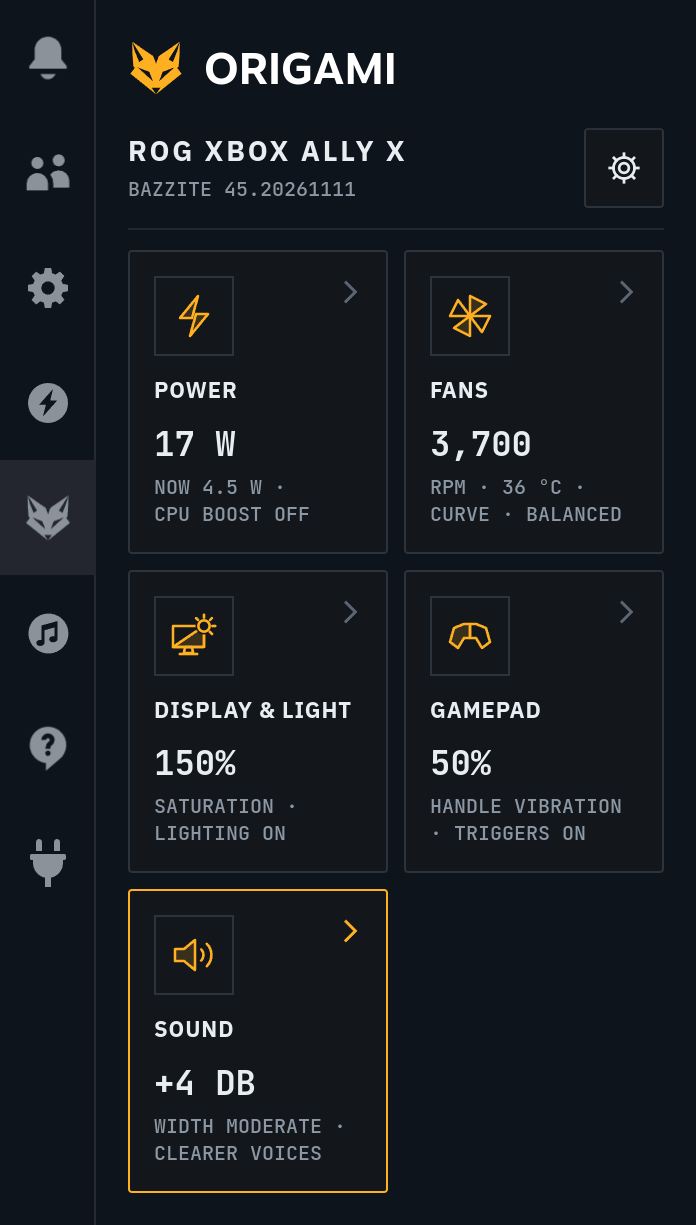
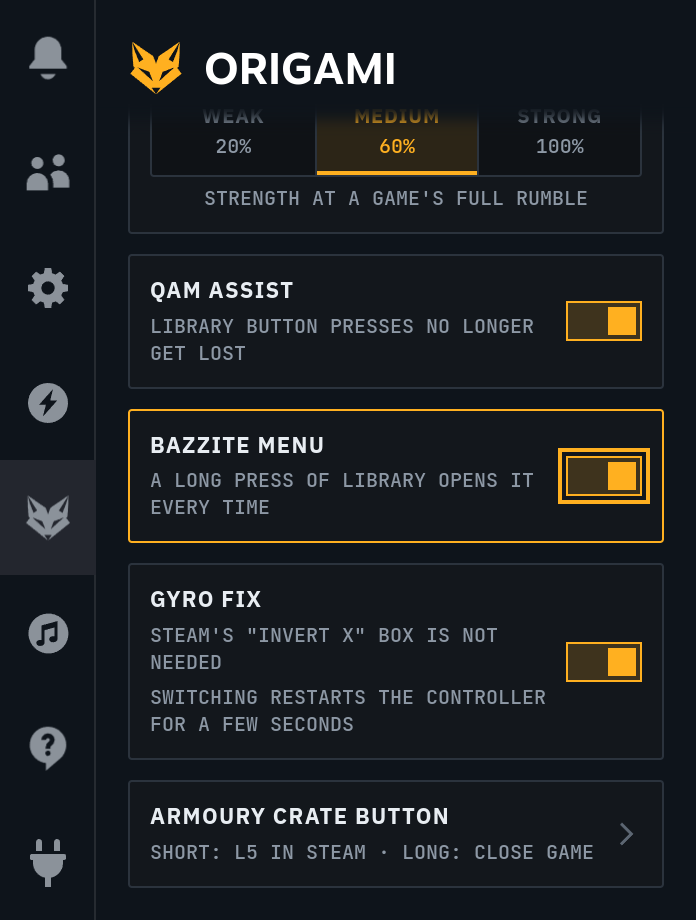
ORIGAMI has a fifth tile, Sound: louder speakers with no crackle, wider stereo and clearer voices. It also fixes the Bazzite menu that turned invisible after its first use, and makes moving between screens smoother.
What's new
Sound
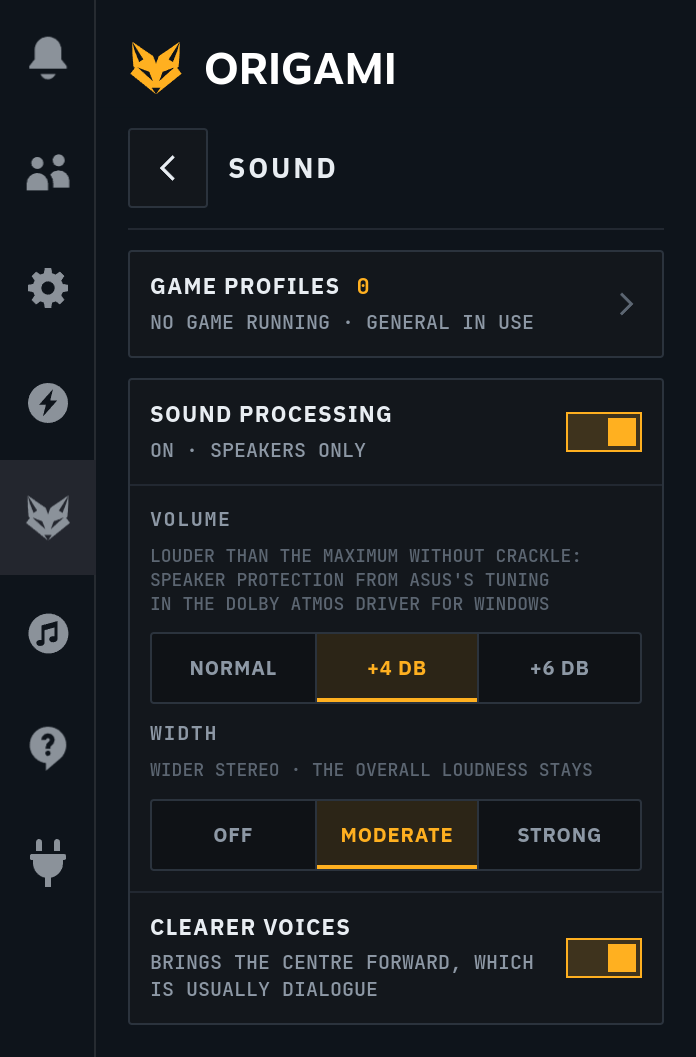
- Sound processing. A single switch on the new Sound screen. Switch it on and ORIGAMI processes the built-in speakers; switch it off and you get the system's own sound.
- Volume. Normal, +4 dB or +6 dB: louder than the system's maximum, with no crackle. The speakers stay protected by the limits ASUS set for each model in its Dolby Atmos driver for Windows.
- Width. Moderate or Strong: a wider stereo image at the same overall loudness.
- Clearer voices. Makes dialogue easier to hear by lifting the centre of the mix while someone is speaking. In a test game, speech got about 4.5 dB louder and gunfire only about 1 dB.
- Per-game sound. Start a game and switch on Per-game sound at the top of the Sound screen. The game gets its own sound settings, applied automatically every time it runs. Game profiles lists the games that have them.
- The Sound tile on the main screen shows the volume boost and which options are on.
Navigation
- Screens open at the top. A screen opened from one of the lower tiles used to appear scrolled to the middle or the end.
- Back takes you where you were. After going back, the tile or row you came from is selected again, instead of the first item on the screen.
- The main screen scrolls with your selection. Five tiles no longer fit in the panel, so the selected tile is kept in the middle, with the rows above and below still in view.
Fixes
- Invisible Bazzite menu. On Bazzite, holding the Library button opens the system's own menu. After the first time it would open invisibly: you could hear it and it took over the controls, but nothing appeared on screen. The new Bazzite menu switch on the Gamepad screen makes it show up every time. Like the other fixes, the switch stays red until you set it, and it only appears on systems that have this menu.
- Sound crackle after sleep. If the console's clock is set to local time, which is what Windows does, the sound could crackle after waking until the next restart. On such consoles the Sound screen shows a Sound crackle after sleep switch: switch it on and ORIGAMI corrects the clock as soon as the console wakes.
Good to know
- Built-in speakers only. The processing pauses while headphones are plugged in and resumes by itself.
- If another plugin or app is already processing the sound, ORIGAMI switches its own processing off, shows which one is in control, and switches it back on once the other is turned off.
- Light on the processor: the processing uses about 0.4% of it.
- System changes in Settings lists the sound processing while it is on, and Restore everything switches it off along with everything else.
ORIGAMI.zipis bigger now, about 2.4 MB: everything the sound processing needs is included, so nothing is downloaded to the console.- Decky Loader 3.3.0 or newer is still required.
Updating
- From 1.2.0: open ORIGAMI's Settings, find the Updates card and choose Check, then Update. Decky asks for confirmation and installs the release; your settings are kept.
- From an older version, or if you prefer: on Decky's Developer page, use Install Plugin from URL with
github.com/lexdrev/origami/releases/latest/download/ORIGAMI.zip, or downloadORIGAMI.zipbelow and choose Install Plugin from ZIP File. - Don't update while a game is running: ORIGAMI stops for a moment while Decky swaps the versions, and the system briefly falls back to its own settings.
- New to ORIGAMI? See Install in the README.
Tested on
- ROG Xbox Ally X (board RC73XA) with Bazzite 45.20261111, kernel 7.3.3-ogc1.1, InputPlumber 0.84.0 and Decky Loader 3.3.1. The sound was measured and listened to there in a game, and the Bazzite menu fix was tried both in a game and outside one.
- The Sound tile is available on all five ROG Ally models, each with the speaker protection ASUS tuned for it, but so far the sound has only been listened to on the ROG Xbox Ally X. Headphones have not been tested.
- ORIGAMI also supports the ROG Ally X (RC72LA), the ROG Xbox Ally (RC73YA) and the ROG Xbox Ally X20 (RC74XA), but it has not been tested on them yet.
Feedback
Found a bug or missing a feature? Open an issue: the form asks for your console, the versions and the log. English and Russian are both fine.
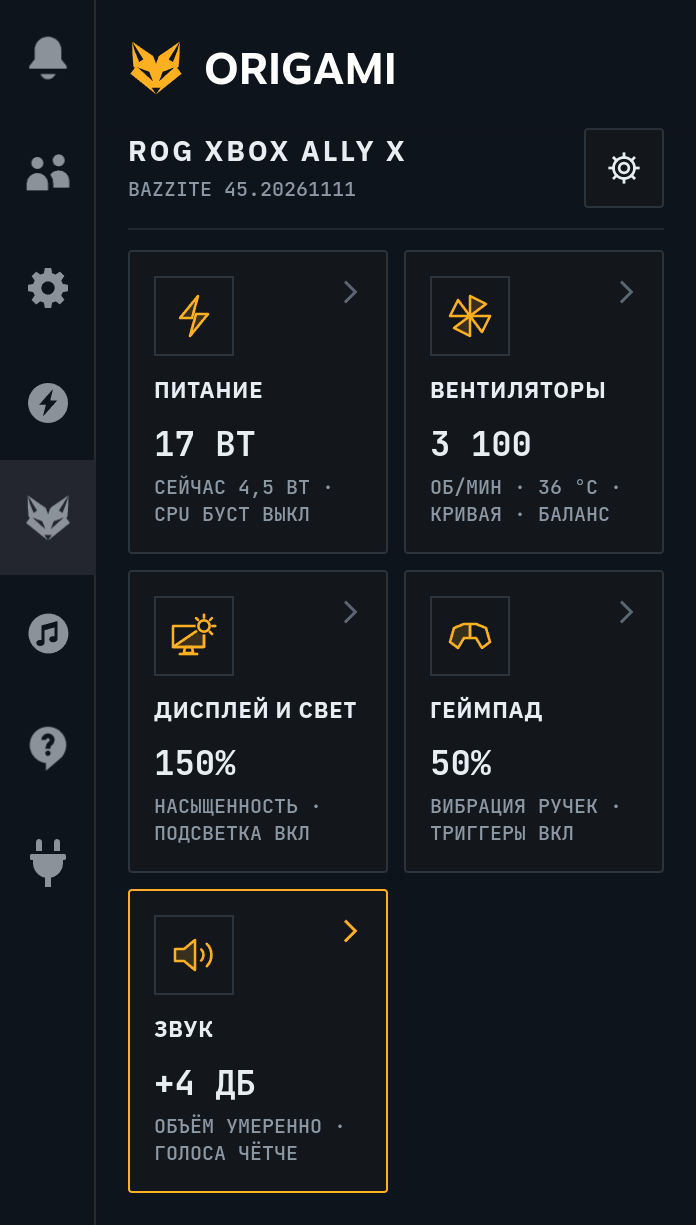
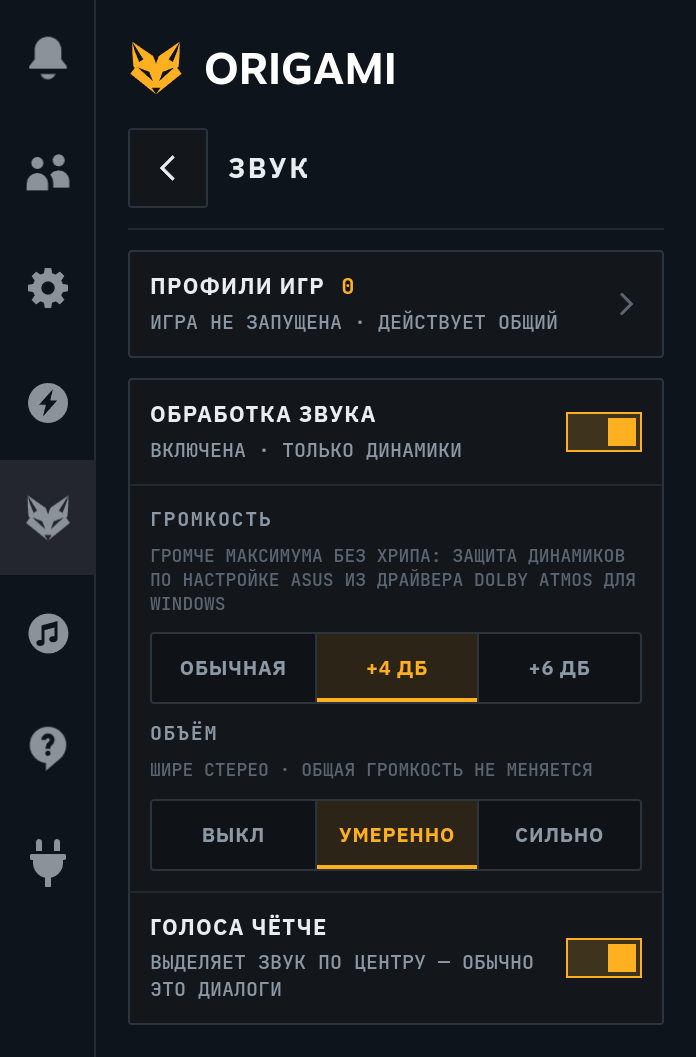
В ORIGAMI появилась пятая плитка — Звук: динамики громче без хрипа, шире стерео и чётче голоса. Ещё исправлено меню Bazzite, которое со второго раза открывалось невидимым, и стало удобнее переходить между экранами.
Что нового
Звук
- Обработка звука. Один переключатель на новом экране Звук. Включён — ORIGAMI обрабатывает встроенные динамики; выключен — звук как в системе.
- Громкость. Обычная, +4 дБ или +6 дБ: громче максимума системы и без хрипа. Динамики защищены настройками ASUS для каждой модели, взятыми из драйвера Dolby Atmos для Windows.
- Объём. Умеренно или Сильно: стерео шире, а общая громкость не меняется.
- Голоса чётче. Делает речь в диалогах громче: выделяет звук по центру, пока кто-то говорит. В игре речь стала громче примерно на 4,5 дБ, а стрельба — примерно на 1 дБ.
- Свой звук для игры. Запустите игру и включите Свой звук для игры вверху экрана «Звук»: у игры появятся свои настройки звука, и они включаются сами, когда игра запущена. Такие игры собраны в Профилях игр.
- Плитка на главном экране показывает выбранную громкость и что ещё включено.
Навигация
- Экран открывается с самого верха. Раньше экран, открытый с нижней плитки, показывался с середины или с конца.
- «Назад» возвращает туда, где вы были. После «Назад» выбрана та плитка или строка, из которой вы открыли экран, а не первый элемент экрана.
- Главный экран прокручивается за выбранной плиткой. Пять плиток не помещаются в панель, поэтому выбранная плитка стоит посередине, а ряды выше и ниже остаются видны.
Исправления
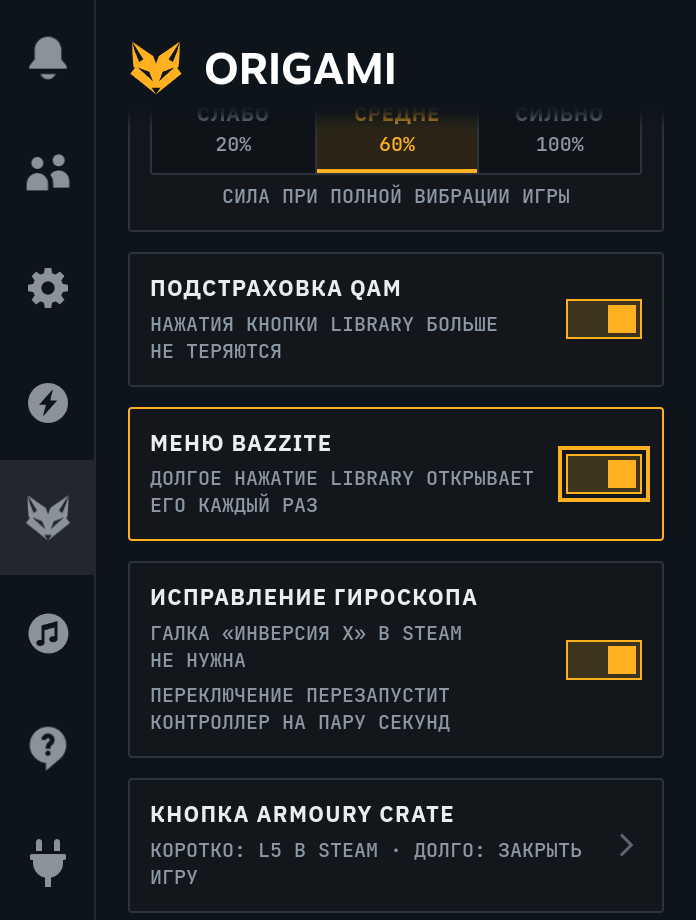
- Меню Bazzite открывалось невидимым. В Bazzite долгое нажатие Library открывает меню системы. Со второго раза оно открывалось невидимым: звук открытия слышен, управление переходит к меню, а на экране его нет. С новым переключателем Меню Bazzite на экране «Геймпад» оно открывается нормально каждый раз. Пока вы его не трогали, переключатель красный, как и другие исправления; он показывается только там, где у системы есть это меню.
- Хрип звука после сна. Если часы консоли идут по местному времени, как их ставит Windows, после сна звук мог хрипеть до перезагрузки. На такой консоли экран «Звук» показывает переключатель Хрип звука после сна: включите его, и ORIGAMI будет поправлять часы сразу после пробуждения.
Полезно знать
- Обработка — только для встроенных динамиков. Пока подключены наушники, она стоит на паузе и возвращается сама.
- Если звук уже обрабатывает другой плагин или программа, ORIGAMI выключает свою обработку, показывает, кто управляет звуком, и включает её снова, когда ту выключат.
- Нагрузка небольшая: обработка занимает около 0,4% процессора.
- Изменения в системе в Настройках показывают обработку звука, пока она включена, а Вернуть всё как было выключает её вместе с остальным.
ORIGAMI.zipстал больше, около 2,4 МБ: всё нужное для обработки звука лежит внутри, на консоль ничего не скачивается.- Нужен Decky Loader 3.3.0 или новее, как и раньше.
Обновление
- С 1.2.0: откройте Настройки ORIGAMI и в карточке Обновления нажмите Проверить, затем Обновить. Decky спросит подтверждение и поставит выпуск; настройки сохранятся.
- Со старой версии или если так привычнее: на странице Разработчик в Decky — Установить плагин из URL со ссылкой
github.com/lexdrev/origami/releases/latest/download/ORIGAMI.zip, или скачайтеORIGAMI.zipниже и выберите Установить плагин из ZIP файла. - Обновляйте не во время игры: пока Decky меняет версии, ORIGAMI на мгновение останавливается и система возвращается к своим настройкам.
- Ставите ORIGAMI впервые? Смотрите Установку в README.
На чём проверено
- ROG Xbox Ally X (плата RC73XA), Bazzite 45.20261111, ядро 7.3.3-ogc1.1, InputPlumber 0.84.0, Decky Loader 3.3.1. Звук там замерен и прослушан в игре, исправление меню Bazzite проверено в игре и без неё.
- Плитка «Звук» есть на всех пяти моделях ROG Ally, у каждой — защита динамиков, которую ASUS настроила для неё, но на слух звук проверен только на ROG Xbox Ally X. С наушниками не проверяли.
- ORIGAMI знает и ROG Ally X (RC72LA), ROG Xbox Ally (RC7...
ORIGAMI 1.2.0
ORIGAMI can now update itself: the Updates card in Settings finds a newer release on GitHub and hands it to Decky. And if ORIGAMI cannot start, it says why instead of showing empty screens.
What's new
- Updates in Settings. Check asks GitHub for the latest release. If there is a newer one, the button turns into Update: Decky asks you to confirm, downloads
ORIGAMI.zip, checks it against the SHA-256 GitHub gives for it and puts it in place of the old one. Your settings stay. What's new opens the releases on GitHub, with the ones you skipped below the newest. - Check for updates · auto. Switched on, ORIGAMI checks once a day as you open it. A newer release shows on the main screen: an amber dot on the gear and Update … available under the system.
- Updates from ORIGAMI work from this version on, so this one time update the old way, as below.
Fixes
- Empty screens on an older Decky Loader. Decky Loader up to 3.2.10 runs plugins on Python 3.11, where ORIGAMI's backend cannot start, and every screen stayed empty. Now ORIGAMI says that it needs Decky Loader 3.3.0 or newer and which version the console has. If the backend stays silent for another reason, it says so after 10 seconds.
- Quick access tabs after an update. If ORIGAMI was updated while the quick access menu was open, Decky's tab could repeat at the end of the column until the menu was closed, and ORIGAMI's own tab left its place.
Good to know
- Decky Loader 3.3.0 or newer is needed. If yours is older, update it in Decky's settings first.
- ORIGAMI goes online only for updates: when you press Check, or once a day if you switch on the daily check, which is off at first. Without a connection the card says GitHub did not answer.
Updating
- Install it the same way as before: on Decky's Developer page, Install Plugin from URL with
github.com/lexdrev/origami/releases/latest/download/ORIGAMI.zip, or downloadORIGAMI.zipbelow and use Install Plugin from ZIP File. Your settings stay. - Update outside a game: while Decky swaps the versions, ORIGAMI stops for a moment and the system gets its own settings back.
- First time with ORIGAMI? See Install in the README.
Tested on
- ROG Xbox Ally X (board RC73XA) with Bazzite 45.20261105, kernel 7.2.15-ogc1.1, InputPlumber 0.83.1 and Decky Loader 3.3.1. The update was tried there from start to end: from an older build to the release on GitHub, through Decky's prompt, with every setting kept.
- ORIGAMI also knows the ROG Ally X (RC72LA), the ROG Xbox Ally (RC73YA) and the ROG Xbox Ally X20 (RC74XA), but it has not been tried on them yet.
Feedback
Found a bug or missing something? Open an issue: the form asks for the console, the versions and the log. English or Russian are both fine.
ORIGAMI теперь умеет обновляться сам: карточка Обновления в Настройках находит новый выпуск на GitHub и передаёт его Decky. А если ORIGAMI не может запуститься, он пишет почему, а не показывает пустые экраны.
Что нового
- Обновления в Настройках. Проверить спрашивает GitHub о последнем выпуске. Если есть новее, кнопка становится Обновить: Decky спрашивает подтверждение, скачивает
ORIGAMI.zip, сверяет его с SHA-256, который даёт GitHub, и ставит вместо старого. Настройки сохраняются. Что нового открывает выпуски на GitHub: сверху новый, ниже — пропущенные. - Проверять обновления · авто. Если включить, ORIGAMI проверяет раз в день, когда вы его открываете. Новый выпуск видно на главном экране: янтарная точка на шестерёнке и Доступно обновление … под системой.
- Обновление из ORIGAMI работает начиная с этой версии, поэтому в этот раз обновитесь по-старому, как ниже.
Исправления
- Пустые экраны на старом Decky Loader. Decky Loader до 3.2.10 запускает плагины на Python 3.11, где бэкенд ORIGAMI не может запуститься, и все экраны оставались пустыми. Теперь ORIGAMI пишет, что ему нужен Decky Loader 3.3.0 или новее и какая версия стоит на консоли. Если бэкенд молчит по другой причине, через 10 секунд ORIGAMI говорит и об этом.
- Вкладки быстрого меню после обновления. Если ORIGAMI обновляли при открытом быстром меню, вкладка Decky могла повторяться в конце колонки, пока меню не закроют, а своя вкладка ORIGAMI уходила со своего места.
Полезно знать
- Нужен Decky Loader 3.3.0 или новее. Если у вас старее, сначала обновите его в настройках Decky.
- ORIGAMI выходит в сеть только ради обновлений: когда вы нажмёте Проверить или раз в день, если включить автопроверку, — сначала она выключена. Без связи карточка пишет, что GitHub не ответил.
Обновление
- Установите так же, как раньше: на странице Разработчик в Decky — Установить плагин из URL со ссылкой
github.com/lexdrev/origami/releases/latest/download/ORIGAMI.zip, или скачайтеORIGAMI.zipниже и выберите Установить плагин из ZIP файла. Настройки сохранятся. - Обновляйте не во время игры: пока Decky меняет версии, ORIGAMI на мгновение останавливается и система возвращается к своим настройкам.
- Ставите ORIGAMI впервые? Смотрите Установку в README.
На чём проверено
- ROG Xbox Ally X (плата RC73XA), Bazzite 45.20261105, ядро 7.2.15-ogc1.1, InputPlumber 0.83.1, Decky Loader 3.3.1. Обновление проверено там от начала до конца: со старой сборки до выпуска на GitHub, через окно Decky, все настройки на месте.
- ORIGAMI знает и ROG Ally X (RC72LA), ROG Xbox Ally (RC73YA) и ROG Xbox Ally X20 (RC74XA), но на них его ещё не проверяли.
Обратная связь
Нашли баг или чего-то не хватает? Создайте issue: форма спросит консоль, версии и журнал. Можно на русском.
ORIGAMI 1.1.0
ORIGAMI now runs on the first ROG Ally with SteamOS too, and on the ROG Xbox Ally X it is tested on Bazzite 45. Paste on Steam's on-screen keyboard works again.
What's new
- ROG Ally on SteamOS. ORIGAMI shows only what this console can do: power, fans, saturation, stick lighting and handle vibration. The system keeps both buttons, so there are no button settings, and the vibration test runs through InputPlumber.
- TDP up to the firmware's limit. The scale ends where the console's firmware does: on the ROG Ally at 25 W on battery and 30 W on the charger, on the Ally X at 35 W as before. Up to 35 W on battery is hidden where the battery gives no more anyway.
- Saturation on SteamOS. 100% is what the system shows: SteamOS already gives the richest colours, so the scale goes from 0 to 100% with Accurate, Soft and System. On Bazzite the scale stays 0 to 200%, and its 100% is called System now too.
- Every Ally model by name. The header shows ROG ALLY, ROG ALLY X, ROG XBOX ALLY, ROG XBOX ALLY X or ROG XBOX ALLY X20, and the system with its full version, such as Bazzite 45.20261104 or SteamOS 3.9.5 · 20261023.100.
- More plugins recognised. ORIGAMI knows more plugins that drive the power, the CPU boost, the fans or the stick lighting, and leaves each of them only its part: if a plugin takes just the CPU boost, ORIGAMI still keeps the TDP. The screen says which plugin has it, and the tile shows ⚠.
- Stick lighting brightness is a slider. For a colour and for breathing it goes from 5 to 100%, far dimmer than the old Low. Rainbow and spiral are drawn by the controller itself and have only its three steps, so there the same slider stops at Low, Medium and High. Your brightness carries over.
- Sliders click as Steam's own do, on every step.
- For bug reports. The log tells every change of the settings, the vibration tests and what ORIGAMI set again after sleep. The settings and the list of changes can be read without sudo.
Fixes
- Plugins switched on and off. When you switch another plugin on or off in Decky, ORIGAMI hands over or takes back its part at once, and the screens and the tiles show it right away. Before, it noticed only after a restart or a change of its own settings.
- Live readings in ORIGAMI's own tab. If another plugin arranged the quick access tabs, the watts, fan speeds and temperatures in ORIGAMI's tab could stand still.
- Tabs arranged by another plugin. While another plugin arranges the tabs, the Quick access tab row in Settings is red, like its page. If that plugin is switched off but keeps arranging the tabs until Steam restarts, the page says so.
- Paste on the on-screen keyboard. With gamescope 3.17, Paste on Steam's keyboard typed a "v" instead of the text. ORIGAMI now pastes it; there is nothing to switch on.
- Saturation after sleep and at the start of Game Mode. If gamescope is not ready yet, ORIGAMI tries again for up to 30 seconds instead of giving up. In Desktop Mode it leaves the saturation alone.
- Game profiles. The hint says where to add a game: start it and switch on Per-game profile on the Power screen.
Updating
- Install it the same way as before: on Decky's Developer page, Install Plugin from URL with
github.com/lexdrev/origami/releases/latest/download/ORIGAMI.zip, or downloadORIGAMI.zipbelow and use Install Plugin from ZIP File. Your settings stay. - Close the game first: installing restarts Decky, and Decky reloads Steam's interface.
- First time with ORIGAMI? See Install in the README.
Tested on
- ROG Xbox Ally X (board RC73XA) with Bazzite 45.20261104, kernel 7.2.15-ogc1.1, InputPlumber 0.83.1 and Decky Loader 3.3.1.
- ROG Ally (board RC71L) with SteamOS 3.9.5, kernel 7.2.7-valve2, InputPlumber 0.78.0 and Decky Loader 3.3.1. Thanks to its owner for the tests and the reports.
- ORIGAMI also knows the ROG Ally X (RC72LA), the ROG Xbox Ally (RC73YA) and the ROG Xbox Ally X20 (RC74XA), but it has not been tried on them yet.
Feedback
Found a bug or missing something? Open an issue: the form asks for the console, the versions and the log. English or Russian are both fine.
ORIGAMI теперь работает и на первом ROG Ally со SteamOS, а на ROG Xbox Ally X проверен на Bazzite 45. «Вставить» на экранной клавиатуре Steam снова работает.
Что нового
- ROG Ally на SteamOS. ORIGAMI показывает только то, что умеет эта консоль: питание, вентиляторы, насыщенность, подсветку стиков и вибрацию ручек. Обе кнопки остаются у системы, поэтому настроек кнопок нет, а тест вибрации идёт через InputPlumber.
- TDP до предела прошивки. Шкала заканчивается там же, где у прошивки консоли: на ROG Ally — 25 Вт от батареи и 30 Вт от зарядки, на Ally X — 35 Вт, как раньше. До 35 Вт от батареи не показывается там, где батарея всё равно больше не даёт.
- Насыщенность на SteamOS. 100% — это то, что показывает система: SteamOS уже даёт самые яркие цвета, поэтому шкала от 0 до 100% с вариантами «Точно», «Мягко» и «Система». На Bazzite шкала та же, от 0 до 200%, а её 100% теперь тоже называется «Система».
- Все модели Ally по имени. В шапке — ROG ALLY, ROG ALLY X, ROG XBOX ALLY, ROG XBOX ALLY X или ROG XBOX ALLY X20 и система с полной версией, например Bazzite 45.20261104 или SteamOS 3.9.5 · 20261023.100.
- ORIGAMI узнаёт больше плагинов, которые управляют питанием, бустом процессора, вентиляторами или подсветкой стиков, и оставляет каждому только его часть: если плагин берёт только буст процессора, TDP ORIGAMI держит сам. На экране видно, какой плагин этим управляет, на плитке — ⚠.
- Яркость подсветки стиков — ползунком. Для цвета и дыхания — от 5 до 100%, намного тусклее прежней «Низкой». Радугу и спираль рисует сам контроллер, у них только его три ступени, поэтому там тот же ползунок встаёт на «Низкая», «Средняя» и «Высокая». Ваша яркость сохранится.
- Ползунки щёлкают, как у самого Steam, на каждом шаге.
- Для отчётов о багах. В журнале видно каждое изменение настроек, тесты вибрации и то, что ORIGAMI вернул после сна. Настройки и список изменений читаются без sudo.
Исправления
- Плагины, которые включают и выключают. Когда вы включаете или выключаете другой плагин в Decky, ORIGAMI сразу отдаёт ему свою часть или забирает её обратно, а экраны и плитки сразу это показывают. Раньше он замечал это только после перезапуска или изменения своих настроек.
- Живые цифры в своей вкладке ORIGAMI. Если вкладки быстрого меню расставлял другой плагин, ватты, обороты и температура во вкладке ORIGAMI могли застыть.
- Вкладки расставляет другой плагин. Пока вкладками управляет другой плагин, строка «Вкладка в быстром меню» в «Настройках» красная, как и её страница. Если этот плагин выключили, а он до перезапуска Steam ещё расставляет вкладки, страница так и пишет.
- «Вставить» на экранной клавиатуре. С gamescope 3.17 «Вставить» на клавиатуре Steam печатало «v» вместо текста. Теперь ORIGAMI вставляет текст сам, включать ничего не нужно.
- Насыщенность после сна и при входе в игровой режим. Если gamescope ещё не готов, ORIGAMI пробует снова до 30 секунд, а не сдаётся. В режиме рабочего стола насыщенность он не трогает.
- Профили игр. Подсказка говорит, как добавить игру: запустить её и включить Свой профиль для игры на экране «Питание».
Обновление
- Установите так же, как раньше: на странице Разработчик в Decky — Установить плагин из URL со ссылкой
github.com/lexdrev/origami/releases/latest/download/ORIGAMI.zip, или скачайтеORIGAMI.zipниже и выберите Установить плагин из ZIP файла. Настройки сохранятся. - Сначала закройте игру: установка перезапускает Decky, а Decky перезагружает интерфейс Steam.
- Ставите ORIGAMI впервые? Смотрите Установку в README.
На чём проверено
- ROG Xbox Ally X (плата RC73XA), Bazzite 45.20261104, ядро 7.2.15-ogc1.1, InputPlumber 0.83.1, Decky Loader 3.3.1.
- ROG Ally (плата RC71L), SteamOS 3.9.5, ядро 7.2.7-valve2, InputPlumber 0.78.0, Decky Loader 3.3.1. Спасибо его владельцу за проверки и отчёты.
- ORIGAMI знает и ROG Ally X (RC72LA), ROG Xbox Ally (RC73YA) и ROG Xbox Ally X20 (RC74XA), но на них его ещё не проверяли.
Обратная связь
Нашли баг или чего-то не хватает? Создайте issue: форма спросит консоль, версии и журнал. Можно на русском.
ORIGAMI 1.0.0
The first release of ORIGAMI: power, fans, display, stick lighting and gamepad settings for the ROG Xbox Ally X on Bazzite in one place, right in Steam's quick access menu, with fixes for what is broken on the console today.
Fixes for Bazzite 44
- TDP holds. The limit you set comes back after sleep, the charger, a profile change and every game start, and Steam's slider no longer leaves the console at 40–47 W.
- CPU frequency cap holds. After the charger or a profile change, the cores no longer run up to 3.5 GHz and take power from the graphics.
- CPU boost after sleep. Switched on after sleep, the boost raises the core clocks again.
- Handle vibration. Strength from 0 to 100% that survives sleep, and games rumble about twice as strong: Steam passes only about a third of their vibration on.
- Trigger motors. They rumble along with games: right or both, steady or in taps.
- Gyro. The horizontal axis turns the right way, without Steam's Invert X box in every layout.
- Stick lighting. Any colour and effect instead of blue only, back after sleep and reboot.
- QAM button. QAM assist opens the quick access menu on every Library press in games.
- Armoury Crate button. Actions of its own for a short and a long press.
- Fan curve. A curve of your own, which Bazzite 44 has nowhere to set, with safe minimums at high temperatures.
What's in 1.0.0
Power
- TDP from 7 to 35 W with Eco (13 W), Balance (17 W), Turbo (25 W) and Custom, and the power drawn now beside the dial.
- Power headroom / TDP boost for short spikes, CPU frequency boost, and Up to 35 W on battery when you allow it.
- Per-game profile: switch it on while a game runs, and the game gets its own TDP, headroom and boost; switched off, the profile waits. Game profiles lists them, Ⓧ twice removes one.
- A warning when Steam's TDP slider is on, with a button to Steam's Performance tab. To let Steam set the TDP, turn off Manage TDP in Settings.
- Battery: charge, time left and capacity.
Fans
- Speed and temperature of both fans, with a chart of the last minute.
- One curve for both: Quiet, Balanced, Strong or your own 7 points from 30 to 90 °C. From 80 °C at least 50%, at 100 °C always 100%.
- Switched off, the firmware drives the fans as before.
Display & Light
- Saturation from 0 to 200% for the whole screen, in games and in Steam.
- Stick lighting: Colour, Breathing, Rainbow or Spiral, eight colours or your own, speed and brightness. The rings change colour as you pick.
Gamepad
- Handle vibration: Weak, Medium, Strong, Max or Custom, both handles together or each on its own, with a test.
- Trigger vibration: right or both triggers, steady or taps, three strengths.
- QAM assist and Gyro fix.
- Armoury Crate button: for a short and a long press, open ORIGAMI, Steam's quick access or Performance, step through the performance overlay, switch the lighting, take a screenshot, show the keyboard, zoom with the magnifier or close the game.
Settings
- Language: like Steam, English or Russian.
- Quick access tab: the fox in Steam's quick access column, first or last, or ORIGAMI only inside Decky's tab.
- System changes: everything ORIGAMI has changed, the system and kernel versions, and Restore everything.
Installation
You need Decky Loader. Close the game first: installing restarts Decky, and Decky reloads Steam's interface.
- In Game Mode, open Decky's settings and turn on Developer mode.
- On the Developer page, choose Install Plugin from URL, enter
github.com/lexdrev/origami/releases/latest/download/ORIGAMI.zipand press Install. - Decky warns that its team has not reviewed the plugin: confirm, then open ORIGAMI in the quick access menu.
Or download ORIGAMI.zip below and use Install Plugin from ZIP File on the same page.
Updating and removing
- To update, install the same way: the link always leads to the latest release, and your settings stay.
- To remove, uninstall ORIGAMI in Decky. Before that, it puts everything back as it was.
Good to know
- Fixes you have not decided on yet are red. Once you switch a fix on or off yourself, it turns grey. The main screen shows how many red ones each tile has.
- If another plugin already manages power, fans, lighting, saturation or vibration, ORIGAMI leaves that part alone and shows which plugin has it.
- ORIGAMI does not go online and collects nothing. It runs as root, which it needs to change power, fan and lighting settings.
Tested on
- ROG Xbox Ally X (board RC73XA) with Bazzite 44.20261026, kernel 7.2.11-ogc4.1, InputPlumber 0.83.0 and Decky Loader 3.3.1.
- ORIGAMI also knows the ROG Xbox Ally X20 (RC74XA), but it has not been tried on one yet. Other ROG Ally models and SteamOS have not been tried either.
Feedback
Found a bug or missing something? Open an issue: the form asks for the console, the versions and the log. English or Russian are both fine.
Первый выпуск ORIGAMI: настройки питания, вентиляторов, экрана, подсветки стиков и геймпада для ROG Xbox Ally X на Bazzite в одном месте, прямо в быстром меню Steam, и исправления того, что сломано на консоли сейчас.
Что исправлено в Bazzite 44
- TDP держится. Заданный предел возвращается после сна, зарядки, смены профиля и каждого запуска игры, а ползунок Steam больше не оставляет консоль на 40–47 Вт.
- Предел частоты CPU держится. После зарядки или смены профиля ядра больше не разгоняются до 3,5 ГГц и не забирают мощность у видеокарты.
- Буст CPU после сна. Включённый после сна буст снова поднимает частоту ядер.
- Вибрация ручек. Сила от 0 до 100% не сбрасывается после сна, а игры вибрируют примерно вдвое сильнее: Steam передаёт ручкам только около трети их вибрации.
- Моторы триггеров. Вибрируют вместе с игрой: правый или оба, непрерывно или толчками.
- Гироскоп. Горизонтальная ось поворачивает в правильную сторону, галка инверсии в каждой раскладке Steam больше не нужна.
- Подсветка стиков. Любой цвет и эффект вместо одного синего, возвращается после сна и перезагрузки.
- Кнопка QAM. Подстраховка QAM открывает быстрое меню с каждого нажатия кнопки Library в играх.
- Кнопка Armoury Crate. Свои действия на короткое и долгое нажатие.
- Кривая вентиляторов. Своя кривая, которую в Bazzite 44 больше негде настроить, с безопасным минимумом на высоких температурах.
Что есть в 1.0.0
Питание
- TDP от 7 до 35 Вт с режимами «Эко» (13 Вт), «Баланс» (17 Вт), «Турбо» (25 Вт) и «Свой», рядом со шкалой — сколько консоль потребляет сейчас.
- Запас мощности / буст TDP на короткие всплески, Буст частоты CPU и До 35 Вт от батареи, если разрешить.
- Свой профиль для игры: включите его, пока игра запущена, и у игры будут свои TDP, запас мощности и буст; выключенный профиль ждёт. Все профили — в Профилях игр, Ⓧ дважды удаляет профиль.
- Предупреждение, если в Steam включён ползунок TDP, с кнопкой на вкладку «Производительность». Чтобы TDP задавал Steam, выключите Управлять TDP в Настройках.
- Батарея: заряд, оставшееся время и ёмкость.
Вентиляторы
- Обороты и температура обоих вентиляторов с графиком за последнюю минуту.
- Одна кривая на оба: Тихая, Баланс, Мощная или свои 7 точек от 30 до 90 °C. От 80 °C не ниже 50%, при 100 °C — всегда 100%.
- Если кривую выключить, вентиляторами управляет прошивка, как раньше.
Дисплей и свет
- Насыщенность от 0 до 200% на весь экран, в играх и в Steam.
- Подсветка стиков: цвет, дыхание, радуга или спираль, восемь цветов или свой, скорость и яркость. Кольца меняют цвет сразу, пока вы выбираете.
Геймпад
- Вибрация ручек: «Слабо», «Средне», «Сильно», «Макс.» или «Свой», обе ручки вместе или каждая отдельно, с тестом.
- Вибрация триггеров: правый или оба, непрерывно или толчками, три уровня силы.
- Подстраховка QAM и Исправление гироскопа.
- Кнопка Armoury Crate: на короткое и долгое нажатие — открыть ORIGAMI, быстрое меню Steam или «Производительность», переключить оверлей производительности, включить или выключить подсветку, сделать скриншот, показать клавиатуру, включить лупу или закрыть игру.
Настройки
- Язык: как в Steam, русский или английский.
- Вкладка в быстром меню: лиса в колонке быстрого меню Steam, первой или последней, или ORIGAMI только внутри вкладки Decky.
- Изменения в системе: всё, что изменил ORIGAMI, версии системы и ядра и Вернуть всё как было.
Установка
Нужен Decky Loader. Сначала закройте игру: установка перезапускает Decky, а Decky перезагружает интерфейс Steam.
- В игровом режиме откройте настройки Decky и включите Режим разработчика.
- На странице Разработчик выберите Установить плагин из URL, введите
github.com/lexdrev/origami/releases/latest/download/ORIGAMI.zipи нажмите Установить. - Decky предупредит, что его команда плагин не проверяла, — подтвердите и откройте ORIGAMI в быстром меню.
Или скачайте ORIGAMI.zip ниже и выберите Установить плагин из ZIP файла на той же странице.
Обновление и удаление
- Обновление — так же: ссылка всегда ведёт на последний выпуск, настройки сохраняются.
- Чтобы удалить, удалите ORIGAMI в Decky. Перед этим он вернёт всё как было.
Полезно знать
- Исправления, о которых вы ещё не решили, красные. Как только вы сами включите или выключите исправление, оно станет серым. На главном экране видно, сколько красного на каждой плитке.
- Если питанием, вентиляторами, подсветкой, насыщенностью или вибрацией уже управляет другой плагин, ORIGAMI эту часть не трогает и показывает, какой плагин ею управляет.
- ORIGAMI не выходит в сеть и ничего не собирает. Он работает от root: без этого не изменить настройки питания, вентиляторов и подсветки.
На чём проверено
- ROG Xbox Ally X (плата RC73XA), Bazzite 44.20261026, ядро 7.2.11-ogc4.1, InputPlumber 0.83.0...