https://github.com/limjiajun/group-project-bugbug-master.git
Telegram bot link
2.Search for the "@STIW3054_bugbug_bot" bot on Telegram
| Matric Number | Name | Photo | Phone Number |
|---|---|---|---|
| 281231 | Lim Jia Jun |  |
011-28797556 |
A Meeting Room Booking Systam (@STIW3054_bugbug_bot)
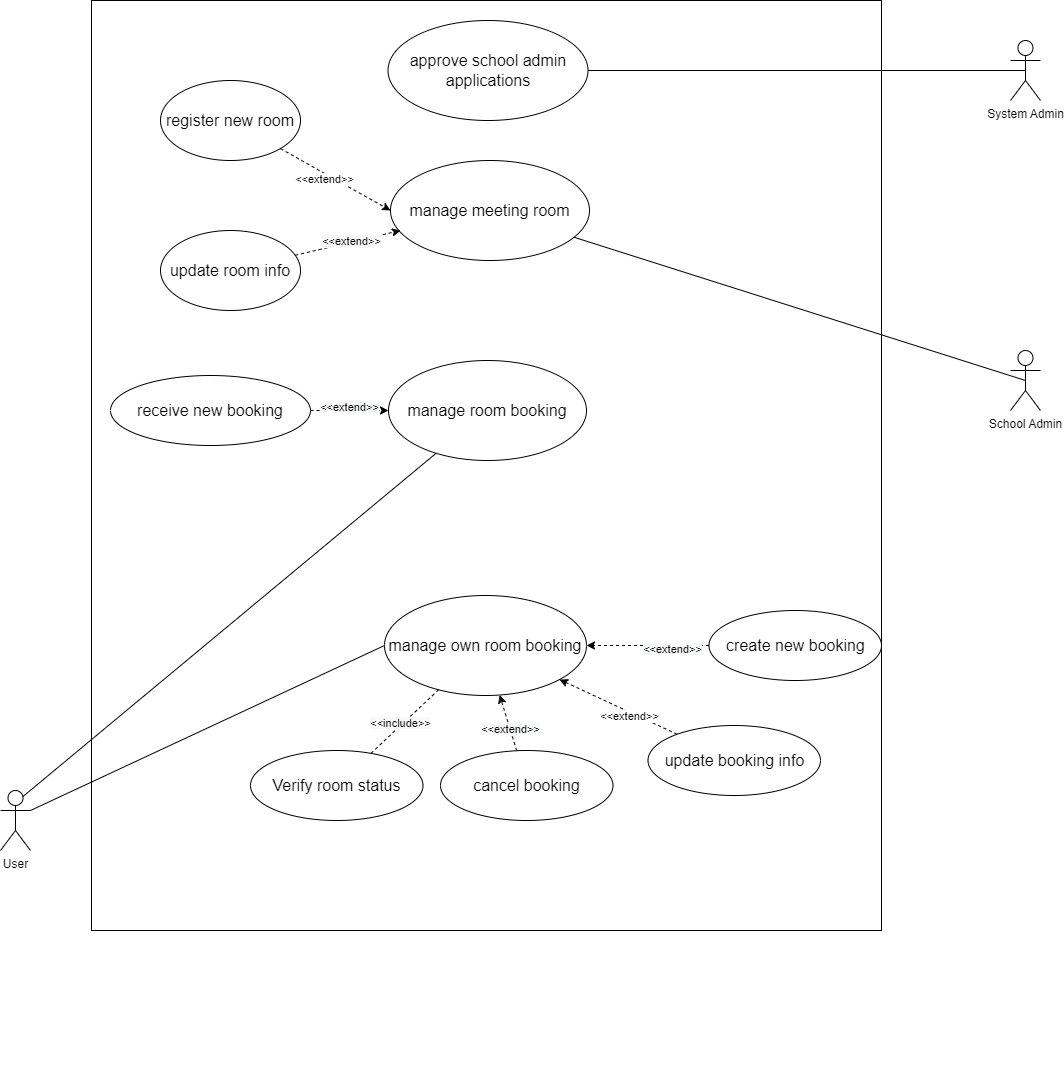
This Meeting Room Booking System is for the user who wants to book the meeting room for their purpose. For our system, we have already done 3 parts.
The first is that the System Admin. For this, the system admin can use this system to approve the school admin and display the list of school admin that have already been approved to manage the room.
After that, the user can use our system to register them as school admin by providing their information. After that, the school admin can log in to the system. The school admin can manage the booking of meeting rooms, such as registering rooms, updating room information, and displaying a list of rooms.
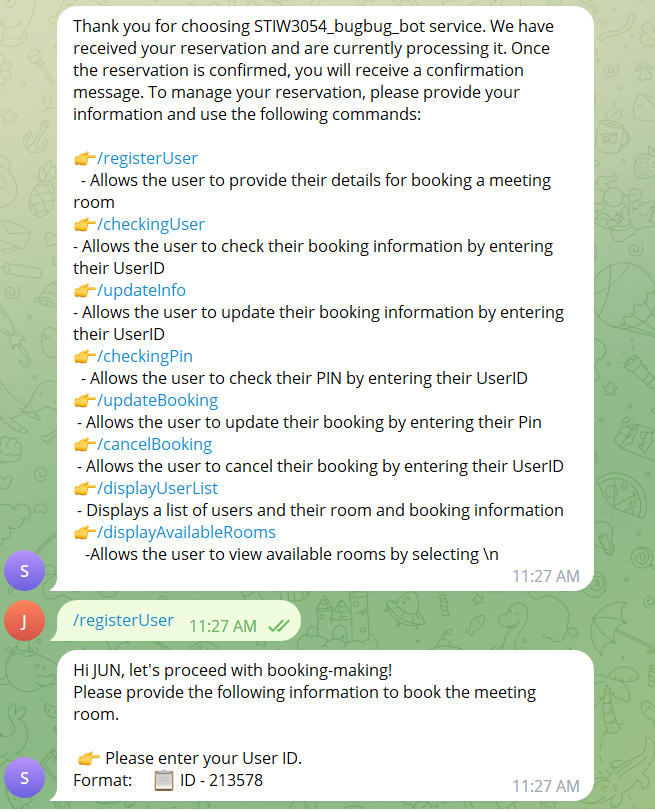
Besides that, the user who wants to book the meeting rooms can use our system to book the room. The user needs to provide their information to register as a user. Then, they can use the PIN that is generated after registering. They can use the PIN to book the meeting room. They can also update the booking details or cancel the booking. The user can use the specific command to display the user list and the available room list.
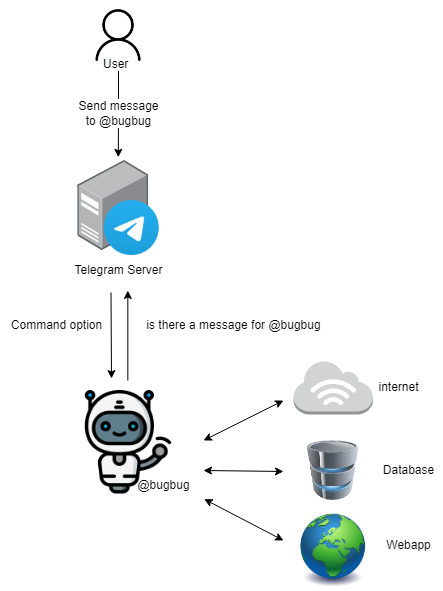
Reference this website:
- It provides information on how to deploy a Java Telegram bot on a Heroku server.
https://medium.com/@learntodevelop2020/deploy-java-telegram-bot-on-heroku-server-42bfcfc311d3
2.Heroku Deployment using Github
Open your pom.xml file from your java bot project, after dependencies tag. Specify the exact path of your Main class.
  <plugin>
    <groupId>org.codehaus.mojo</groupId>
    <artifactId>appassembler-maven-plugin</artifactId>
    <version>1.1.1</version>
    <configuration>
      <assembleDirectory>target</assembleDirectory>
      <programs>
        <program>
          <mainClass>my.uum.App</mainClass>
          <name>workerBot</name>
        </program>
      </programs>
    </configuration>
    <executions>
      <execution>
        <phase>package</phase>
        <goals>
          <goal>assemble</goal>
        </goals>
      </execution>
    </executions>
  </plugin>
In the main project path create a file called:
“Procfile” inside it. Write down the code below in the Procfile.
worker: sh target/bin/workerBot
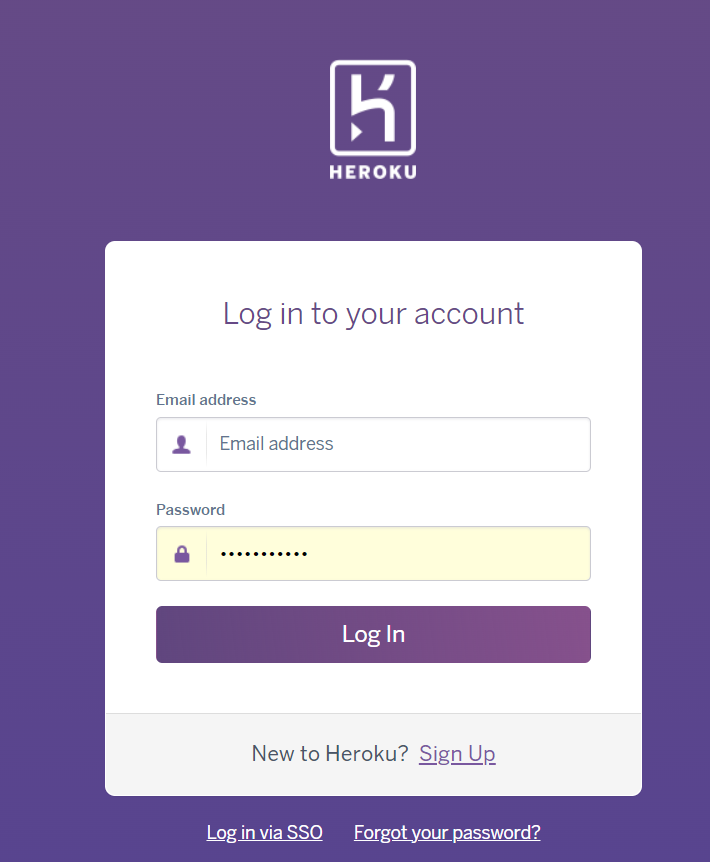
Login to the account
Click New dropdown on the top right
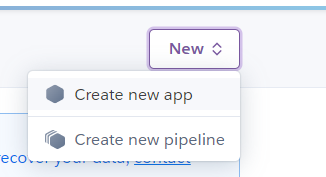
Select Create New App
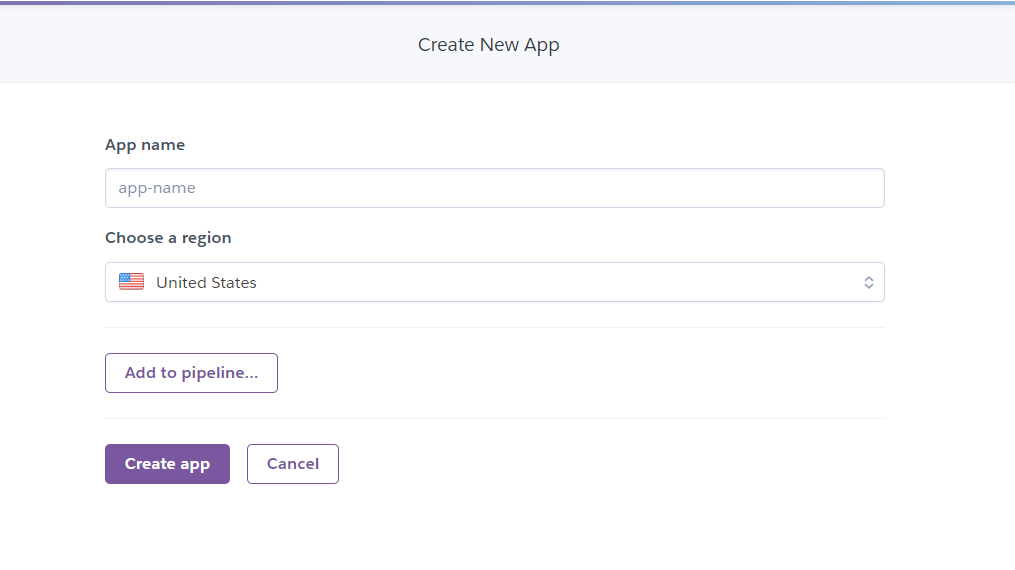
- Enter App name
- Choose Region as United States
- Click create app button
Choose Deployment method in Deploy, select GitHub option.
- Login to Github Account by entering the credential
- Authorize it
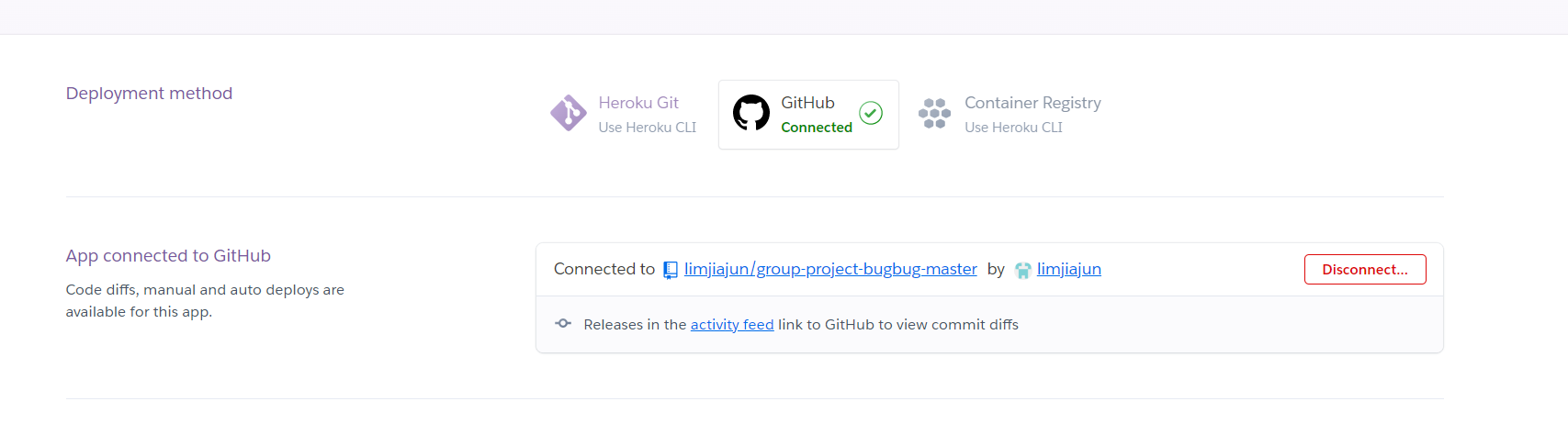
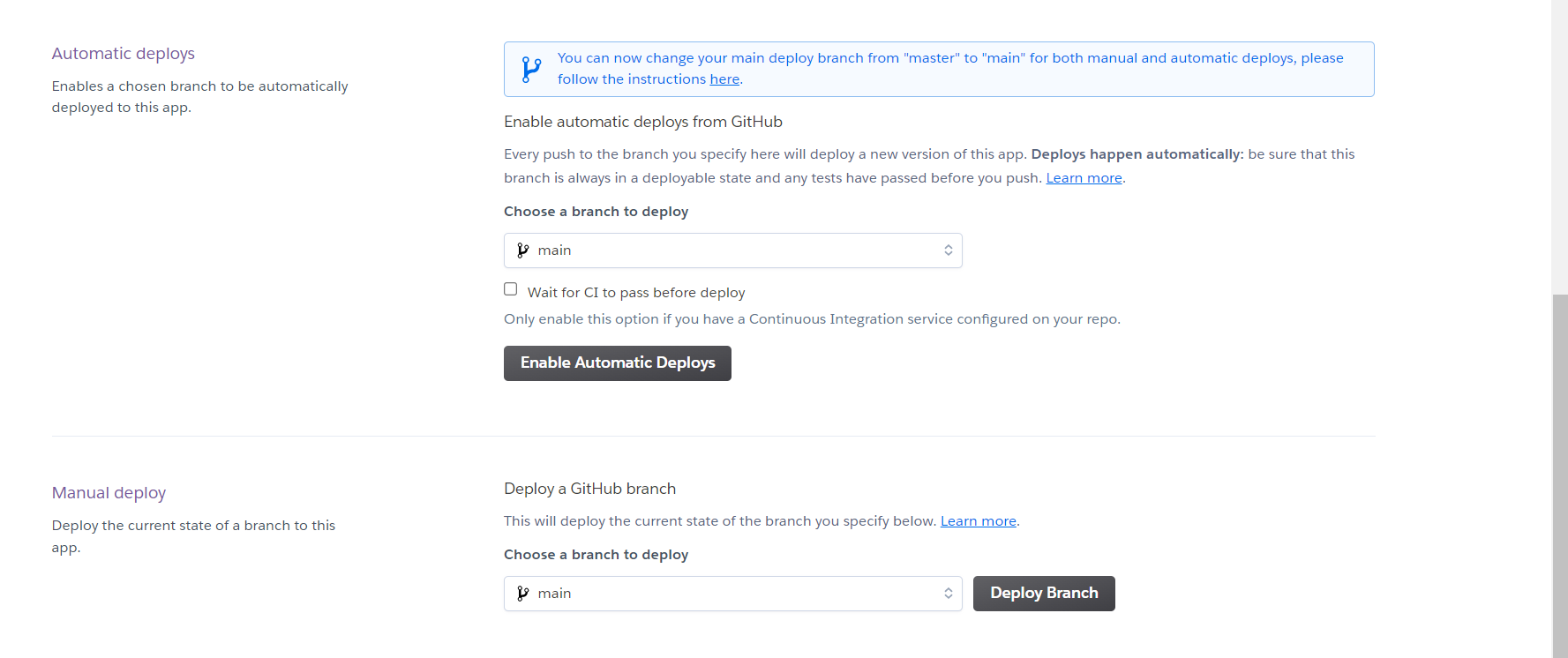
Enable the automatic and manual deploy function.
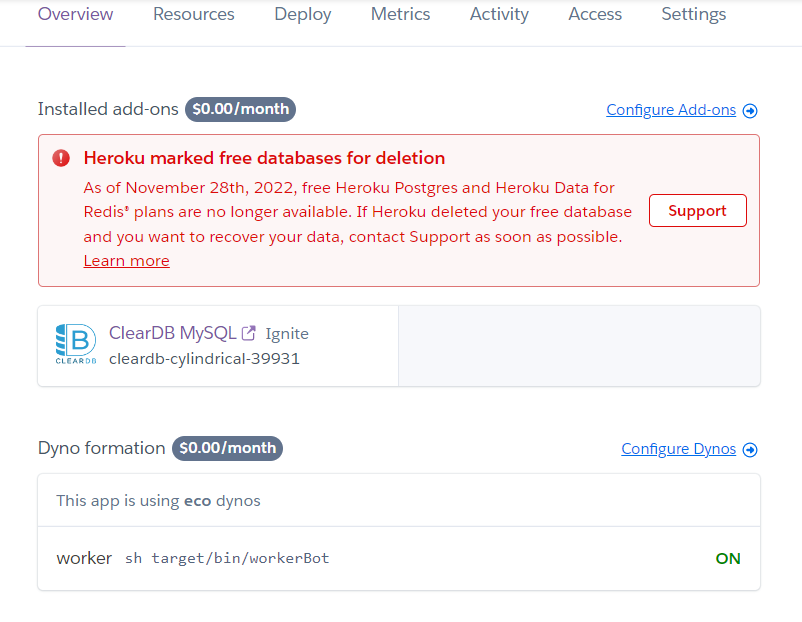
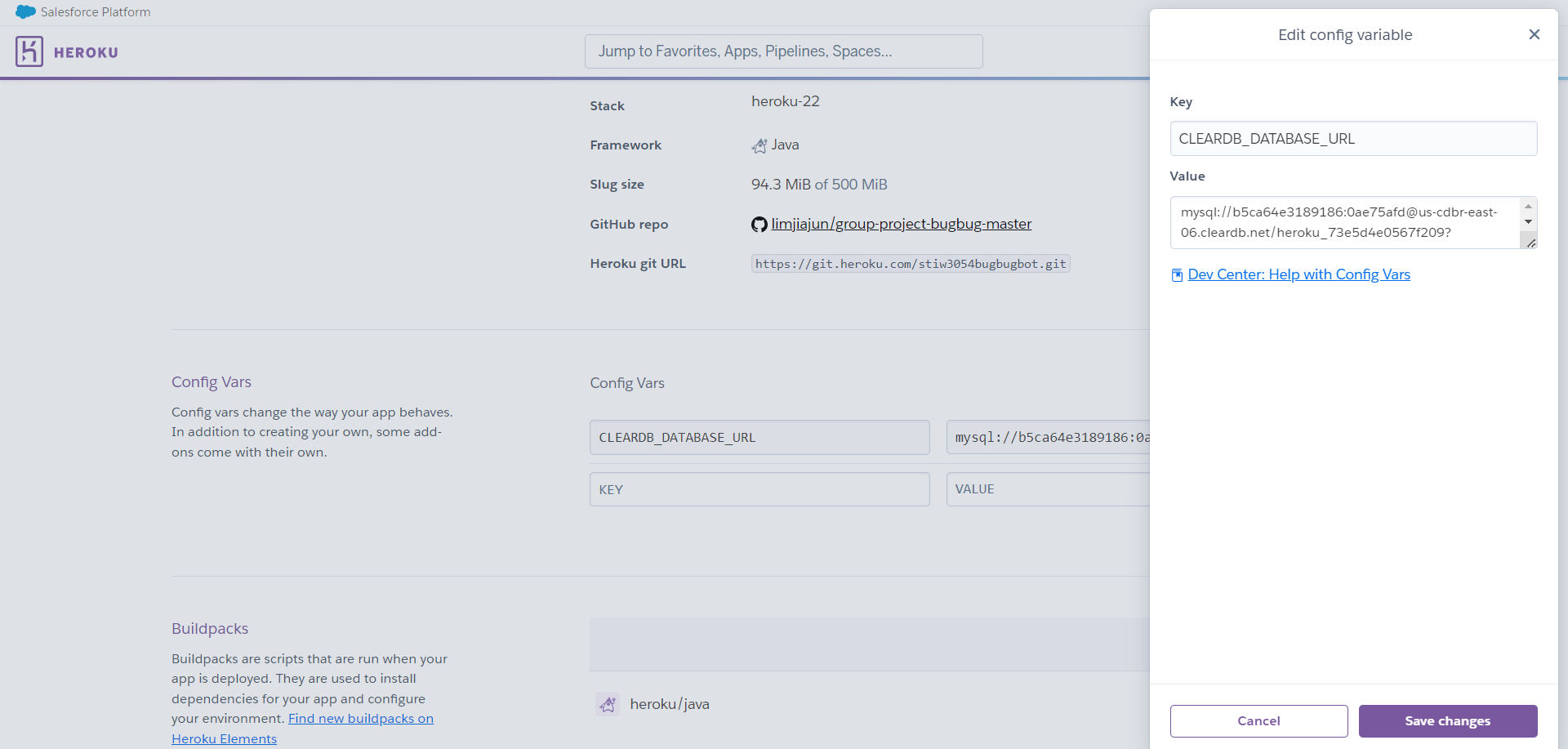
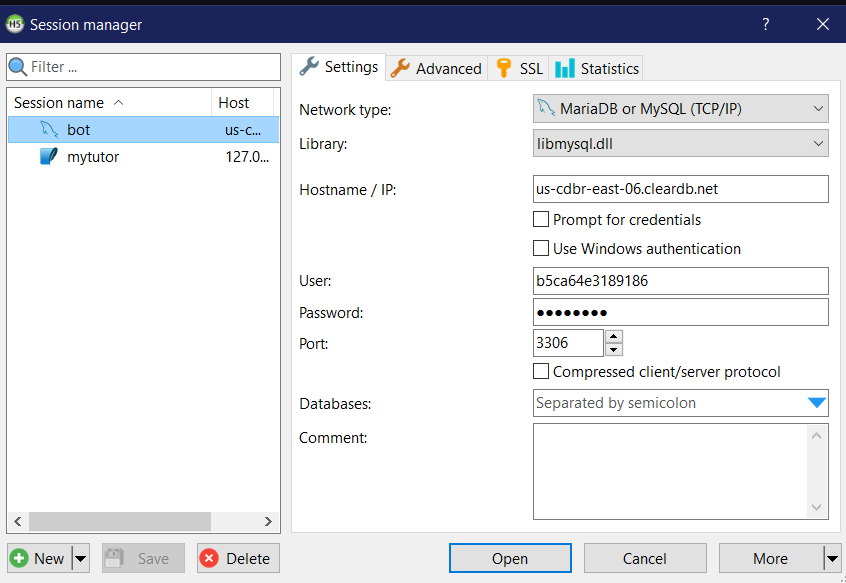
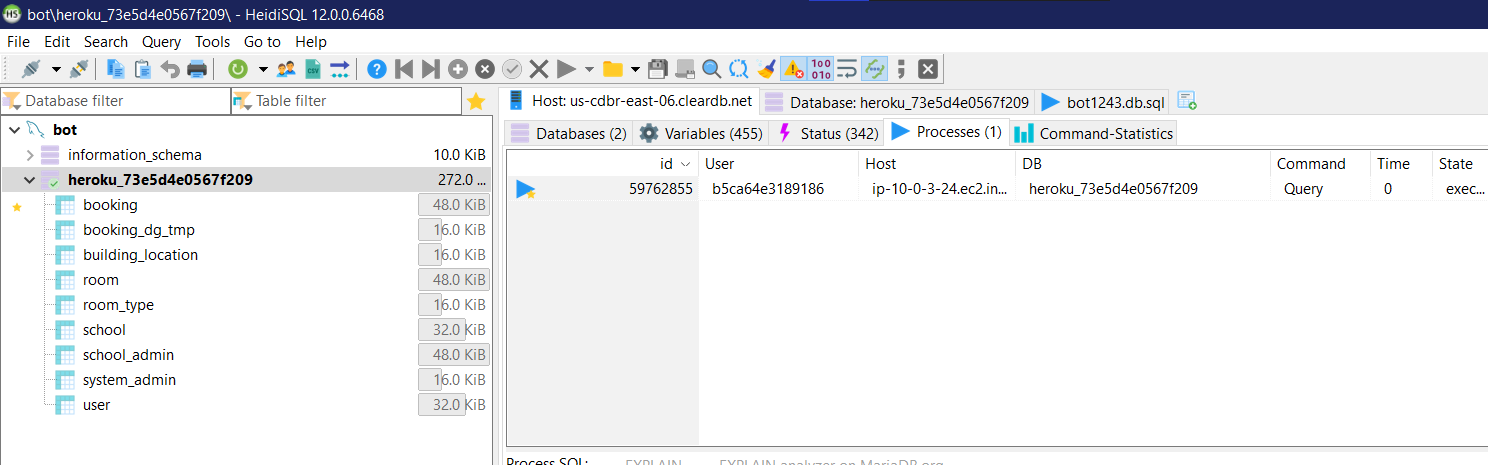
ClearDB MySQL is a Heroku add-on that provides a MySQL database service for Heroku apps. To connect to a ClearDB MySQL database on Heroku using a local tool like HeidiSQL, you will need to follow these steps:
Install and open HeidiSQL on your local machine. In the Heroku app's dashboard, navigate to the "Resources" tab and find the ClearDB MySQL add-on. Click on the add-on to open its details page, which will have a "Settings" tab that shows the database's connection information. In HeidiSQL, create a new session and enter the connection information from the ClearDB MySQL add-on's details page, including the hostname, port, username, and password. Click "Open" to connect to the database. Please keep in mind that you need to have a valid account on Heroku and the Heroku CLI tool installed in your machine. Also you need to have the ClearDB add-on attached to your Heroku app to be able to get the connection informations.
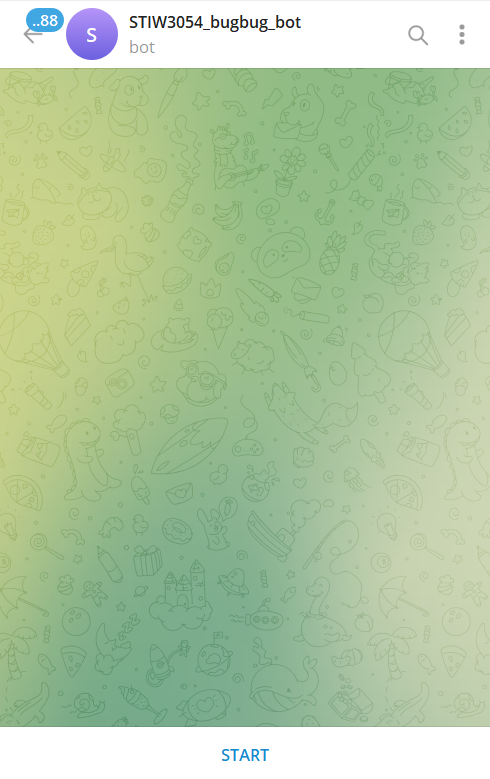
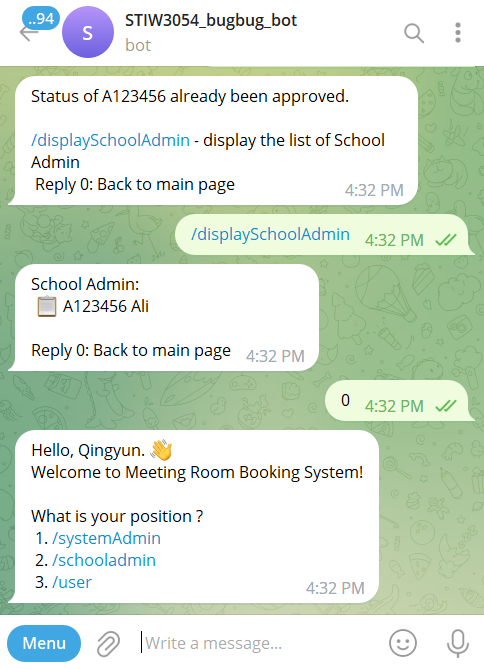
- User can start using our telegram bot by searching the @STIW3054_bugbug_bot .
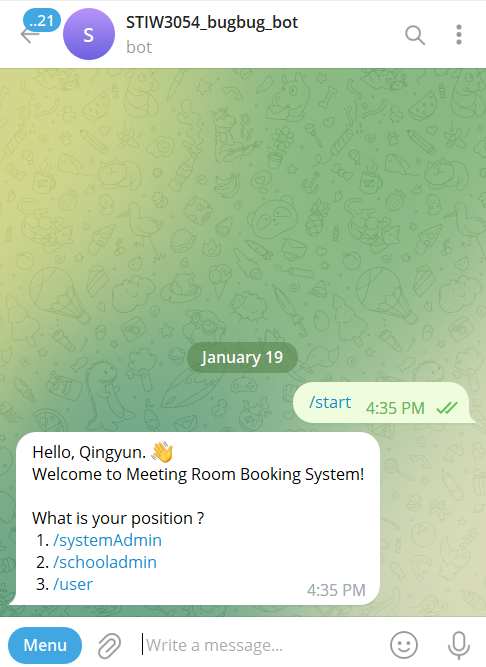
- After the click into this bot, they can enter /start to start this system.
- After /start, the system will prompt up a mesaage
Hello! Welcome to Meeting Room Booking System!
What is your position ?
- /systemAdmin
- /schooladmin
- /user
that let user choose their role.
System Admin
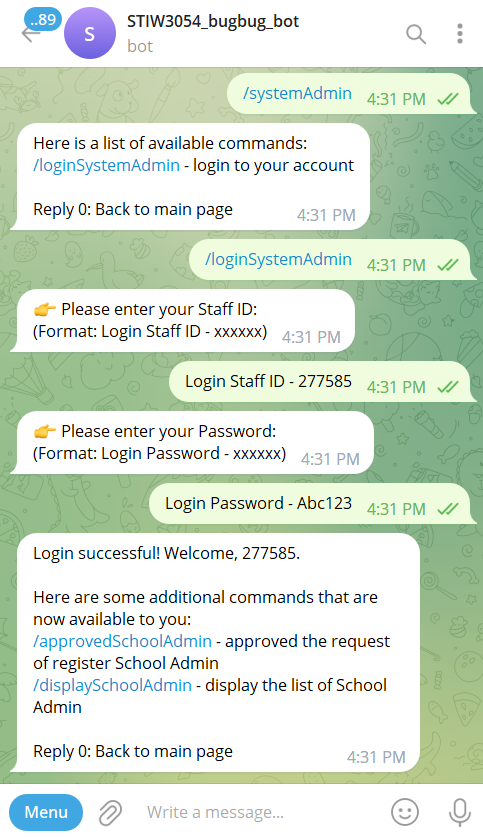
Step 1: Users can choose their role as System Admin by entering /systemAdmin.
After that, a message and available command will be display.
Step 2: Login to the system
The users need to choose /loginSystemAdmin and enter their staff_id and password to login. So, that they can get for more commands.
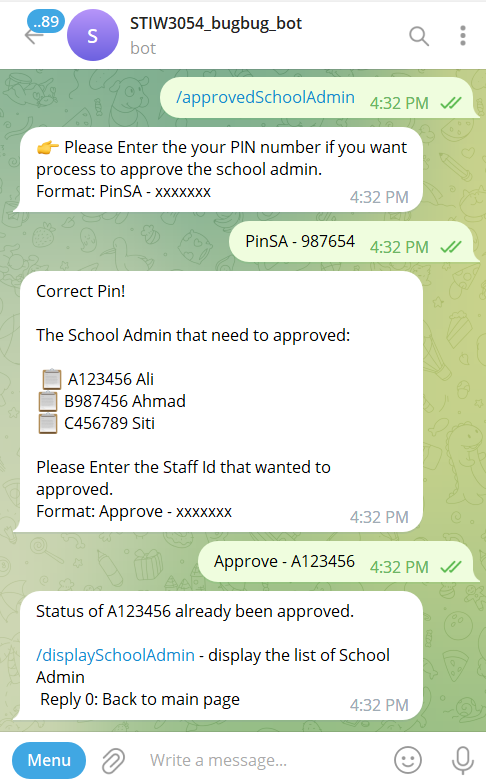
Step 3: /approvedSchoolAdmin
After the users login into the system, some commands will be display. The users can reply /approvedSchoolAdmin to approve the request of register School Admin.
After the users reply /approvedSchoolAdmin, the system will requst users to enter their specific PIN.
If the users give the correct PIN, the system will display a list of School Admin which status is "pending". The users will be request to enter the staff_id that they want to approve.Step 4: /displaySchoolAdmin
After the users succeful approve the school admin, so they can reply /displaySchoolAdmin to check the school admin that already approve.
School Admin
Step 1: Users can choose their role as School Admin by entering /schooladmin.
After that, a message listing available commands will be displayed.
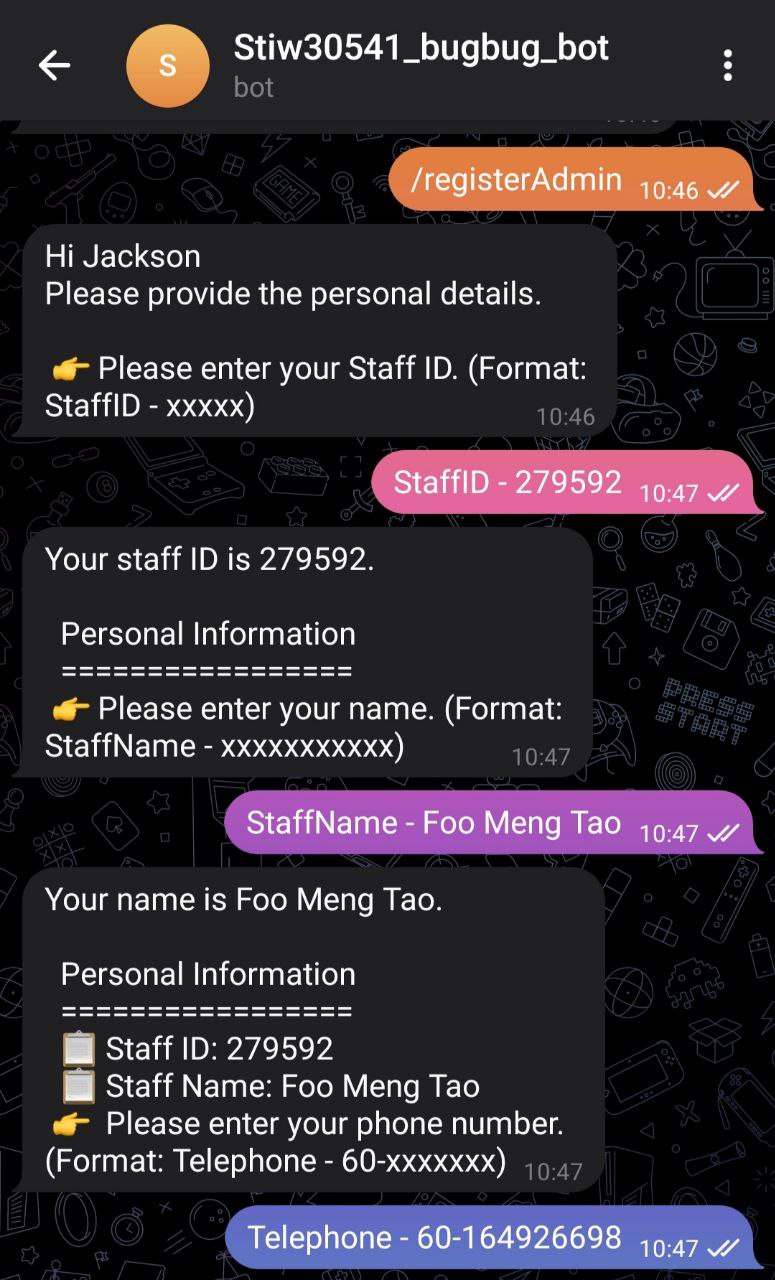
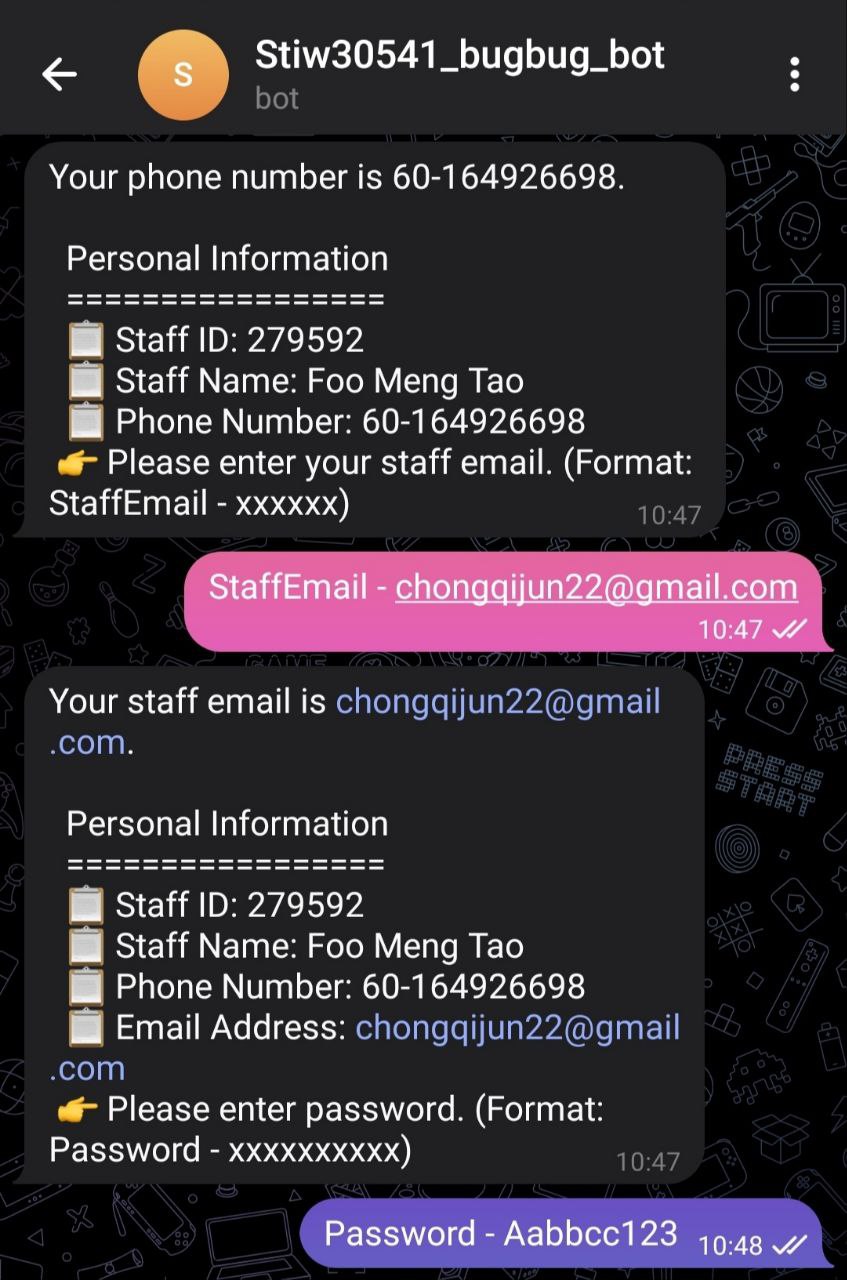
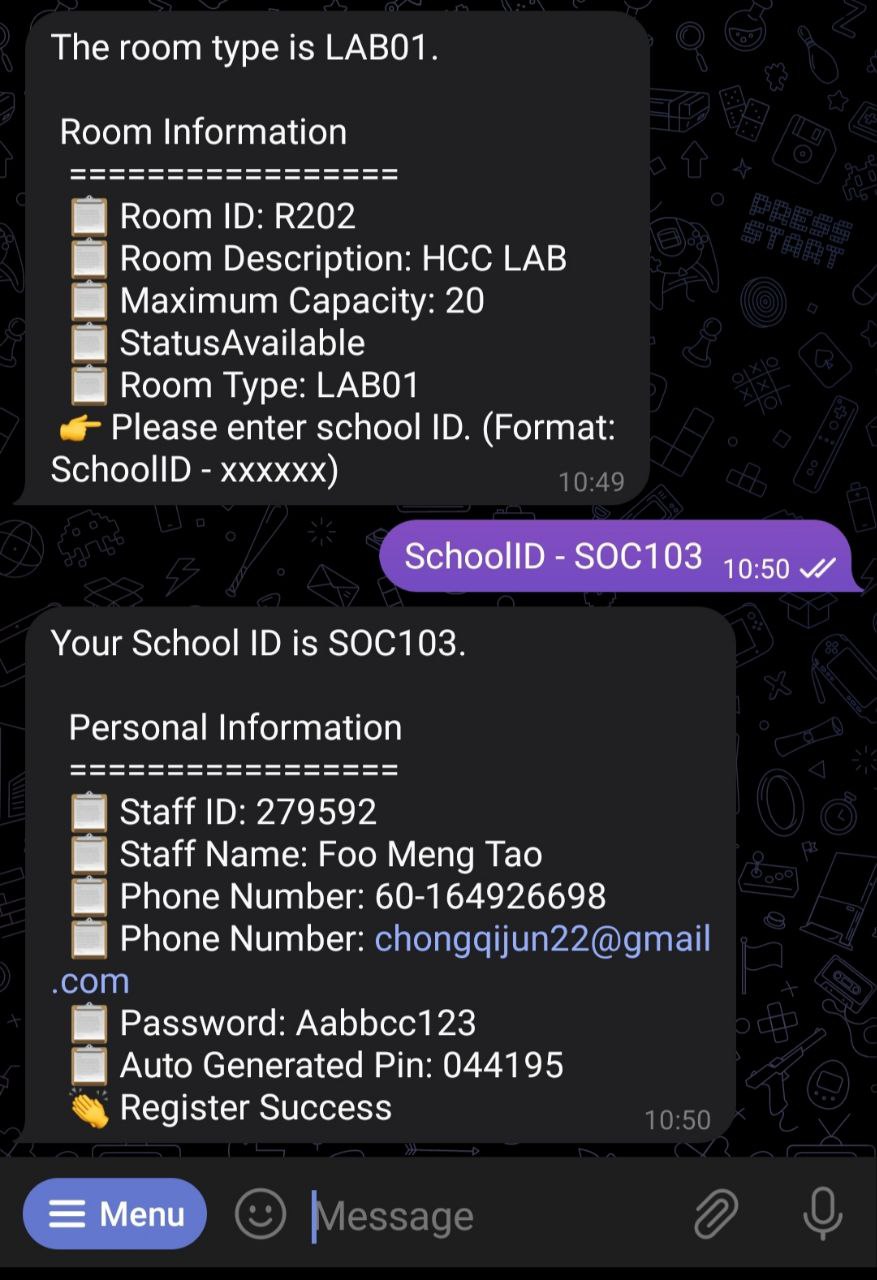
Step 2: Register as School Admin
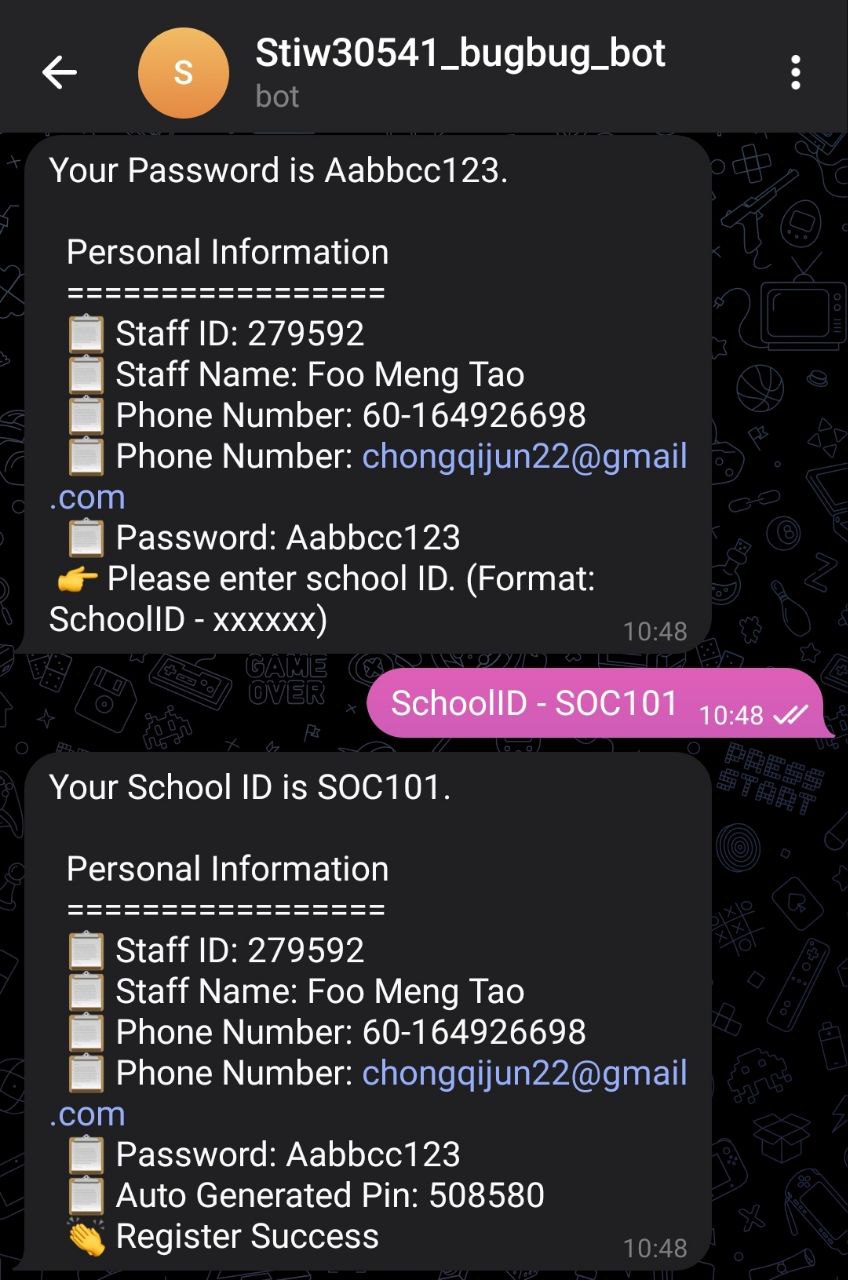
The user can choose /registerAdmin and enter their staff_id, name, phonenumber, email, password and schoolId to register as a School Admin.
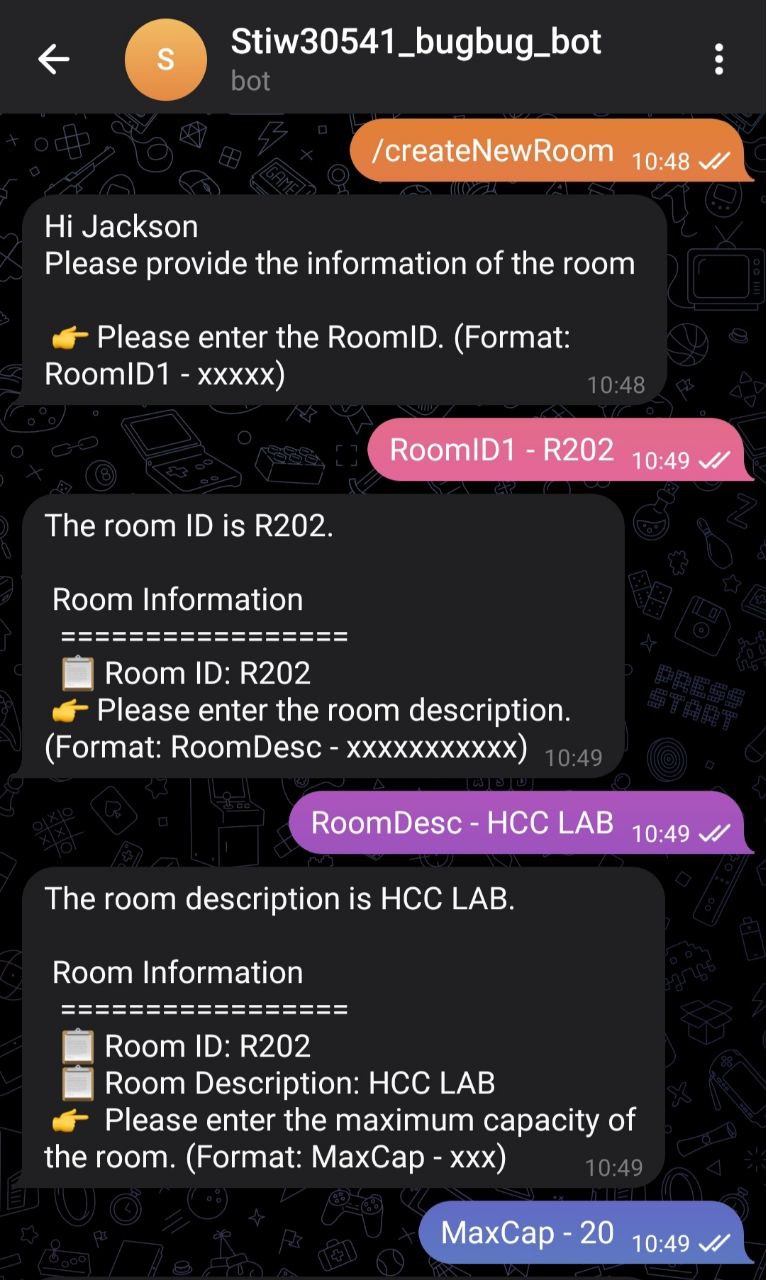
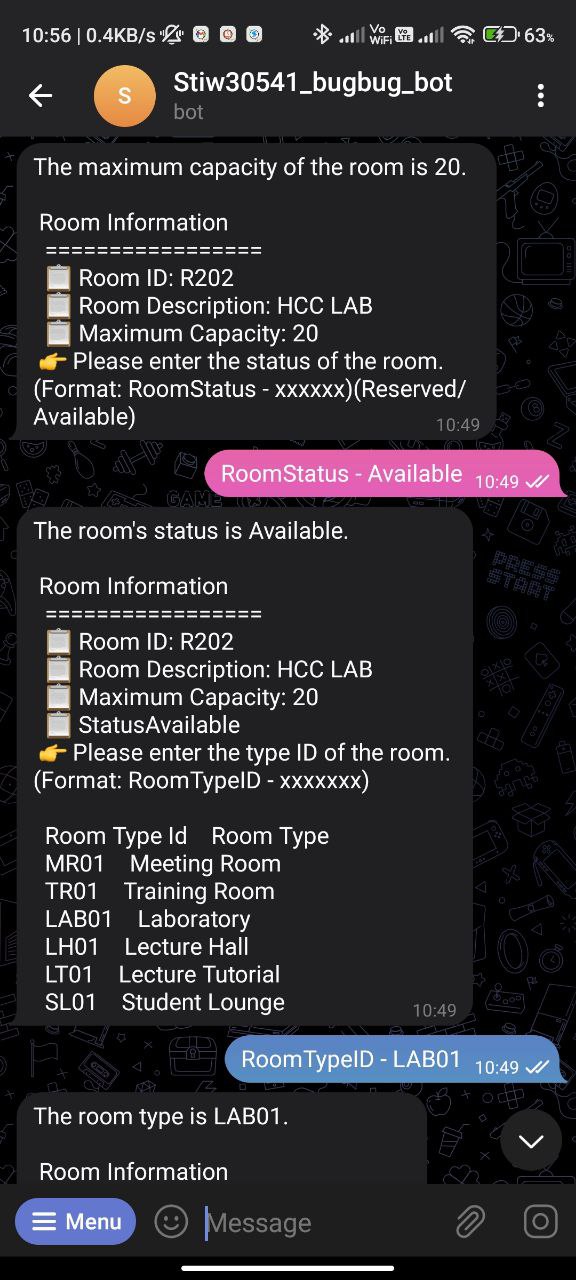
Step 3: Create New Room
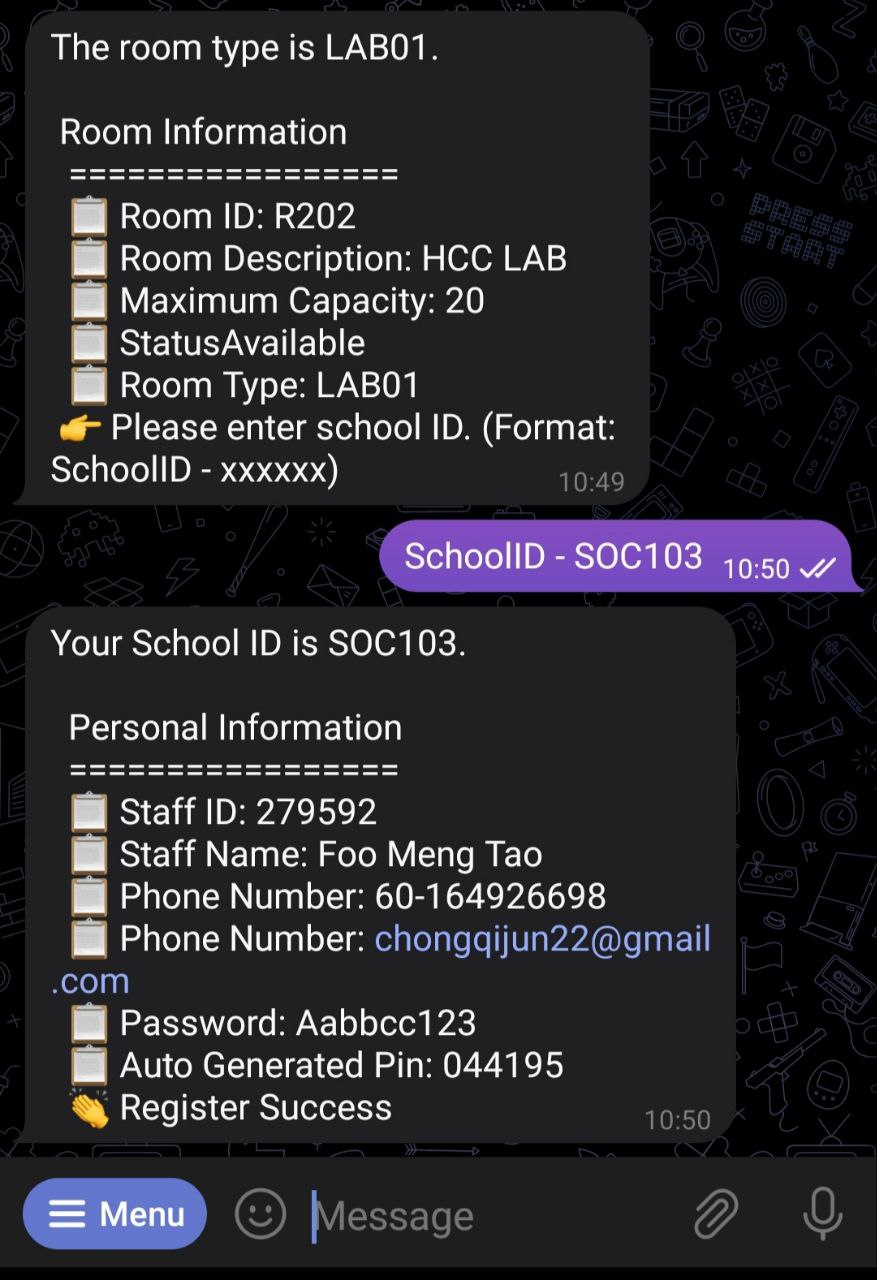
The user can choose /createNewRoom and enter the RoomId, RoomDescription, RoomStatus, RoomType, MaximumCapacity and SchoolId to insert a new room into the system.
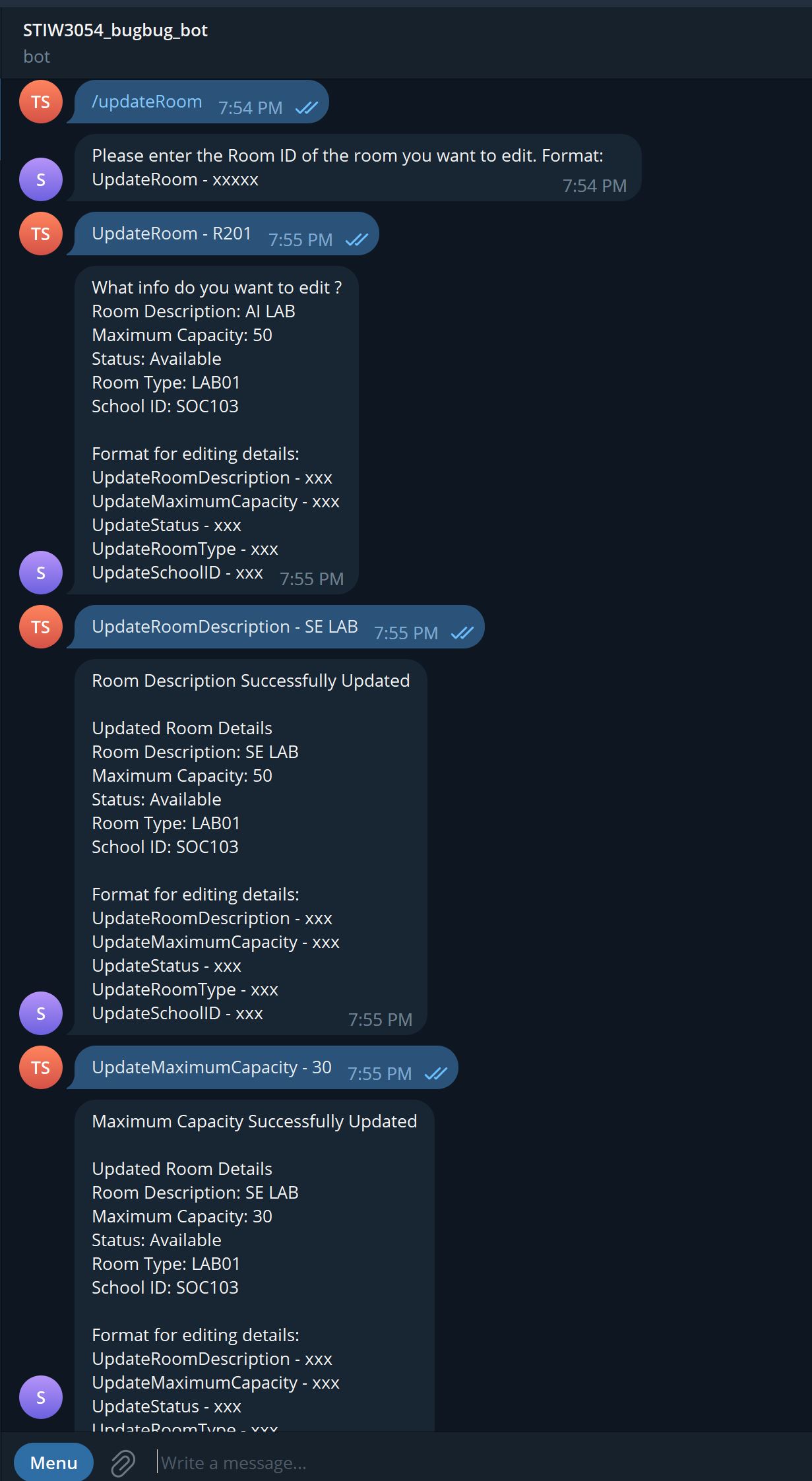
Step 4: Update Room
The user can choose /updateRoom and enter the RoomId of the room they want to edit then edit the details of the room.
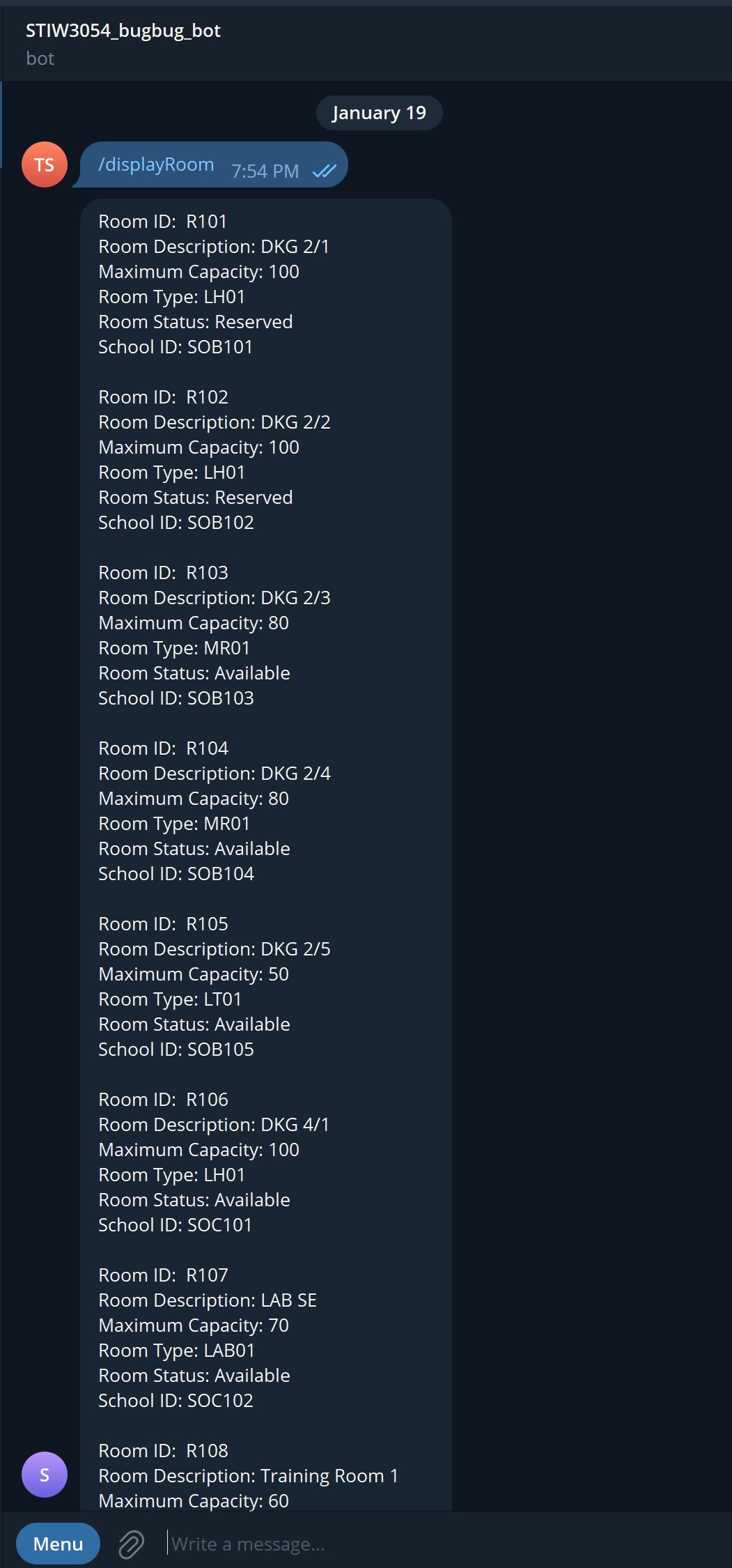
Step 5: Display Room
The user can choose /displayRoom to display details of all the rooms in the system
User
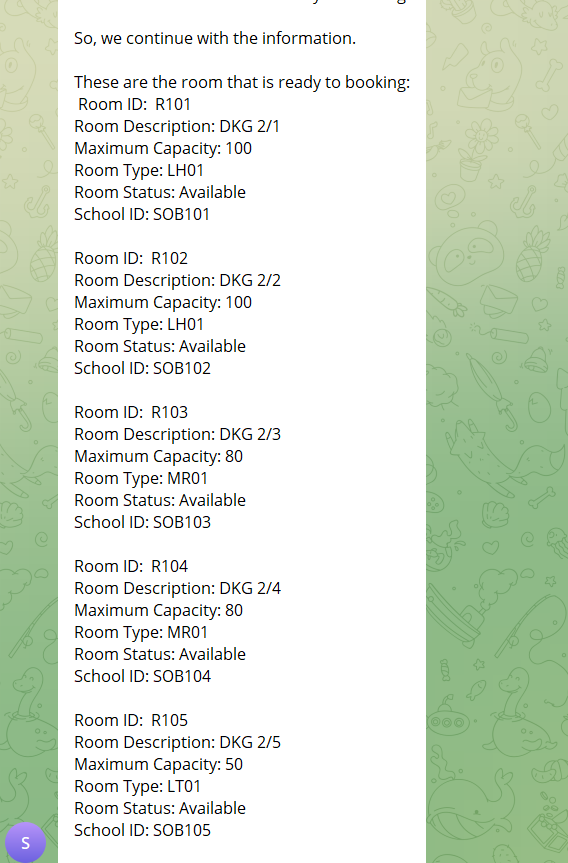
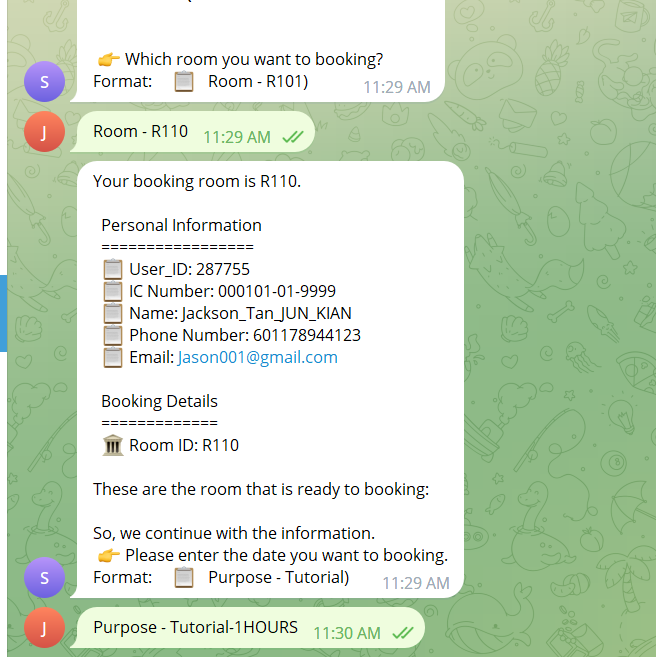
Step 1: Room Selection and User Registration
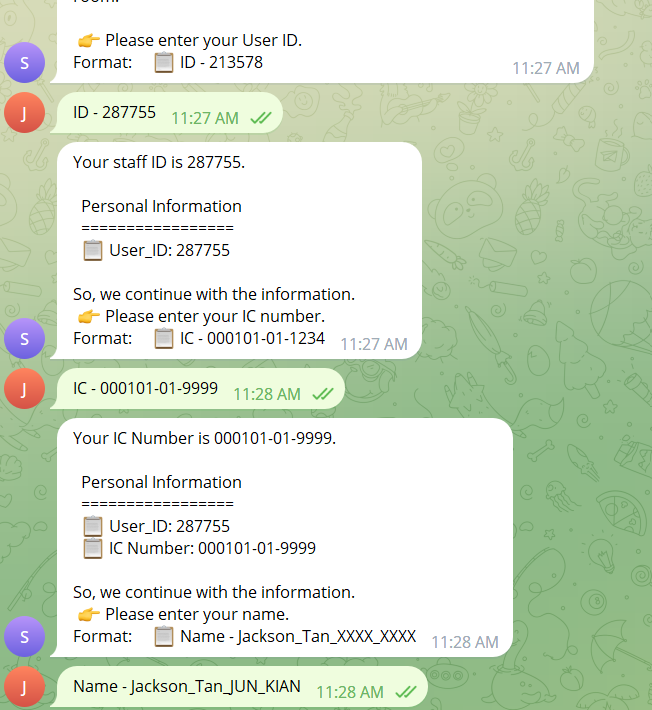
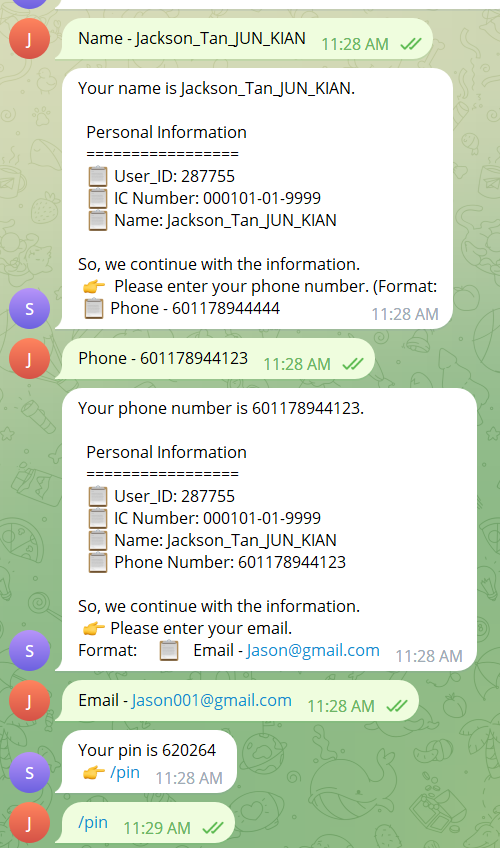
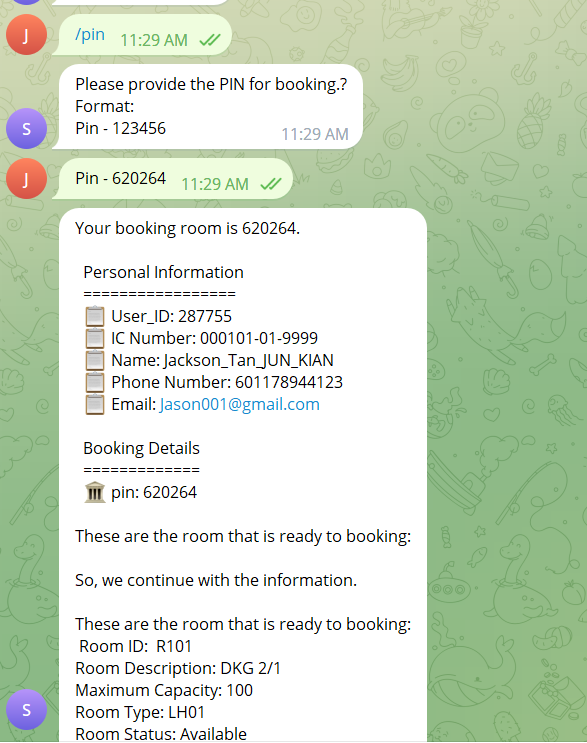
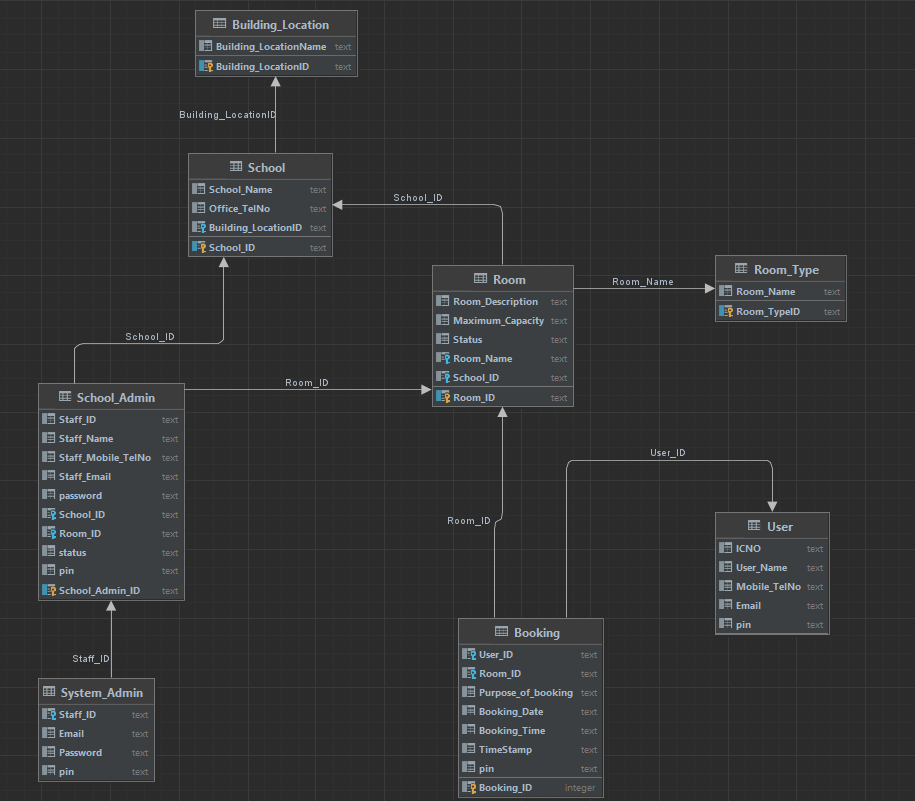
When the user receives a booking message, they are presented with the option to select a room. Before they can make a selection, however, they must first register their details by using the command /registerUser. The system will prompt them to provide their personal information, such as ICNO, UserID, Name, Mobile_TelNo, and Email. Once the user submits their details, the system generates a unique pin for them to use to access the booking system and make a reservation.
Step 2: Booking and Management
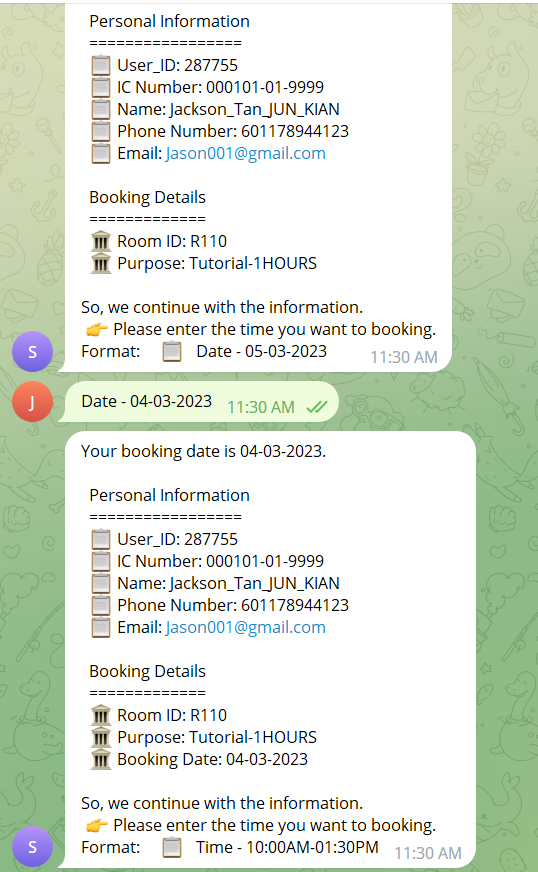
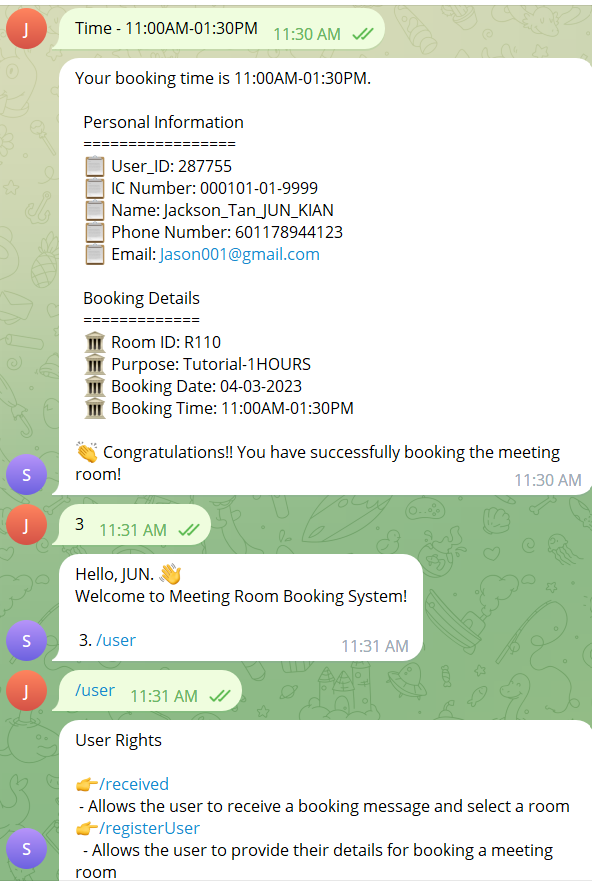
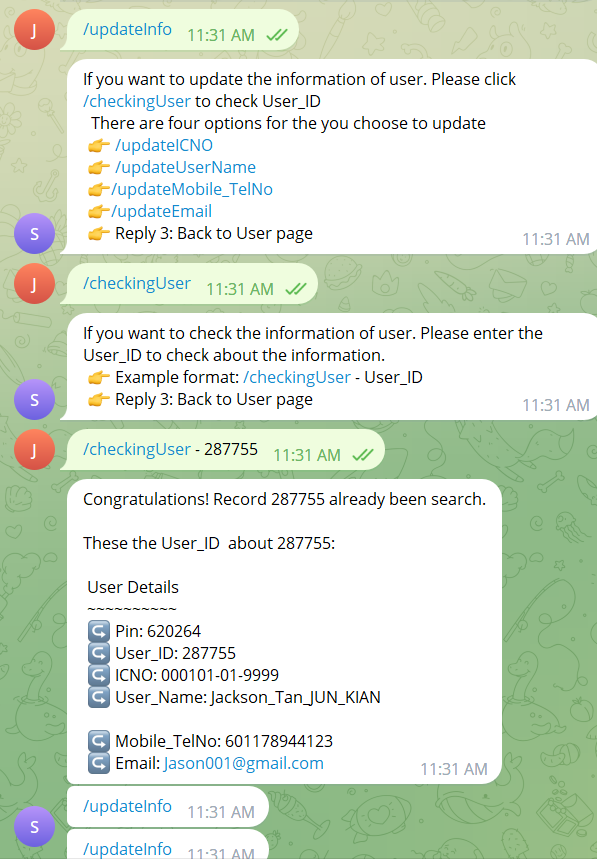
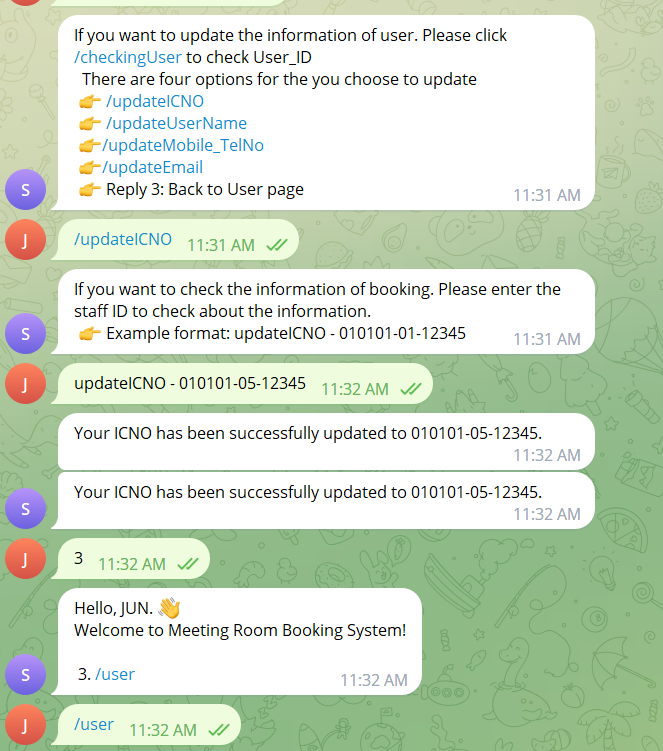
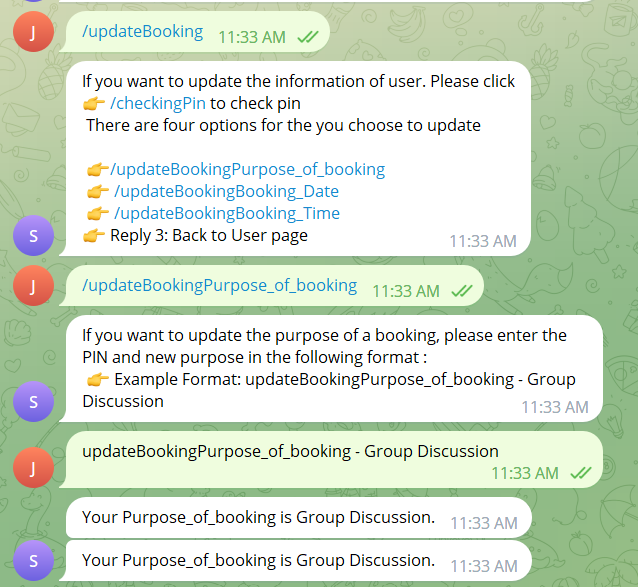
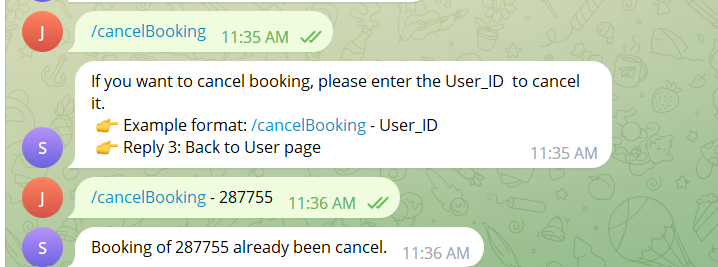
After the user has registered and received their pin, the system will display available rooms for selection. The user can then provide the purpose, date, and time for their booking, as well as check their booking information by using the command /checkingUser and entering their UserID. They can also update their booking information and booking by using the commands /updateInfo and /updateBooking respectively, and cancel their booking by using the command /cancelBooking and entering their UserID.
Step 3: Additional Features
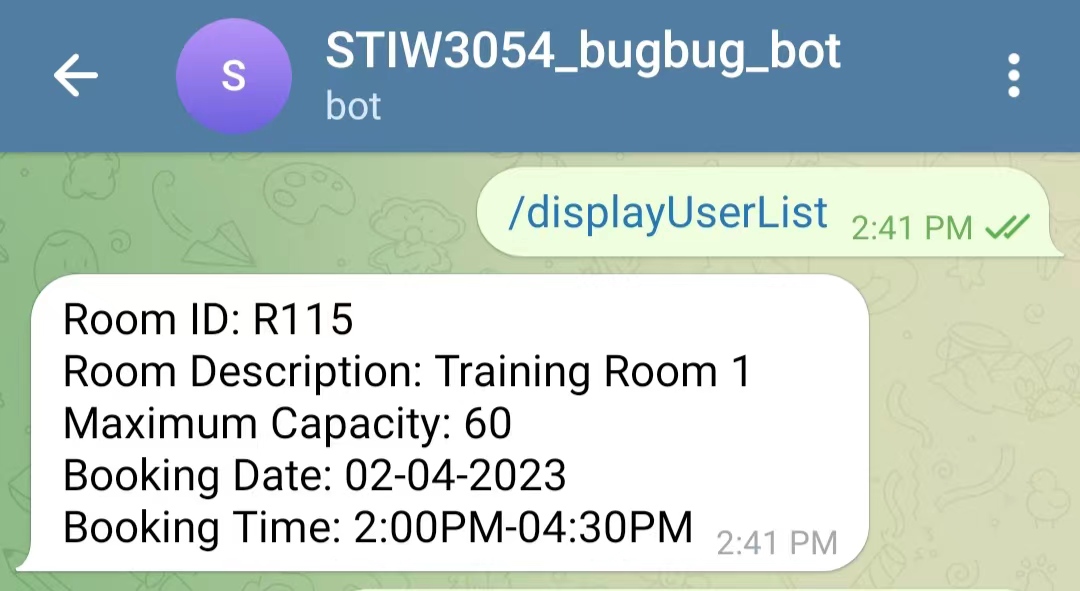
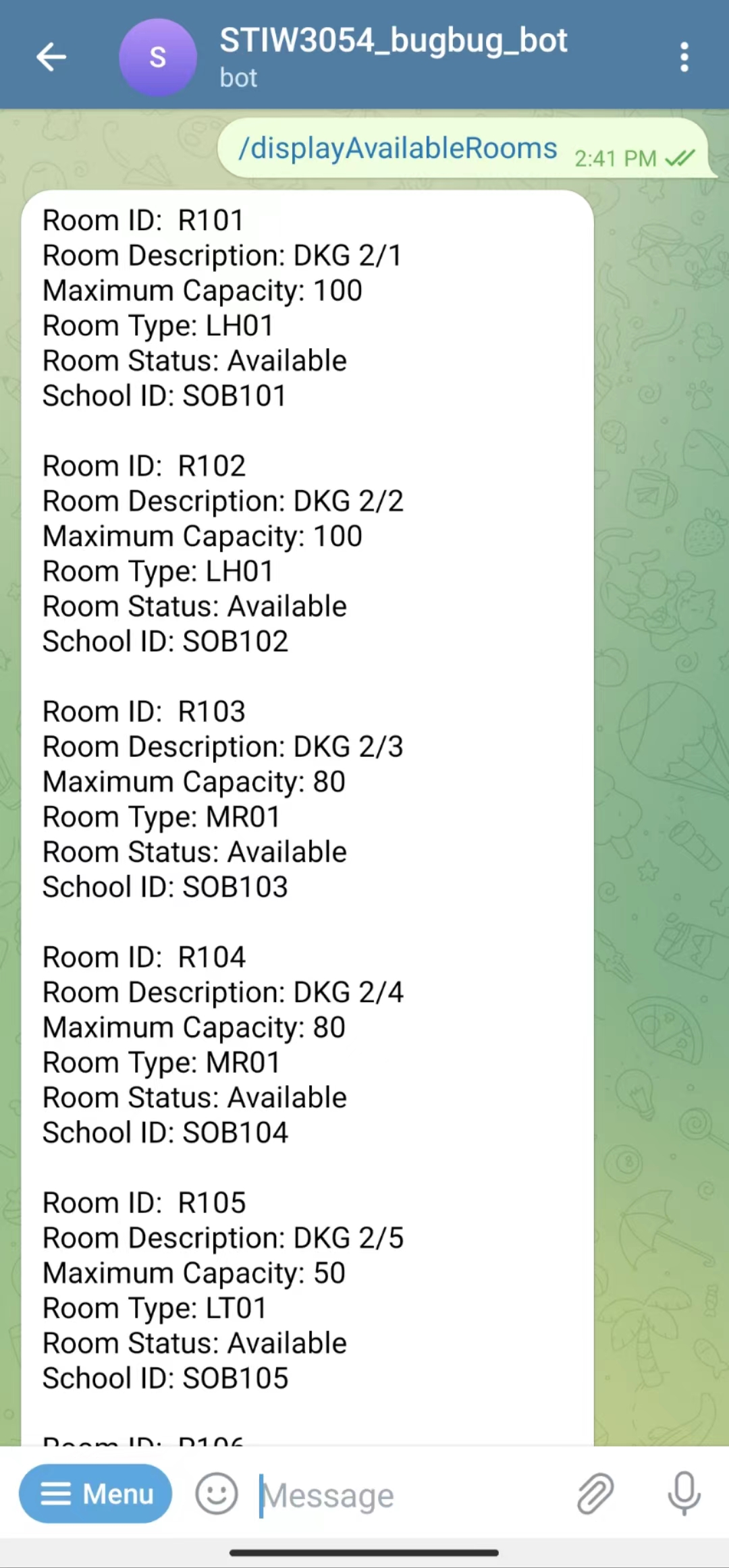
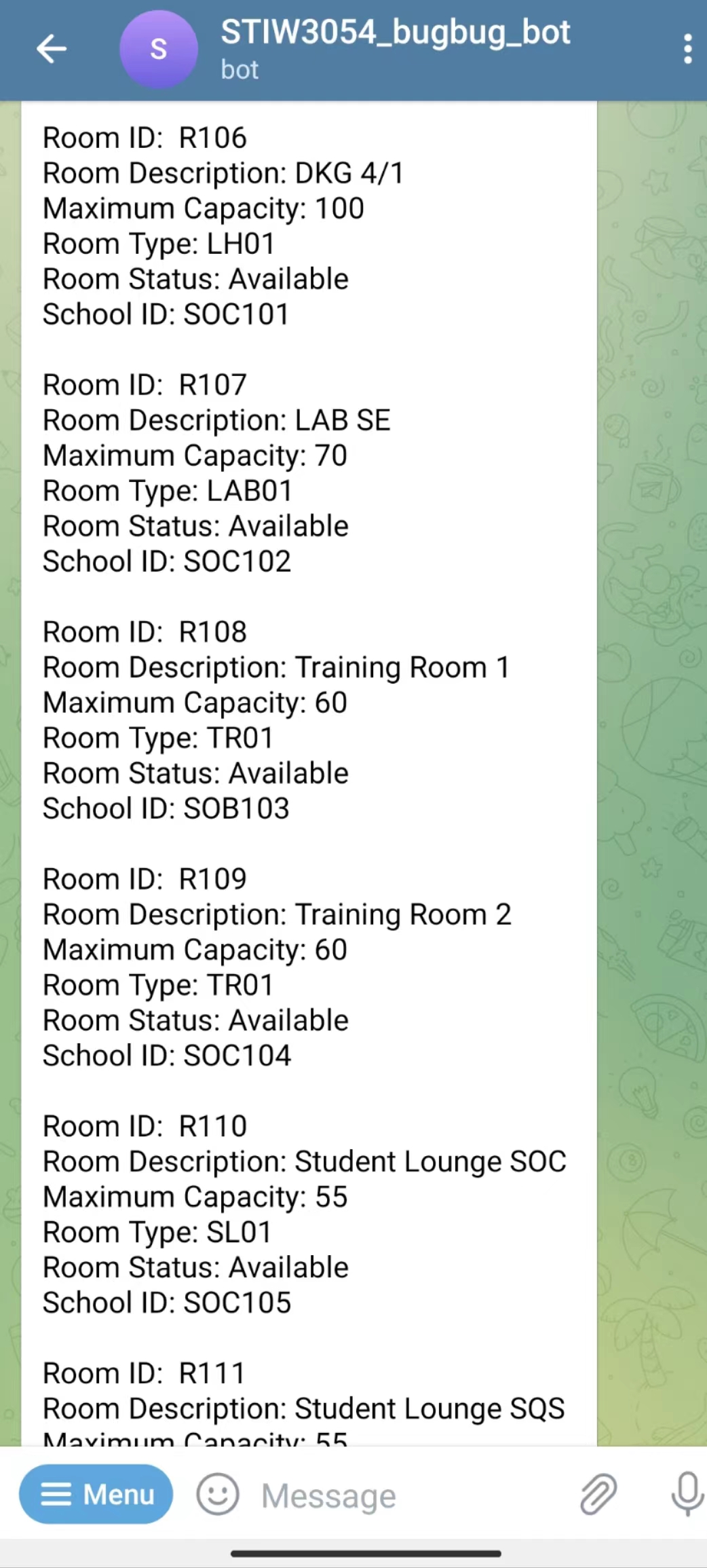
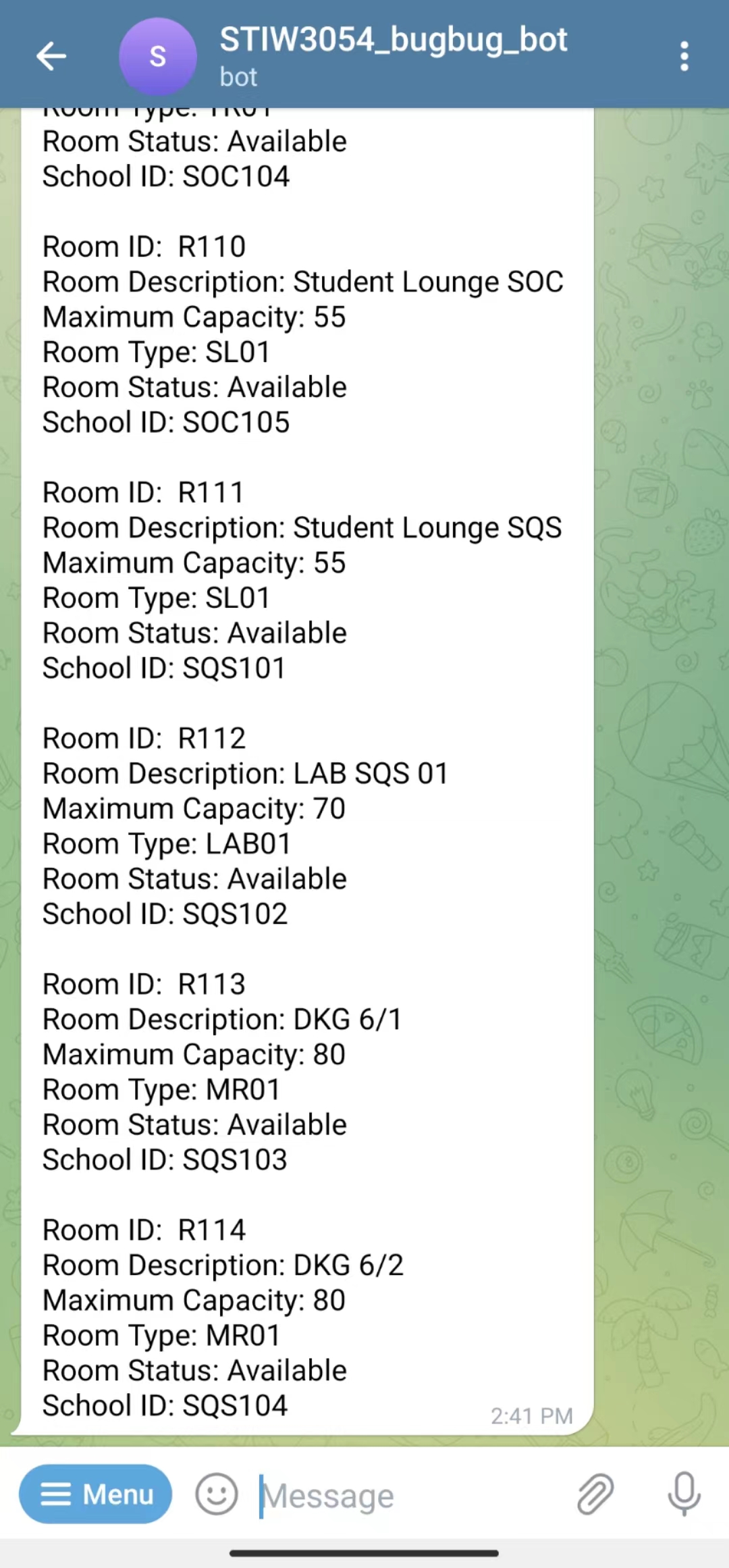
In addition to the aforementioned functionality, the user can also view a list of all users and their room and booking information by using the command /displayUserList. They can view available rooms by using the command /displayAvailableRooms, and check their PIN by using the command /checkingPin and entering their UserID.
Command
System Admin
👉/loginSystemAdmin
- Allows the system admin to login to his/her account.
👉/approvedSchoolAdmin
- Allows the system admin to approve the request of the register school admin.
👉/displaySchoolAdmin
- Allows the system admin to display the list of school admin that the status is "Approved".
School Admin
👉/registerAdmin
- Allows the School admin to register to his/her account.
👉/createNewRoom
- Allows the School admin to create a new room ny providing the details.
👉/updateRoom
- Allows the School admin to update the details of existing room by entering the RoomID and continue with the details.
👉/displayRoom
- Allows the School admin to display the information of the room.
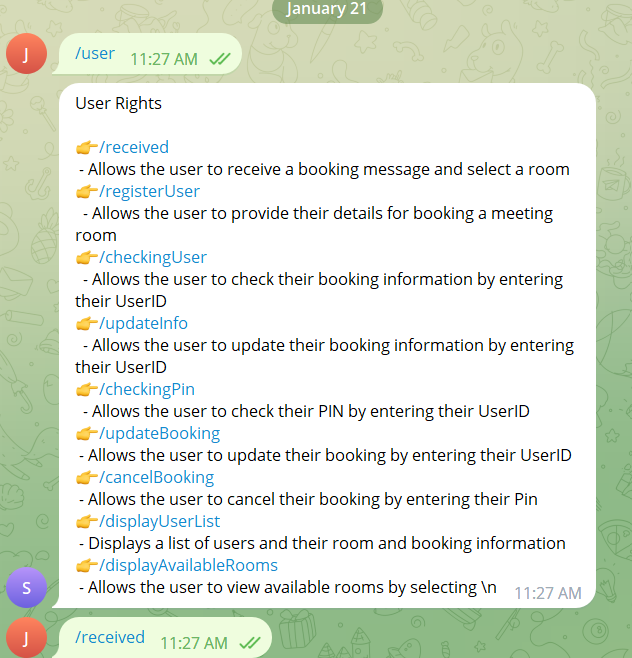
User Rights👉/received
- Allows the user to receive a booking message and select a room
👉/registerUser
- Allows the user to provide their details for booking a meeting room
👉/checkingUser
- Allows the user to check their booking information by entering their UserID
👉/updateInfo
- Allows the user to update their booking information by entering their Pin
👉/checkingPin
- Allows the user to check their PIN by entering their UserID
👉/updateBooking
- Allows the user to update their booking by entering their UserID
👉/cancelBooking
- Allows the user to cancel their booking by entering their UserID
👉/displayUserList
- Displays a list of users and their room and booking information
👉/displayAvailableRooms
- Allows the user to view available rooms by selecting
Introduction , /start
/systemAdmin
/schoolAdmin
/user
User
| Number | Reference |
|---|---|
| 1. | Bots: An introduction for developers. (n.d.). Telegram. Retrieved December 8, 2022, from https://core.telegram.org/bots |
| 2. | Code Java. (2020, October 25). Java Connect to SQLite Database Example [Video]. YouTube. Retrieved December 8, 2022, from https://www.youtube.com/watch?v=293M9-QRZ0c |
| 3. | Creating SQLite database in intellij. (2020, June 1). Stack Overflow. https://stackoverflow.com/questions/62139581/creating-sqlite-database-in-intellij |
| 4. | Fizz. (2020, June 23). Configuration JDBC drive with intlij IDEA |
| 5. | Hartman, J. (2022, November 5). Split() String Method in Java: How to Split String with Example. Guru99. https://www.guru99.com/how-to-split-a-string-in-java.html |
| 6. | How do I split a string in Java? (2010, August 14). Stack Overflow. Retrieved December 14, 2022, from https://stackoverflow.com/questions/3481828/how-do-i-split-a-string-in-java |
| 7. | How to connect to SQLite with IntelliJ Community Version? (2021, October 11). If Not Nil. Retrieved December 8, 2022, from https://ifnotnil.com/t/how-to-connect-to-sqlite-with-intellij-community-version/2107 |
| 8. | how to get an input from user from telegram bot in java? (2021, June 11). Stack Overflow. https://stackoverflow.com/questions/67941871/how-to-get-an-input-from-user-from-telegram-bot-in-java |
| 9. | Inserting a string in a SQLite database. (2017, December 21). Stack Overflow. https://stackoverflow.com/questions/47923369/inserting-a-string-in-a-sqlite-database |
| 10. | Java SQLite Example - javatpoint. (n.d.). JavatPoint. Retrieved December 8, 2022, from https://www.javatpoint.com/java-sqlite |
| 11. | Prof. Vanselow. (2019, October 12). IntelliJ Database Connection [Video]. YouTube. https://www.youtube.com/watch?v=XCVbQgy_y90 |
| 12. | riz can. (2018, May 13). IntelliJ - Connecting to SQLite [Video]. YouTube. Retrieved December 8, 2022, from https://www.youtube.com/watch?v=w5BeDoOn_l8 |
| 13. | SQL error or missing database (near “?”: syntax error). (2014, November 20). Stack Overflow. https://stackoverflow.com/questions/27041163/sql-error-or-missing-database-near-syntax-error |
| 15. | SQLite Java: Deleting Data. (2022, August 28). SQLite Tutorial. https://www.sqlitetutorial.net/sqlite-java/delete/ |
| 16. | SQLite Java: Select Data. (2022, August 28). SQLite Tutorial. https://www.sqlitetutorial.net/sqlite-java/select/ |
| 17. | SQLite Java: Update Data. (2022, August 28). SQLite Tutorial. https://www.sqlitetutorial.net/sqlite-java/update/ |
| 18. | SQLite JDBC. (2022, November 22). Mvnrepository. Retrieved December 8, 2022, from https://mvnrepository.com/artifact/org.xerial/sqlite-jdbc/3.40.0.0 |
| 19. | Sqlite, UPDATE with JOINs with 3 tables. (2020, April 20). Stack Overflow. https://stackoverflow.com/questions/61316781/sqlite-update-with-joins-with-3-tables |
| 20. | Telegram Bot API. (n.d.). https://core.telegram.org/bots/api |
| 21. | Telegram Bot Platform. (2015, June 24). Telegram. https://telegram.org/blog/bot-revolution |
| 22. | Zaur Hasanov. (2018, February 10). How to create Telegram Bot in Java [ Tutorial ] [Video]. YouTube. https://www.youtube.com/watch?v=xv-FYOizUSY |
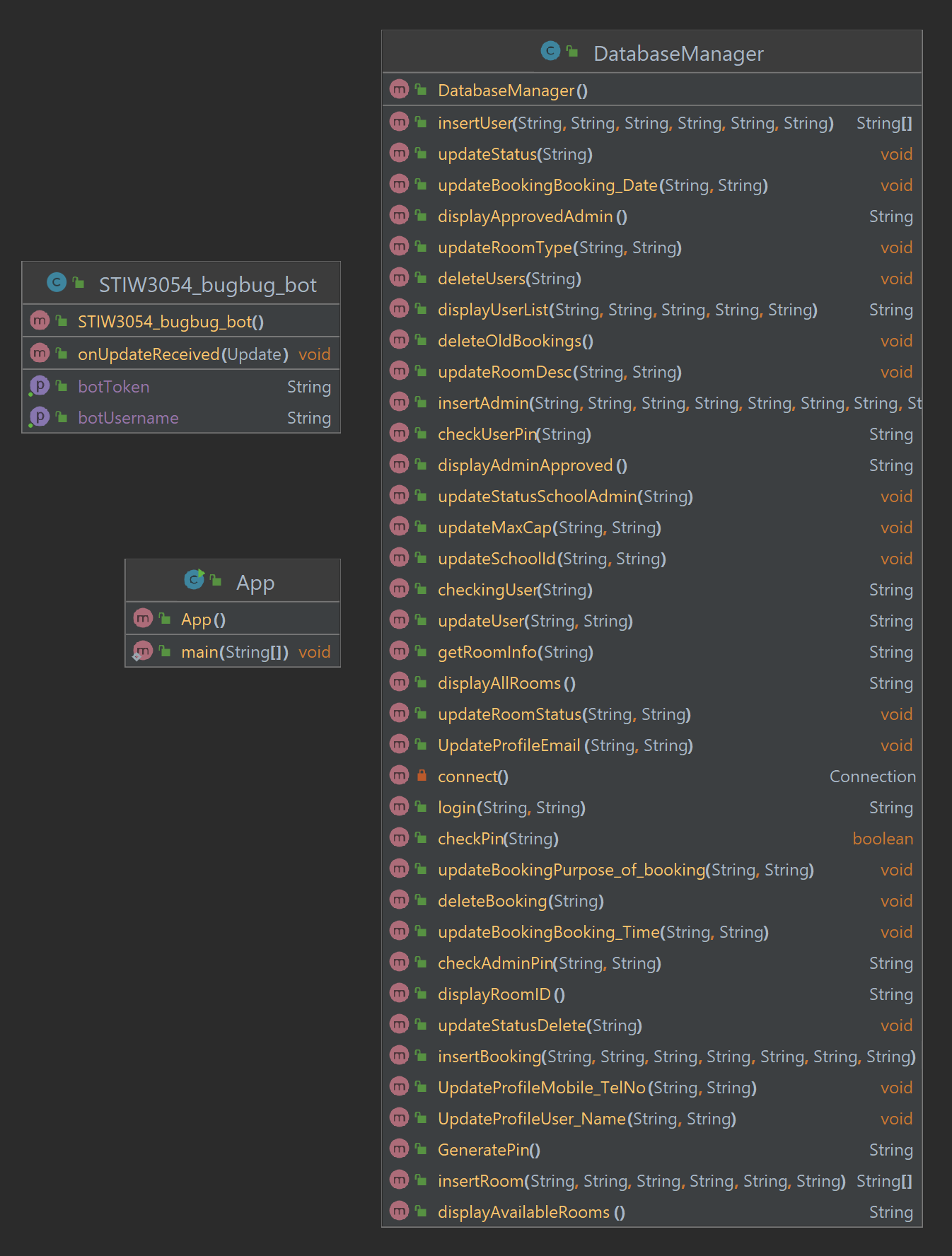
https://github.com/STIW3054-A221/group-project-bugbug/blob/master/JavaDoc/index.html https://limjiajun.github.io/JavaDocGP/my/uum/package-summary.html