-
Notifications
You must be signed in to change notification settings - Fork 38
Added Subscribers and Notifications pages #439
New issue
Have a question about this project? Sign up for a free GitHub account to open an issue and contact its maintainers and the community.
By clicking “Sign up for GitHub”, you agree to our terms of service and privacy statement. We’ll occasionally send you account related emails.
Already on GitHub? Sign in to your account
Merged
Merged
Changes from all commits
Commits
Show all changes
4 commits
Select commit
Hold shift + click to select a range
File filter
Filter by extension
Conversations
Failed to load comments.
Loading
Jump to
Jump to file
Failed to load files.
Loading
Diff view
Diff view
There are no files selected for viewing
This file contains hidden or bidirectional Unicode text that may be interpreted or compiled differently than what appears below. To review, open the file in an editor that reveals hidden Unicode characters.
Learn more about bidirectional Unicode characters
This file contains hidden or bidirectional Unicode text that may be interpreted or compiled differently than what appears below. To review, open the file in an editor that reveals hidden Unicode characters.
Learn more about bidirectional Unicode characters
This file contains hidden or bidirectional Unicode text that may be interpreted or compiled differently than what appears below. To review, open the file in an editor that reveals hidden Unicode characters.
Learn more about bidirectional Unicode characters
| Original file line number | Diff line number | Diff line change |
|---|---|---|
| @@ -0,0 +1,92 @@ | ||
| --- | ||
| title: Notifications Inbox | ||
| description: Learn how to use Plane's notifications inbox — filter by type, mark as read, snooze, archive, and use stacked notifications to quickly catch up on work item activity. | ||
| --- | ||
|
|
||
| # Inbox | ||
|
|
||
| The Inbox is a space for tracking and managing updates to work items you're connected with. Whether you're assigned to a work item, its creator, mentioned in a discussion, or subscribed to its updates, you'll find everything here. It's where all your in-app notifications live. | ||
|
|
||
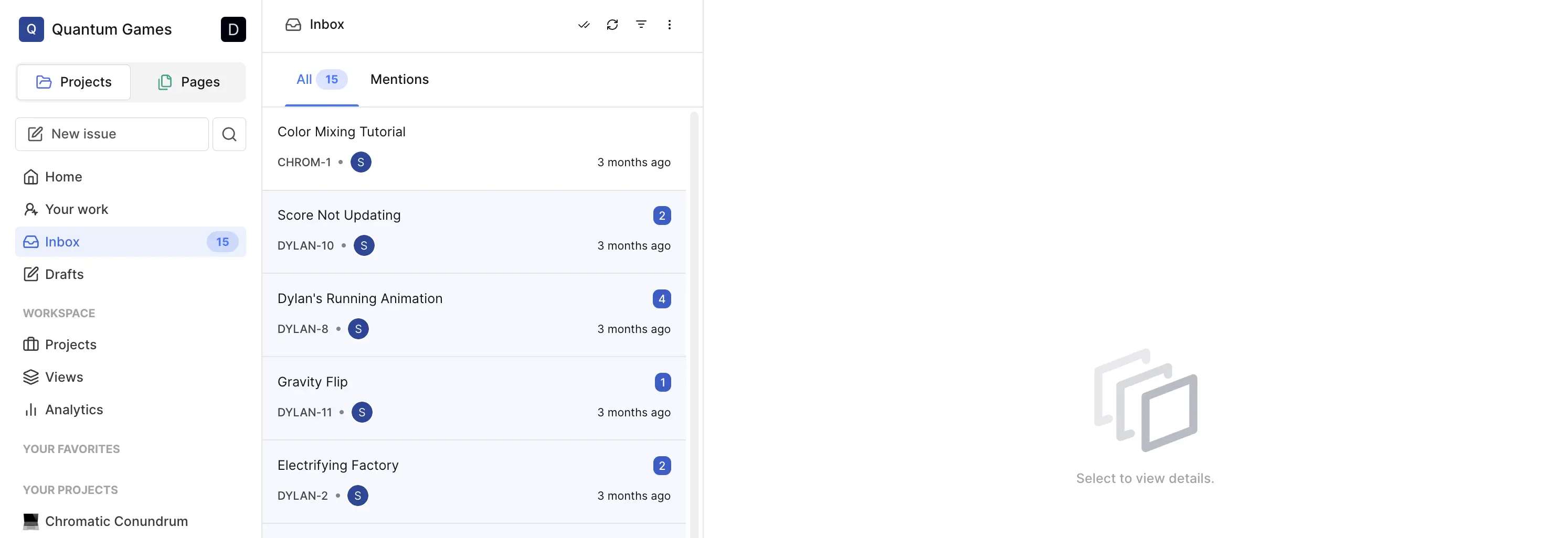
| The inbox has two tabs: **All** and **Mentions**. Each tracks its own unread count. The sidebar icon shows a red dot when either tab has unread notifications. | ||
|
|
||
| ## Where to find Inbox | ||
|
|
||
| Click the **Notifications** icon in the top right of the screen to open the inbox. Clicking a notification opens the work item in a panel on the right — you stay in the inbox. | ||
|
|
||
|  | ||
|
|
||
| Use the **All** tab for everything except @-mentions — state changes, field updates, comments, assignments. Use the **Mentions** tab to see only notifications where someone @-tagged you. | ||
|
|
||
| ::: tip Email notifications | ||
| All inbox notifications are also sent to your email by default. You can [customize your email notification preferences](/communication-and-collaboration/notifications#set-your-notification-preferences) in Profile Settings. | ||
| ::: | ||
|
|
||
| ### Manage notifications in your inbox | ||
|
|
||
| Hover over any notification card to reveal three action buttons: | ||
|
|
||
| - **Mark read / unread** — toggles the unread indicator | ||
| - **Archive** — removes it from your default view; you can still find archived notifications by turning on Show archived in the menu | ||
| - **Snooze** — hides it until a time you choose | ||
|
|
||
| To clear everything at once, use **Mark all as read** in the inbox header. | ||
|
|
||
| ### Filter your notifications | ||
|
|
||
| Use the **filter icon** to narrow by type — you can combine multiple filters: | ||
|
|
||
| - **Assigned to me** — notifications for work items where you're an assignee | ||
| - **Created by me** — notifications for work items you created | ||
| - **Subscribed by me** — notifications for items you're subscribed to but didn't create or get assigned to | ||
|
|
||
| Use the **three-dot menu** to toggle display options — only one can be active at a time: | ||
|
|
||
| - **Show unread** — only unread notifications | ||
| - **Show archived** — only archived notifications | ||
| - **Show snoozed** — only snoozed notifications, including ones whose snooze time has already passed | ||
|
|
||
| Active filters appear as tags below the tab bar. Remove them individually or clear all at once. | ||
|
|
||
| ## Notification card content | ||
|
|
||
| Each notification card shows: | ||
|
|
||
| - **Who did it** — the actor's avatar (or a bell icon for due date reminders) | ||
| - **What they did** — a one-line summary, e.g. "Alice added assignee Bob" or "Carol set due date to Jan 15" | ||
| - **Which work item** — the project identifier and sequence number, and the work item name | ||
| - **When** — a relative timestamp, e.g. "3 hours ago" | ||
| - **Unread dot** — a small coloured dot on the left edge when unread | ||
| - **Snoozed indicator** — if snoozed, the timestamp is replaced with "Till {date}, {time}" | ||
|
|
||
| ## Snooze options | ||
|
|
||
| | Option | Hides until | | ||
| | ------- | ------------------------- | | ||
| | 1 day | Tomorrow at the same time | | ||
| | 3 days | Three days from now | | ||
| | 5 days | Five days from now | | ||
| | 1 week | One week from now | | ||
| | 2 weeks | Two weeks from now | | ||
| | Custom | A date and time you pick | | ||
|
|
||
| ## Stacked notifications <Badge type="info" text="Pro" /> | ||
|
|
||
| Notifications are grouped by work item. Instead of one card per event, you get one card per work item covering all the changes to it. | ||
|
|
||
| The stacked card shows: | ||
|
|
||
| - The work item name and identifier | ||
| - Avatars of everyone who made changes | ||
| - An unread count badge for the group | ||
| - The time of the most recent notification | ||
|
|
||
| Hovering over a stacked card opens a preview showing all the individual changes inside it — each one with the actor, what changed, and when. | ||
|
|
||
| Clicking a stacked card marks all grouped notifications as read and, in full-page view, opens the work item with the relevant activity items scrolled into view and highlighted. The highlight fades after 5 seconds. | ||
|
|
||
| Actions on a stacked card — read/unread, archive, snooze — apply to all notifications in the group at once. | ||
|
|
||
| ## See also | ||
|
|
||
| - [Subscribers](/communication-and-collaboration/subscribers) | ||
| - [Notifications](/communication-and-collaboration/notifications) |
This file contains hidden or bidirectional Unicode text that may be interpreted or compiled differently than what appears below. To review, open the file in an editor that reveals hidden Unicode characters.
Learn more about bidirectional Unicode characters
| Original file line number | Diff line number | Diff line change |
|---|---|---|
| @@ -0,0 +1,103 @@ | ||
| --- | ||
| title: Notifications | ||
| description: Understand what triggers notifications in Plane, how in-app, email, and push notifications work, how to set your notification preferences, and how stacked emails reduce inbox noise. | ||
| --- | ||
|
|
||
| # Notifications | ||
|
|
||
| Notifications are how Plane tells you something changed on a work item you care about. Every time a tracked change happens, Plane builds a list of people who should know — subscribers, assignees, and the creator — and sends them a notification. | ||
|
|
||
| There are three channels: in-app inbox, email, and push (mobile). You can control which events send you emails. | ||
|
|
||
| ## Set your notification preferences | ||
|
|
||
| You can control which types of changes send you email notifications — you don't have to receive emails for everything. | ||
|
|
||
| 1. Go to **Profile Settings → Notifications**. | ||
| 2. Toggle on or off: | ||
| - **Property changes** — assignee, label, priority, due date, and other field changes | ||
| - **State changes** — when a work item moves to a different state | ||
| - **Issue completed** — specifically when a work item reaches a completed state (sub-toggle under state changes) | ||
| - **Comments** — new or updated comments | ||
| - **Mentions** — when someone @-mentions you | ||
|
|
||
| These preferences apply across your whole workspace — there's no per-project setting. Changes save immediately. | ||
|
|
||
| Inbox notifications always come through regardless of these settings. These toggles only affect emails. | ||
|
|
||
| ## Events that trigger notifications | ||
|
|
||
| | Event | Notifies? | | ||
| | ----------------------------------------------------------------- | -------------------------------------------------------------------- | | ||
| | Work item created | Yes | | ||
| | Any field updated (state, priority, assignee, label, dates, etc.) | Yes | | ||
| | Comment added | Yes | | ||
| | Comment edited | Yes | | ||
| | Comment deleted | Yes | | ||
| | Link added, updated, or removed | Yes | | ||
| | Attachment added or removed | Yes | | ||
| | Work item relation added or removed (blocked by, duplicate, etc.) | Yes | | ||
| | Work item deleted | Yes | | ||
| | @mention in description or comment | Yes (mention notification) | | ||
| | Epic field updated | Yes | | ||
| | Epic update published (progress or status post) | Yes — all epic subscribers get an email | | ||
| | Due date approaching (reminder) | Yes — subscribers and assignees get an in-app and email notification | | ||
|
|
||
| ## Notification channels | ||
|
|
||
| | Channel | When it fires | Can be turned off? | | ||
| | ------------- | --------------------------------------- | --------------------------------- | | ||
| | Inbox | Every tracked event | No | | ||
| | Email | Tracked events, batched every 5 minutes | Yes, via notification preferences | | ||
| | Push (mobile) | Every tracked event | Yes | | ||
|
|
||
| Emails are batched — they don't go out the instant something changes. Plane groups pending email notifications and sends them every 5 minutes. | ||
|
|
||
| ## Batched email notifications | ||
|
|
||
| Plane doesn't send one email per change. Multiple changes to the same work item are grouped into a single email, sent every 5 minutes. If someone updates the priority, changes the state, and adds a comment in quick succession, you get one email covering all three — not three separate ones. | ||
|
|
||
| This means there's always a short delay before an email arrives, but it also means your email inbox doesn't fill up when a work item goes through a burst of activity. | ||
|
|
||
| ## Who gets notified | ||
|
|
||
| For each change, Plane notifies: | ||
|
|
||
| - Everyone subscribed to the work item | ||
| - All current assignees | ||
| - The person who created the work item | ||
|
|
||
| The person who made the change is excluded — you don't get notified about your own actions. | ||
|
|
||
| If someone is @-mentioned in the same activity, they get a mention notification specifically, not an additional subscriber notification. | ||
|
|
||
| ## Notification preferences | ||
|
|
||
| These settings live in **Profile Settings → Notifications** and apply globally across all your projects. | ||
|
|
||
| | Preference | What it controls | | ||
| | ---------------- | ------------------------------------------------------------------------------------------------ | | ||
| | Property changes | Emails for any field update (assignee, label, priority, dates, etc.) | | ||
| | State changes | Emails when a work item moves to a different state | | ||
| | Issue completed | Emails specifically when a work item reaches a completed state (sub-setting under state changes) | | ||
| | Comments | Emails for new or updated comments | | ||
| | Mentions | Emails when you are @-mentioned | | ||
|
|
||
| Turning off a preference stops the email — it does not stop the in-app notification. | ||
|
|
||
| ## The difference between inbox and email notifications | ||
|
|
||
| In-app notifications always come through — your notification preferences don't affect them. They accumulate in the Inbox panel and you can read, snooze, or archive them from there. | ||
|
|
||
| Email notifications are the ones you can control. Your preferences in Profile Settings let you decide which types of changes are worth an email. If you want in-app pings for everything but only emails for comments and mentions, you can set that up. | ||
|
|
||
| ## Due date reminders | ||
|
|
||
| Due date reminders are a special notification type configured at the project level (in Project Settings → Automations). When enabled, Plane sends a notification to both the work item's subscribers and its assignees when the due date is within the configured window — say, 3 days out. | ||
|
|
||
| These are one-time per window. If you've set a 3-day reminder and someone already received it, they won't get another one until the window resets. Reminders only go out for work items that are still in progress — completed and cancelled items are skipped. See [Set up due date reminders](/automations/overview#set-up-due-date-reminders). | ||
|
|
||
| ## See also | ||
|
|
||
| - [Subscribers](/communication-and-collaboration/subscribers) | ||
| - [Inbox](/communication-and-collaboration/inbox) |
This file contains hidden or bidirectional Unicode text that may be interpreted or compiled differently than what appears below. To review, open the file in an editor that reveals hidden Unicode characters.
Learn more about bidirectional Unicode characters
| Original file line number | Diff line number | Diff line change |
|---|---|---|
| @@ -0,0 +1,87 @@ | ||
| --- | ||
| title: Subscribers | ||
| description: Learn how to subscribe to work items and epics in Plane, manage subscriber lists, set up project-level auto-subscriptions, and understand how Plane subscribes you automatically. | ||
| --- | ||
|
|
||
| # Subscribers | ||
|
|
||
| A subscription is how you tell Plane to keep you in the loop on a work item or epic. When you're subscribed, you get notified whenever something changes — a state update, a new comment, a priority shift, an assignee change. | ||
|
|
||
| You don't always have to subscribe manually. Plane adds you automatically in a few situations: when you're assigned to something, when someone @-mentions you, or when an admin has set you up as a project-level subscriber. Everything else is opt-in. | ||
|
|
||
| ## Subscribe to a work item | ||
|
|
||
| Open any work item and look for the **Subscribe** button — you'll find it in the detail panel on the right side, or in the peek view. Click it once and you're subscribed. The button switches to **Unsubscribe** to confirm. | ||
|
|
||
| From that point on, you'll get in-app and email notifications whenever someone makes a change to that work item. | ||
|
|
||
| ## Unsubscribe from a work item | ||
|
|
||
| Open the work item and click **Unsubscribe**. That's it — you'll stop receiving notifications for it immediately. | ||
|
|
||
| If you were auto-subscribed (because you were assigned, for example), unsubscribing works the same way. Being removed as an assignee doesn't automatically unsubscribe you — you have to do that yourself if you want to stop getting notifications. | ||
|
|
||
| ## Subscribe to an epic <Badge type="info" text="Pro" /> | ||
|
|
||
| Epics have their own subscribe flow, separate from work items. | ||
|
|
||
| Open an epic and click the **Subscribe** button in the detail panel. You'll get notified when the epic itself changes — field updates, state changes, comments, and when an epic update (a progress or status post) is published. | ||
|
|
||
| Epics work the same way as work items for most notifications. The one thing that's different is **epic updates**. When someone publishes a progress or status update on an epic, Plane sends an email specifically to all epic subscribers. This is separate from the usual change notifications — it's more like a broadcast, letting stakeholders know about deliberate progress posts rather than individual field edits. | ||
|
|
||
| If you're subscribed to an epic, you get both: notifications for changes to the epic itself, and emails when an epic update is published. | ||
|
|
||
| To unsubscribe, click **Unsubscribe** from the same panel. | ||
|
|
||
| ## Subscribe to multiple work items at once <Badge type="info" text="Pro" /> | ||
|
|
||
| If you need to subscribe to several work items in one go: | ||
|
|
||
| 1. Select the work items you want from a project list view. | ||
| 2. In the bulk operations toolbar that appears, click the bell icon. | ||
| 3. Click **Subscribe** in the modal and you'll be subscribed to all selected items. | ||
|
|
||
| This subscribes you, specifically. It doesn't change anyone else's subscriptions. | ||
|
|
||
| ## Set up project-level subscribers <Badge type="warning" text="Enterprise Grid" /> | ||
|
|
||
| > Role: Project Admin | ||
|
|
||
| Project subscribers are members who are automatically subscribed to every work item in a project — both existing ones and any new ones created going forward. | ||
|
|
||
| 1. Go to **Project Settings → Members**. | ||
| 2. Find the **Project subscribers** section. | ||
| 3. Add the members you want to auto-subscribe. | ||
|
|
||
| When you add someone as a project subscriber, Plane subscribes them to all current work items in the project in the background. They'll also be subscribed automatically to any new work items created afterward. | ||
|
|
||
| The trade-off is volume. Project subscribers get notifications for every tracked change on every work item in the project. If a project is active, that adds up quickly. Notification preferences help here — you can reduce the email noise without losing in-app visibility. | ||
|
|
||
| ## Manage who's subscribed to a work item <Badge type="warning" text="Enterprise Grid" /> | ||
|
|
||
| You can see and edit the subscriber list directly from a work item. | ||
|
|
||
| 1. Open the work item. | ||
| 2. Next to the Subscribe button, you'll see a member selector showing current subscribers. | ||
| 3. Add or remove members as needed. | ||
|
|
||
| Only workspace members can be added as subscribers. You need edit permission on the work item to make changes here. | ||
|
|
||
| ## View all work items you're subscribed to | ||
|
|
||
| You can see every work item you're currently subscribed to. Go to the [Your Work](/your-work) page and look for the **Subscribed** tab. It shows all work items across all projects where you're an active subscriber. | ||
|
|
||
| ## How you get auto-subscribed | ||
|
|
||
| | Situation | Subscribed automatically? | | ||
| | ------------------------------------------- | --------------------------------------------- | | ||
| | You are assigned to a work item | Yes | | ||
| | You @-mention someone (they get subscribed) | Yes, the mentioned person | | ||
| | You create a work item | No — but you're still notified as the creator | | ||
| | You comment on a work item | Yes | | ||
| | You are a project subscriber | Yes, to all work items in the project | | ||
|
|
||
| ## See also | ||
|
|
||
| - [Notifications](/communication-and-collaboration/notifications) | ||
| - [Inbox](/communication-and-collaboration/inbox) | ||
This file contains hidden or bidirectional Unicode text that may be interpreted or compiled differently than what appears below. To review, open the file in an editor that reveals hidden Unicode characters.
Learn more about bidirectional Unicode characters
Oops, something went wrong.
Oops, something went wrong.
Add this suggestion to a batch that can be applied as a single commit.
This suggestion is invalid because no changes were made to the code.
Suggestions cannot be applied while the pull request is closed.
Suggestions cannot be applied while viewing a subset of changes.
Only one suggestion per line can be applied in a batch.
Add this suggestion to a batch that can be applied as a single commit.
Applying suggestions on deleted lines is not supported.
You must change the existing code in this line in order to create a valid suggestion.
Outdated suggestions cannot be applied.
This suggestion has been applied or marked resolved.
Suggestions cannot be applied from pending reviews.
Suggestions cannot be applied on multi-line comments.
Suggestions cannot be applied while the pull request is queued to merge.
Suggestion cannot be applied right now. Please check back later.
Uh oh!
There was an error while loading. Please reload this page.