Home English
 ImeModePersistence
繁體中文 · English · 简体中文 · 日本語 · 한국어
Windows utility that controls how input methods behave across programs: it carries the input mode you last chose (native or alphanumeric) to the next window, and can bind a program to a fixed input language — including programs whose executable cannot be read, such as anti-cheat protected fullscreen games.
This utility is still in development and has no code-signing certificate. Windows Defender may therefore classify it as a virus and delete it outright; the known detection is
Behavior:Win32/Persistence.A!ml.That detection is on the logon task created by Start automatically at logon. Any program offering to start at logon must do the same thing, and an unsigned program doing it is what behaviour monitoring watches for. A false-positive report has been submitted to Microsoft, but nobody can guarantee what an antivirus will decide.
The source, build workflow and release artifacts are all public and built by GitHub Actions from the tagged commit, so you can inspect or reproduce them. On that basis, whether to keep using it is your decision.
If it gets deleted: use the portable
zip, or leave Start automatically at logon unticked.Code signing: releases are unsigned. Each artifact ships build provenance instead — built by GitHub Actions from its tag with an attestation you can check via
gh attestation verify.
Modern TSF/WinUI apps (the packaged Windows 11 Notepad and similar) need the utility run as administrator to hold their input mode.
Their real edit field sits in a focused child window behind Windows' UIPI, reachable only by an elevated (high-integrity) process.
- Unelevated: classic and Chromium apps (Chrome, Discord) still work; these do not.
- Fix: run as administrator (tray → "Restart as administrator").
- The Microsoft Store build cannot do this at all — the OS denies packaged apps the required privilege; use the desktop build for those apps.
From Releases:
| File | What it is |
|---|---|
...-setup-admin.exe |
Needs administrator rights. Required for anti-cheat protected games |
...-setup-user.exe |
No administrator rights, but cannot control elevated programs |
...-x64.zip |
Portable; unzip and run |
Tick Start automatically at logon during setup. It then runs in the notification area at the bottom right — Windows 11 hides new icons behind the ⌃ chevron next to the clock. It works as soon as it is installed; no configuration needed.
Two things commonly get in the way:
- The blue Windows protected your PC screen → More info → Run anyway. The files are unsigned, so this is a reputation warning rather than a virus detection.
-
Antivirus deleting the installer → unsigned installers are frequently caught by heuristics. Use the portable
zip, which is functionally identical.
Windows keeps IME state per thread. Move to another window and the conversion mode reverts to the IME's default — for a Chinese keyboard, that means Chinese. So you press Shift for alphanumeric, switch window, and you are typing Chinese again.
Settings → Time & language → Typing → Advanced keyboard settings → Let me use a different input method for each app window does not fix this. That setting governs which input method is active, not whether that method is in native or alphanumeric mode — turn it off and switching windows still reverts to Chinese.
No Windows setting covers the conversion mode. That is this utility's first purpose: carrying the native/alphanumeric mode you chose to the next window.
Its second purpose is pinning a specific program to an input language, including the kind no setting can reach — a fullscreen game reading raw input takes the keyboard directly and does not participate in IME state management at all, so it can only be handled from outside. Helldivers 2 is one.
Everything below is on the tray icon's right-click menu:
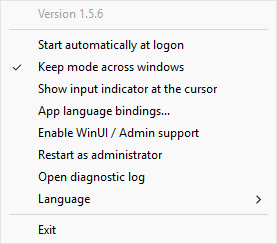
Keep mode across windows (on by default) — type Chinese in one window, switch to another, and Chinese comes back. Press Shift to go alphanumeric and that is what the next window gets. It follows your most recent deliberate change. Untick it in the tray menu if you do not want it.
App language bindings — pin a program to a language: a terminal always English, Word always Chinese. Right-click → App language bindings..., then Browse for the program, type just its file name to match it wherever it is installed, press Use last app, or Use window class for a program whose file cannot be read.
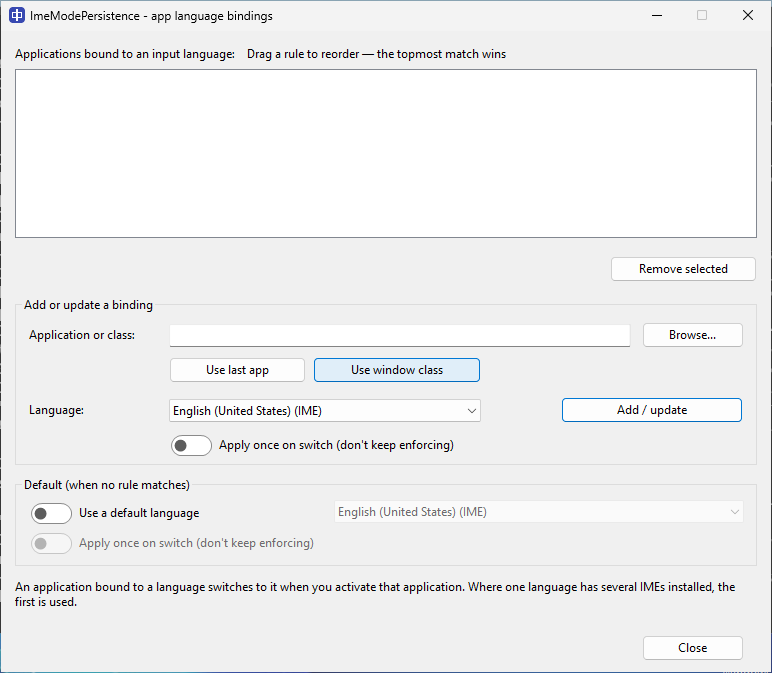
For a program whose path carries a version or whose window class has a generated suffix, type a wildcard instead: glob:*\game.exe matches the full path and class-glob:name_* the window class, using * (any run, path separators included) and ? (one character). Exact rules win over wildcards — that is the default order; you can also drag the list to customise it, and the first match wins. Each rule can apply once (set on the switch, then left alone), and an opt-in default (off by default) covers anything unmatched.
Caret input indicator (off by default) — Show input indicator at the cursor in the tray menu puts a small badge next to the text caret showing what you will actually type: 中 / あ / 한 for a language's native mode, A when the IME is in alphanumeric mode, or a language code such as EN. The choice is remembered. The badge follows the caret and stays out of its own windows; in a field whose reported caret position is unreliable — a browser address bar, because of a Chromium limitation — it is drawn above the line so it does not cover the text.
- Controlling the Chinese IME in Helldivers 2 — anti-cheat games cannot be identified by their program file and need binding by window class instead.
Hover the tray icon rather than clicking it — clicking makes the program you wanted to check lose focus, so you see the wrong thing. Four lines appear: the current program, the language bound to it, the language actually in use, and whether the last switch worked. The bound and actual languages matching means it is working.
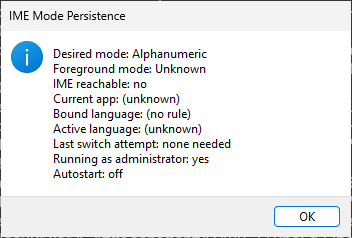
A fifth line, Normal privileges - elevated programs are invisible, means the utility is not running as administrator. Double-click for a fuller status window, including which autostart mechanism is configured.
The current program shows something starting with class: — normal, not a fault. Some programs, mostly anti-cheat games, do not let others read their file location, so the utility identifies them by window class instead. That class:... string is what a binding rule needs.
Should I run it as administrator? Only to control programs that themselves run as administrator, as most anti-cheat games do — Windows does not let a lower-privileged program read a higher-privileged one's windows, not even the window class. Autostart always runs unelevated (both installers): a program that silently starts elevated at every logon is the persistence pattern antivirus flags, so the utility deliberately does not. To control an elevated program, use Restart as administrator in the tray menu to elevate on the spot — once per session, before you need it, accepting one UAC prompt. For ordinary use (mode persistence, binding non-elevated programs) no elevation is needed and ...-setup-user.exe is enough.
Advanced: you really want elevated autostart. The utility deliberately doesn't build this in (reason above), but you can set it up yourself with a Task Scheduler "at logon, highest privileges" task. From an administrator command prompt, run (replace the path with your actual install location; the admin build defaults to C:\Program Files\ImeModePersistence):
schtasks /Create /TN "ImeModePersistence-Elevated" /TR "\"C:\Program Files\ImeModePersistence\ImeModePersistence.exe\"" /SC ONLOGON /RL HIGHEST /F
/RL HIGHEST starts it with highest privileges at logon with no UAC prompt. After creating it, turn off the app's own Start automatically at logon in the tray menu, or the unelevated HKCU Run entry will launch a second, unelevated copy at logon. To remove the task: schtasks /Delete /TN "ImeModePersistence-Elevated" /F.
A binding pins a language, not one specific IME — Chinese, English and Japanese can each be bound, but if one language has several IMEs installed the first one is used.
Some programs change it straight back — the utility retries a few times, then backs off before trying again rather than fighting the program: a few seconds at first, longer the more the program insists, up to half a minute. Switching to another window and back retries immediately.
Could anti-cheat flag it? It does not modify the game, read its memory, inject anything, or synthesise keystrokes. Switching works by posting the window Windows' standard input-language-change notification — the same one the system delivers when you press Win+Space, which the window is free to ignore — and falling back to Windows' own input settings when that does not take. The full list is on the Helldivers 2 page.
The interface follows Windows' display language — English, Traditional Chinese, Simplified Chinese, Japanese or Korean. The installer is English only. In dark mode the App-language-bindings dialog is fully themed; the transient status and error boxes keep a light body with a dark title bar.