Repository navigation
Home en
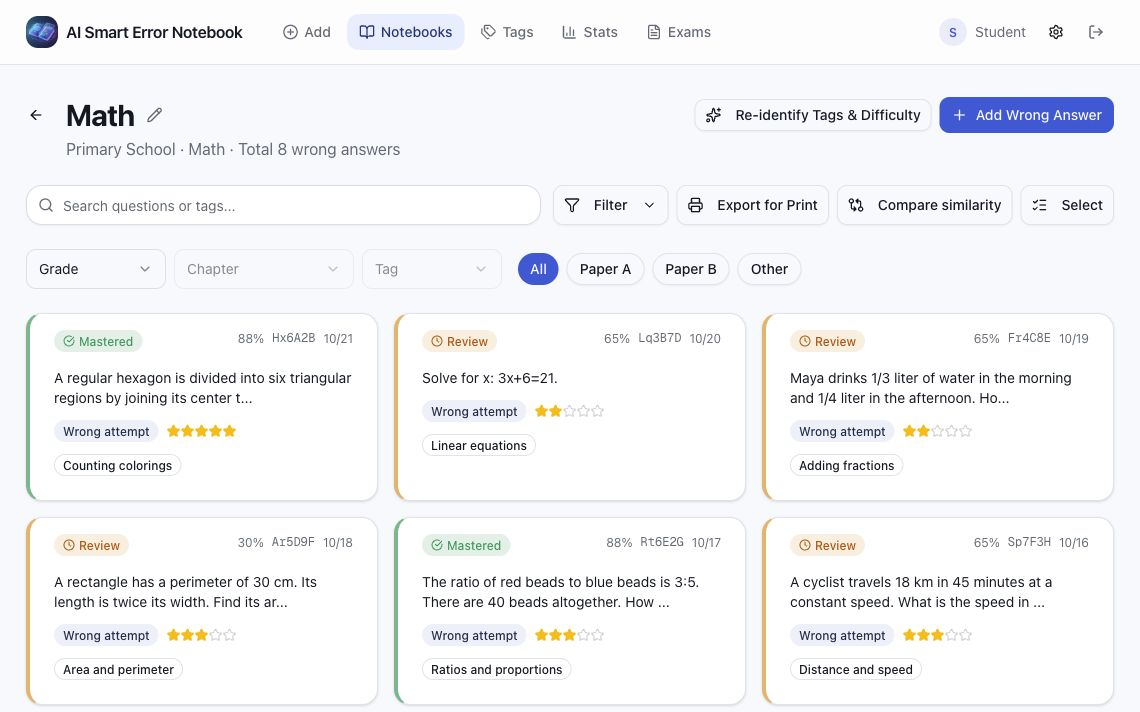
Smart Wrong Notebook turns mistakes captured by photo or typed as text into a searchable, practicable and printable question bank, and tracks mastery from the student's actual answer history.
This Wiki covers margrop/wrong-notebook. It is the English edition of the Chinese Wiki, checked against release v2026.10.31 (7ebab6b) and last updated on 2026-10-31. The project is forked from wttwins/wrong-notebook and released under the MIT License.
| What you want to do | Page |
|---|---|
| Run it locally and sign in for the first time | Quick Start |
| Deploy with Docker or installers (desktop, fnOS, Android, npm), enable HTTPS or upgrade | Deployment and Upgrades |
| Configure MiniMax, GLM, DeepSeek, Kimi, Qwen, StepFun, Volcengine, Anthropic, Azure, OpenAI or Gemini, plus cloud voices | AI Configuration |
| Add, organize, review and search questions | User Guide |
| Similar-question practice, exam papers, printing and recording results | Practice and Exams |
| Preferences, the app time zone and user permissions | Settings and Users |
| Export personal data or back up the whole site | Backup and Restore |
| Batch-import questions from an external Openclaw agent | Openclaw Integration |
| Code structure, tests and contribution rules | Development |
| Sign in after a fresh install; troubleshoot recognition, formulas or screenshots | FAQ |
- Image upload, clipboard paste, text input, cropping and multi-question selection; optionally review before saving.
- AI recognizes the question, answer, analysis, mistake cause, subject, knowledge points and a 1–5 star difficulty.
- Duplicate detection by question similarity; a repeated import records another wrong attempt on the original question.
- Markdown, LaTeX, SVG figures, SVG animated explanations with voice narration and optional GeoGebra interactive demos.
- Similar-question practice with AI grading, daily review, exam papers built from mistakes, answer history, mastery probability, statistics and print export.
- Per-user data isolation, daily AI limits, admin settings, personal preferences and Openclaw batch import.
- Fresh installs set up the admin with a one-time setup link (the install wizard on fnOS) instead of a fixed default password, then the setup wizard helps configure AI and create a notebook.
- Deploy the app and create the admin account: the desktop and standalone Android apps open the setup page automatically, fnOS asks in the install wizard, and Docker and npm use the one-time setup link from the startup log.
- Configure and test the AI; image recognition needs a model that accepts image input.
- Create a notebook with its school stage and subject, then add and review questions.
- Review with similar questions and exam papers, and record the results.
- Regularly export personal data and back up the site.