Repository navigation
Quick Start en
For regular deployments the Docker image is recommended. Follow this page when you need to debug or change the source code.
- Node.js 22 or later (24 recommended), with npm.
- Git; Python 3 is also needed to run the full CI.
- Network access to your chosen AI service, plus its API credentials.
The database is SQLite by default, so no separate database server is needed.
git clone https://github.com/margrop/wrong-notebook.git
cd wrong-notebook
npm ci
cp .env.example .env
Edit .env and at least check the database path and session secret:
DATABASE_URL="file:./dev.db"
NEXTAUTH_SECRET="replace with a randomly generated secret"
NEXTAUTH_URL="http://localhost:3000"
Generate NEXTAUTH_SECRET with openssl rand -base64 32. file:./dev.db is relative to prisma/schema.prisma, i.e. prisma/dev.db.
AI credentials can be filled in later from the admin settings in the web UI; see AI Configuration.
These steps are for a freshly created development database:
npx prisma generate
npx prisma migrate dev
npx prisma db seed
npx ts-node --compiler-options '{"module":"CommonJS"}' scripts/rebuild-system-tags.ts
The migration creates the tables, the seed script creates the admin account, and the last step builds the system knowledge-point library. To upgrade an existing production database, follow Deployment and Upgrades: back up first, then run the formal migrations.
npm run devOpen http://localhost:3000. The default admin account is:
| Item | Initial value |
|---|---|
admin@localhost |
|
| Password | 123456 |
Change the password right after the first sign-in, then configure the AI service. The default password only applies to fresh installs; upgrading an existing instance keeps its accounts and passwords.
- In the admin AI settings, pick a provider, fill in the parameters and test the connection.
- Create a notebook and choose its school stage and subject; neither can be changed later.
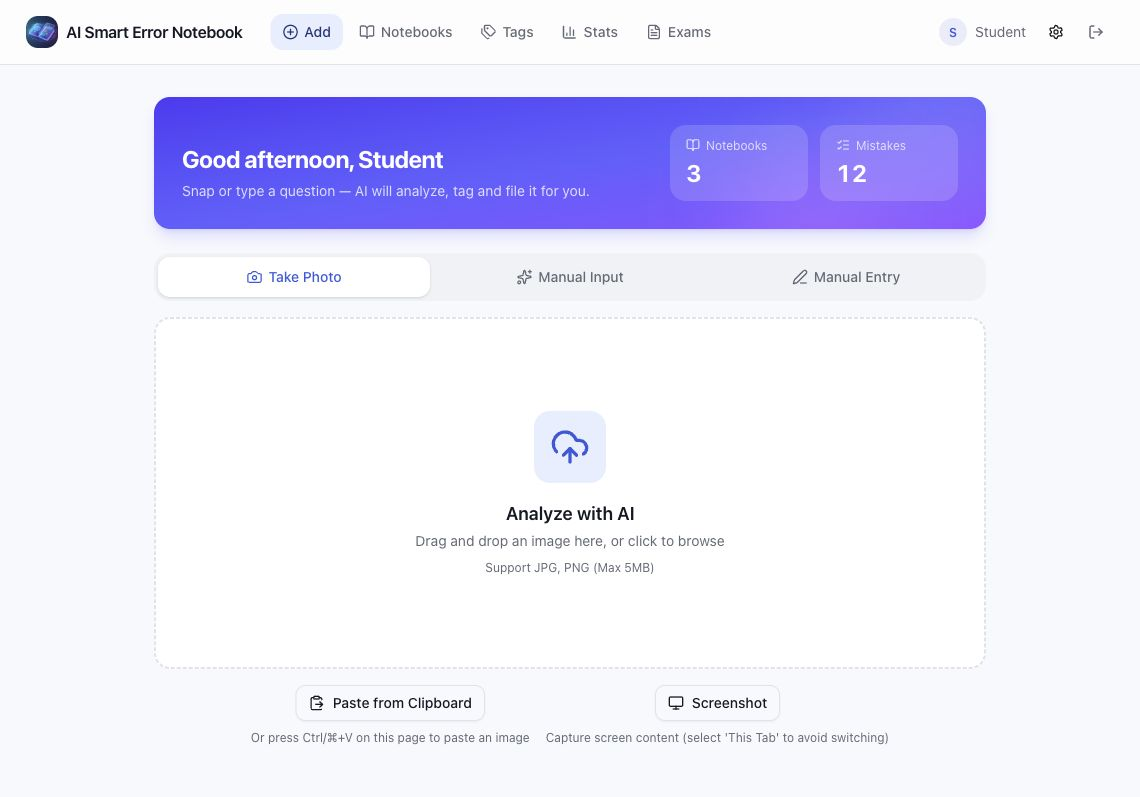
- Upload a question image or type the text, check the recognition result and save.
- Check the answer, analysis, knowledge points and difficulty on the question page, then try similar-question practice.
- iPhone / iPad: open the app in Safari and choose "Share → Add to Home Screen".
- Android: in the Chrome menu choose "Add to Home screen" or "Install app". You can also install the Android app from Releases: the standalone edition bundles the server, so no deployment is needed — use
WrongNotebook-Android-Phone-<version>.apkon phones andWrongNotebook-Android-Tablet-<version>.apkon tablets. If you already have a server, install the client editionWrongNotebook-Android-Client-Phone/Tablet-<version>.apkand enter the server address on first launch.
The PWA adds a home-screen entry and supports landscape on tablets. Over HTTPS it caches page scripts and icons and shows an offline page when the network is down; data itself is not cached offline. AI recognition and similar features still need the server and the AI service. Screenshots also depend on the browser supporting screen sharing in a secure context; see the FAQ.
For all environment variables, see .env.example.