Repository navigation
User Guide en
When creating a notebook, choose its school stage (primary, junior high or senior high) and subject. They decide which knowledge-point library the AI uses and cannot be changed later, so keep separate notebooks per stage and subject.
| Entry | When to use |
|---|---|
| Image upload, drag and drop, camera | Paper tests, workbooks and existing question images |
| Clipboard paste | Copied screenshots or images, with Ctrl/⌘+V
|
| Screenshot | The browser supports screen sharing and the page runs in a secure context |
| AI solve | You already have the question text; Markdown and LaTeX are supported |
| Direct entry | Manually record a known question, answer and analysis |
Images can be cropped first. When one image contains several questions, select them all for a batch import. Keep the full question, any required figure and the student's work, and avoid blurry images or cut-off conditions.
After enabling "Review before import" in "Settings → General", you can correct the recognition on the review page before saving. The AI may misread numbers, symbols and figure relationships, so check against the original before saving.
On import, the question text is compared with the current user's existing questions across all notebooks. The default threshold is 90% and can be changed in your general settings.
- When the similarity is strictly greater than the threshold, the existing question is returned and a wrong attempt is recorded on it.
- A similarity equal to the threshold does not count as exceeding it.
- Similarity is the character edit similarity of the normalized question text; it does not mean the math is the same.
- Records from repeated imports feed into later mastery evaluation; check the original question's answer history when needed.
Notebooks also offer a two-question similarity comparison to help decide whether the threshold suits your questions. If only a few characters of numbers or conditions differ, the similarity may still be high, so judge by the meaning of the question.
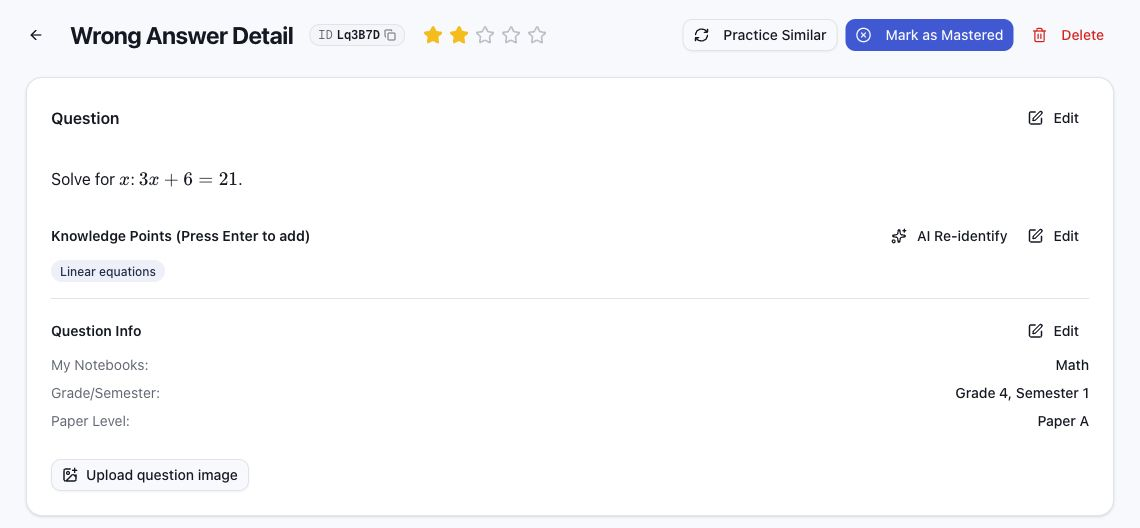
Each question shows its text, answer, analysis, knowledge points, difficulty, semester and paper level, plus the original photo.
| Information or action | Notes |
|---|---|
| 6-character question ID | Copy it and locate the question by ID in a notebook; shown as the source ID in printouts |
| 1–5 star difficulty | Rated by the AI with reference to competition-math difficulty; can be changed manually |
| Paper A/B | When not set, 1–3 stars default to paper A and 4–5 stars to paper B; a manual choice takes priority |
| Knowledge points | Tags from the matching stage and subject; re-recognize one question or a whole notebook |
| Regenerate full solution | Generates a new answer and analysis; asks for confirmation before overwriting |
| Fix LaTeX | Appears when formula syntax issues are detected, letting the AI correct the formulas |
| Original image | View, replace or add it to check the recognition |
Unrated questions are not assigned a paper level by the default rule alone. Regenerating the full solution keeps the knowledge points and mistake information.
- SVG figures: static SVG generated by the AI from the question, used on the detail page, in practice and in printouts; the original image can still be viewed separately.
- SVG animated explanations: step-by-step demonstrations of the solution with pause, seeking, replay and full screen; enabled by default in personal settings. Animation text follows the interface language; Chinese and English versions are generated and saved separately, and switching the language shows the matching version automatically.
- GeoGebra interactive demos: interactive figures for math and physics questions; disabled by default in personal settings.
Generated animations and GeoGebra demos can be deleted after confirmation. Check generated figures and solutions manually, especially geometric positions, counting steps and conclusions.
Filter by mastery status, knowledge point, time, grade and semester, or paper level, then act on the results in bulk or print them. Before deleting, confirm the filters and selection; back up your data when it must be kept long term.
Questions, answers and analysis support Markdown, and formulas are rendered with KaTeX:
Inline: $a^2+b^2=c^2$ or \(a^2+b^2=c^2\)
Display: $$\frac{a}{b}$$ or \[\frac{a}{b}\]
While editing you can switch between source and preview. For complex tables and formulas, see the Markdown guide and the table recognition notes.
Next: Practice and Exams.