3. View UI UX
The driving goal of the Rememri UI is, like all UIs, to be easy and intuitive to use. We ensure this by having many similarities between the Rememri UI and other popular social media UIs, most notably Instagram. On every page (with the exception of AR and Camera View), there is a top-bar which contains links to the Account and Friends pages and a bottom-bar which contains a page label and a back button. These design elements closely follow Instagram's layout, so during the app's usability testing users found it quite easy and familiar to navigate.
The 2D Map also uses a very similar interface to Google Maps, so testing users found it familiar and easy to use.

GitHub Links: Frontend View
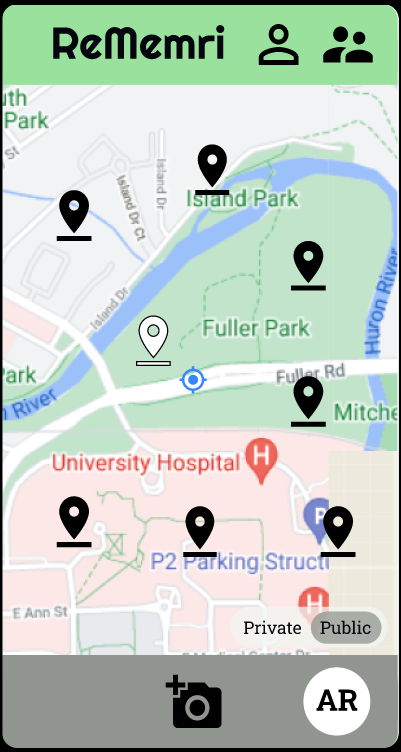
- App name visible in top tool bar
- Buttons linking to user account page and friends pages in top tool bar
- Two dimensional map showing the user's current location and nearby posts
- Slider at the bottom of the map denoting whether all public posts will be shown, or only the user's friends posts
changed from the original mockup to include both "Public" and "Private" labels in the slider for clarity and ease of use
- Camera button in bottom tool bar connects to Camera View and will lead user through taking, editing, and posting a photo
- AR button in bottom tool bar connects to Augmented Reality View
GitHub Links: Frontend Implementation
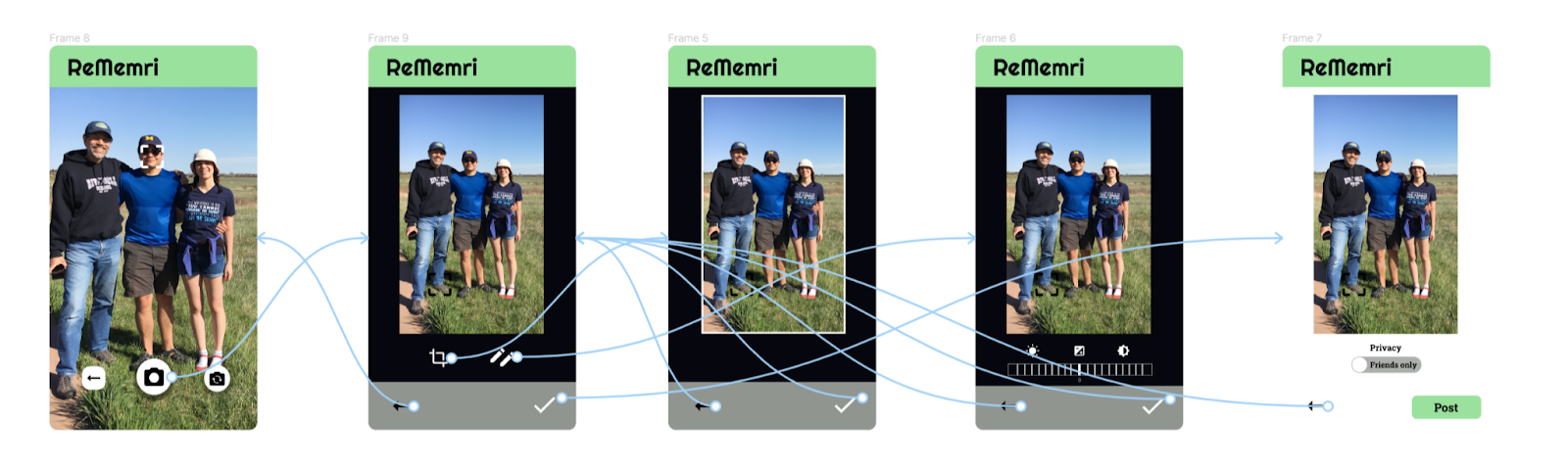
- Android Camera functionality allows user to take a picture and perform based edits, like cropping
- Once the photo is taken and edited, a custom screen will show where the user decides the privacy level for the new post (either public or friends-only)
- When finished, the user can press the "Post" button to post the photo to the AR view and the 2D Map
GitHub Links: Frontend View, Frontend Model and Controller
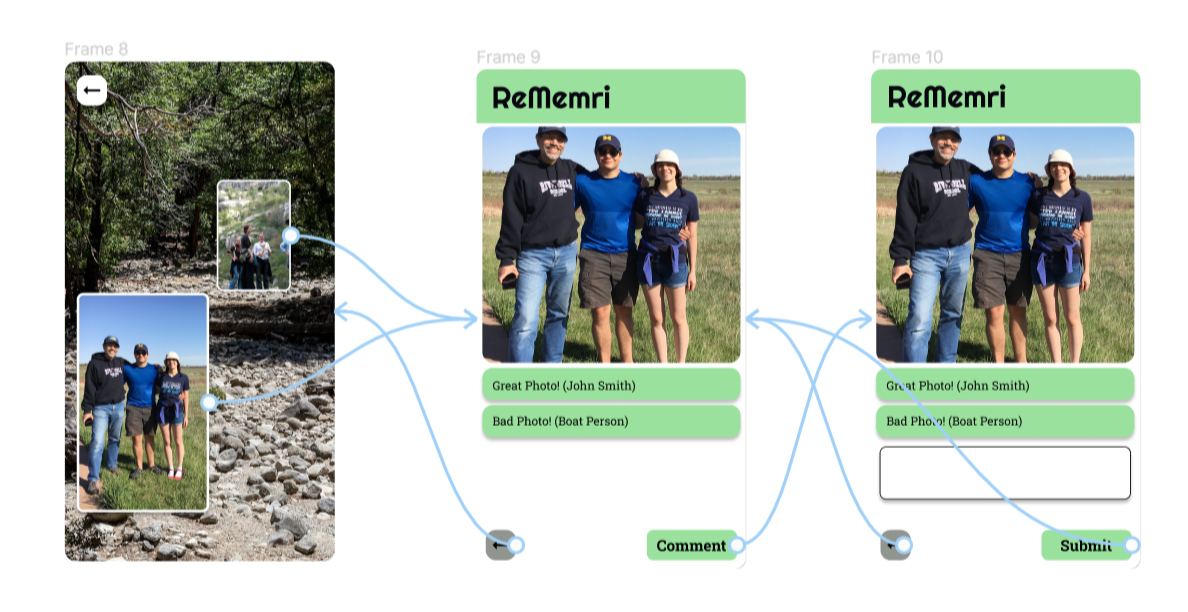
- The user is able to view nearby posts in Augmented Reality
- The posts will be displayed as floating images in rectangular picture frames
- When the user taps on a floating frame, it will open the Post View In 2D
GitHub Links: Part of MVP, not yet implemented - see Figma for mockup version
- As shown above in the AR view image, when a user clicks on a floating frame, it will take them to a view of the post in 2D
- Below the post are comments that other users have made on the post
- The user is able to make comments below the post by using the text field and comment button
GitHub Links: Frontend Layout, Frontend Implementation

- View Friends
- Add Friends
- Manage Friend Requests
GitHub Links: Login Frontend Layout, Sign Up Frontend Layout
- Guest
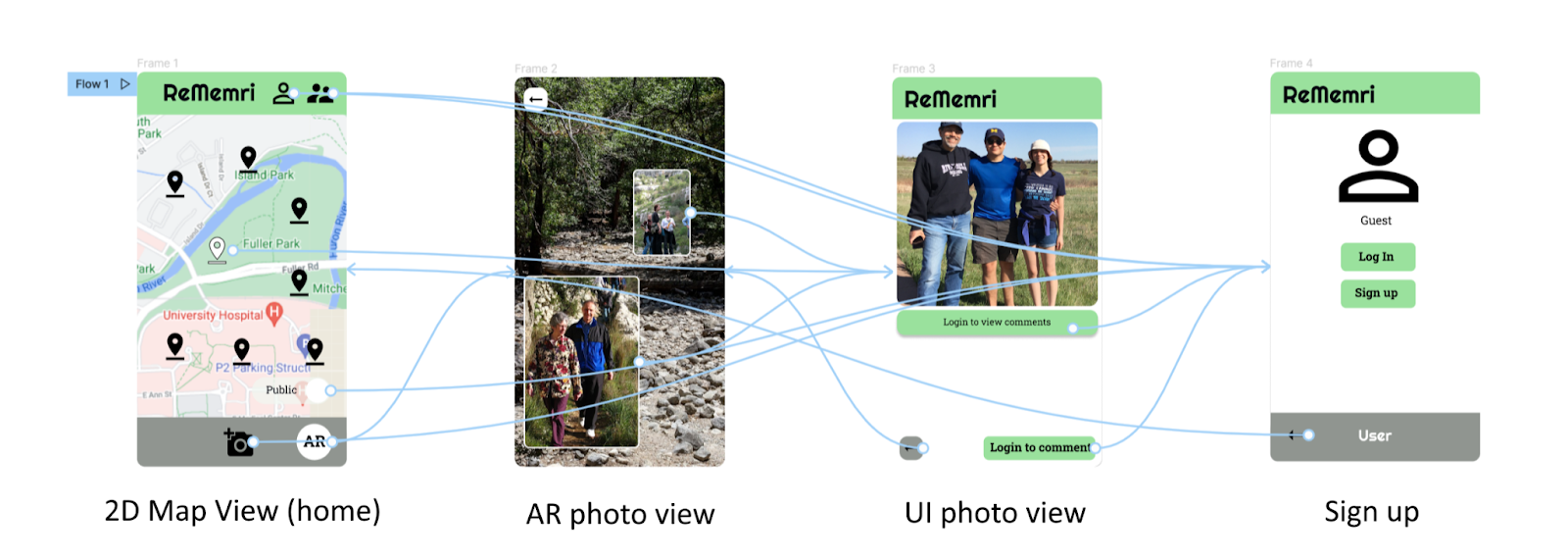
- When the user is NOT logged in to their Rememri account, they will only be able to see public posts in the 2D Map View and the AR View
- When they navigate to the User Account Management view, they will see an option to log in or sign up
- Logged In User
- Once the user is logged in to their account, they will be able to view their friend's posts and toggle between public and friends-only view.
- When they navigate to the User Account Management view, they will see an option to log out of Rememri