Manage source ports
As of vE1M0.3.1, you can configure multiple source ports (different engines or different versions of the same engine) and pick which one to use per game instance.
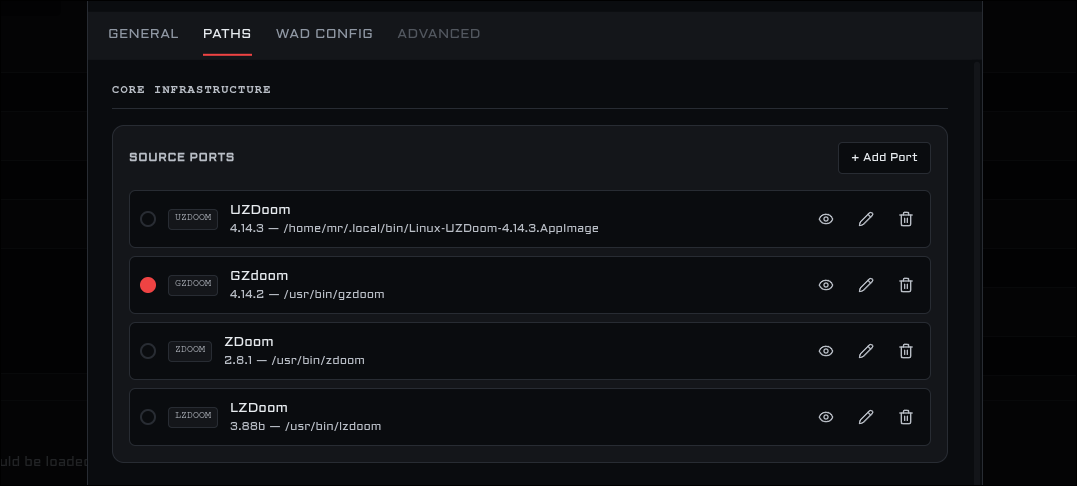
Click the cog icon () in the top navigation → core_settings → Paths tab. The Source Ports section is at the top under CORE INFRASTRUCTURE.
-
Click + Add Port.
-
A file picker opens — select your source port executable (binary, AppImage, or .exe).
-
An inline form appears where you can set:
Field Description Name Human-readable label, auto-filled from filename. Version Optional version string (e.g. 4.12.2).Executable Path Full path to the binary — can be typed or browsed with the folder icon. Family Engine variant used for modpack import matching (see below). -
Click Save.
Each port has a radio dot on the left — click it to set that port as the default. The default is used when a game instance has no specific port assigned, or when an imported modpack can't be matched to any port.
Click the eye icon to toggle visibility in game instance selectors. Hidden ports remain in your config but won't appear in the combobox dropdown.
- Pencil icon — opens the inline form pre-filled with current values.
- Trash icon — removes the port. If you delete the default, the first remaining non-ignored port becomes the new default. Game instances referencing a deleted port fall back to the default.
When installing or editing a game instance, the Source Port field is a filterable combobox showing only non-ignored ports (name, family badge, version). No free-text entry — you must pick from the list.
On first launch after updating, the old single sourcePortPath is automatically converted into a port entry named "Default (migrated)" with family auto-detected and set as default. Old mod files using the legacy sourcePort string are backfilled to sourcePortId. Your original path is preserved throughout.
When launching a game, the executable is resolved in this order:
- The port referenced by the game instance (
sourcePortId) - The default port (
defaultSourcePortId) - The first non-ignored port in the list
- Error — if no ports are configured, you'll be prompted to add one.
| Problem | Likely cause | Solution |
|---|---|---|
| "No source ports configured" on launch | No ports in the list | Add at least one source port in Settings → Paths |
| Game launches with the wrong engine | Game instance has a different port selected | Edit the instance and check the Source Port selector |
| Combobox is empty | All ports hidden or none configured | Check eye icons in Settings → Paths |
| Can't find old port after updating | Migration only runs once | Look for a port named "Default (migrated)" in Settings → Paths |