


Provides Java ™ language support via java-language-server, which utilizes Eclipse ™ JDT.
- Install the Extension
- If you do not have a Java 8 Development Kit correctly set
- Download and install a Java 8 compatible development kit.
- Extension is activated when you first access a Java file.
- Initial activation can be longer since it requires extension to download additional parts.
- Recognizes only projects with maven build files on the directory hierarchy, or to a lesser extent, simple Eclipse projects, i.e. containing .project and .classpath files.
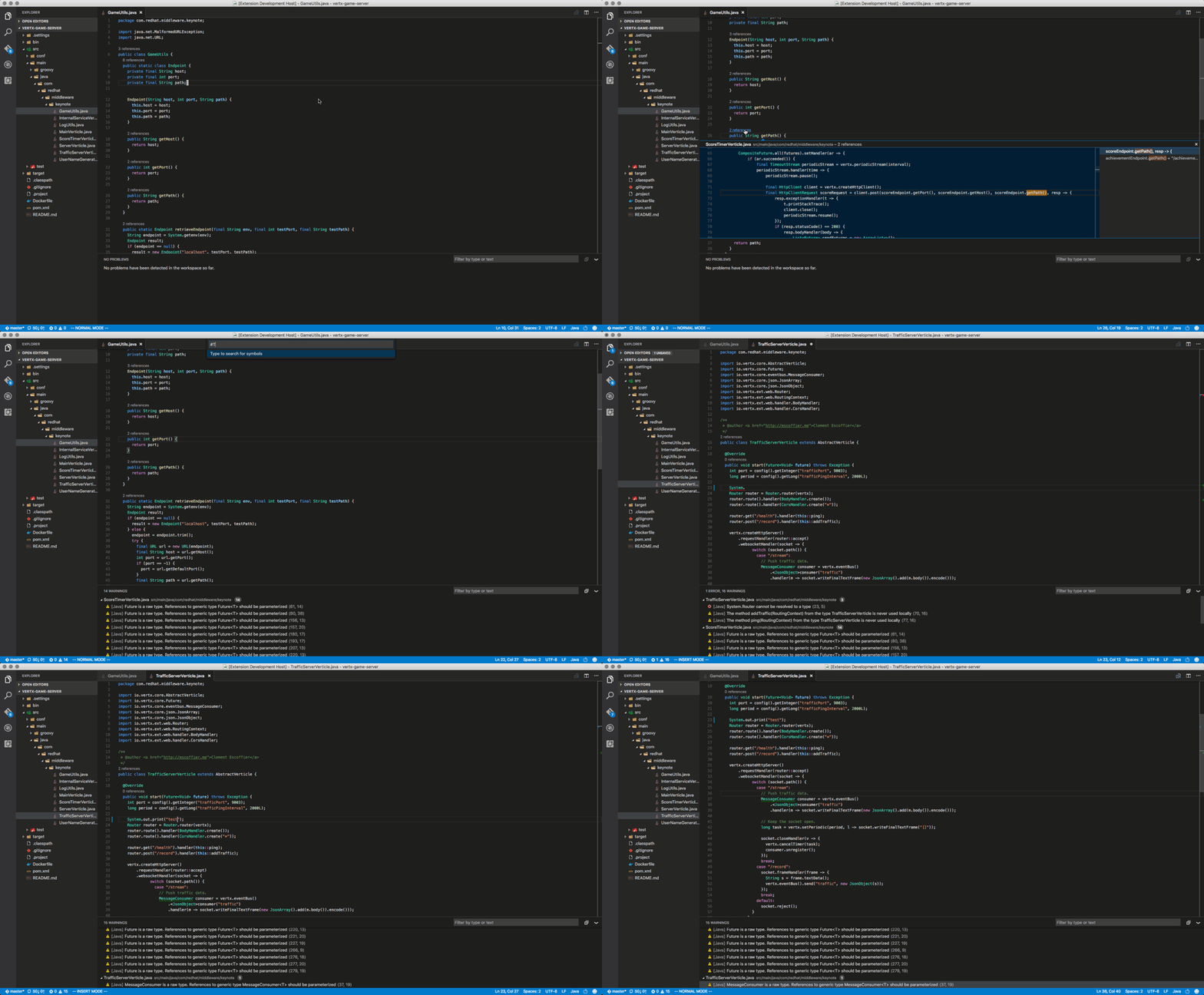
- Maven pom.xml project support
- Basic Eclipse Java project support
- As you type reporting of parsing and compilation errors
- Code completion
- Javadoc hovers
- Code outline
- Code navigation
- Code lens (references)
- Highlights
- Code formatting
- Code snippets
See the changelog for the latest release.
The path to the Java Development Kit is searched in the following order:
- the
java.homesetting in VS Code settings (workspace then user settings) - the
JDK_HOMEenvironment variable - the
JAVA_HOMEenvironment variable - on the current system path
Starting from version 0.0.8, the following command is available:
- Update Project configuration (
Ctrl+Alt+UorCmd+Alt+Uon MacOS): is available when the editor is focused on a Maven pom.xml or a Gradle file. It forces project configuration / classpath updates (eg. dependency changes or Java compilation level), according to the project build descriptor.
Starting from version 0.0.5, the following settings are supported:
java.home: Absolute path to JDK 8 home folder used to launch the Java Language Server. Requires VS Code restart.java.jdt.ls.vmargs: Extra VM arguments used to launch the Java Language Server. Requires VS Code restart.
-
Due to size restrictions on the marketplace extension downloads additional required parts check that they are downloaded under
~/.vscode/extensions/redhat.java-0.0.7/serverfolder. You should see a folder namedplugins. -
Check the status of the language tools on the lower right corner (marked with A on image below). It should show ready (thumbs up) as on the image below. You can click on the status and open the language tool logs for further information in case of a failure.

- Report any problems you face to the project.
This is an open source project open to anyone. Contributions are extremely welcome
For information on getting started refer to java-language-server.
- File a bug in GitHub Issues.
- Tweet us with other feedback.
EPL 1.0, See LICENSE for more information.