Making a Trace
- Check whether the game is 64-bit or 32-bit.
To determine that on Linux, use
filecommand in the terminal:
file /path/to/executable/program.exe
where /path/to/executable/ is an an actual location of the game's EXE file and program.exe is its actual name.
If the game is 32-bit, you will see this in the output
PE32 executable (GUI) Intel 80386, for MS Windows
And if it's 64-bit, you will get this instead:
PE32+ executable (GUI) x86-64, for MS Windows
- Open
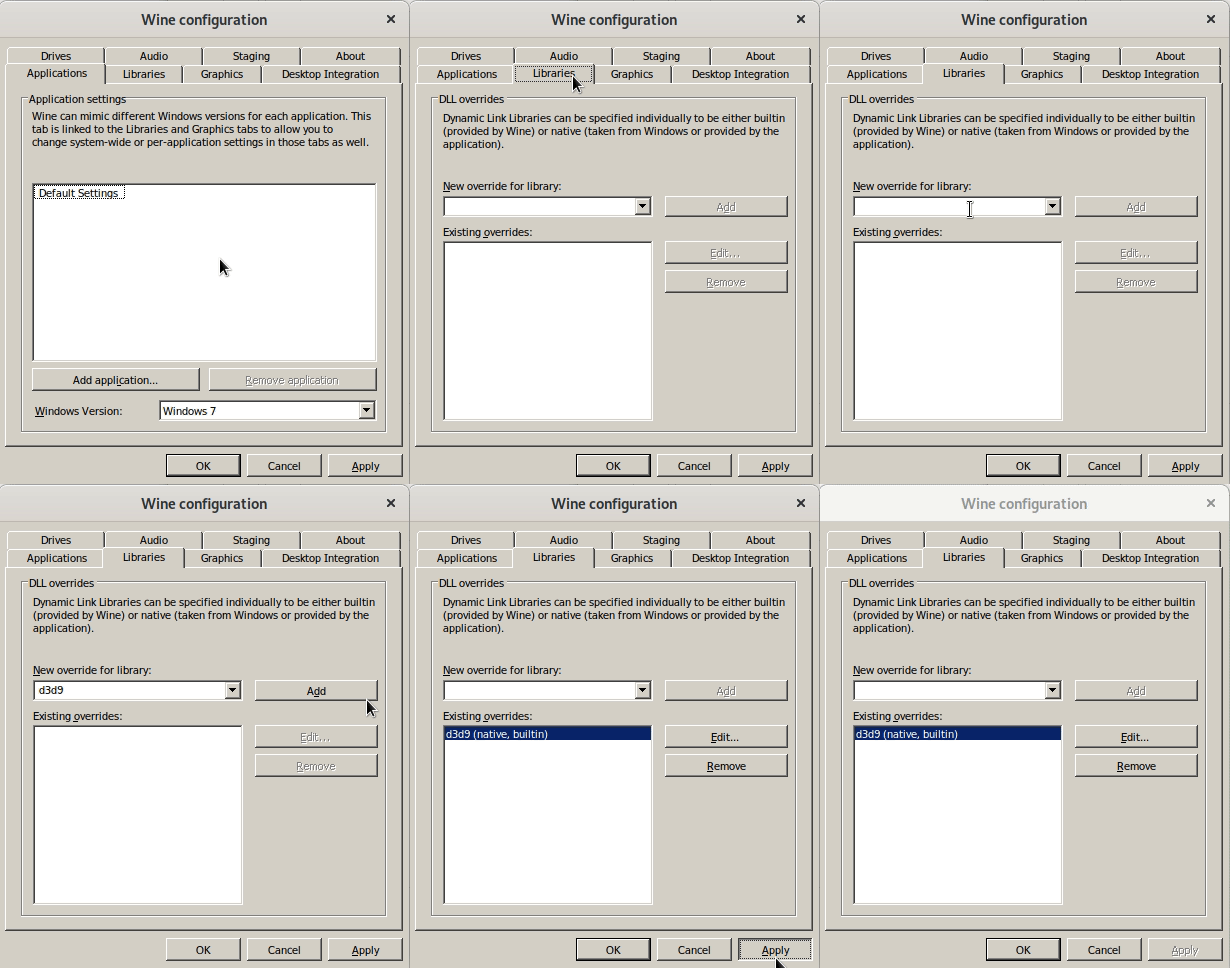
winecfgand add anative,builtinoverride ford3d9. Here's a GIF that showcases the process:
- Download prebuilt apitrace files: https://people.freedesktop.org/~jrfonseca/apitrace/apitrace-msvc-latest.7z
- Extract the archive.
- Now you have to copy the appropriate
d3d9.dllfile.
If the game is 32-bit, choose the file located in
apitrace-msvc/x86/lib/wrappers
And if it's 64-bit, choose the file located in
apitrace-msvc/x64/lib/wrappers
- Now copy that DLL file into the same folder as the game's .EXE.
- Before the next step, make sure you disable or get rid of D9VK files first, as it's preferred that you use WineD3D to make an apitrace.
- Launch the game and try to reproduce your issue as fast as possible, then exit the game after that (using ALT+F4 is fine).
- Locate the .trace file. In wine, you can usually find it in
/path/to/prefix/drive_c/users/alex/Desktop, where/path/to/prefixis the location of your Wine prefix. If you've done everything correctly, the file should have the size of at least a few hundred megabytes (or at least one hundred if the game is very simple), quite often it's over 1 GB. If the size is way less than that (like a few kilobytes), then it means the game is not really traceable, at least on Linux. Make sure you mention this in the issue. - Compress the .trace file (preferably in something like
.tar.xz) and share it using a common file sharing service like Google Drive or Mega.
If you have access to Windows, it's best that you perform the tracing on it rather than on Linux.
- Check whether the game is 64-bit or 32-bit. To do that on Windows, right-click on the executable file you want to check, select “Properties”, then click the tab “Compatibility”.
If the first Windows version in the list is "Windows Vista", then it means the game is 64-bit.
If you see older Windows versions in that menu, like "Windows 98", then the game is 32-bit.

- Download prebuilt apitrace files: https://people.freedesktop.org/~jrfonseca/apitrace/apitrace-msvc-latest.7z
- Extract the archive.
- Now you have to copy the appropriate
d3d9.dllfile.
If the game is 32-bit, choose the file located in
apitrace-msvc/x86/lib/wrappers
And if it's 64-bit, choose the file located in
apitrace-msvc/x64/lib/wrappers
- Now copy that DLL file into the same folder as the game's .EXE.
- Launch the game and try to reproduce your issue as fast as possible, then exit the game after that (using ALT+F4 is fine).
- The .trace file should be located on your Desktop. If you've done everything correctly, the file should have the size of at least a few hundred megabytes (or at least one hundred if the game is very simple), quite often it's over 1 GB. If the size is way less than that (like a few kilobytes), then it means the game is not really traceable, at least on Linux. Make sure you mention this in the issue.
- Compress the .trace file (preferably in something like
.7z) and share it using a common file sharing service like Google Drive or Mega.