

RecordPointerUsage
This sample program shows how to use BindSourceAdapter in LiveBindings and StringGrid.
You may have a question why do I have to use a strange and hard method like this. If you think so, you have to use this method soon. Because the world is changing. Classical approachments decrease and leave its place to new perspectives that need less time to modify and develop.
But this approach is necessery for some other situations; if you work on REST/SOAP client software for example. When you take REST data from server, it is automatically serialize to an object list as just following structure. In next a few days, I have planned to prepare a sample uses REST.
Our data structure is;
TKisi = class
private
  fIsim : string;
  fSoyisim : string;
  fYas : Integer;
public
  property Isim: string read fIsim write fIsim;
  property Soyisim: string read fSoyisim write fSoyisim;
  property Yas: Integer read fYas write fYas;
  constructor Create(const aIsim, aSoyisim : String; aYas : Integer);
end;
- Step-1 : Create an empty VCL project and save all to disk.
- Step-2 : Drop a StringGrid on the form from component palette.
- Step-3 : Drop TEdit 3 times. Drop TLabel 3 times and fill their captions. Change their names.
- Step-4 : Drop 2 TButton on the form and give names them as btnOk and btnCancel.
- Step-5 : Drop 3 TSpeedButton under the StringGrid1 like following picture. And give name them btnAdd, btnEdit, btnDelete.
- Step-6 : Place all components as following picture.
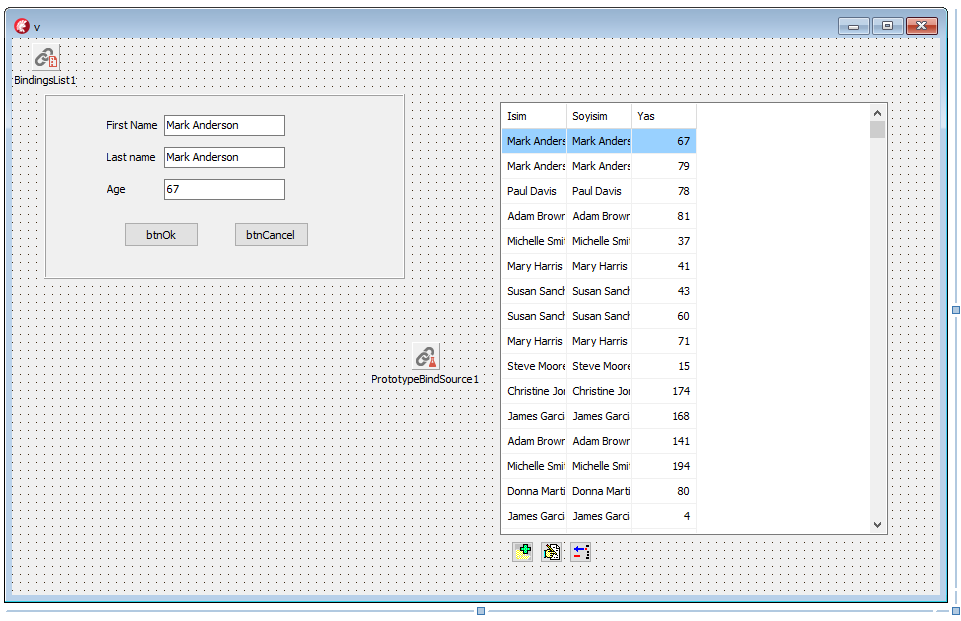
- Step-7 : Drop a TProtoTypeBindSource on the form.
- Step-8 : Press right click on PrototypeBindSource1 and select Fields Editor. Add appropriate fields with your data structure.
- Step-9 : Field names of PrototypeBindSource1 must be identical with this data structure. So, field names and class' field names must be same.
- Step-10 : Open LiveBindings designer.
- Step-11 :
- Link PrototypeBindSource1 and StringGrid1 on designer.
- Link edFirstName.Text to PrototypeBindSource1.Isim.
- Link edLastName.Text to PrototypeBindSource1.Isim.
- Link edAge.Text to PrototypeBindSource1.Yas.
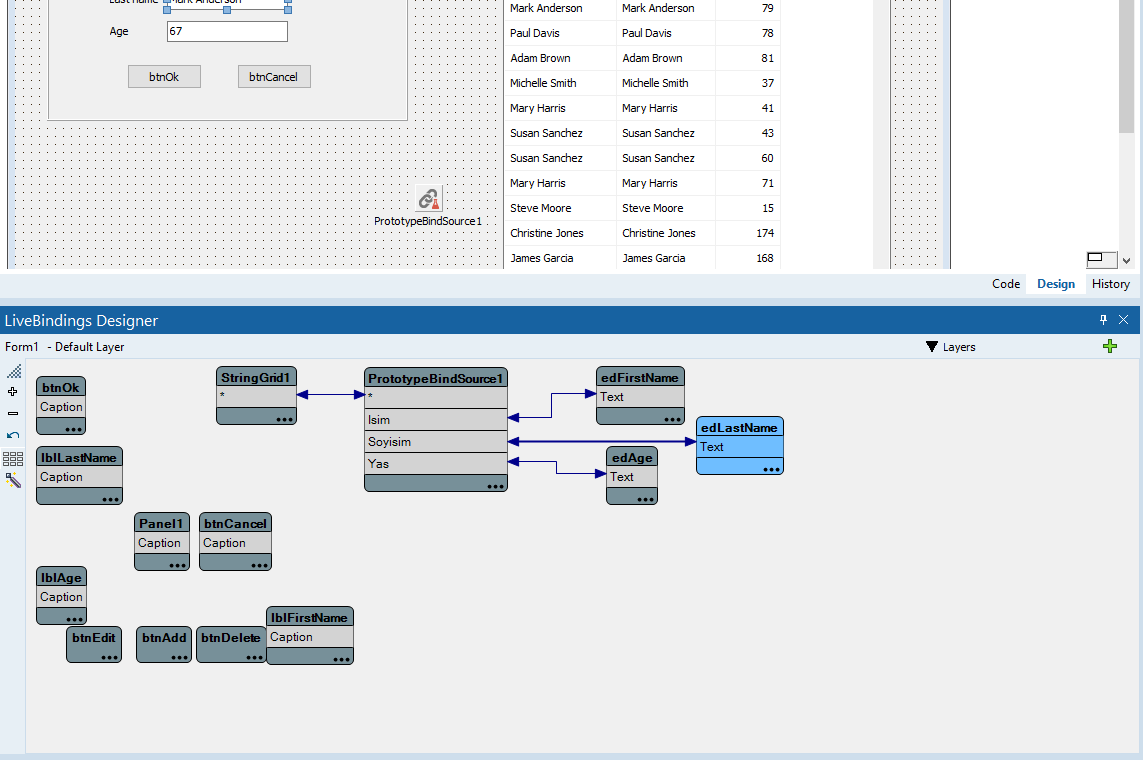
- Step-12 : Build and fill OnCreateAdapter event of PrototypeBindSource1. It has to be so;
procedure TForm1.PrototypeBindSource1CreateAdapter(Sender: TObject;
  var ABindSourceAdapter: TBindSourceAdapter);
begin
  fMyPersons := TObjectList<TKisi>.Create(True);

  fMyPersons.Add(TKisi.Create('Ahmet', 'Abacı', 33));
  fMyPersons.Add(TKisi.Create('Mehmet', 'Görmez', 38));
  fMyPersons.Add(TKisi.Create('Cenk', 'Görmez', 12));
  fMyPersons.Add(TKisi.Create('Hale', 'Görmez', 34));
  fMyPersons.Add(TKisi.Create('Jülide', 'Tekir', 55));
  fMyPersons.Add(TKisi.Create('Timur', 'Allıkaya', 72));
  fMyPersons.Add(TKisi.Create('Demir', 'Demir', 50));
  fMyPersons.Add(TKisi.Create('Aslan', 'Aslan', 99));
  fMyPersons.Add(TKisi.Create('Güler', 'Dolunay', 21));

  ABindSourceAdapter := TListBindSourceAdapter<TKisi>.Create(Self, FMyPersons, True);
  ABindSourceAdapter.AfterInsert := BSAAfterInsert;
  ABindSourceAdapter.AfterEdit := BSAAfterEdit;
  ABindSourceAdapter.AfterPost := BSAAfterPost;
  ABindSourceAdapter.AfterCancel := BSAAfterCancel;

  btnOk.Enabled := False;
  btnCancel.Enabled := False;

end;
- Next steps : You will found all other needed codes in MainForm source. For example buttons' onClick events.