The project demonstrates use of .NET and a Microsoft SQL database in a web API, which will be the foundation of a React App

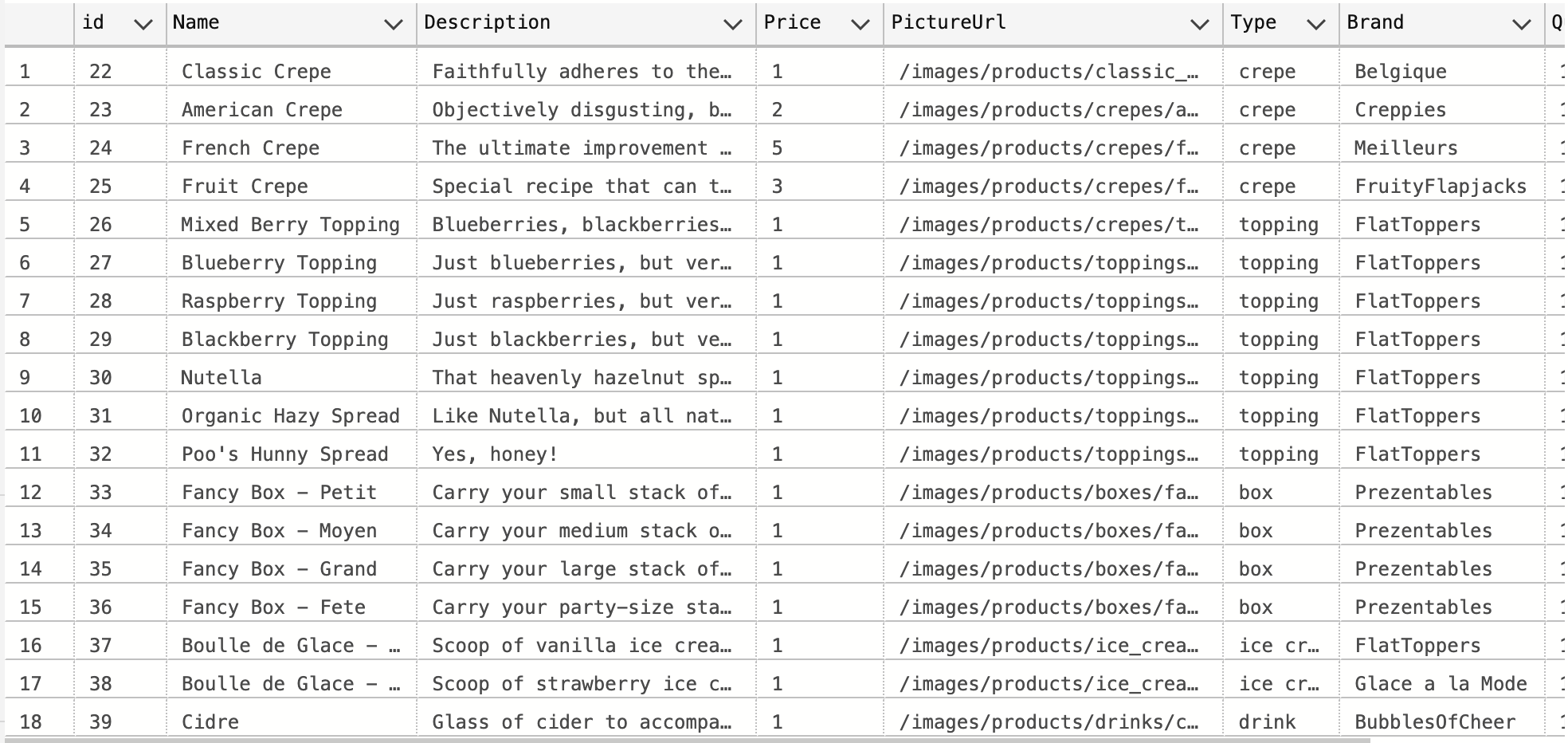
Start database In appsettings.Development.json: - find "DefaultConnection": "Server=localhost;Database=store;User=sa;Password=;" - replace with your actual database password
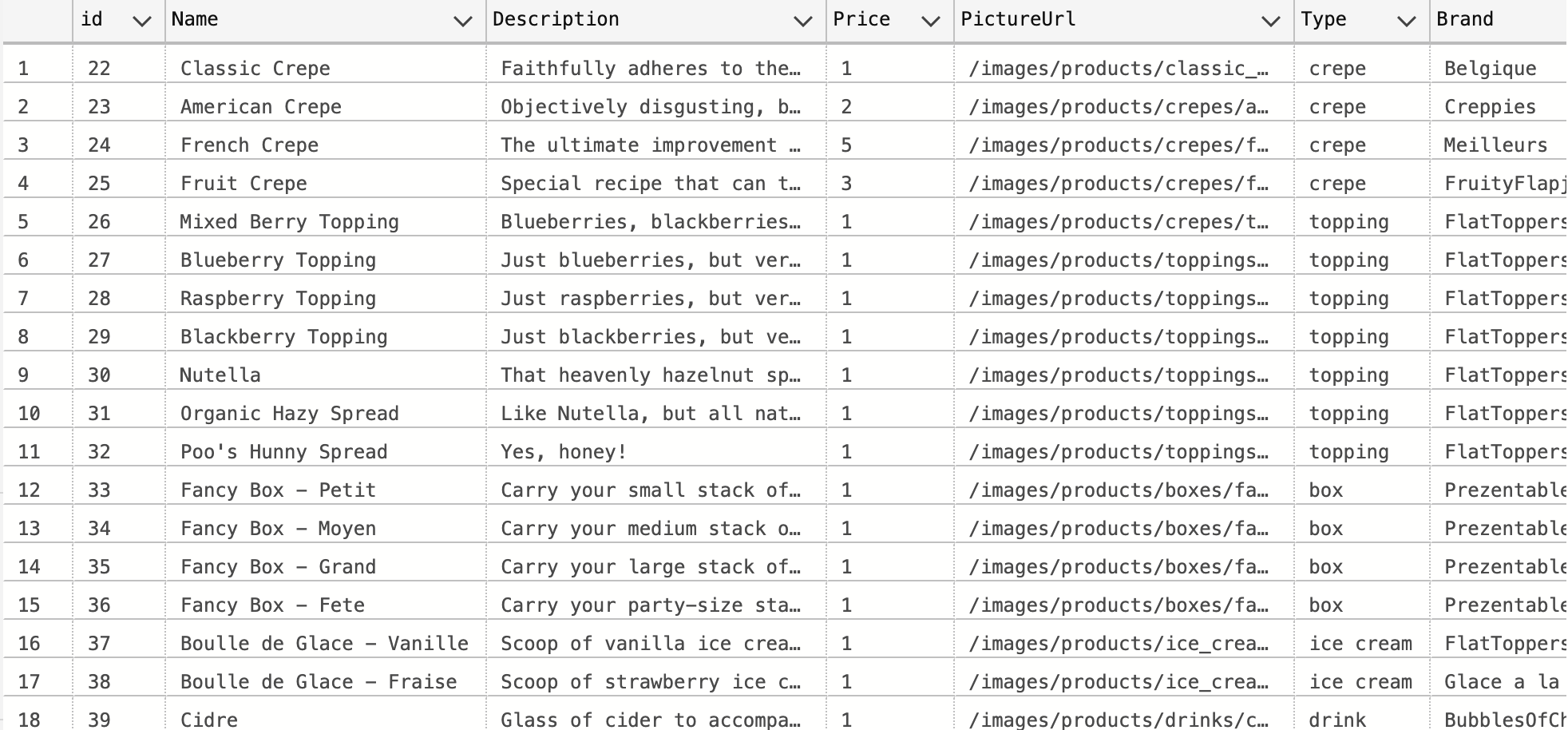
In the terminal: dotnet ef database update
In the terminal: dotnet watch run
In browser: http://localhost:5000/swagger "Try It Out" "Execute" [results appear in Response Body below]
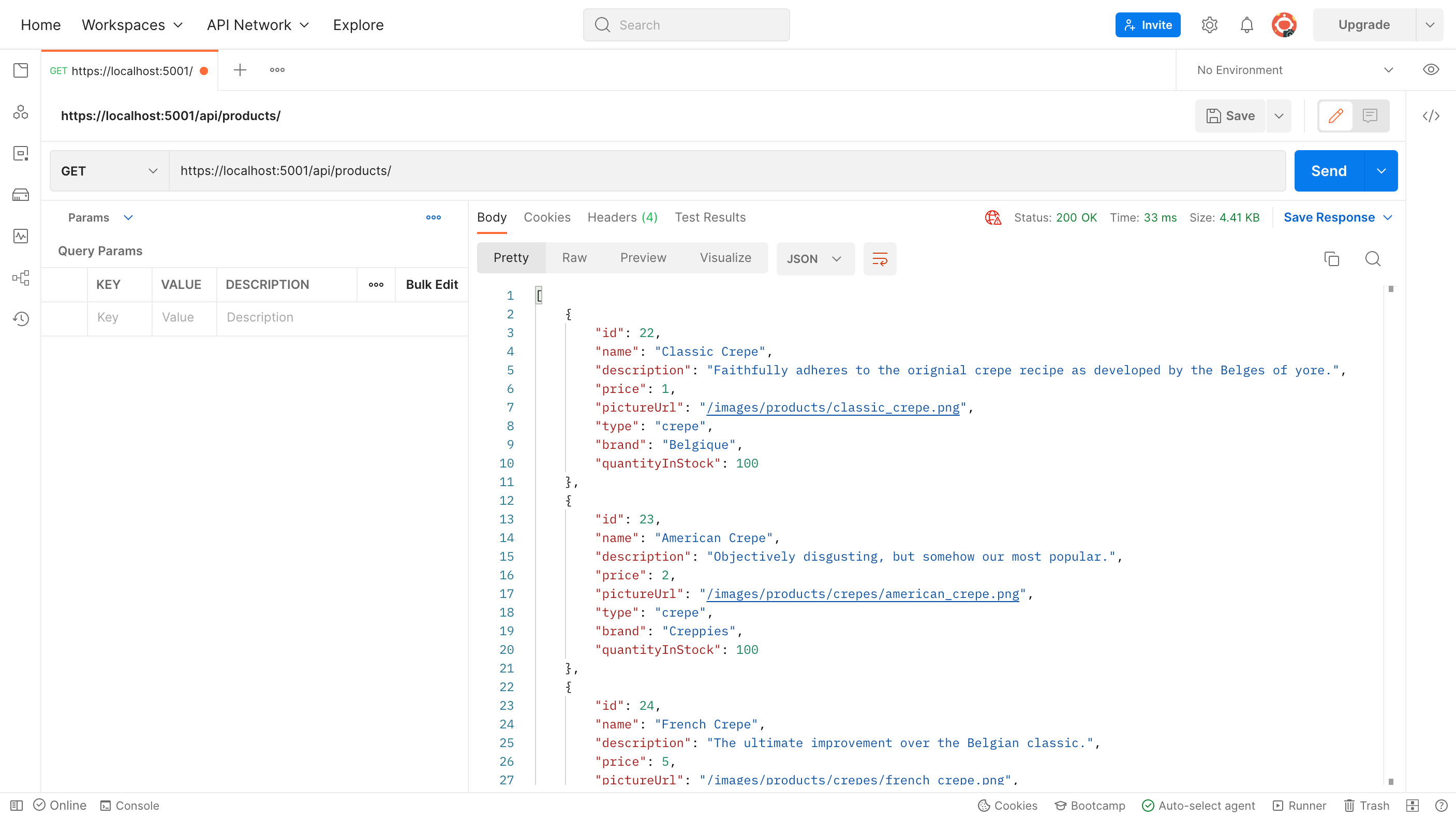
In central pane:
> In first dropdown (look for "Send" button, and then go to far left of the same row):
    Select "GET" from dropdown (probably already selected)
> In central field, right of "GET":
    http://localhost:5000/api/products
> Hit "Send" Button
> [results appear in Response Body below]
> In first dropdown (look for "Send" button, and then go to far left of the same row):
    Select "GET" from dropdown (probably already selected)
> In central field, right of "GET":
    http://localhost:5000/api/products/{id}
    ({id} is an integer - an item's database key.  Try http://localhost:5000/api/products/1 if unsure)
> Hit "Send" Button
> [result appears in Response Body below]
> PRELIMINARY STEP: for convenience, generate a template first, by copying the result of a GET/{id} query above
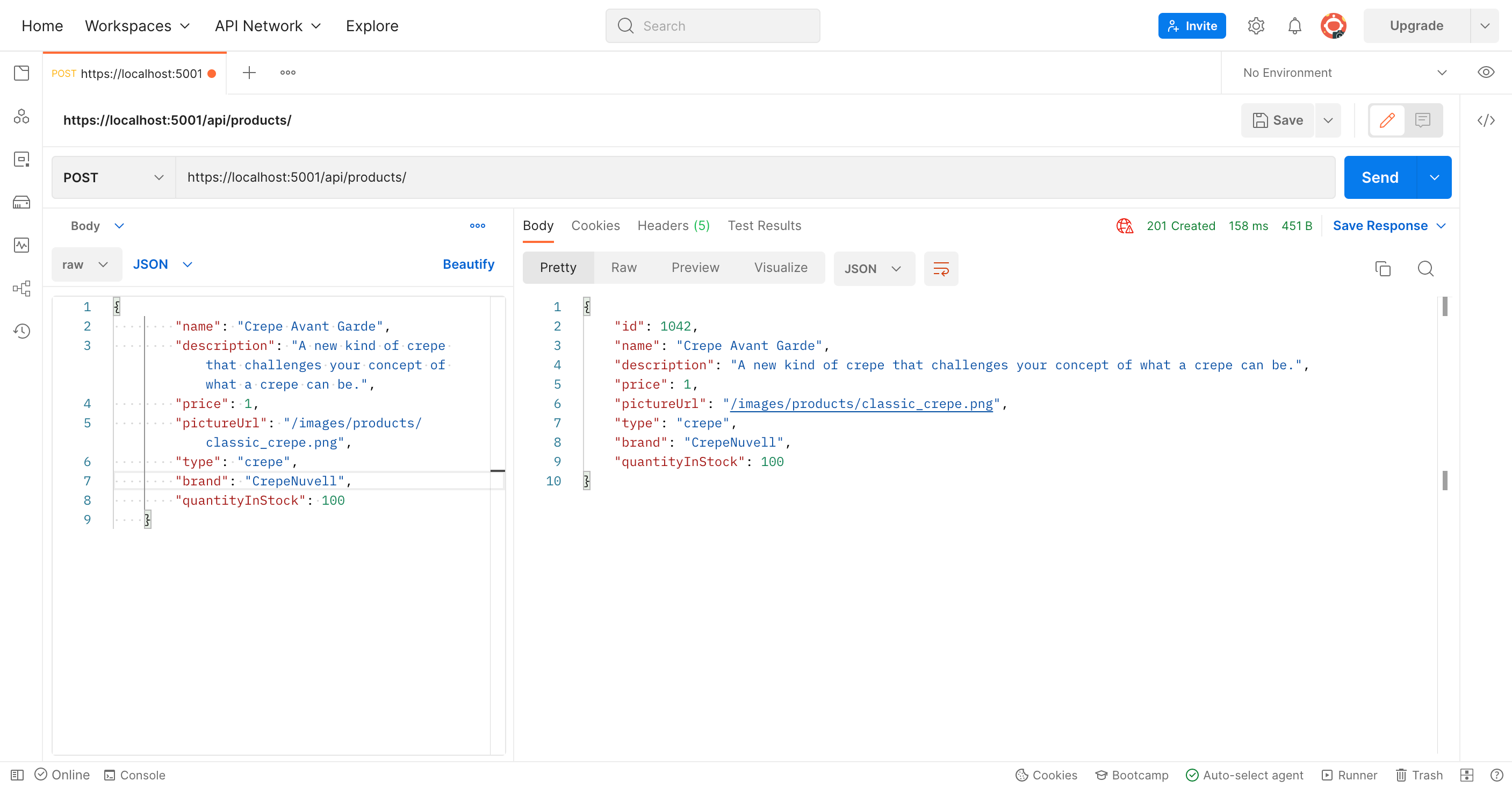
> In first dropdown (look for "Send" button, and then go to far left of the same row):
    Select "POST" from dropdown
> In central field, right of "POST":
    http://localhost:5000/api/products
> In row of options below top field:
    select "Body"
> In new row that appears just below
    select "raw" (NOTE: an empty box will appear below.  This will be used shortly)
> In "Text" dropdown that appears in same row
    select "JSON"
> In the empty box that appeared when clicking "raw" (above)
    - Paste in the text copied in the preliminary step above.
    - Delete the first line that starts with "id" :
    - Edit any value for the other lines to create your new item (each line has a ":", dividing the field on its left from the valule on its right)
    - Make sure there are still opening and closing curly braces around your entry ({})
> Hit "Send" Button
> [result appears in Response Body below] (note your new item now has an "id" value in the first line)
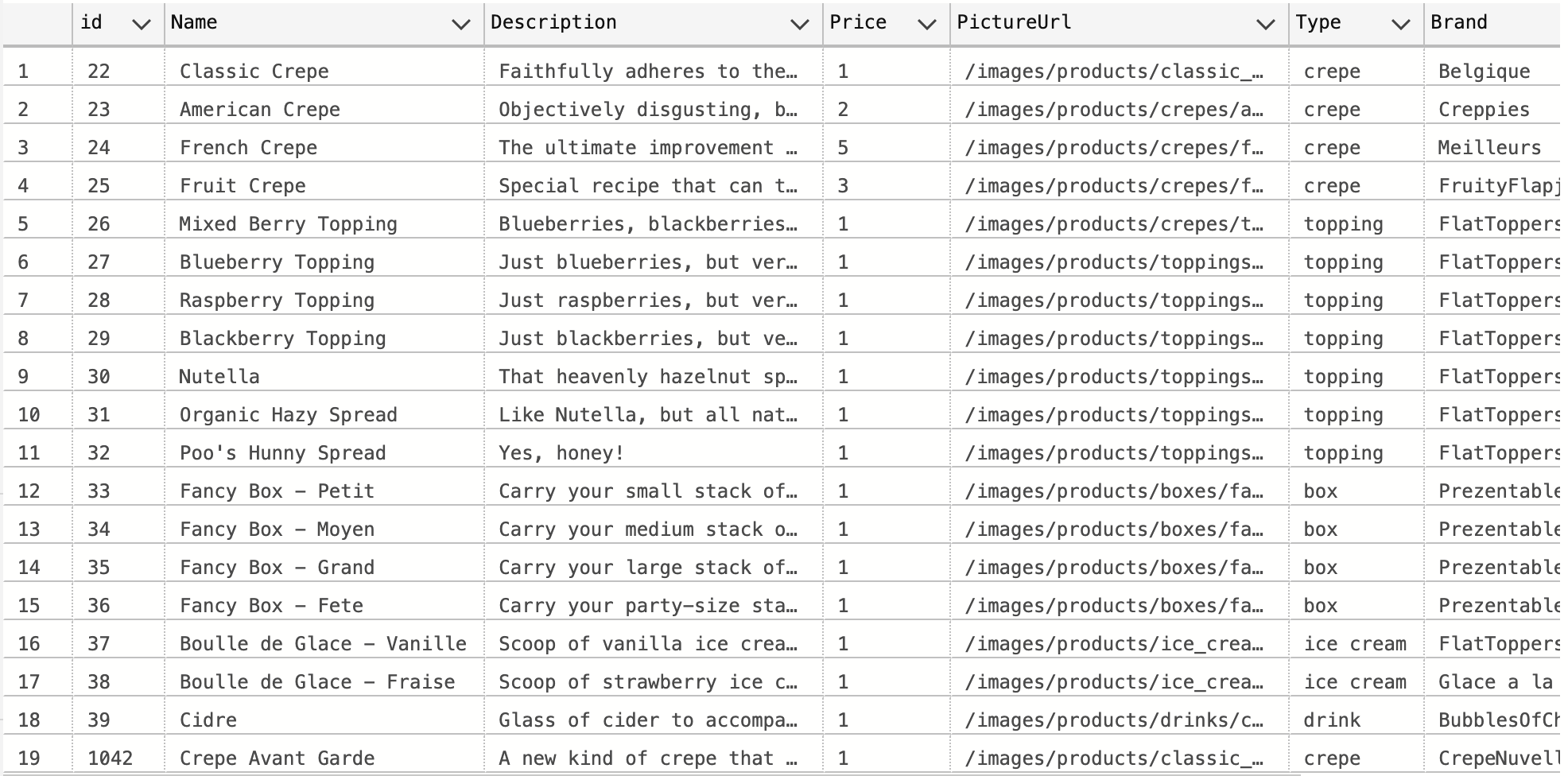
> Bonus 1: perform a GET/{id} above, using the id of your new item, and it will appear in the result
> Bonus 2: perform a GET above, and your new item will appear as the last item in the result
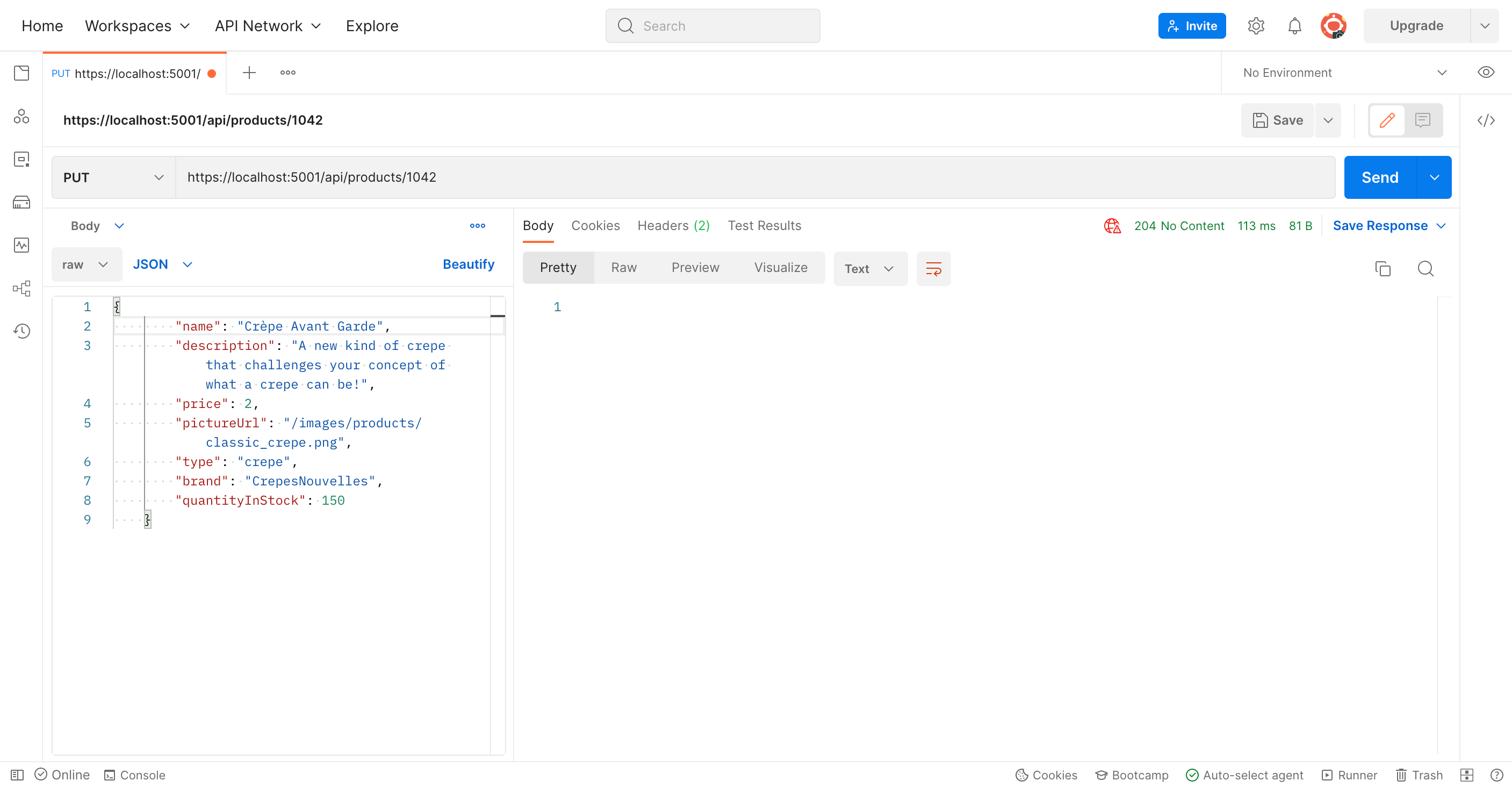
> PRELIMINARY STEP: for convenience, copy the result of a GET/{id} query above, so you'll have everything for editing the record and preserving the rest of it
> In first dropdown (look for "Send" button, and then go to far left of the same row):
    Select "PUT" from dropdown
> In central field, right of "PUT":
    http://localhost:5000/api/products/{id}
    ({id} is an integer - an item's database key.  Try http://localhost:5000/api/products/1 if unsure)
> In row of options below top field:
    select "Body"
> In new row that appears just below
    select "raw" (NOTE: an empty box will appear below.  This will be used shortly)
> In "Text" dropdown that appears in same row
    select "JSON"
> In the empty box that appeared when clicking "raw" (above)
    - Paste in the text copied in the preliminary step above.
    - Edit any value for the other lines to create your new item (each line has a ":", dividing the field on its left from the valule on its right)
    - Make sure there are still opening and closing curly braces around your entry ({})
> Hit "Send" Button
> [result DOES NOT appear in Response Body below]
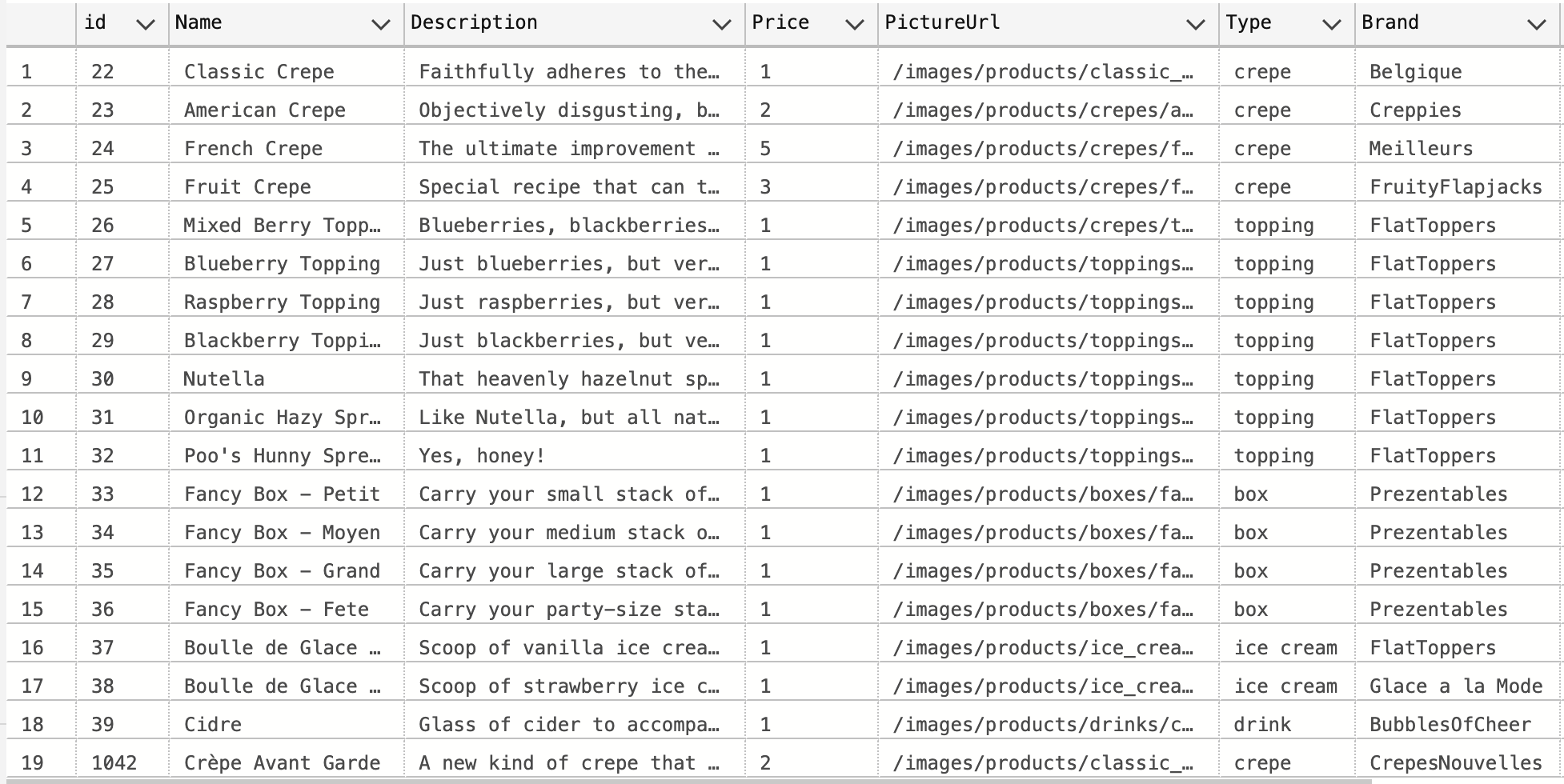
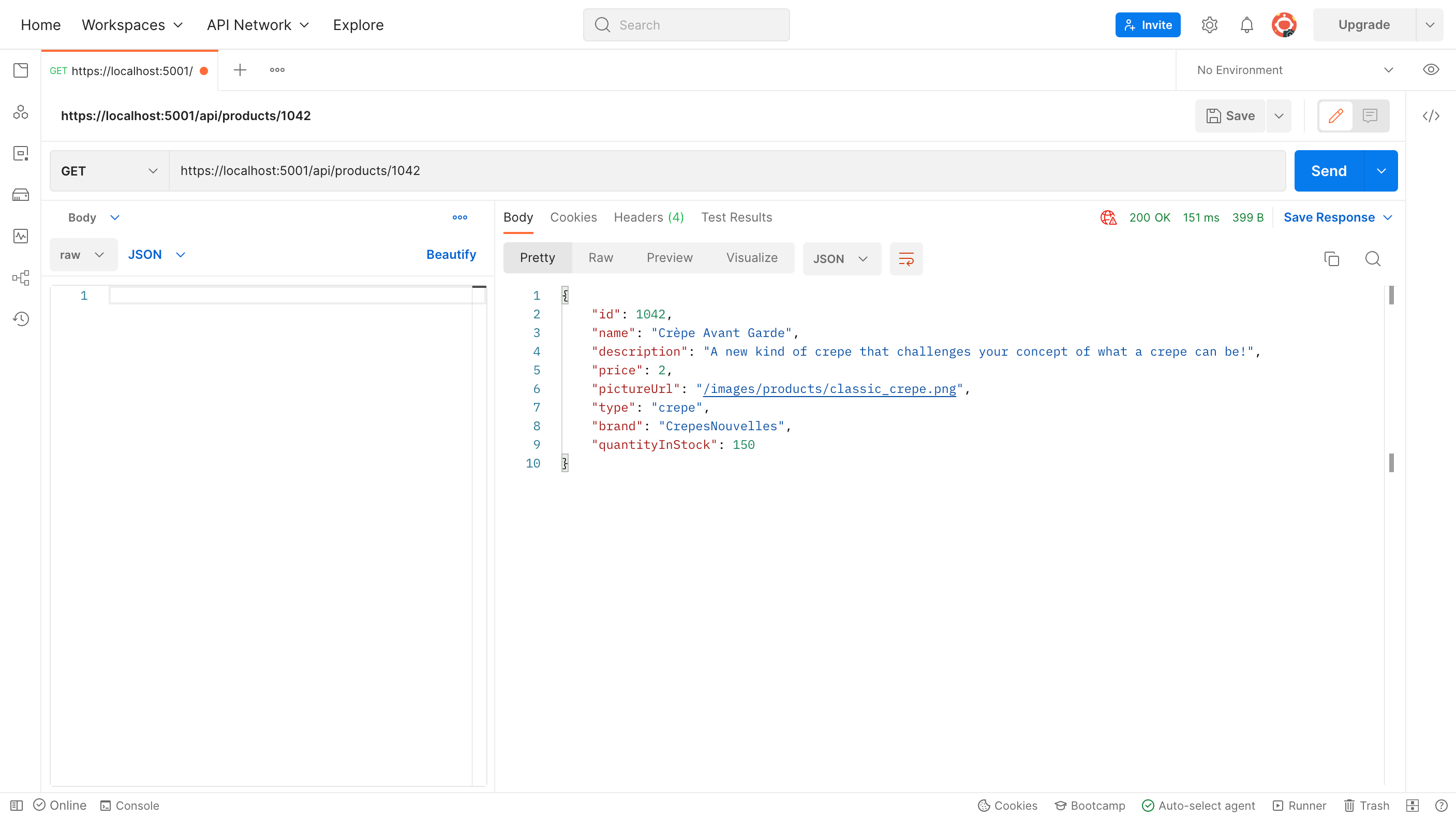
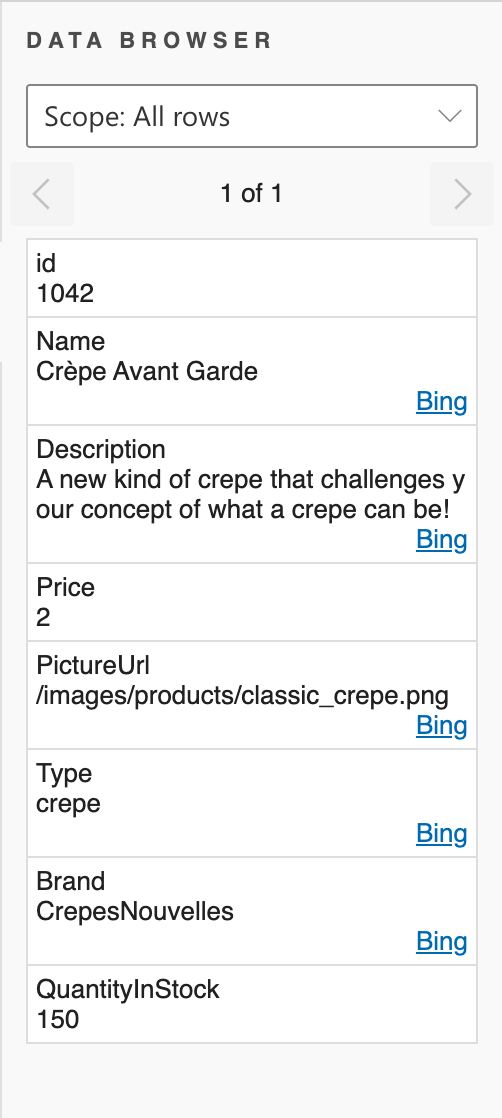
> TO SEE THE RESULT...
    - make note of the record's id number
    - change the first dropdown from "PUT" back to "GET"
    - add /{id} to the end of the URL field to the right of the "GET" dropdown (replace {id} with the id record's number)
    - Hit "Send" Button
    - [your edited item should now appear in the Response body]
> PRELIMINARY STEP: find/confirm the id of the record you want to delete.
    - FIND: perform a GET query above, and search the results for the record in question.  Make note of the "id" value
    - CONFIRM: if you think you know the id, perform a GET/{id} query above, and check that the result matches your expectations
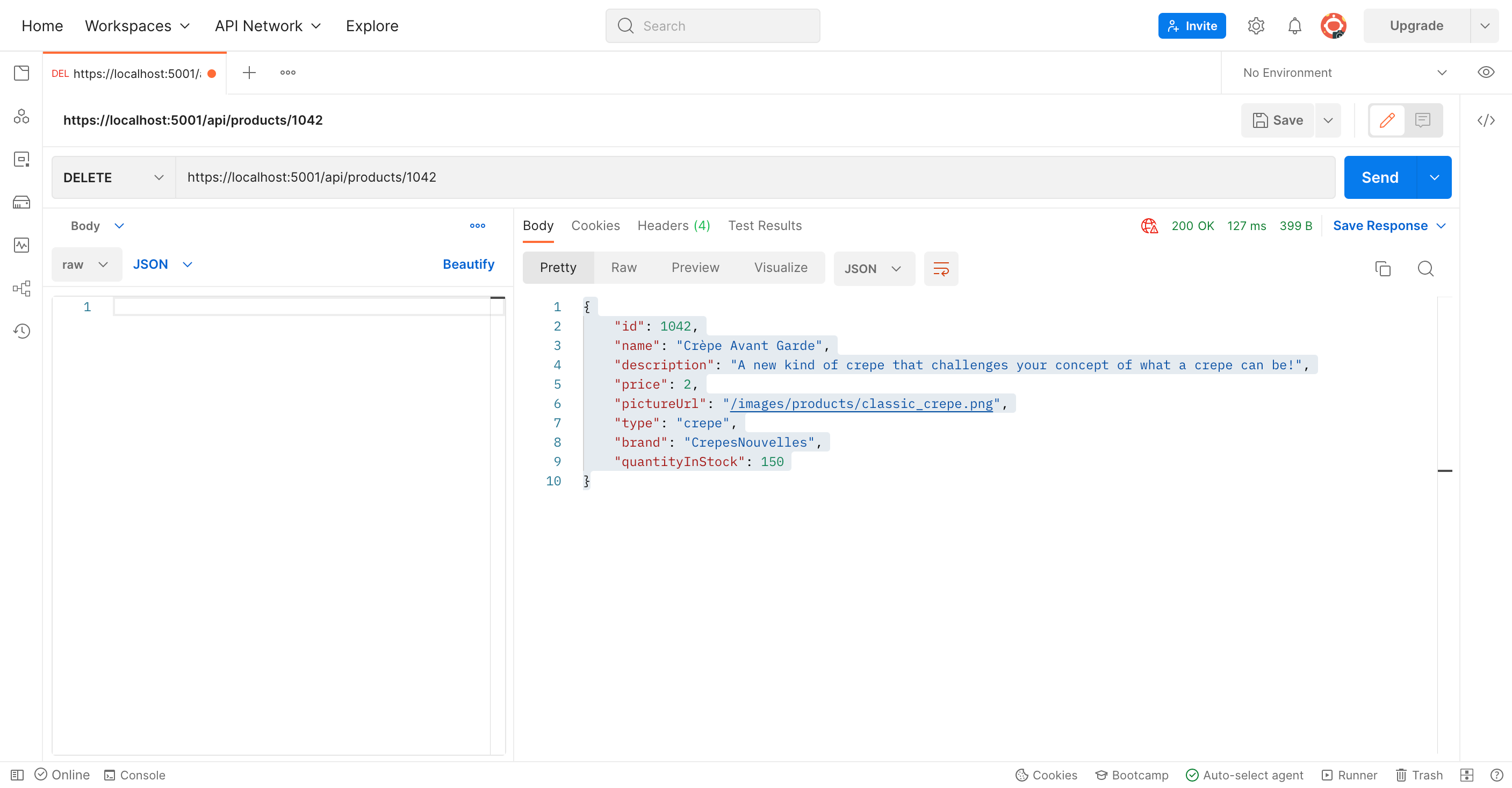
> In first dropdown (look for "Send" button, and then go to far left of the same row):
    Select "DELETE" from dropdown
> In central field, right of "DELETE"
  http://localhost:5000/api/products/{id}
  ({id} is an integer - an item's database key.  Try http://localhost:5000/api/products/1 if unsure)
> Hit "Send" Button
> [your deleted item WILL appear in the Response body]
> Run a GET/{id} to confirm that it is deleted (the result should be an empty Response body)