Shelfline is a terminal bookshelf for OPDS catalogs: browse Calibre-Web and other OPDS 1.x libraries, download books, manage a local library, and read EPUBs from the terminal.
The app is catalog-first: add an OPDS catalog, browse folders and book entries, download one book at a time, then read supported EPUB text directly inside the terminal.
- Calibre-Web users who browse their library through OPDS.
- Self-hosters with private OPDS book catalogs.
- Terminal-first readers who want keyboard-first download, library, and EPUB reading workflows.
- People managing local ebook collections across Windows and Linux.
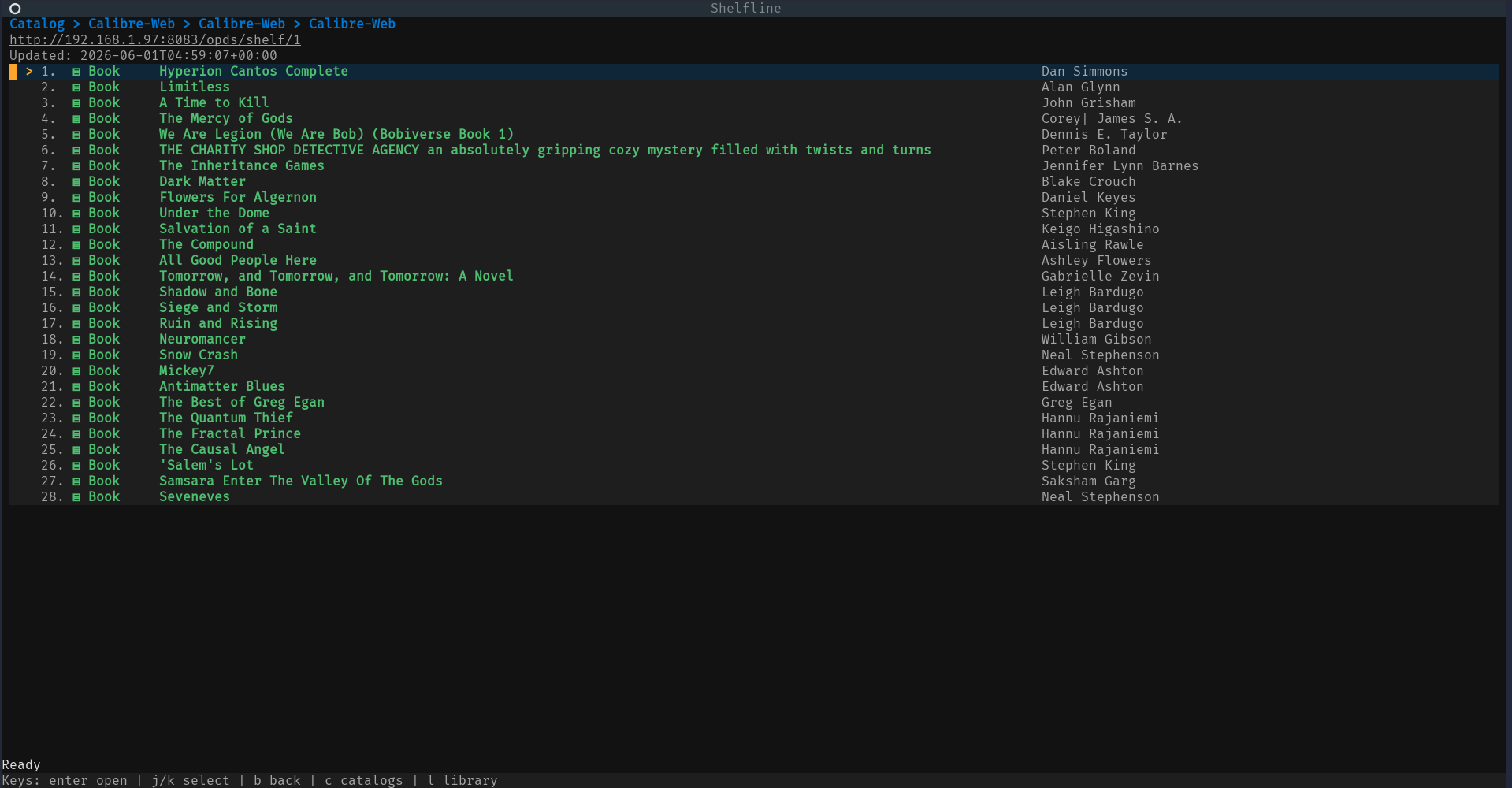
OPDS catalog book listing from Calibre-Web, showing authors and the current selection:
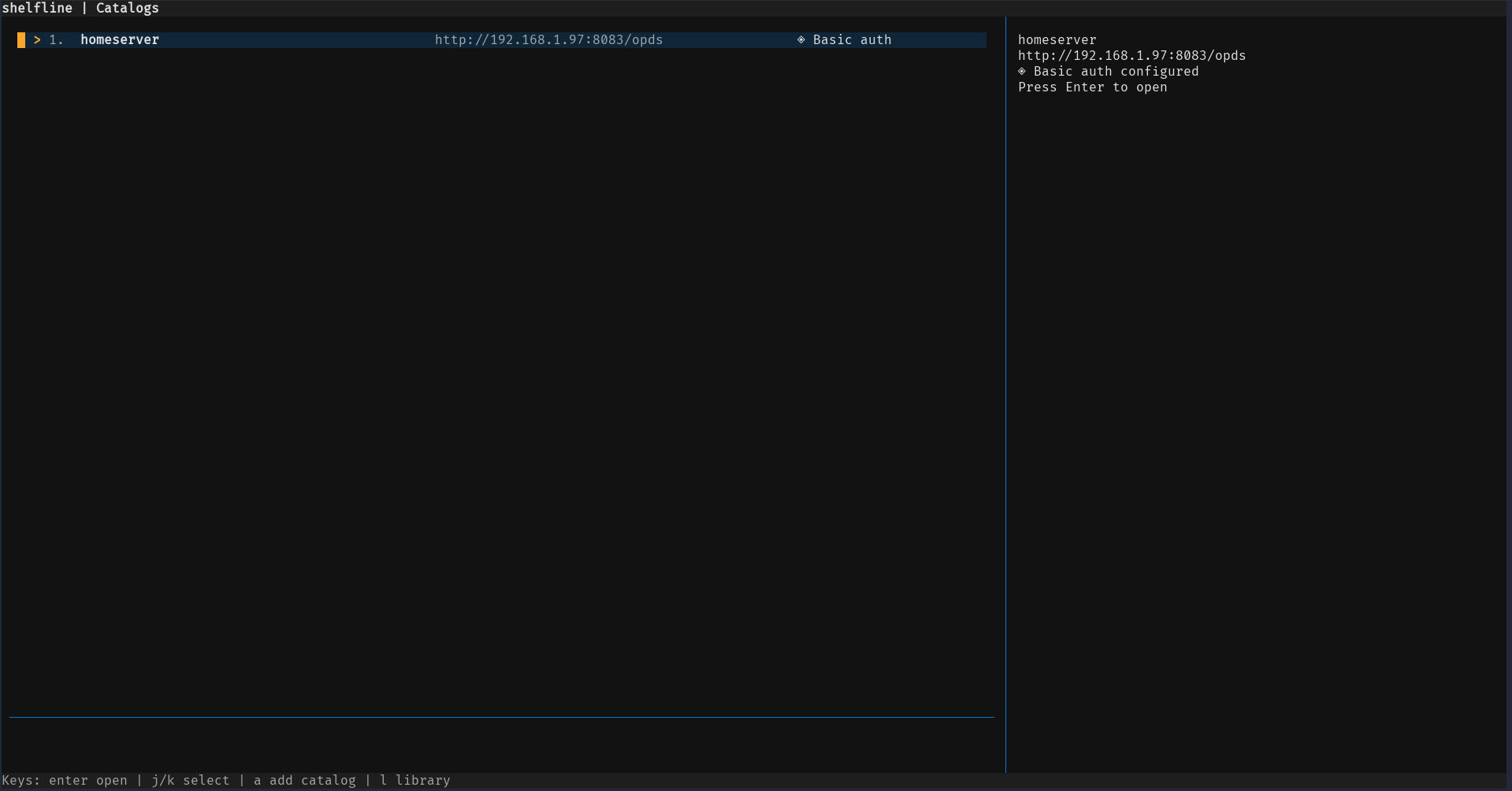
Saved catalog selector with the catalog detail pane:
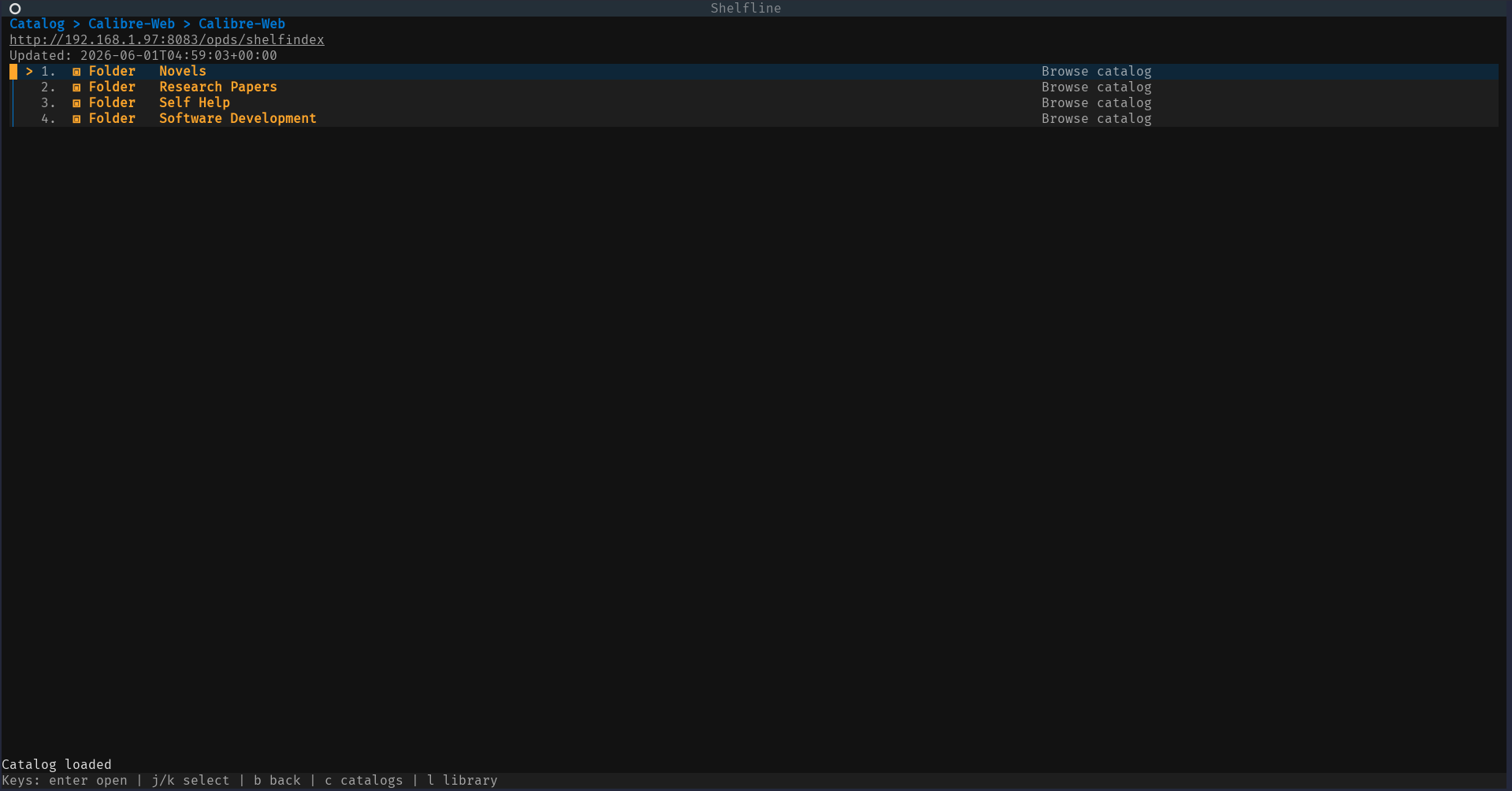
OPDS folder and group navigation:
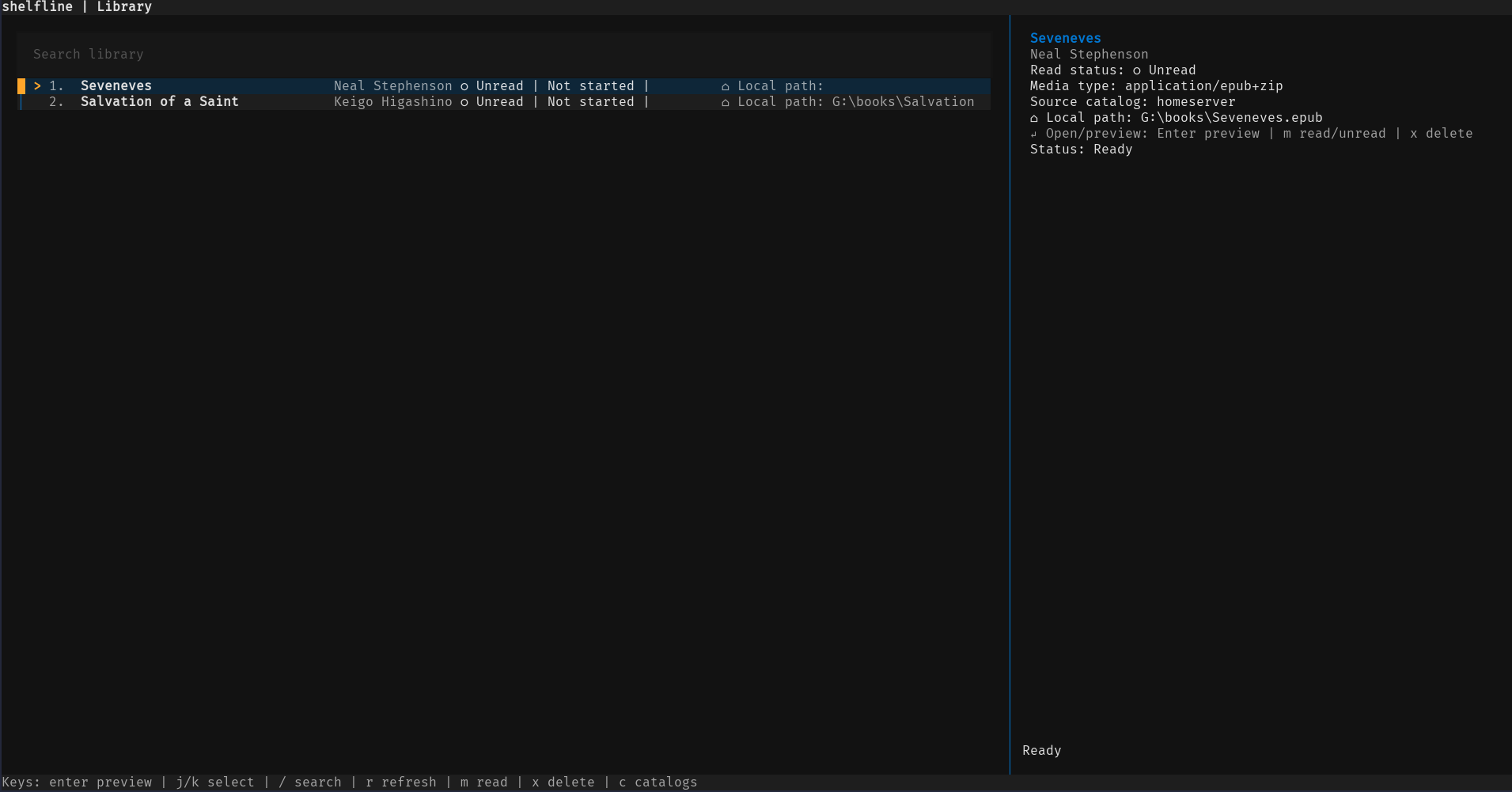
Local library with book details:
EPUB reader view:
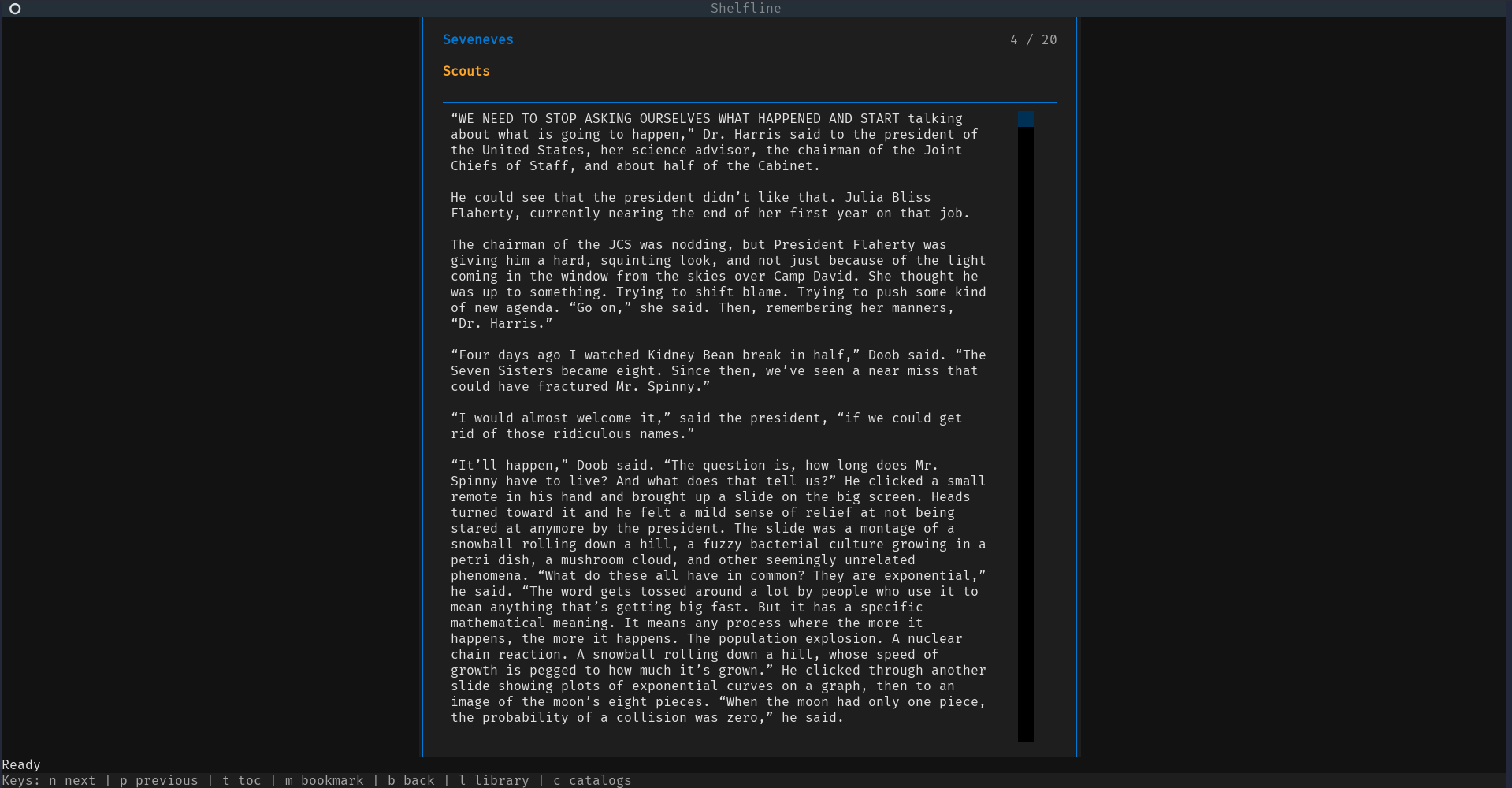
- Browse OPDS 1.x Atom catalogs, including nested folders/groups.
- Access public catalogs and catalogs protected with HTTP Basic Auth.
- Add and edit saved catalog details through a human-editable JSON config file.
- Download EPUB, PDF, DjVu, CBR, CBZ, and other acquisition formats.
- Track downloaded books in a local library.
- Search downloaded books by title and author.
- Mark books read/unread.
- Delete downloaded books from the library.
- Show known-total download progress as percentage/bytes and unknown totals with a byte counter.
- Show busy indicators while the app waits on catalog, refresh, navigation, and download-related outgoing calls.
- Cache OPDS and EPUB cover images under the configured library path at
.shelfline/covers/. - Show title/author metadata and optional covers in catalog and library detail
views. When
preferences.covers.displayisauto, Shelfline may use terminal graphics where supported and falls back to a polished text cover otherwise. - Preview and read EPUB text in the terminal.
- Navigate EPUB sections, open a table of contents with
t, and jump to a selected section. - Save and resume EPUB reading progress for library-backed books.
- Add/remove local EPUB bookmarks at the current section.
- Tune the EPUB reader width, theme, paragraph spacing, progress display, chapter title display, and default Zen Mode through JSON preferences.
- Store catalog metadata in JSON and local book state/cache in SQLite.
- Resolve Basic Auth passwords from an OS keyring reference where configured, with a JSON password fallback for portable or headless setups.
- Python 3.11 or newer.
- Windows or Linux. macOS should work where the Python dependencies support it, but Windows and Linux are the primary targets.
- A terminal that can run Textual applications.
- Network access to any OPDS catalogs you want to browse.
- An existing local directory to use as the book download/library path.
Python package dependencies are declared in pyproject.toml:
textualrichhttpxfeedparserebooklibkeyring
Terminal graphics cover rendering is optional. Install the images extra to
enable the optional textual-image dependency:
python -m pip install "shelfline[images]"For the clearest cover images, use a terminal that supports a real raster image
protocol and set preferences.covers.renderer to match it. tgp targets the
Kitty Terminal Graphics Protocol, and sixel targets Sixel-capable terminals.
halfcell and unicode are portable terminal-cell approximations, so they are
useful fallbacks but are not pixel-perfect. The default auto lets
textual-image choose the renderer.
Development and test dependencies are available through the dev extra.
The recommended install path is pipx, which keeps Shelfline isolated from
your project Python environments while still exposing the shelfline command:
pipx install shelfline
shelfline
If you do not use pipx, install from PyPI with pip:
python -m pip install shelfline
shelfline
Upgrade an existing install with:
pipx upgrade shelflineor:
python -m pip install --upgrade shelflineRelease notes and publishing details live in docs/release.md.
For development or local testing, clone the repository and install the package in editable mode:
Windows PowerShell:
git clone https://github.com/nikhilsahoo/shelfline.git
cd shelfline
python -m pip install -e ".[dev]"
shelfline
Linux shell:
git clone https://github.com/nikhilsahoo/shelfline.git
cd shelfline
python -m pip install -e '.[dev]'
shelfline
Run the app from an editable checkout with either the console script or module entrypoint:
shelfline
python -m shelflineUse --config to point at a specific JSON config file:
python -m shelfline --config .\config.json
shelfline --config C:\Users\you\AppData\Roaming\shelfline\config.json
Without --config, Shelfline looks for a config file at:
- Windows:
%APPDATA%\shelfline\config.json - Linux/macOS with
XDG_CONFIG_HOME:$XDG_CONFIG_HOME/shelfline/config.json - Linux/macOS fallback:
~/.config/shelfline/config.json
If the config file is missing, the app opens the setup screen and asks for an existing library/download directory.
Example config:
{
  "library_path": "C:/Users/you/Books/shelfline",
  "catalogs": [
    {
      "name": "Public OPDS",
      "url": "https://example.test/opds"
    },
    {
      "name": "Private Library",
      "url": "https://library.example.test/opds",
      "auth": {
        "username": "reader@example.test",
        "password": "change-me"
      }
    }
  ],
  "preferences": {}
}
Reader and cover behavior can be configured under preferences. Cover display
defaults to auto, which tries terminal image rendering when the optional image
dependency and terminal support are available, then falls back to text. Use
text to always use the text cover fallback, or off to disable cover display.
{
  "preferences": {
    "covers": {
      "display": "auto",
      "prefer_thumbnails": true,
      "renderer": "auto"
    },
    "reader": {
      "width": "medium",
      "theme": "default",
      "paragraph_spacing": "normal",
      "show_progress": true,
      "show_chapter_title": true,
      "zen_mode_default": false
    }
  }
}
Reader width accepts narrow, medium, or wide; theme accepts default,
warm, or high_contrast; and paragraph_spacing accepts compact, normal,
or relaxed.
Cover display accepts auto, text, or off. Cover renderer accepts
auto, tgp, sixel, halfcell, unicode, or text. Use
renderer: "text" when you want cover metadata/status without mounting any
terminal image widget.
Catalog metadata remains in JSON. Basic Auth usernames remain visible in JSON.
Passwords can be resolved from the OS keyring when the catalog config uses a
password_ref. JSON auth.password remains supported as an explicit fallback
for editable config files, headless environments, and portable setups where
keyring access is unavailable.
Use password_ref to point at a keyring service/reference:
{
  "library_path": "C:/Users/you/Books/shelfline",
  "catalogs": [
    {
      "name": "Private Library",
      "url": "https://library.example.test/opds",
      "auth": {
        "username": "reader@example.test",
        "password_ref": "shelfline:Private%20Library"
      }
    }
  ],
  "preferences": {}
}
The JSON fallback remains valid:
{
  "auth": {
    "username": "reader@example.test",
    "password": "change-me"
  }
}Common keys:
c: show catalogs.a: add a catalog.l: show library.j/down: move selection down.k/up: move selection up.enter: open selected item.b: go back from screens that support back navigation.d: download the selected acquisition from an entry screen.m: mark a library book read/unread, or add/remove a reader bookmark.x: delete a library book.r: refresh the library.q: quit.
Catalog feeds show breadcrumbs for nested OPDS folders and label rows as folder, book, or entry rows with terminal-friendly glyphs. Download status screens show percentage and byte progress where the server reports a content length and an indeterminate byte counter otherwise.
Catalog and library detail panes can show cached cover metadata and optional
cover art. Covers are cached below the configured library path in
.shelfline/covers/; when cover display is enabled and image rendering is
unavailable, Shelfline shows a text fallback designed for terminals. Set
preferences.covers.renderer to tgp or sixel for high-fidelity output on
compatible terminals, or set preferences.covers.display to off to disable
cover display entirely.
l: open the local library./: focus the library search box.enter: apply the current search while the search box is active, or open the selected book otherwise.j/down: move to the next book.k/up: move to the previous book.r: refresh the library, preserving the current search when one is active.m: mark the selected book read/unread.x: delete the selected book and clear its saved progress/bookmarks.
Library rows show title, authors, read state, media type, source catalog, and local file path. Search matches downloaded book titles and authors from the local SQLite library metadata.
n: next EPUB section.p: previous EPUB section.t: open the table of contents.g: open the bookmark navigator.o: open reader options.z: toggle Zen Mode.enter: jump to the selected table-of-contents entry while the TOC is open.m: add a bookmark at the current section, or remove an existing bookmark at the same section and position.b: back to the previous screen.c: show catalogs.l: show library.q: quit.
Opening a downloaded EPUB from the library starts the reader. When the reader moves between sections or jumps through the table of contents, Shelfline saves reading progress to the local SQLite state database. Reopening the same library-backed EPUB resumes at the saved section. If progress cannot be loaded or saved, the reader keeps working and shows a recoverable status message.
Bookmarks are local-only. Pressing m in the reader adds a bookmark labeled
with the current section heading. Pressing m again at the same section and
position removes the existing bookmark.
Zen Mode hides nonessential reader chrome while keeping navigation keys active. Reader options can change width during a reading session and save the updated preference back to the JSON config.
- JSON config stores the user-selected library path, saved catalogs, and editable preferences.
- SQLite local state stores downloaded book metadata, feed cache, reading progress, bookmarks, and read/unread state.
- Downloaded files are stored in the configured library path.
- Cached covers are stored in the configured library path under
.shelfline/covers/. - Keyring-backed credentials can be resolved through the operating system
keyring backend when a catalog uses
auth.password_ref.
Shelfline does not automatically migrate old epub-tui data yet. Previous config
files used %APPDATA%\epub-tui\config.json,
$XDG_CONFIG_HOME/epub-tui/config.json, or ~/.config/epub-tui/config.json;
new config paths use shelfline instead. The old local state DB was under the
configured library path at .epub-tui/state.db; the new state DB is
.shelfline/state.db. Old keyring references used the epub-tui: prefix, and
new references use shelfline:.
To preserve catalog config, reading progress, bookmarks, and local metadata, users can manually copy or move the config file and state DB. Password references may need to be updated or re-saved in the keyring.
Run the full test suite and CLI smoke check before merging or releasing:
python -m pytest -v
python -m shelfline --help
Manual smoke checklist for an interactive terminal and test OPDS catalog:
- First-run setup accepts an existing library/download directory.
- Add OPDS catalog works.
- Basic Auth catalog works with a configured keyring password reference or the documented JSON password fallback.
- Browse nested OPDS folders.
- Open a book detail page.
- Download an EPUB.
- Open Library.
- Search Library.
- Mark a book read/unread.
- Open an EPUB reader from the library.
- Navigate reader sections with
nandp. - Open the reader table of contents with
tand jump to another section. - Toggle Zen Mode with
z. - Open reader options with
o. - Open the bookmark navigator with
g. - Close and reopen the EPUB, confirming progress resumes at the saved section.
- Add a bookmark with
m, then pressmagain at the same section to remove it. - Trigger a duplicate download error and confirm the error remains visible.
- Add OPDS 2.x support.
- Add OAuth or browser-based authentication.
- Render downloaded PDF, DjVu, CBR, and CBZ files in the terminal.
- Add queued or multi-file downloads.
- Improve EPUB rendering beyond text-focused, section-based reading.
- Add annotations, sync, and full-text book search.
- Add author recommendations using AuthorDive APIs.