The Bubble Machine is an online simulation that displays how disinformation through social networks influences the creation of filter bubbles. The API is developed by Marcio Fuckner, a researcher at the University of Applied Sciences of Amsterdam.
For this project, we used his API and made the front-end interface together with students from the minor User Experience Design. The goal is to give journalists a clear and nice experience when using this tool.
See my personal progress and reflection in the wiki. Link to the wiki
The Responsible IT computer model is currently not accessible to the public. The resulting outcome of this project is a public web application that is a pleasure to use. The researchers have created a web API and data source for the model. Students from the minor User Experience design will design the User Experience and a UI.
Develop a interactive, instructive an intuitive web application with the API. By running the simulator with different parameters, users can visualise, compare and analyse the consequence of combining various factors.
So the biggest problem is that we have Marcio's API, but it only runs on his local machine and has an awful user experience regarding the front-end. Together with students from the minor User Experience Design, it is up to us to recreate a front-end experience that is user-friendly and give meaning to the data visualization, which is now really hard to understand.
For a more detailed document about the goal, the problem and what the project is about. There is a more detailed debriefing in the wiki.
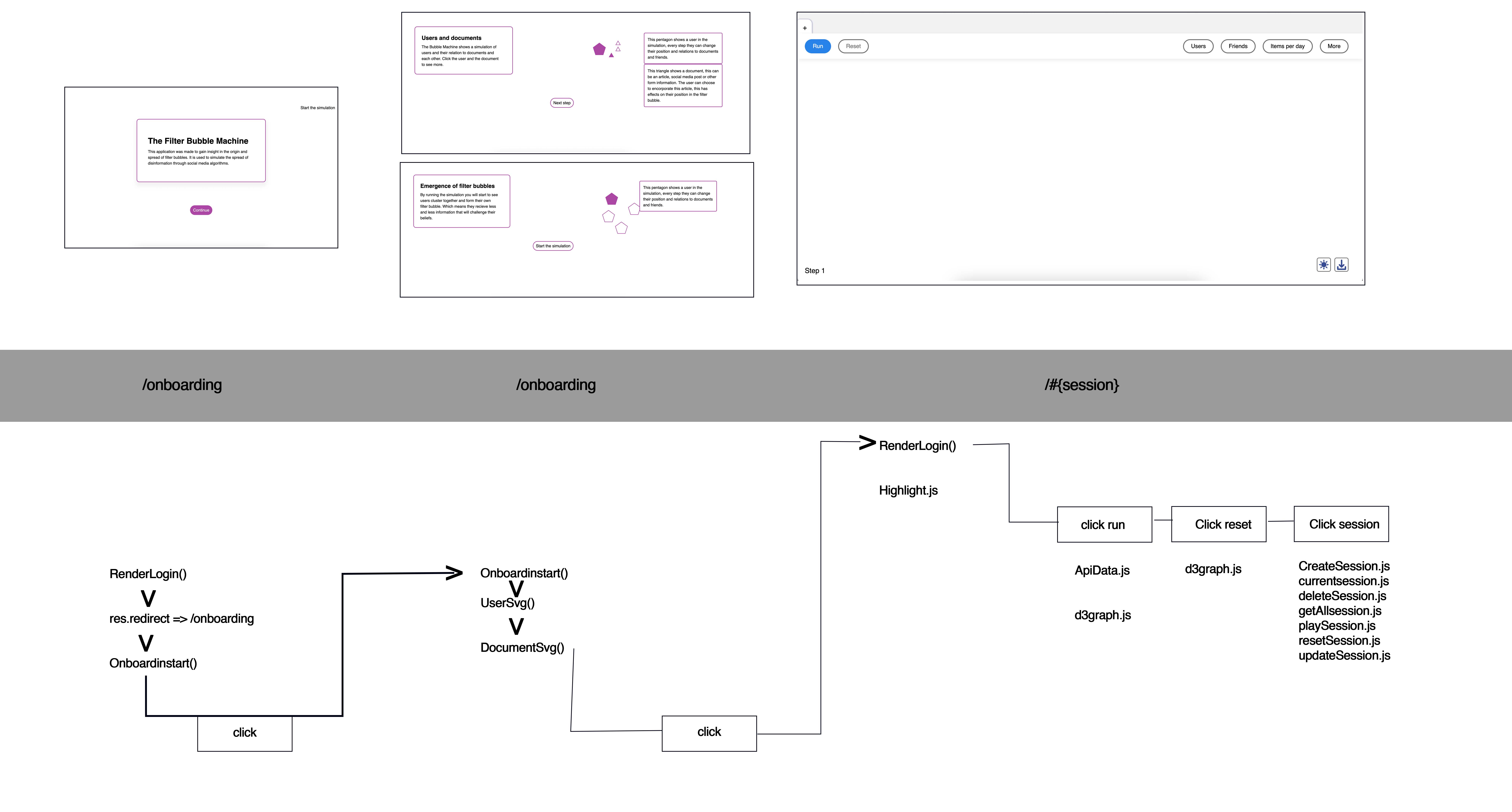
This is the final interface of our assignment. Because the API changed last minute, we weren't able to fully incorporate all the features we had planned.

The first step is to make a session with the desired parameters. Which looks like this.

After that, you run the simulation. If everything is working accordingly, you'll see the persons moving.

It is possible to hover over nodes to see the connected nodes. Which looks like this.

More information can be found with the link below. Information about the API
Because there were multiple request types, we wrote a function that takes the type of request and the URL. The code is written here down below.
export const fetchDataFromAPI = async (method, url) => {
  if (method === 'DELETE') {
    fetch(url, {
      method: `${method}`
    })
  } else if (method === 'POST') {
    const response = await fetch(url, {
      body: body,
      headers: {
        Accept: '*/*',
        'Content-Type': 'application/json'
      },
      method: `${method}`
    })
    const data = await response.json()
    return data
  } else if (method === 'PUT') {
    await fetch(url, {
      body: body,
      headers: {
        Accept: '*/*',
        'Content-Type': 'application/json'
      },
      method: `${method}`
    })
  } else {
    const response = await fetch(url, {
      method: `${method}`,
      mode: 'cors'
    })
    const data = await response.json()
    return data
  }
}
Because there were some issues with the CORS policy, we had to implement the mode into the fetch request.
More information can be found with the link below. Information about the D3 Library
We first implemented variables for different screen sizes to make sure the graph was always at the right screen size. This is necessary because D3 requires you to specify the width and height of the SVG.
const width = window.innerWidth
const height = window.innerHeight
const header = document.querySelector('header')
const headerHeight = header.getBoundingClientRect().height
const svgHeight = height - headerHeight
const margin = { width: (0.1 * width), height: (0.1 * svgHeight) }
Defining the scales so that all the x and y coordinates are spread across the right axis instead of the defining.
const xScale = d3.scaleLinear().range([0 + margin.width, width - margin.width])
const yScale = d3.scaleLinear().range([0 + margin.height, svgHeight - margin.height - 65])
In the next piece of code, we created the function that makes the graph with the data from the API. For every node that gets returned by the API, it gets plotted at the scales that we predefined above.
const updateGraph = async (data) => {
  // Create the svg in the body
  const nodes = data.nodes
  xScale.domain([d3.min(nodes, (d) => d.x), d3.max(nodes, (d) => d.x)])
  yScale.domain([d3.min(nodes, (d) => d.y), d3.max(nodes, (d) => d.y)])

  const circle = svg
    .selectAll('rect')
    .data(nodes)
    .join(
      (enter) => {
        enter = enter.append('rect')
        return enter
      },
      (update) => update,
      (exit) => exit.remove()
    )
At the node it makes a circle (in previous versions it was a circle, this was later changed in the CSS) with specific attributes. Which are defined below
  circle
    .attr('opacity', '0.2')
    .attr('class', (nodes) => nodes.label)
    // .attr('fill', '#2781e7b2')
    .attr('class', (nodes) => nodes.label)
    .attr('x', (nodes) => xScale(nodes.x))
    .attr('y', (nodes) => yScale(nodes.y))
    .attr('width', (nodes) => {
      if (nodes.label === 'person') {
        return 30
      } else {
        return 10
      }
    })
    .attr('height', (nodes) => {
      if (nodes.label === 'person') {
        return 30
      } else {
        return 10
      }
    })
    .attr('id', (nodes) => {
      return 'node' + nodes.id
})One of the client's desires was to have it update in real time with web sockets. So when a parameter was changed, it would update in real-time. This would never be the case because when we received the latest API update, it is only possible to define the parameters when you make a session. To give it at least some sense of real time updating, we made a function that auto-updates the D3 graph. The code works by getting the API data with a delay to not upset the API. A nice effect was that by doing this, the graph became much more legible because we see the clusters really forming.
const wait = (ms) => new Promise(resolve => setTimeout(resolve, ms))

let play = false

export const autoPlay = async (sessionID) => {
  const counter = await fetchDataFromAPI('GET', `https://bubble-machine-api-dummy.herokuapp.com/rest/session/${sessionID}/step`)
  const playDiv = document.querySelector('#runSim')

  if (playDiv.textContent === 'Run') {
    playDiv.textContent = 'Stop'
  } else {
    playDiv.textContent = 'Run'
  }

  play = !play
  for (let i = await counter.step; i <= 100; i++) {
    while (play === true) {
      const step = await fetchDataFromAPI('POST', `https://bubble-machine-api-dummy.herokuapp.com/rest/session/${sessionID}/step`);
      document.querySelector(".steps").textContent = `Step ${step.step}`;
      const data = await fetchDataFromAPI('GET', `https://bubble-machine-api-dummy.herokuapp.com/rest/session/${sessionID}`)
      updateGraph(await data)
      await wait(2000)
    }
  }
}- Clone this repository.
- In your terminal, go to the repository folder and write
npm install - Write
npm startin your terminal - go to localhost:4100 in your browser
Joeri Bouwman Nora Kramer Remco Kuckelkorn Tim Meeuwsen