Common Issues
There are a couple of common issues folks run into. I try to fix them/accept PR's when possible, but there are a few things I've simply held off on. Why? I'm building a new version that's cross-platform compatible, and I'm trying to get infrastructure setup for things like auto-update.
In the meantime, here are some common issues and workarounds:
Some versions (particularly 1.1.8 and nvm-update.exe) are not code-signed. Some antivirus services use machine learning algorithms to determine threats on unsigned executables. If your antivirus recognizes a threat with a name like !ml, ML or .ML, it indicates a machine learning algorithm is making a guess about the application. These are not the same as known virus signatures. NVM4W has no malicious code, but version 1.1.8 is not code signed. See the release notes under the WARNING section for details.
After an undetermined number of installations, Microsoft Defender and Microsoft SmartScreen will trust the application. However; there is no way of knowing what that number is. You may need to make an exception in your antivirus for NVM4W.
If you cannot download a release, you may need to temporarily disable realtime protection. Always remember to turn this back on after your download completes!

Take note that running nvm-update.exe will download nvm-setup.zip, then extract all of the relevant files to update your installation and cleanup when done. You may need to temporarily disable Windows Defender realtime protection while doing this as well.
This issue should be resolved as of version 1.1.8.
If you are working with an older version...
Some environments aren't picking up on space-escaping. If you're having problems with Windows recognizing NVM4W, try installing it on a path with no spaces, like C:\nvm. The same situation is relevant for the symlink path, so you may want to use something other than C:\Program Files\nodejs for the symlink root.
Windows requires elevated administrative privileges to perform specific functions or use special directories. For example, administrative privileges are required to write to anything in C:\Program Files. Elevated permissions are required to use Windows mklink command, which is responsible for the nvm use command.
There is no way around this, because it's a security feature of the operating system. Every program has to deal with this. Remember that NVM4W is basically an installer, so it needs installer-like permissions.
Several people have complained about this, and I'm sorry... but I'm not the guy to talk to about that. Your best bet is to reach out to Microsoft.
The installer attempts to take over any existing installations of Node for you, but the process can be more complex than it appears. The most common source of problems is when users install NVM4W using a different account or with different permissions than those which are used to install prior versions. The bottom line is permissions for installing/uninstalling applications are quite strict and NVM4W may not be able to absorb prior installations.
The best course of action is to uninstall prior versions of Node before installing NVM4W. In some cases, you can uninstall prior versions afterwards, but the only reliable way I've consistently seen it work is by removing prior versions before installing NVM4W.
Depending on which version of Windows you have and how your desktop is setup, there can be issues with modifying a path in the registry for an application you don't control, user accounts associated with an existing app, roaming profiles, etc.
I only have a couple of versions of Windows to test on, but it's far from the complete Microsoft Windows catalog. Again, the one consistent solution that always seems to work is uninstalling Node before installing NVM4W.
If you are getting the following when attempting to upgrade your npm version, your best bet is to use this solution, https://github.com/felixrieseberg/npm-windows-upgrade:
npm ERR! path C:\Program Files\nodejs\npm.cmd npm ERR! code EEXIST npm ERR! Refusing to delete C:\Program Files\nodejs\npm.cmd: is outside C:\Program Files\nodejs\node_modules\npm and not a link npm ERR! File exists: C:\Program Files\nodejs\npm.cmd npm ERR! Move it away, and try again.
Some older versions of npm have hard coded paths that prevent automatic removal. Several users have found manual workarounds that work well.
Yarn is an npm package. npm install -g yarn will install it. Remember, yarn is not officially released with Node.js, so this will need to be repeated for each new installation of Node.js.
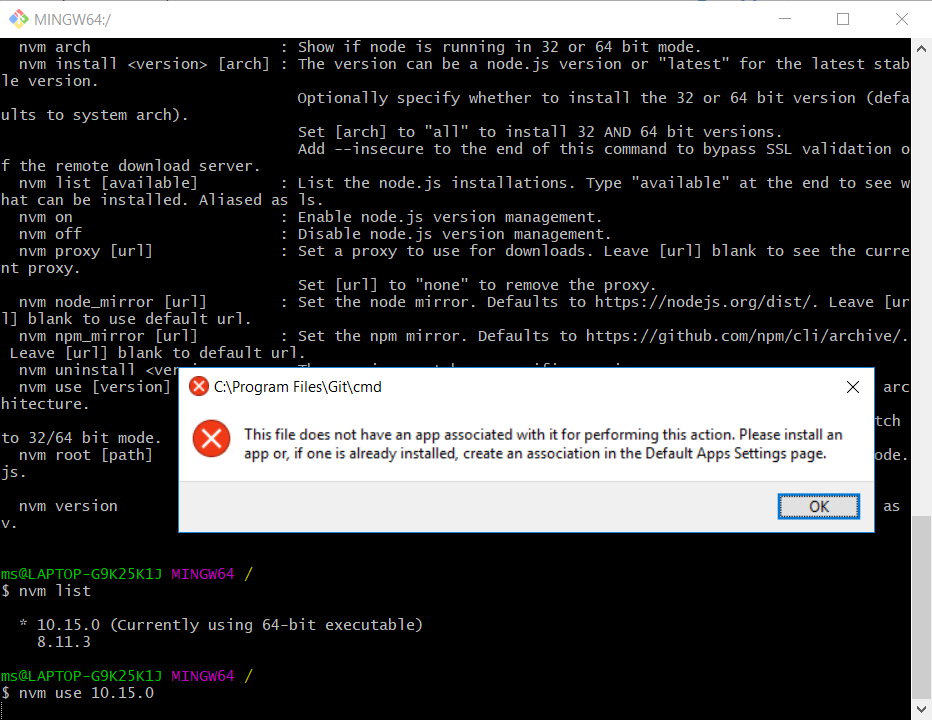
Per issue #417, some shells do not respect UAC prompts (i.e. requesting administrator permissions). NVM for Windows cannot control how terminals work, and due to the sheer number of custom terminals available (mingw, cmder, ConEmu, cygwin, hyper, etc). Only official Windows terminals are supported (CMD and PowerShell). Bash for Windows support may come in the future.
If you are using a special terminal that does not respect UAC requests, you may see errors like this:
If Windows cannot find NVM, try restarting the terminal/powershell first. If the issue persists, it may be due to a misconfiguration in the terminal. See this stackoverflow answer for a possible fix.