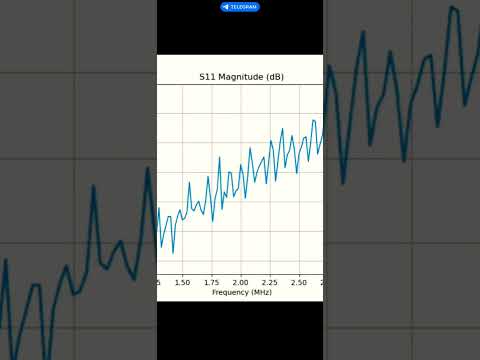
Video where RigExpert Match is controlled remotely via Telegram channel:
A set of Python scripts for controlling the RigExpert Match Antenna Analyzer and plotting Touchstone data, with AI agent integration in mind.
A command-line interface for controlling the RigExpert Match Antenna Analyzer.
- Read Data: Read R and X values from the analyzer and output in Touchstone format.
- Status Check: Check the connection status of the analyzer.
- Trace Mode: Enable trace mode to output raw data from the analyzer for debugging.
- Frequency Input: Support for frequency input in kHz or MHz with appropriate suffixes.
- Timestamp: Include timestamp in the Touchstone file header.
- Python 3.x
hidlibrary for HID device communicationmatplotlibfor plottingnumpyfor numerical operationsskrffor Smith chart plotting
pip install hidapi matplotlib numpy scikit-rfpython3 match-cli.py -hpython3 match-cli.py statuspython3 match-cli.py read --center 100MHz --range 200MHz --points 100By default, Touchstone data is written to stdout unless --output is provided.
python3 match-cli.py read --center 100MHz --range 200MHz --points 100 --output data.s1ppython3 match-cli.py read --center 100MHz --range 200MHz --points 100 --trace! Touchstone file generated by match-cli.py on 2023-11-15 14:30:45
# MHz Z RI R 50
100.0 49.99 0.04
100.0 50.03 0.07
100.0 50.03 0.03
...
Command sent: FQ100000000
Command sent: SW200000000
Command sent: FRX10
! Touchstone file generated by match-cli.py on 2023-11-15 14:30:45
# MHz Z RI R 50
Raw data: OK
Raw data: OK
Raw data: 0.000000,49.99, 0.04
100.0 49.99 0.04
Raw data: 20.000000,50.03, 0.07
100.0 50.03 0.07
...
A script for plotting Touchstone data from stdin or a file.
- Input Handling: Parse Touchstone data from stdin or a file with
.s1pextension. - Format Detection: Automatically detect the Touchstone format (S,RI, S,MA, S,DB, or Z,RI).
- Plot Generation: Generate plots based on the specified type (SWR to 10, SWR to 2, S11, RX to 1000, RX to 100, Smith chart).
- Output: Save the resulting plot to a file specified by the user.
- Help Display: Display help when run without parameters or with
-hor--help.
- Python 3.x
matplotlibfor plottingnumpyfor numerical operationsskrffor Smith chart plotting
pip install matplotlib numpy scikit-rfpython3 tt-plot.py -hpython3 tt-plot.py --type swr10 --output plot.png < data.s1ppython3 tt-plot.py --type smith --output smith_chart.png data.s1ppython3 tt-plot.py --type rx100 --output rx_plot.png data.s1pPlot saved to plot.png


- S,RI: Real and imaginary parts of the S-parameter.
- S,MA: Magnitude and angle of the S-parameter.
- S,DB: Magnitude in decibels (dB) of the S-parameter.
- Z,RI: Real and imaginary parts of the impedance (Z).
This project is licensed under the MIT License. See the LICENSE file for details.
This code was generated with the help of an AI model, Mistral Vibe.
The scripts have been tested on Raspberry Pi 4 and with OpenClaw AI agent.
This CLI is structured to be easy to call from an external AI agent. A typical agent flow is: detect the analyzer, run a scan with match-cli.py read, then hand the resulting .s1p data to tt-plot.py for visualization, and finally present the plots or computed metrics back to the user.
To integrate with an AI agent:
- Install the Python dependencies listed above on the agent host.
- Copy
match-cli.pyandtt-plot.pyinto the agent’s workspace/tools directory. - Copy the '/skills/re-match/' folder to the '/skills' folder of you AI agent.
- Ensure the agent’s runtime has access to the USB HID device (udev rules below).
- Call the scripts as subprocesses and pass the resulting
.s1pdata to downstream reasoning or visualization steps.
On some systems (notably Volumio/RPI), match-cli.py can see the device only after permissions are granted on the USB device node. The rule below sets group access on the USB device so non-root users can open it.
- Create
/etc/udev/rules.d/99-rigexpert-usb.ruleswith the following content:
SUBSYSTEM=="usb", DEVTYPE=="usb_device", ATTR{idVendor}=="0483", ATTR{idProduct}=="a1de", RUN+="/bin/chgrp plugdev /dev/bus/usb/%E{BUSNUM}/%E{DEVNUM}", RUN+="/bin/chmod 0660 /dev/bus/usb/%E{BUSNUM}/%E{DEVNUM}"
- Ensure the group exists and add your user:
sudo groupadd -f plugdev
sudo usermod -aG plugdev $USER- Reload the rules and replug the device:
sudo udevadm control --reload-rules
sudo udevadm trigger --subsystem-match=usb --action=add- Re-login (or run
newgrp plugdev) and verify:
ls -l /dev/bus/usb/*/*
python3 match-cli.py status
Notes:
- If you still see
open failed, check the permissions on/dev/bus/usb/<bus>/<dev>and ensure it isroot:plugdevwith0660. - A
hidrawrule alone may not be sufficient on all distros; the USB node permissions are the reliable fix.
Contributions are welcome! Please open an issue or submit a pull request for any improvements or bug fixes.
For support, please contact the project maintainers or open an issue on the project repository.